> ## Documentation Index
> Fetch the complete documentation index at: https://syteca.com/docs/llms.txt
> Use this file to discover all available pages before exploring further.
# Endpoint Access Control
> Require administrator approval before users log in to Windows and Linux Client computers in Syteca - always, or only outside defined work hours.
Endpoint Access Control restricts who can log in to Client computers by requiring approval from a trusted user (an Approver). You build a list of restricted users, and they can only log in to the Client computers you specify - either **always** with approval, or **only outside defined work hours**. It's available for Windows and Linux Clients.
When monitoring the GUI for X11 sessions is enabled, this feature is only available for sessions started using a remote SSH terminal.
You manage it on the **Endpoint Access Control** tab of the [Access Requests](/docs/pam/access/access-requests) page.
## Two restriction modes
| Mode | When approval is required |
| --------------------------------------------------- | ----------------------------------------------------------------------------------------- |
| **Always require approval on login** | Every time the user logs in. |
| **Allow access without approval during work hours** | Only outside the hours, days, and dates you define. Inside them, the user logs in freely. |
**Allow access without approval during work hours** is available for Windows and Linux Clients. If GUI monitoring is enabled for X11 sessions, it only applies to sessions started over remote SSH - not local X11 sessions.
## Add a restricted user
Sign in to the Management Tool with the [User Management administrative permission](/docs/administration/users/administrative-permissions), click **Access Requests**, select the **Endpoint Access Control** tab, and click **Add**.
On the **General** tab, in **User with Restricted Access Rights**, select the **User type** and then the specifics:
* **Active Directory user** - select the **Domain** and the **User / User group**.
* **Local computer user** - select the **Computer name** and **User login**.
* **Syteca user for secondary authentication** - select the **User login**. *(Required if secondary user authentication is enabled on any Client the user logs in to.)*
* **Linux user** - select the **User login**.
In **Accessed Computer with Installed Client**, select a **Computer Type**:
* **Any computer** - restrict access to all computers (Linux user or Syteca secondary-auth user).
* **Selected computer** - a specific computer or computer group (AD or secondary-auth user); select the domain and computer/group.
* **Computers from Client group** - a specific Client group (AD, Linux, or secondary-auth user).
Access is only restricted on computers that have a Client installed.
In **Users Who Can Approve Access**, select the trusted users who can approve this user's requests - from the email link they receive or on the [Access Requests](/docs/pam/access/access-requests) tab.
Approvers need a correct email address on their [user account](/docs/administration/users/users#edit-a-user). By default, a request not processed within 30 minutes expires; change this in **System Settings** on the Configuration page.
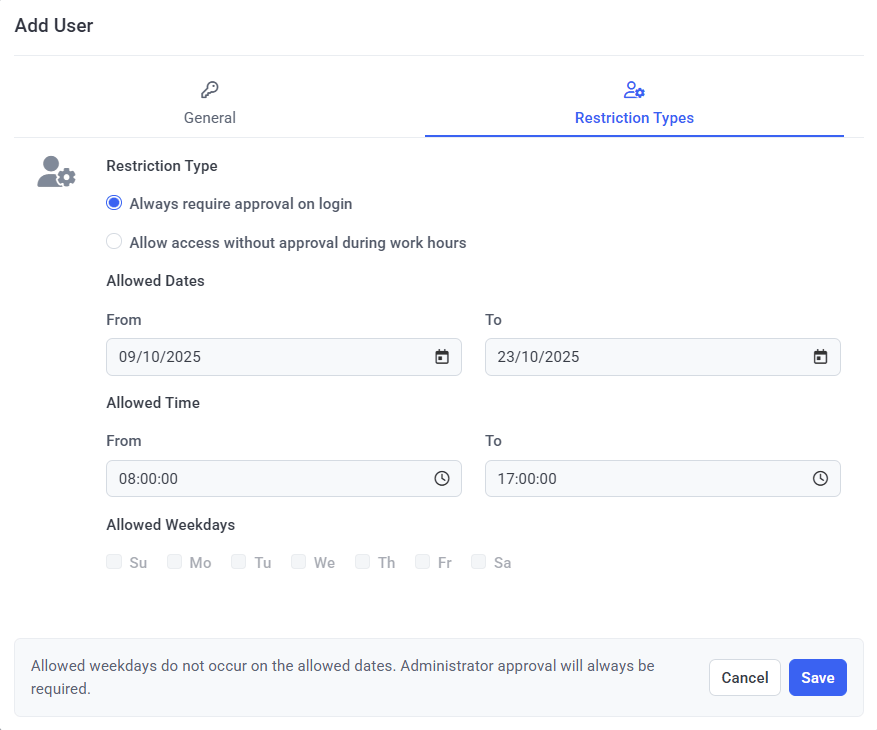
On the **Restriction Types** tab, choose your mode:
Select **Always require approval on login**. The user needs Approver sign-off every time they log in.
Select **Allow access without approval during work hours**, then define the date range, work hours, and days of the week. Inside those times the user logs in freely; outside them, approval is required.
Click **Save**. The user appears in the grid and the restriction applies on their next login.
 ## Edit a restriction
Click the user's row in the grid on the **Endpoint Access Control** tab, change any setting across the **General** and **Restriction Types** tabs - including switching between the two restriction modes - and click **Save**.
## Remove a restriction
Select the user's checkbox in the grid and use the **Remove** action (or the remove icon on the row). The user can then log in without approval. *(Removing a restriction does not delete the user from Syteca; it only lifts the login restriction.)*
## How login works for a restricted user
They log in to the Client computer normally (locally or remotely). If [secondary authentication](/docs/administration/clients/parameters/secondary-user-authentication) is enabled, they enter those credentials; if an [additional login message](/docs/administration/clients/parameters/additional-login-message) is enabled, they acknowledge it.
The request is emailed to the Approvers and appears on the [Access Requests](/docs/pam/access/access-requests) tab.
An Approver clicks **Approve** (then **Confirm**) and the user logs in, or **Deny** and the login is blocked.
## Related
Where Approvers process all access requests.
Add a TOTP second factor to Client logins.
## Edit a restriction
Click the user's row in the grid on the **Endpoint Access Control** tab, change any setting across the **General** and **Restriction Types** tabs - including switching between the two restriction modes - and click **Save**.
## Remove a restriction
Select the user's checkbox in the grid and use the **Remove** action (or the remove icon on the row). The user can then log in without approval. *(Removing a restriction does not delete the user from Syteca; it only lifts the login restriction.)*
## How login works for a restricted user
They log in to the Client computer normally (locally or remotely). If [secondary authentication](/docs/administration/clients/parameters/secondary-user-authentication) is enabled, they enter those credentials; if an [additional login message](/docs/administration/clients/parameters/additional-login-message) is enabled, they acknowledge it.
The request is emailed to the Approvers and appears on the [Access Requests](/docs/pam/access/access-requests) tab.
An Approver clicks **Approve** (then **Confirm**) and the user logs in, or **Deny** and the login is blocked.
## Related
Where Approvers process all access requests.
Add a TOTP second factor to Client logins.