> ## Documentation Index
> Fetch the complete documentation index at: https://syteca.com/docs/llms.txt
> Use this file to discover all available pages before exploring further.
# macOS Hidden Client
> Stealth-mode macOS Client for monitoring without visible indicators - alternative to the standard macOS Client when users shouldn't know monitoring is active.
## When monitoring needs to stay out of sight
Most employee monitoring scenarios are openly disclosed - users are told the system exists, what it records, and why. But some scenarios require monitoring **without the user knowing it's active**: investigations into suspected insider threats already under way, supervised access for users under legal restriction, executive monitoring under court order, and similar high-sensitivity cases. The standard macOS Client makes visible noise - Syteca-branded process names, the **Syteca Session Client** entry in Accessibility permissions, screen-capture pop-up notifications in the menu bar. For these specific scenarios, that visibility defeats the purpose.
Most named competitors with macOS coverage offer a stealth-mode option for exactly these use cases. The **macOS Hidden Client** is Syteca's equivalent: same monitoring engine as the standard macOS Client, same Management Tool integration, same session recording - but with the visible identifying details removed.
**The macOS Hidden Client differs from the standard macOS Client in three ways:**
* **Process names don't contain references to Syteca** - they look like regular system processes.
* **No Syteca icons** appear next to process names or in system surfaces.
* **Screen-capture pop-up notifications are suppressed** in the macOS menu bar (requires macOS 14.3 Sonoma or higher - see the note below for the standard Client option too).
Monitoring capability, recording quality, and Management Tool integration are otherwise **identical** to the standard macOS Client.
**Legal and ethical compliance is the deploying organization's responsibility.** Stealth-mode endpoint monitoring is restricted or prohibited in many jurisdictions (EU GDPR, some US states, parts of LATAM and APAC) without specific legal authority. Confirm with your legal team that your use case is permissible **before** deploying the Hidden Client. For deployments in works-council and consent-required environments, see the [Pseudonymizer](/docs/session-monitoring/masking/pseudonymizer) instead - different feature for a different compliance model.
**Screen-capture notification suppression** is also available on the **standard** macOS Client when running macOS 14.3 (Sonoma) or higher. The Hidden Client extends this further by also hiding all Syteca-branded process names and icons.
## Get the Hidden Client installation package
The macOS Hidden Client installation package is **not available for download from the Management Tool** - this is intentional, to limit the surface area for accidental deployment. Two ways to obtain it:
| Source | How |
| ----------------------- | --------------------------------------------------------------------------------------------------------------------------------------------------- |
| **Syteca Support team** | Contact Support and request the macOS Hidden Client package. They'll provide it after confirming your use case. |
| **Application Server** | If you have access to the Application Server computer, the package lives at: `C:\Program Files\Ekran System\Ekran System\Server\MacOSHiddenPackage` |
The package file is `macos_hidden_agent_universal.tar.gz`, and it contains a `SytecaHiddenClient-.pkg` installer.
## Install the Hidden Client
Installation works the same way as for the [standard macOS Client](/docs/administration/clients/macos), with **one critical difference**: the macOS permissions ("Accessibility" and "Screen & System Audio Recording") must be granted to the **System Analysis** application - not to "Syteca Session Client" as for the standard Client.
This naming is part of the stealth design: the System Analysis name doesn't reveal that monitoring is active.
Use the bundled `install.sh` script for direct installation on a single Mac. See [Install macOS Clients using the command line](/docs/administration/clients/install-macos#install-the-macos-client-from-the-command-line) - the procedure is identical except for the package filename and the permissions-grant target.
Use Jamf Pro for remote mass deployment. See [Remote mass deployment on macOS Clients using Jamf Pro](/docs/administration/clients/install-macos#remote-mass-deployment-using-jamf-pro) for the full procedure.
Use VMware Workspace ONE UEM for remote mass deployment. See [Remote mass deployment on macOS Clients using VMware Workspace ONE UEM](/docs/administration/clients/install-macos#remote-mass-deployment-using-vmware-workspace-one-uem) for the full procedure.
**The standard macOS Client and the macOS Hidden Client are not backward-compatible with each other** - you can't install one on top of the other. To change the Client type on an endpoint:
1. Uninstall the currently-installed Client (see [Uninstall Clients](/docs/administration/clients/uninstall#uninstall-clients-locally) → macOS tab).
2. Install the other type.
This is one of the few cases where in-place migration isn't supported.
## Update the Hidden Client
Remote update from the Management Tool works exactly the same way as for the [standard macOS Client](/docs/administration/clients/update-clients) - both automatically (if auto-update is enabled) or manually. No special considerations.
## Uninstall the Hidden Client
Uninstall procedures are identical to the standard macOS Client - both [remote uninstall from the Management Tool](/docs/administration/clients/uninstall#uninstall-clients-remotely) and [local uninstall on the endpoint](/docs/administration/clients/uninstall#uninstall-clients-locally) work the same way. The Hidden Client uses the same Uninstallation key as standard Clients.
## How to spot a Hidden Client in the Management Tool
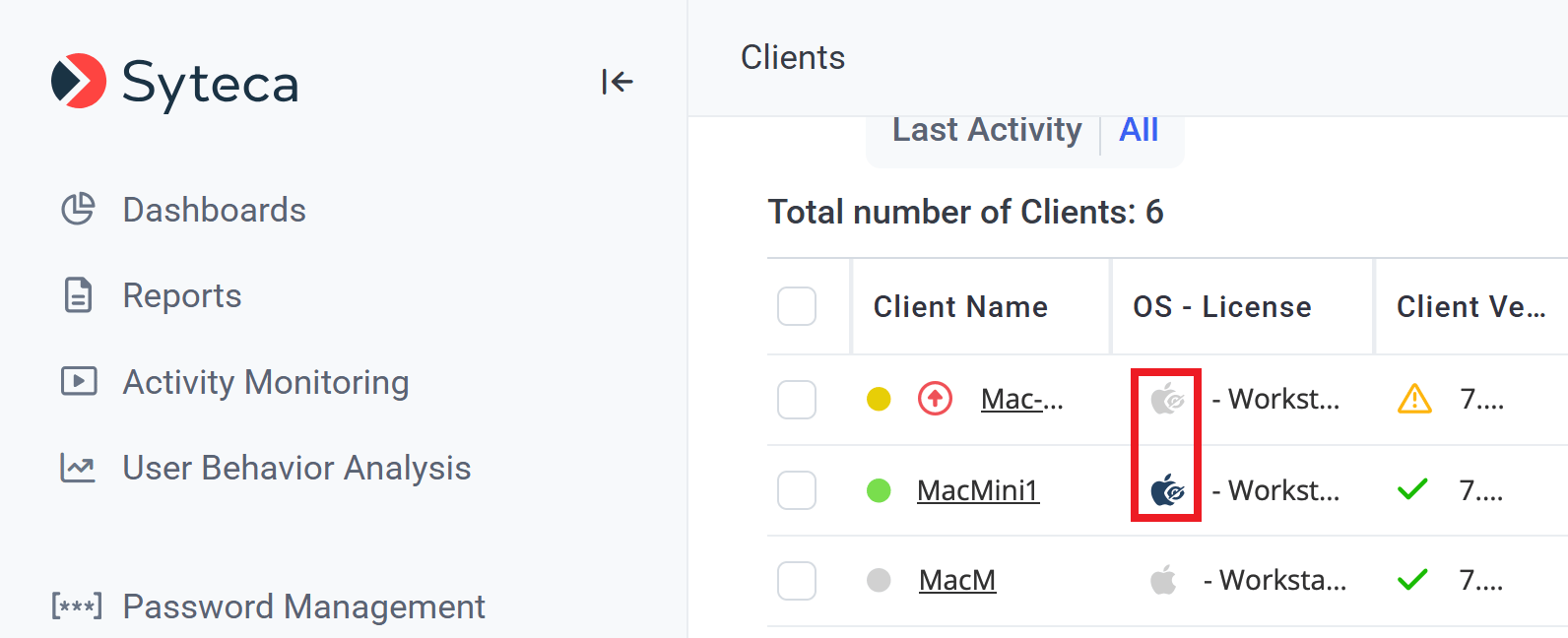
To Management Tool users with appropriate permissions, Hidden Clients are not hidden - they just look slightly different in the Clients list. The Hidden Client icon includes a **small crossed-out eye** symbol added to the standard macOS icon, distinguishing it from the standard macOS Client in the [Clients page](/docs/administration/clients/overview) and the [Sessions list](/docs/session-monitoring/sessions-list).
 ## Related
The standard (visible) macOS Client - most macOS deployments use this.
Remote and local uninstall procedures, identical for Hidden and standard Clients.
For consent-required environments (EU GDPR, works councils) - different compliance model than stealth monitoring.
How Hidden Clients appear in the Clients inventory (with the crossed-out eye icon).
## Related
The standard (visible) macOS Client - most macOS deployments use this.
Remote and local uninstall procedures, identical for Hidden and standard Clients.
For consent-required environments (EU GDPR, works councils) - different compliance model than stealth monitoring.
How Hidden Clients appear in the Clients inventory (with the crossed-out eye icon).