> ## Documentation Index
> Fetch the complete documentation index at: https://syteca.com/docs/llms.txt
> Use this file to discover all available pages before exploring further.
# macOS Clients
> Syteca's macOS endpoint agent: record user sessions on Macs with multiple-display capture, manage native macOS permissions, and stream events to the Application Server.
## Endpoint user activity monitoring on macOS
The **macOS Client** is the Syteca agent that runs on Macs to record user activity - screen captures across multiple displays, applications, websites, idle vs active time, and keystrokes. It works the same way the Windows Client does, with the addition of Apple's stricter permission model: macOS requires the user (or your MDM) to explicitly grant Accessibility, Screen Recording, and (on Ventura and later) Allow in Background permissions before the Client can do its job. The setup process handles this; this page covers what to do when those permissions get revoked or never get granted in the first place.
Macs are increasingly common in regulated environments, financial firms, and design-heavy departments - places where endpoint monitoring used to be a Windows-only conversation. The macOS Client closes that gap on the same Syteca platform.
**Use the macOS Client when you need to:**
* Record user sessions on Mac workstations alongside your Windows and Linux endpoints - one platform, one set of reviews.
* Investigate insider risk on a fleet that's mixed-OS or Mac-heavy.
* Meet compliance requirements that demand parity across operating systems (PCI DSS, HIPAA, SOC 2).
* Deploy at scale via MDM (Jamf Pro,Workspace ONE UEM) with the macOS permissions pre-granted.
This page is the operational reference: how the macOS Client behaves, its offline cache, and how to read and fix its status in the Management Tool - including the macOS-specific permission troubleshooting.
For installation, configuration parameters, and uninstallation, see the dedicated pages under this section.
## How a macOS Client operates
* **Starts automatically** with the computer.
* **Monitors one session at a time.** A macOS Client with a Workstation endpoint license monitors **either** one local session **or** one remote session.
* **Records a new session every login** (and every restart). The maximum duration of one session is **24 hours** - all live sessions terminate at midnight, change from **Live** to **Finished**, and new live sessions start automatically.
* **Records all monitors** if the user has multiple displays connected.
* **Session status transitions.** A session changes to **Finished** when the user logs out, the computer is turned off, or the Client is disconnected from the Application Server. When the Client reconnects, the session returns from **Finished** to **Live**.
* **Self-heals.** If the Client ever stops, the system services watchdog restarts it automatically.
macOS Clients use [AES-256 encryption](/docs/administration/security/encryption) to exchange binary data with the Application Server.
## Offline behavior
If the Client loses connection to the Application Server, it stores monitoring data locally and resumes sending as soon as the connection is restored. The default offline storage location is:
```text theme={"system"}
/Library/Application Support/Ekran
```
The Client stops writing to the offline cache if there is **less than 500 MB** of free space on the drive.
## Recording frequency
By default, the macOS Client records user activity at these intervals (averaged - see the note below):
| Trigger | Default frequency |
| -------------------------- | ----------------- |
| **Typing** | every 10 seconds |
| **Mouse clicking** | every 3 seconds |
| **Active window changing** | every 3 seconds |
Recording triggers influence each other, so the **average** frequency is usually lower than the defaults above.
## Read the Client status
### Up-to-date Client
If [automatic update](/docs/administration/clients/update-clients) is enabled, the Client updates itself as soon as it connects to a newer Application Server.
### Not-up-to-date Client
If the **Update Client automatically** checkbox is **not** selected for a Client, it must be [updated manually](/docs/administration/clients/update-clients#update-manually). Such Clients appear with a **gray (offline) status icon** in the Clients list.
Clients that aren't up to date **continue to monitor user activity and send data** to the Application Server as normal. After an update, the monitored data recorded **before** the update remains accessible.
It may not be possible to update very old versions of macOS Clients. In that case, reinstall the Client instead.
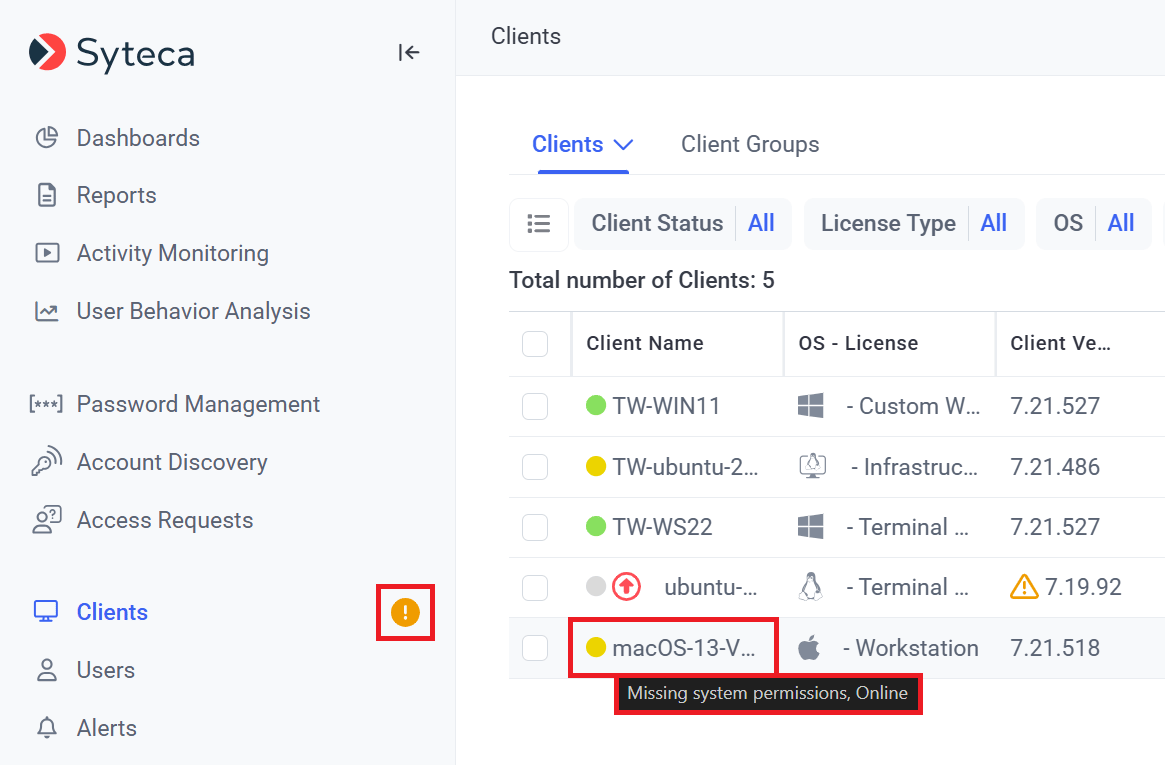
### Yellow status icon - missing macOS permissions
If a macOS Client appears with a **yellow status icon** in the Clients list, it's missing required macOS permissions. The cause depends on what the hover tooltip shows.
The Client doesn't have the required **Accessibility** and **Screen Recording** permissions.
**Resolve:** allow the missing macOS permissions for the Client manually. See [Installing macOS Clients locally using the command line](/docs/administration/clients/install-macos#install-the-macos-client-from-the-command-line) for the permission-granting steps.
The Client doesn't have the required **Allow in Background** macOS permission.
**Resolve:** open **System Preferences → General → Login Items** and turn on the **Syteca Client** toggle.
When using the hidden macOS Client (instead of the standard macOS Client), the toggle is named **System Client** rather than Syteca Client.
If **at least one Client** anywhere has an issue, a yellow exclamation mark also appears next to the **Clients** navigation link in the left menu.
 ## Related
Automatic and manual update procedures for any OS.
The Windows equivalent - local and multiple concurrent sessions.
Terminal, SSH, and GUI monitoring on Linux.
Online / Offline / Disconnected Client counts.
## Related
Automatic and manual update procedures for any OS.
The Windows equivalent - local and multiple concurrent sessions.
Terminal, SSH, and GUI monitoring on Linux.
Online / Offline / Disconnected Client counts.