> ## Documentation Index
> Fetch the complete documentation index at: https://syteca.com/docs/llms.txt
> Use this file to discover all available pages before exploring further.
# The Clients Page
> The Syteca Clients page: a single grid showing every Windows, macOS, and Linux Client in the deployment — with status, version, license, Last Activity, Client Groups, and inheritance state.
The **Clients** page is the central inventory of every Syteca Client installed across your deployment — Windows, macOS, and Linux all in one grid. From here you install new Clients, edit configurations, manage [Client groups](/docs/administration/clients/client-groups), assign and unassign licenses, edit the [Client Uninstallation key](/docs/administration/clients/uninstall#the-client-uninstallation-key), manage the [Blocked Users list](/docs/session-monitoring/block-on-alert#the-blocked-users-list), and run bulk operations across many Clients at once.
For per-OS installation and configuration, see the per-OS pages: [Windows](/docs/administration/clients/windows), [macOS](/docs/administration/clients/macos), [Linux](/docs/administration/clients/linux). For removing Clients, see [Uninstall Clients](/docs/administration/clients/uninstall).
## Open the Clients page
Sign in to the Management Tool, click **Clients** in the left navigation. The Clients tab is shown by default; the **Client Groups** tab is the peer view.
## What you see
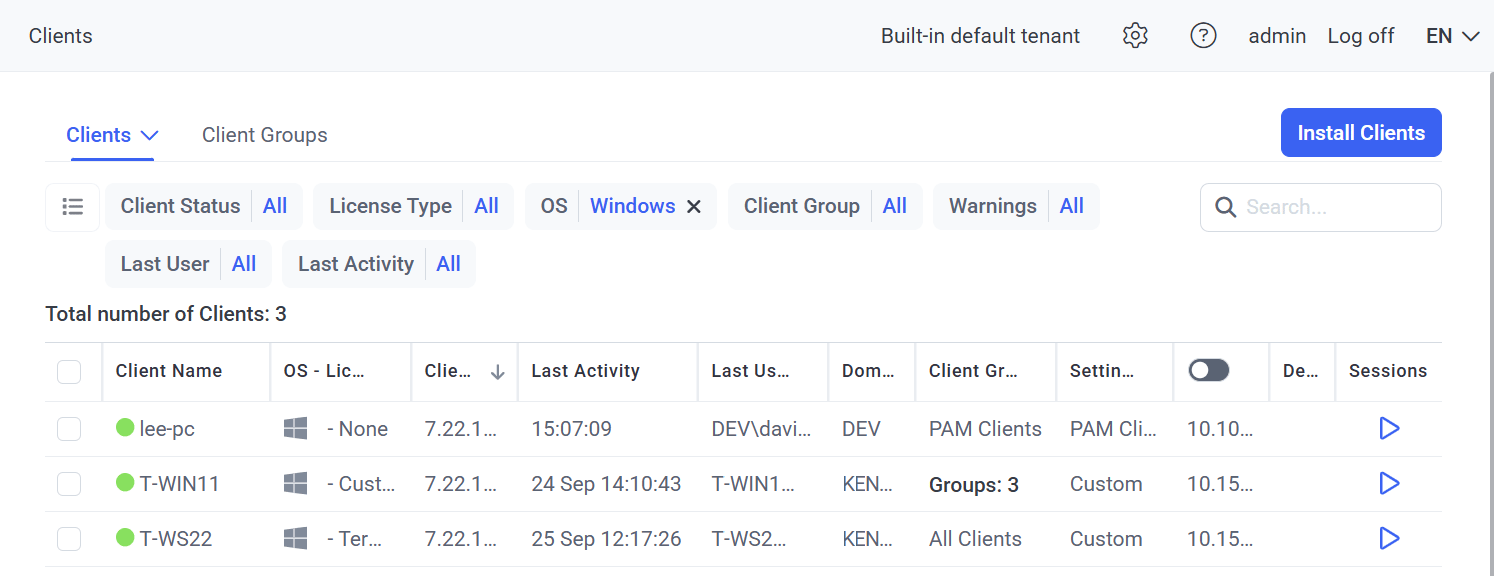
The grid shows the full list of Clients you have permission to view:
| Permission level | Visible Clients |
| ---------------------------------------------------------------------------------------------------------------------------------------- | ----------------------------------------------------------------------------------------------------- |
| [Administrative Client Installation and Management](/docs/administration/users/administrative-permissions#client-installation-and-management) | All Clients in the deployment. |
| Otherwise | Only Clients with at least one [Client permission](/docs/administration/users/client-permissions) granted. |
The default columns:
| Column | Contains |
| ------------------------ | --------------------------------------------------------------------------------------------------------------------------------------------------------------------------------- |
| **Client Name** | Client name, plus a status icon — **Online** (green dot), **Offline** (gray), or **issue detected** (red), and a **red up-arrow** icon if the Client isn't on the latest version. |
| **OS - License** | OS icon and the type of license assigned. |
| **Client Version** | Current version number, plus a **green checkmark** if up to date or an **orange warning triangle** if an update is available. |
| **Last Activity** | Time of the last recorded activity on the Client. |
| **Last User** | First and last name of the endpoint user who last logged into the Client. |
| **Domain** | The Client's domain. |
| **Client Groups** | Names of every [Client group](/docs/administration/clients/client-groups) the Client belongs to. *(See behavior below.)* |
| **Settings (Inherited)** | Name of the Client group whose settings the Client inherits — or **Custom** if no inheritance. |
| **IPv4 / IPv6** | The Client's IPv4 / IPv6 address. |
| **Description** | The Client's custom description. |
| **Sessions** *(icon)* | Click to open the Client's sessions on the [Activity Monitoring](/docs/session-monitoring/sessions-list) page, pre-filtered by the **Where** filter. |
When **High Availability mode** is enabled, an extra **Node** column appears showing which Application Server (as listed on the [Cluster Settings](/docs/administration/deployment/high-availability) tab) each Client is connected to behind the load balancer. The column is empty for offline Clients.
If at least one Client is experiencing any issue, an **orange exclamation mark** icon appears next to the **Clients** navigation link on the left of the Management Tool — a quick visual heads-up that something on the Clients page needs attention.
### How the Client Groups column displays
| Membership | Displayed value |
| --------------------------------------------------------------- | ------------------------------------------------------------------------- |
| Client belongs only to the **All Clients** group | `All Clients` |
| Client belongs to **All Clients + one** non-default group | The non-default group name (All Clients is not shown) |
| Client belongs to **All Clients + multiple** non-default groups | `Number of Groups: N` — click to expand a list of every non-default group |
Click any group name to open the **Editing Client Group** page for it.
If multiple network cards are installed on a Client computer, only the IPv4 and IPv6 addresses **the Syteca Client is actually using** appear in the IPv4 / IPv6 columns.
 ## Filter, search, and sort
| Action | How |
| -------------------- | ----------------------------------------------------------------------------------------------------------------------------------------------------------------------------------------------------------------------------- |
| **Filter** | Click the **Client Status**, **License Type**, **OS**, **Client Group**, **Warnings**, **Last User**, or **Last Activity** filter at the top of the page and select one or more checkboxes. Multiple filters combine. |
| **Search** | Enter a keyword in the **Search** box in the top right. |
| **Sort** | Click any column header — sort direction is shown by the up/down arrow; click again to reverse. The **Last Activity**, **Domain**, **Description**, and **Sessions** columns can't be sorted. Only one sort column at a time. |
| **Resize columns** | Drag the separator between column headers. |
| **Results per page** | Use the **Results on Page** drop-down in the bottom right. |
## Actions
The Clients page is the launch surface for several operations:
| Action | How |
| ----------------------------------------- | -------------------------------------------------------------------------------------------------------------------------------------------------------------------------------------------------------------------------------------------------------------------------------------------------- |
| **Install new Clients** | Click **Install Clients** in the top right. See [Windows](/docs/administration/clients/windows), [macOS](/docs/administration/clients/macos), or [Linux](/docs/administration/clients/linux) installation. |
| **Edit a Client's configuration** | Click the Client's name in the **Client Name** column. See the per-OS Client pages for what's available. |
| **Edit the Client Uninstallation key** | Click the **Clients** drop-down arrow at the top, then **Edit Uninstallation Key**. See [The Client Uninstallation key](/docs/administration/clients/uninstall#the-client-uninstallation-key). |
| **Manage the Blocked Users list** | Click the **Clients** drop-down, then **Blocked Users List**. See [Block users](/docs/session-monitoring/block-on-alert#the-blocked-users-list). |
| **Manage Client licenses** | Click the **Clients** drop-down, then **License Management**. See [Assign endpoint licenses](/docs/administration/licensing/assign-endpoint-licenses). |
| **Export the filtered Clients list** | Click the **Clients** drop-down, then export the list as currently filtered. |
| **Manage multiple Clients (Bulk Action)** | Select checkboxes next to Clients, then click **Bulk Action** in the top left. Operations include [Manage Group Settings](/docs/administration/clients/client-groups#manage-group-settings-bulk-action), [Uninstall Clients](/docs/administration/clients/uninstall#uninstall-clients-remotely), and others. |
| **Manage Client groups** | Select the **Client Groups** tab at the top of the page. See [Client groups](/docs/administration/clients/client-groups). |
The number of options available depends on the permissions the user has — see [Administrative permissions](/docs/administration/users/administrative-permissions) and [Client permissions](/docs/administration/users/client-permissions).
## Related
Install and configure Syteca Clients on Windows endpoints.
Install and configure Syteca Clients on macOS endpoints.
Install and configure Syteca Clients on Linux endpoints.
Bulk-manage Clients with Client groups and inherited settings.
## Filter, search, and sort
| Action | How |
| -------------------- | ----------------------------------------------------------------------------------------------------------------------------------------------------------------------------------------------------------------------------- |
| **Filter** | Click the **Client Status**, **License Type**, **OS**, **Client Group**, **Warnings**, **Last User**, or **Last Activity** filter at the top of the page and select one or more checkboxes. Multiple filters combine. |
| **Search** | Enter a keyword in the **Search** box in the top right. |
| **Sort** | Click any column header — sort direction is shown by the up/down arrow; click again to reverse. The **Last Activity**, **Domain**, **Description**, and **Sessions** columns can't be sorted. Only one sort column at a time. |
| **Resize columns** | Drag the separator between column headers. |
| **Results per page** | Use the **Results on Page** drop-down in the bottom right. |
## Actions
The Clients page is the launch surface for several operations:
| Action | How |
| ----------------------------------------- | -------------------------------------------------------------------------------------------------------------------------------------------------------------------------------------------------------------------------------------------------------------------------------------------------- |
| **Install new Clients** | Click **Install Clients** in the top right. See [Windows](/docs/administration/clients/windows), [macOS](/docs/administration/clients/macos), or [Linux](/docs/administration/clients/linux) installation. |
| **Edit a Client's configuration** | Click the Client's name in the **Client Name** column. See the per-OS Client pages for what's available. |
| **Edit the Client Uninstallation key** | Click the **Clients** drop-down arrow at the top, then **Edit Uninstallation Key**. See [The Client Uninstallation key](/docs/administration/clients/uninstall#the-client-uninstallation-key). |
| **Manage the Blocked Users list** | Click the **Clients** drop-down, then **Blocked Users List**. See [Block users](/docs/session-monitoring/block-on-alert#the-blocked-users-list). |
| **Manage Client licenses** | Click the **Clients** drop-down, then **License Management**. See [Assign endpoint licenses](/docs/administration/licensing/assign-endpoint-licenses). |
| **Export the filtered Clients list** | Click the **Clients** drop-down, then export the list as currently filtered. |
| **Manage multiple Clients (Bulk Action)** | Select checkboxes next to Clients, then click **Bulk Action** in the top left. Operations include [Manage Group Settings](/docs/administration/clients/client-groups#manage-group-settings-bulk-action), [Uninstall Clients](/docs/administration/clients/uninstall#uninstall-clients-remotely), and others. |
| **Manage Client groups** | Select the **Client Groups** tab at the top of the page. See [Client groups](/docs/administration/clients/client-groups). |
The number of options available depends on the permissions the user has — see [Administrative permissions](/docs/administration/users/administrative-permissions) and [Client permissions](/docs/administration/users/client-permissions).
## Related
Install and configure Syteca Clients on Windows endpoints.
Install and configure Syteca Clients on macOS endpoints.
Install and configure Syteca Clients on Linux endpoints.
Bulk-manage Clients with Client groups and inherited settings.