> ## Documentation Index
> Fetch the complete documentation index at: https://syteca.com/docs/llms.txt
> Use this file to discover all available pages before exploring further.
# Offline Cache Size Parameter
> Configure how much local disk space a Syteca Client can use to cache monitoring data while disconnected from the Application Server.
Applies to Windows, macOS, and Linux Clients. The parameter and its default value are identical across all three; only the configuration path and the underlying cache file differ.
If a Client loses its connection to the Application Server, it doesn't discard monitoring data - it writes it to a local cache on disk and sends the cached data automatically as soon as the connection is restored. The **offline cache size** parameter controls how much disk space that local cache is allowed to use.
## Configure the offline cache size
On the **Editing Client** or **Editing Client Group** page, select the **Monitoring (Windows/macOS)** tab.
In the **Advanced Options** section at the bottom, set the **Offline cache size (MB)** value. The default is **500 MB**.
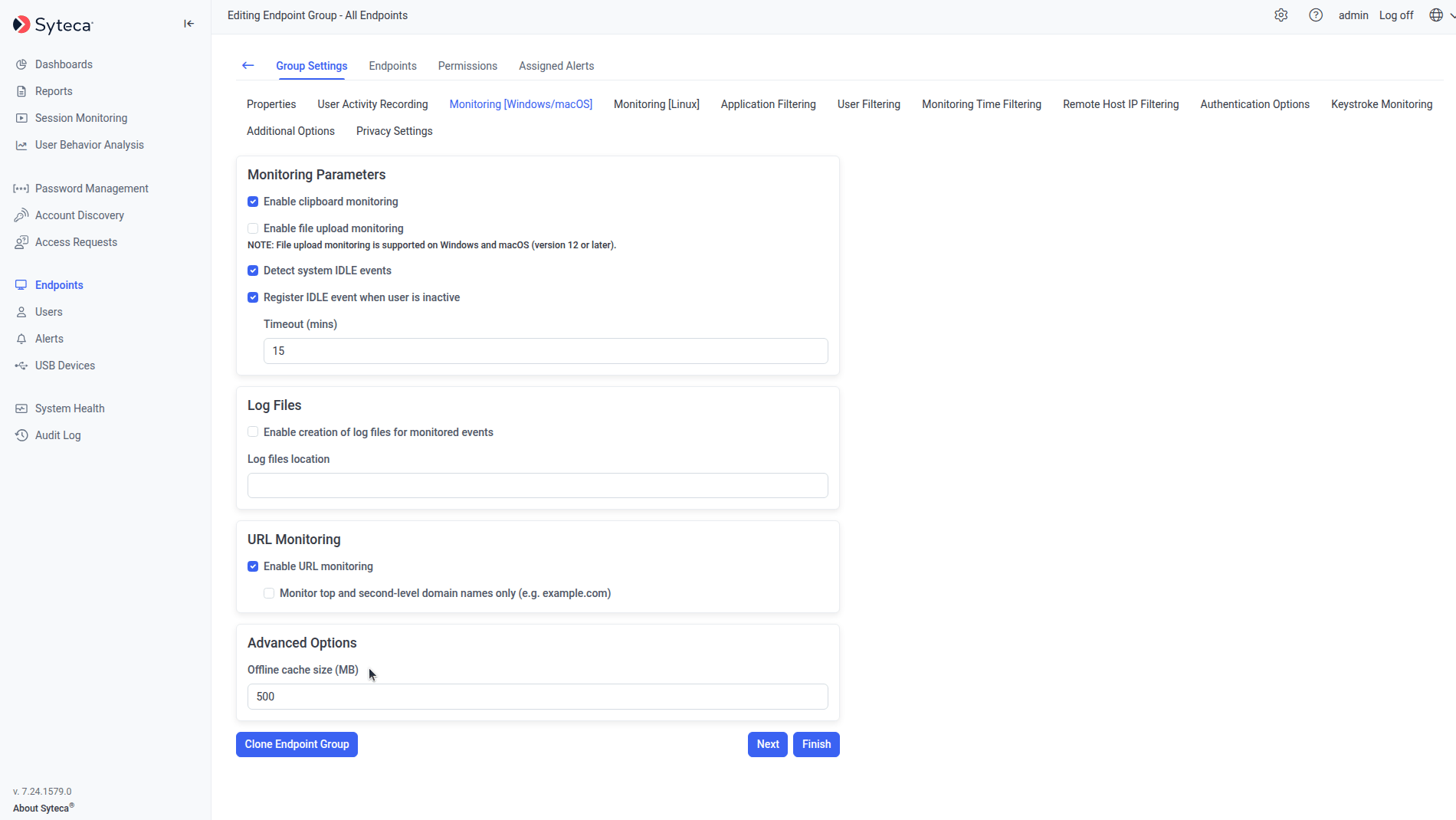 When the amount of cached monitoring data on the Client computer reaches this limit, the Client stops writing further data to the offline cache until connectivity is restored and the cache is sent.
Keep the offline cache size at 500 MB or higher. A smaller cache risks data loss during longer outages, since the Client can't buffer more than the configured limit.
## Where the cache is stored
Cached data is written to a file named `TempWrite.dat` inside the Windows Client's installation folder.
Cached data is written to the macOS Client's local cache in its installation folder.
Cached data is written to three files in `/var/.ekran/internal/`:
* `EkranOfflinePool.dat`
* `EkranOfflinePool.dat-shm`
* `EkranOfflinePool.dat-wal`
## Move the Linux offline cache to another location
**NOT AVAILABLE IN SAAS.**
On Linux, the offline cache files can be relocated to a non-default folder (for example, a NAS mount or another drive) by moving them and replacing them with soft links.
On the **Clients** page, unassign the license from the Linux Client to confirm it has no active (**Live**) sessions.
```bash theme={"system"}
sudo systemctl stop Ekran
sudo systemctl status Ekran
```
The second command confirms the service has stopped.
```bash theme={"system"}
sudo systemctl stop offlinePoolManager
sudo systemctl status offlinePoolManager
```
Open `/var/.ekran/internal/`, where `EkranOfflinePool.dat`, `EkranOfflinePool.dat-shm`, and `EkranOfflinePool.dat-wal` are located.
```bash theme={"system"}
sudo mv EkranOfflinePool.dat* //
```
```bash theme={"system"}
ln -sri EkranOfflinePool.dat /var/.ekran/internal/EkranOfflinePool.dat
ln -sri EkranOfflinePool.dat-shm /var/.ekran/internal/EkranOfflinePool.dat-shm
ln -sri EkranOfflinePool.dat-wal /var/.ekran/internal/EkranOfflinePool.dat-wal
```
In some cases the files' owner needs to be changed to `root`:
```bash theme={"system"}
chown -h root:root EkranOfflinePool.dat*
```
```bash theme={"system"}
sudo systemctl start Ekran
sudo systemctl start offlinePoolManager
```
On the **Clients** page, reassign the license to the Linux Client.
## Related
Client configuration parameters for Windows.
Client configuration parameters for Linux.
How Syteca detects and reports Clients that have gone offline.
Related Client-side configuration for VDI cloning.
When the amount of cached monitoring data on the Client computer reaches this limit, the Client stops writing further data to the offline cache until connectivity is restored and the cache is sent.
Keep the offline cache size at 500 MB or higher. A smaller cache risks data loss during longer outages, since the Client can't buffer more than the configured limit.
## Where the cache is stored
Cached data is written to a file named `TempWrite.dat` inside the Windows Client's installation folder.
Cached data is written to the macOS Client's local cache in its installation folder.
Cached data is written to three files in `/var/.ekran/internal/`:
* `EkranOfflinePool.dat`
* `EkranOfflinePool.dat-shm`
* `EkranOfflinePool.dat-wal`
## Move the Linux offline cache to another location
**NOT AVAILABLE IN SAAS.**
On Linux, the offline cache files can be relocated to a non-default folder (for example, a NAS mount or another drive) by moving them and replacing them with soft links.
On the **Clients** page, unassign the license from the Linux Client to confirm it has no active (**Live**) sessions.
```bash theme={"system"}
sudo systemctl stop Ekran
sudo systemctl status Ekran
```
The second command confirms the service has stopped.
```bash theme={"system"}
sudo systemctl stop offlinePoolManager
sudo systemctl status offlinePoolManager
```
Open `/var/.ekran/internal/`, where `EkranOfflinePool.dat`, `EkranOfflinePool.dat-shm`, and `EkranOfflinePool.dat-wal` are located.
```bash theme={"system"}
sudo mv EkranOfflinePool.dat* //
```
```bash theme={"system"}
ln -sri EkranOfflinePool.dat /var/.ekran/internal/EkranOfflinePool.dat
ln -sri EkranOfflinePool.dat-shm /var/.ekran/internal/EkranOfflinePool.dat-shm
ln -sri EkranOfflinePool.dat-wal /var/.ekran/internal/EkranOfflinePool.dat-wal
```
In some cases the files' owner needs to be changed to `root`:
```bash theme={"system"}
chown -h root:root EkranOfflinePool.dat*
```
```bash theme={"system"}
sudo systemctl start Ekran
sudo systemctl start offlinePoolManager
```
On the **Clients** page, reassign the license to the Linux Client.
## Related
Client configuration parameters for Windows.
Client configuration parameters for Linux.
How Syteca detects and reports Clients that have gone offline.
Related Client-side configuration for VDI cloning.