> ## Documentation Index
> Fetch the complete documentation index at: https://syteca.com/docs/llms.txt
> Use this file to discover all available pages before exploring further.
# One-Time Passwords
> Require a Windows Client login to be approved with a one-time password, either through an Approver or sent automatically to trusted users.
Applies to Windows Clients only.
One-time passwords add an extra layer of protection to Windows Client logins by requiring a user to request (and enter) an additional password before they can access the computer. A designated **Approver** processes the request, or - if configured - the password is generated and emailed automatically without requiring approval.
The **Enable secondary user authentication on login** and **Allow the use of one-time passwords** options cannot be used together. Neither works correctly if both checkboxes are selected. See [Secondary user authentication](/docs/administration/clients/parameters/secondary-user-authentication) for the alternative.
## Enable one-time passwords
Log in to the Management Tool as a user with the [Client Configuration Management permission](/docs/administration/users/client-permissions). Click **Clients**, then find the Client or Client group to configure and click its name.
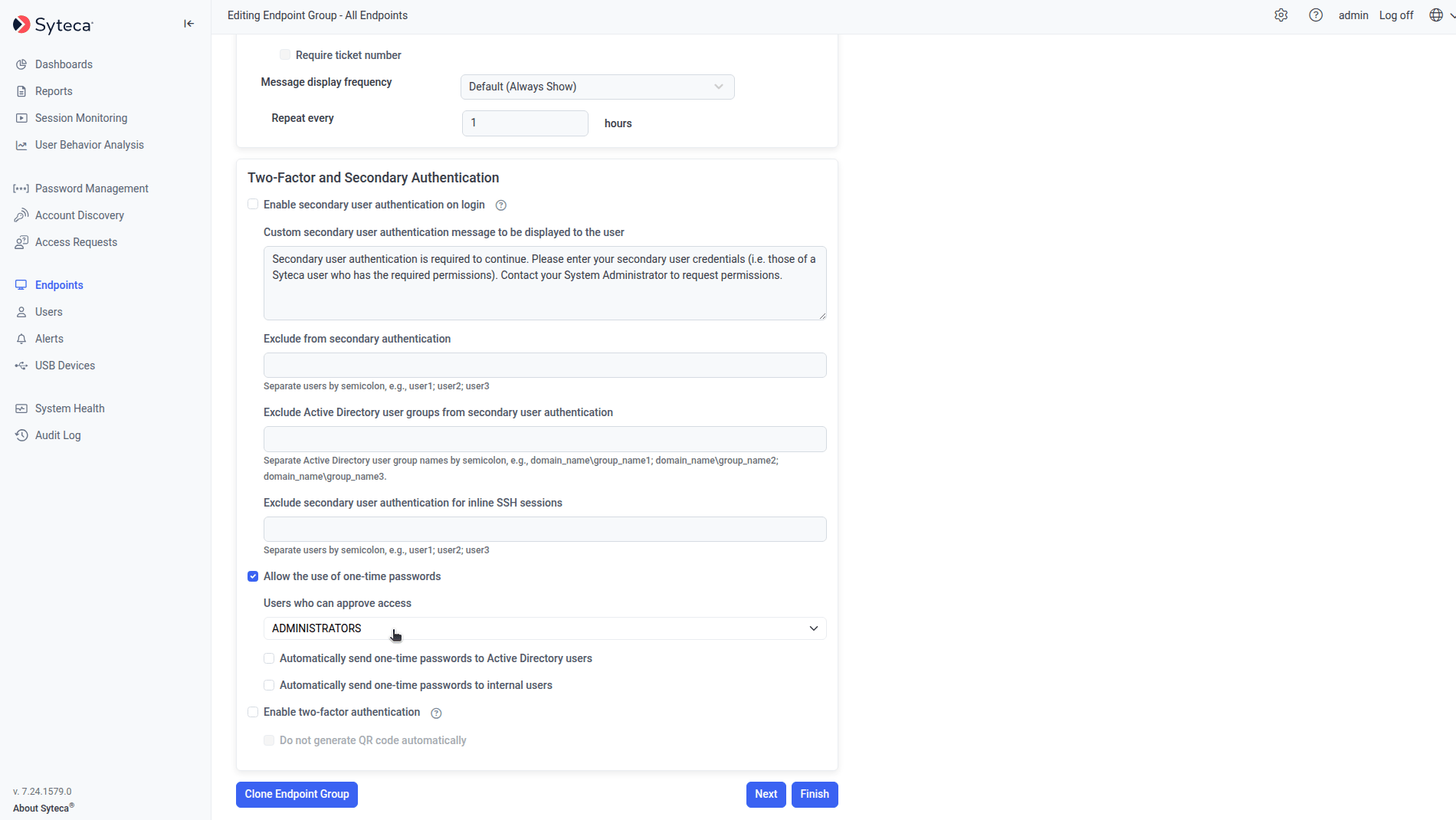
On the **Editing Client** (or **Editing Client Group**) page, select the **Authentication Options** tab, scroll to **Two-Factor and Secondary Authentication**, and select **Allow the use of one-time passwords**.
In **Users who can approve access**, select every user who should be able to approve one-time password requests.
Approvers can process a request either by clicking the link in a notification email (if they have an email address on file), or on the **Access Requests** page's **Access Requests** tab in the Management Tool. A request that isn't processed within 30 minutes automatically expires by default - adjustable on the **System Settings** tab of the Configuration page.
To skip Approver review entirely for certain users, select either:
* **Automatically send one-time passwords to Active Directory users** - requires an email address defined on each such user's Active Directory account.
* **Automatically send one-time passwords to internal users** - requires an email address on the internal user's **User Details** tab, and the **Access to Endpoint via Secondary Auth.** permission granted on their **Client Access** tab.
Click **Finish**.
 ## Approve or generate a one-time password
When a user requests access, the request goes to every configured Approver by email and appears on the **Access Requests** page's **Access Requests** tab.
Log in to the Management Tool as a listed Approver and click **Access Requests**.
Click **Approve** next to the relevant request, optionally enter a comment, and click **Confirm**.
A one-time password is generated and sent automatically to the user's email address.
On the **Access Requests** page, open the drop-down next to the **Access Requests** tab and select **Generate Password**.
In the **One-Time Password Generation** window, select the **Client name**, enter the **User name** (or domain name for Active Directory users), and the **User's confirmation email** the password should be sent to. Optionally edit the default **Comments** text ("Generated without request").
Click **Generate**. The password is sent automatically to the specified email address.
## Request and log in with a one-time password
This is the end-user flow - what a user sees when they log in to a Client with one-time passwords enabled, as opposed to the admin setup or Approver-initiated generation covered above.
Locally or remotely, as usual.
The Client shows a pop-up asking for a one-time password. Click **Request One-Time Password**.
A second pop-up appears, depending on which automatic-delivery options are enabled:
* **Neither automatic option enabled** - enter an **Email** address, then click **Request**.
* **Automatically send to Active Directory users** enabled - just click **Request**.
* **Automatically send to internal users** enabled - enter the internal Management Tool **Login** and **Password**, then click **Request**.
In either of the last two cases, the user can instead select **I need emergency access to computer** and enter an email address manually.
A confirmation message appears, and the one-time password arrives by email.
Back on the first pop-up (now showing the email address automatically), enter the received password.
The credentials are validated against the Application Server. If the email and password match, and the password was generated for this user and this Client, access is granted - otherwise the user sees a denial message.
Once logged in, the Client records the session under ` ()` in the **Client Sessions** list's **User Name** column.
A one-time password works only once, only within the [Access Request Expiration Time](/docs/administration/configuration/system-settings#expiration-time-of-access-requests) (default 30 minutes), and only for the Client it was requested from. If it expires or needs resending, the user can request again - but no more than once per hour for the same Client.
## Related
An alternative, mutually exclusive login-identification method.
Permissions required to configure Clients and approve access.
Windows Client installation and configuration.
Change the default request expiration time.
## Approve or generate a one-time password
When a user requests access, the request goes to every configured Approver by email and appears on the **Access Requests** page's **Access Requests** tab.
Log in to the Management Tool as a listed Approver and click **Access Requests**.
Click **Approve** next to the relevant request, optionally enter a comment, and click **Confirm**.
A one-time password is generated and sent automatically to the user's email address.
On the **Access Requests** page, open the drop-down next to the **Access Requests** tab and select **Generate Password**.
In the **One-Time Password Generation** window, select the **Client name**, enter the **User name** (or domain name for Active Directory users), and the **User's confirmation email** the password should be sent to. Optionally edit the default **Comments** text ("Generated without request").
Click **Generate**. The password is sent automatically to the specified email address.
## Request and log in with a one-time password
This is the end-user flow - what a user sees when they log in to a Client with one-time passwords enabled, as opposed to the admin setup or Approver-initiated generation covered above.
Locally or remotely, as usual.
The Client shows a pop-up asking for a one-time password. Click **Request One-Time Password**.
A second pop-up appears, depending on which automatic-delivery options are enabled:
* **Neither automatic option enabled** - enter an **Email** address, then click **Request**.
* **Automatically send to Active Directory users** enabled - just click **Request**.
* **Automatically send to internal users** enabled - enter the internal Management Tool **Login** and **Password**, then click **Request**.
In either of the last two cases, the user can instead select **I need emergency access to computer** and enter an email address manually.
A confirmation message appears, and the one-time password arrives by email.
Back on the first pop-up (now showing the email address automatically), enter the received password.
The credentials are validated against the Application Server. If the email and password match, and the password was generated for this user and this Client, access is granted - otherwise the user sees a denial message.
Once logged in, the Client records the session under ` ()` in the **Client Sessions** list's **User Name** column.
A one-time password works only once, only within the [Access Request Expiration Time](/docs/administration/configuration/system-settings#expiration-time-of-access-requests) (default 30 minutes), and only for the Client it was requested from. If it expires or needs resending, the user can request again - but no more than once per hour for the same Client.
## Related
An alternative, mutually exclusive login-identification method.
Permissions required to configure Clients and approve access.
Windows Client installation and configuration.
Change the default request expiration time.