> ## Documentation Index
> Fetch the complete documentation index at: https://syteca.com/docs/llms.txt
> Use this file to discover all available pages before exploring further.
# Uninstall Clients
> Uninstall Syteca Clients remotely from the Management Tool or locally on the endpoint — for Windows, macOS, and Linux. Includes the shared Uninstallation key, single and bulk remote uninstall, and per-OS local uninstall commands.
Uninstall removes the Syteca Client from an endpoint so it stops sending data to the Application Server. Two modes are supported: **remote uninstall** (from the Management Tool, requires the [Client Uninstallation permission](/docs/administration/users/client-permissions)) and **local uninstall** (on the endpoint itself, requires the [Client Uninstallation key](#the-client-uninstallation-key)).
Uninstalling a Client **does not delete its data**. After uninstallation:
* The Client stops sending new data to the Application Server.
* All previously-recorded data remains on the Application Server.
* The Client still appears in the Management Tool with **Offline** status.
To **also** remove the Client and all its recorded data from the Application Server and Management Tool, see [Delete Clients](/docs/administration/clients/delete-clients) after uninstallation.
## The Client Uninstallation key
The **Client Uninstallation key** is a shared secret defined during [Application Server installation](/docs/administration/deployment/install-application-server) and used by every **local** Client uninstall on Windows and macOS Clients. It's a deliberate barrier: even an endpoint admin with full local privileges can't uninstall the Syteca Client without first obtaining this key from a Management Tool user.
The Uninstallation key is used for **local** Windows and macOS uninstall. **Remote** uninstall (from the Management Tool) doesn't require it — it uses the Management Tool user's [Client Uninstallation permission](/docs/administration/users/client-permissions) instead. **Linux** local uninstall uses a different mechanism (the `uninstall.sh` script or the RPM package manager).
### View or change the Uninstallation key
Sign in to the Management Tool as a user with the [Client Uninstallation permission](/docs/administration/users/client-permissions) for Clients.
Click **Clients** in the left navigation. On the **Clients** page, click the **Clients** drop-down arrow at the top, then select **Edit Uninstallation Key** in the menu.
On the **Custom Uninstall Key** page, enter the new key in the **New Key** field. Re-enter it in **Confirm Key**.
Click **Save**. The new key replaces the old one.
**Key changes propagate at Client check-in time**, not instantly. If you change the Uninstallation key while a Client is offline, that Client won't receive the new key until it next connects to the Application Server. **To uninstall an offline Client that hasn't checked in since the change, use the old key.**
This is the expected behavior — keep a record of recent old keys until you can confirm every Client has checked in and adopted the new one.
## Uninstall Clients remotely
 Remote uninstall removes Clients from the Management Tool — no endpoint access needed, no Uninstallation key needed.
Requires the [Client Uninstallation permission for Clients](/docs/administration/users/client-permissions). The **Uninstall Client** button won't appear if you don't have the permission or if the Client is already uninstalled.
Use this when you have the Client open already, or want to confirm details before uninstalling.
On the **Clients** page, find the Client and click its name in the **Client Name** column.
Use the **Search box** and filters at the top of the Clients tab to find specific Clients.
On the **Editing Client** page → **Properties** tab, click **Uninstall Client** at the bottom of the page.
Click **Uninstall** in the confirmation. The Client is uninstalled — it stops sending data and shows as **Offline** in the Clients list.
Use this when uninstalling many Clients at once — the confirmation has an extra safety step.
On the **Clients** page, select the checkboxes next to the Clients to uninstall.
Click **Bulk Action** in the top left, then select **Uninstall Clients** in the drop-down.
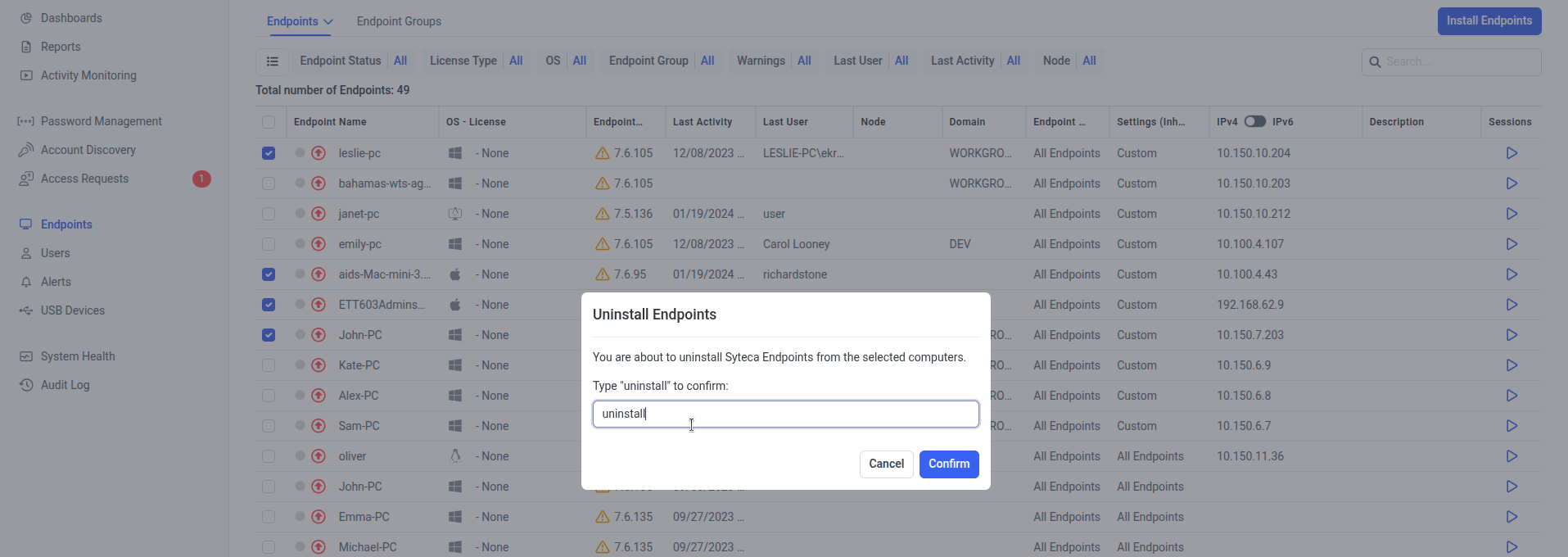
In the **Uninstall Clients** confirmation, **type the word `uninstall` in the empty field**, then click **Confirm**.
The typed-word confirmation is a deliberate safety measure on bulk uninstalls — it prevents accidental clicks from removing many Clients at once.
All selected Clients are uninstalled. Their status switches to **Offline** in the grid; their recorded data is preserved.
## Uninstall Clients locally
Local uninstall happens on the endpoint, using OS-native tools. **The Uninstallation key is required for Windows and macOS** (but not Linux). Local uninstall is useful when:
* The endpoint is being decommissioned and you want to clean it up before reimaging.
* The Application Server is unreachable from the Client (e.g. the Client is on a network the Application Server can't connect to).
* You need to uninstall as part of a scripted deployment workflow.
Local Windows uninstall uses the `UninstallClient.exe` binary in the Client install directory.
Run `cmd.exe` **as administrator**.
Change directory to the Client installation path. The default is:
```text theme={"system"}
C:\Program Files\Ekran System\Ekran System\
```
Run:
```text theme={"system"}
UninstallClient.exe /key= /silent=true
```
Replace `` with the actual key from the Management Tool. Press **Enter**.
**In SaaS only:** the Uninstallation key needs **double quotes** around it:
```text theme={"system"}
UninstallClient.exe /key="" /silent=true
```
**Omit `/silent=true`** if you want a confirmation dialog to appear on the Client computer before uninstallation proceeds — useful for testing or for interactive uninstall flows where the local user should be prompted.
Local macOS uninstall uses the `uninstall.sh` script in the Client's Application Support directory, with the Uninstallation key passed as a parameter.
Run the **Terminal** application.
Run:
```bash theme={"system"}
sudo /Library/Application\ Support/Ekran/uninstall.sh -k ''
```
Replace `` with the actual key from the Management Tool. Enter the administrator password when prompted.
For uninstalling the **macOS Hidden Client** (stealth-mode variant), follow the same steps as for the standard macOS Client. See [macOS Hidden Client](/docs/administration/clients/macos-hidden) for the install/uninstall specifics.
Linux uninstall doesn't use the Uninstallation key — it uses either the `uninstall.sh` script (script-installed Clients) or the RPM package manager (RPM-installed Clients on RHEL / CentOS / similar).
Use the `uninstall.sh` script if you installed via the script, or RPM if you installed via the RPM package.
```bash theme={"system"}
cd /opt/.Ekran
sudo ./uninstall.sh -f
```
Enter the superuser password when prompted.
**Always include `-f`** in the script-based uninstall. Without it, some files and folders (notably `/var/.ekran/log`) remain after uninstallation. With `-f`, the uninstall is complete.
```bash theme={"system"}
sudo FORCE=1 rpm -e SytecaLinuxClientx64
```
Enter the superuser password when prompted.
**Always include `FORCE=1`** in the RPM-based uninstall. Without it, some files and folders (notably `/var/.ekran/log`) remain after uninstallation.
Reboot the Linux Client computer to ensure all process handles are released.
The RPM package name `SytecaLinuxClientx64` reflects current Syteca branding and is what shows up in `rpm -qa` listings on RPM-based systems.
## Related
Inventory of every Client — including Offline ones that have been uninstalled.
Stealth-mode macOS Client — same uninstall procedure as the standard macOS Client.
The Client Uninstallation permission required for remote uninstall.
Remove uninstalled Clients (and their recorded data) from the Application Server.
Remote uninstall removes Clients from the Management Tool — no endpoint access needed, no Uninstallation key needed.
Requires the [Client Uninstallation permission for Clients](/docs/administration/users/client-permissions). The **Uninstall Client** button won't appear if you don't have the permission or if the Client is already uninstalled.
Use this when you have the Client open already, or want to confirm details before uninstalling.
On the **Clients** page, find the Client and click its name in the **Client Name** column.
Use the **Search box** and filters at the top of the Clients tab to find specific Clients.
On the **Editing Client** page → **Properties** tab, click **Uninstall Client** at the bottom of the page.
Click **Uninstall** in the confirmation. The Client is uninstalled — it stops sending data and shows as **Offline** in the Clients list.
Use this when uninstalling many Clients at once — the confirmation has an extra safety step.
On the **Clients** page, select the checkboxes next to the Clients to uninstall.
Click **Bulk Action** in the top left, then select **Uninstall Clients** in the drop-down.
In the **Uninstall Clients** confirmation, **type the word `uninstall` in the empty field**, then click **Confirm**.
The typed-word confirmation is a deliberate safety measure on bulk uninstalls — it prevents accidental clicks from removing many Clients at once.
All selected Clients are uninstalled. Their status switches to **Offline** in the grid; their recorded data is preserved.
## Uninstall Clients locally
Local uninstall happens on the endpoint, using OS-native tools. **The Uninstallation key is required for Windows and macOS** (but not Linux). Local uninstall is useful when:
* The endpoint is being decommissioned and you want to clean it up before reimaging.
* The Application Server is unreachable from the Client (e.g. the Client is on a network the Application Server can't connect to).
* You need to uninstall as part of a scripted deployment workflow.
Local Windows uninstall uses the `UninstallClient.exe` binary in the Client install directory.
Run `cmd.exe` **as administrator**.
Change directory to the Client installation path. The default is:
```text theme={"system"}
C:\Program Files\Ekran System\Ekran System\
```
Run:
```text theme={"system"}
UninstallClient.exe /key= /silent=true
```
Replace `` with the actual key from the Management Tool. Press **Enter**.
**In SaaS only:** the Uninstallation key needs **double quotes** around it:
```text theme={"system"}
UninstallClient.exe /key="" /silent=true
```
**Omit `/silent=true`** if you want a confirmation dialog to appear on the Client computer before uninstallation proceeds — useful for testing or for interactive uninstall flows where the local user should be prompted.
Local macOS uninstall uses the `uninstall.sh` script in the Client's Application Support directory, with the Uninstallation key passed as a parameter.
Run the **Terminal** application.
Run:
```bash theme={"system"}
sudo /Library/Application\ Support/Ekran/uninstall.sh -k ''
```
Replace `` with the actual key from the Management Tool. Enter the administrator password when prompted.
For uninstalling the **macOS Hidden Client** (stealth-mode variant), follow the same steps as for the standard macOS Client. See [macOS Hidden Client](/docs/administration/clients/macos-hidden) for the install/uninstall specifics.
Linux uninstall doesn't use the Uninstallation key — it uses either the `uninstall.sh` script (script-installed Clients) or the RPM package manager (RPM-installed Clients on RHEL / CentOS / similar).
Use the `uninstall.sh` script if you installed via the script, or RPM if you installed via the RPM package.
```bash theme={"system"}
cd /opt/.Ekran
sudo ./uninstall.sh -f
```
Enter the superuser password when prompted.
**Always include `-f`** in the script-based uninstall. Without it, some files and folders (notably `/var/.ekran/log`) remain after uninstallation. With `-f`, the uninstall is complete.
```bash theme={"system"}
sudo FORCE=1 rpm -e SytecaLinuxClientx64
```
Enter the superuser password when prompted.
**Always include `FORCE=1`** in the RPM-based uninstall. Without it, some files and folders (notably `/var/.ekran/log`) remain after uninstallation.
Reboot the Linux Client computer to ensure all process handles are released.
The RPM package name `SytecaLinuxClientx64` reflects current Syteca branding and is what shows up in `rpm -qa` listings on RPM-based systems.
## Related
Inventory of every Client — including Offline ones that have been uninstalled.
Stealth-mode macOS Client — same uninstall procedure as the standard macOS Client.
The Client Uninstallation permission required for remote uninstall.
Remove uninstalled Clients (and their recorded data) from the Application Server.