> ## Documentation Index
> Fetch the complete documentation index at: https://syteca.com/docs/llms.txt
> Use this file to discover all available pages before exploring further.
# Windows Client Installation Prerequisites
> Verify the prerequisites on a Windows target computer before remotely installing the Syteca Client. Covers the required Windows system services: Server and Remote Procedure Call (RPC).
Remote installation of the Syteca Windows Client from the Management Tool relies on the target Windows computer having specific system services running. If either the **Server** service or the **Remote Procedure Call (RPC)** service is not running on the target machine, the remote install will fail with an error about being unable to reach the target.
This page covers verifying those services. Run this check before attempting a remote Client install if the target computer is a hardened server, a domain controller with restricted service policies, or any Windows machine where the Server service has been intentionally disabled.
These prerequisites only apply to remote Client installation from the Management Tool. Local installation of the Client, run directly on the target machine, does not require these services because the install process runs locally rather than over the network.
## Check the required Windows system services
Perform this check on the Windows machine that will be the remote install target.
Right-click **This PC** (or **Computer** on older Windows versions) and select **Manage** to open the **Computer Management** window.
Alternatively, press **Windows+R**, enter `services.msc` in the **Run** window, and press **Enter** to open the Services console directly.
In the Computer Management left pane, expand the **Services and Applications** node, then select **Services**.
Find the **Server** service in the list. Its **Status** column should read **Running**. If not, right-click the service and select **Start**.
Find the **Remote Procedure Call (RPC)** service in the same list. Its **Status** column should also read **Running**. If not, right-click the service and select **Start**.
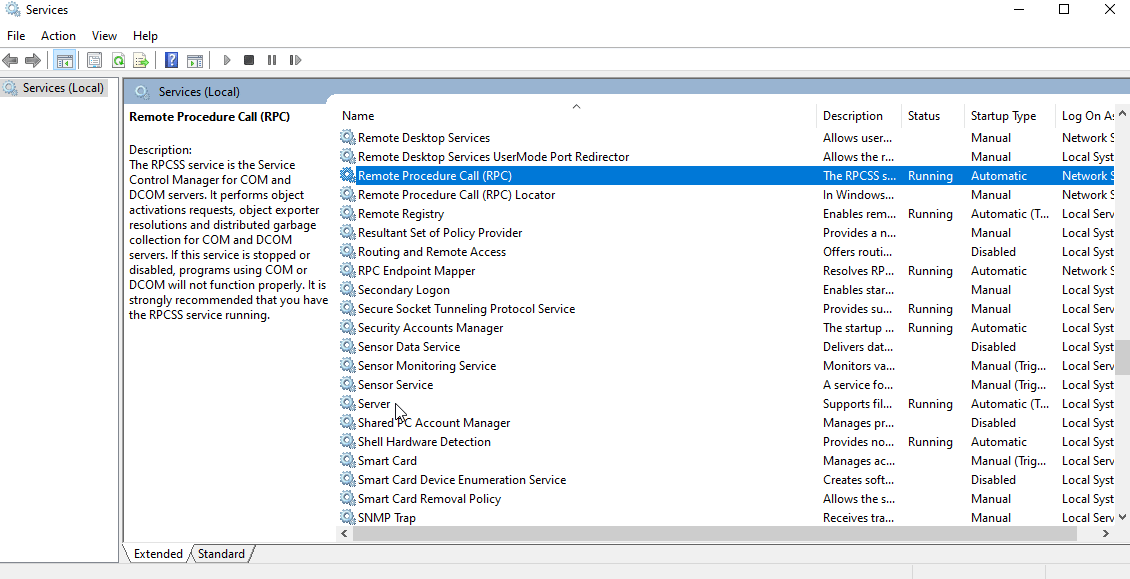 Both services are set to start automatically in default Windows installations. If either service is stopped and starting it fails, the underlying cause is often a security policy or a dependency service. In a hardened environment, coordinate with the Windows administrator before making changes.
## Disable the Sharing Wizard (Windows 8.1, 8, and 7)
Applies to legacy Windows versions only (Windows 8.1, Windows 8, and Windows 7). Newer Windows versions don't require this step for remote Client installation.
Open **Control Panel** and select **Appearance and Personalization**.
Open **Computer**, then select **Organize > Folder and search options**.
In the **Folder Options** window, select the **View** tab.
Clear the **Use Sharing Wizard** checkbox.
Click **Apply**, then **OK** to close the window.
## Related
Overview of Syteca Clients including installation methods.
Uninstall a Client after remote install.
Linux equivalent of Client installation and status checking.
Full requirements for Windows Client hosts, including supported OS versions and network ports.
Both services are set to start automatically in default Windows installations. If either service is stopped and starting it fails, the underlying cause is often a security policy or a dependency service. In a hardened environment, coordinate with the Windows administrator before making changes.
## Disable the Sharing Wizard (Windows 8.1, 8, and 7)
Applies to legacy Windows versions only (Windows 8.1, Windows 8, and Windows 7). Newer Windows versions don't require this step for remote Client installation.
Open **Control Panel** and select **Appearance and Personalization**.
Open **Computer**, then select **Organize > Folder and search options**.
In the **Folder Options** window, select the **View** tab.
Clear the **Use Sharing Wizard** checkbox.
Click **Apply**, then **OK** to close the window.
## Related
Overview of Syteca Clients including installation methods.
Uninstall a Client after remote install.
Linux equivalent of Client installation and status checking.
Full requirements for Windows Client hosts, including supported OS versions and network ports.