> ## Documentation Index
> Fetch the complete documentation index at: https://syteca.com/docs/llms.txt
> Use this file to discover all available pages before exploring further.
# Account Discovery Settings
> Configure the reconciliation account, dependency failure notifications, and the WMI, PowerShell, and Linux SSH scanners used by Account Discovery — all from the Management Tool.
The **Account Discovery** tab on the **Configuration** page centralizes, in the UI, the scanner settings and reconciliation account used during [Account Discovery](/docs/pam/discovery/overview) scans. These were previously managed through the Syteca Server configuration file — they're now configured directly in the Management Tool, which makes them easier to manage and audit.
Only visible to users with **all three** of: administrative **Tenant Management**, **System Configuration**, and **Privileged Accounts Management** permissions.
**Multi-Tenant mode:** settings on this tab are unique per tenant.
The tab has four sections: Reconciliation Account (with dependency failure notifications), WMI Scanner, PowerShell Scanner, and Linux SSH Scanner.
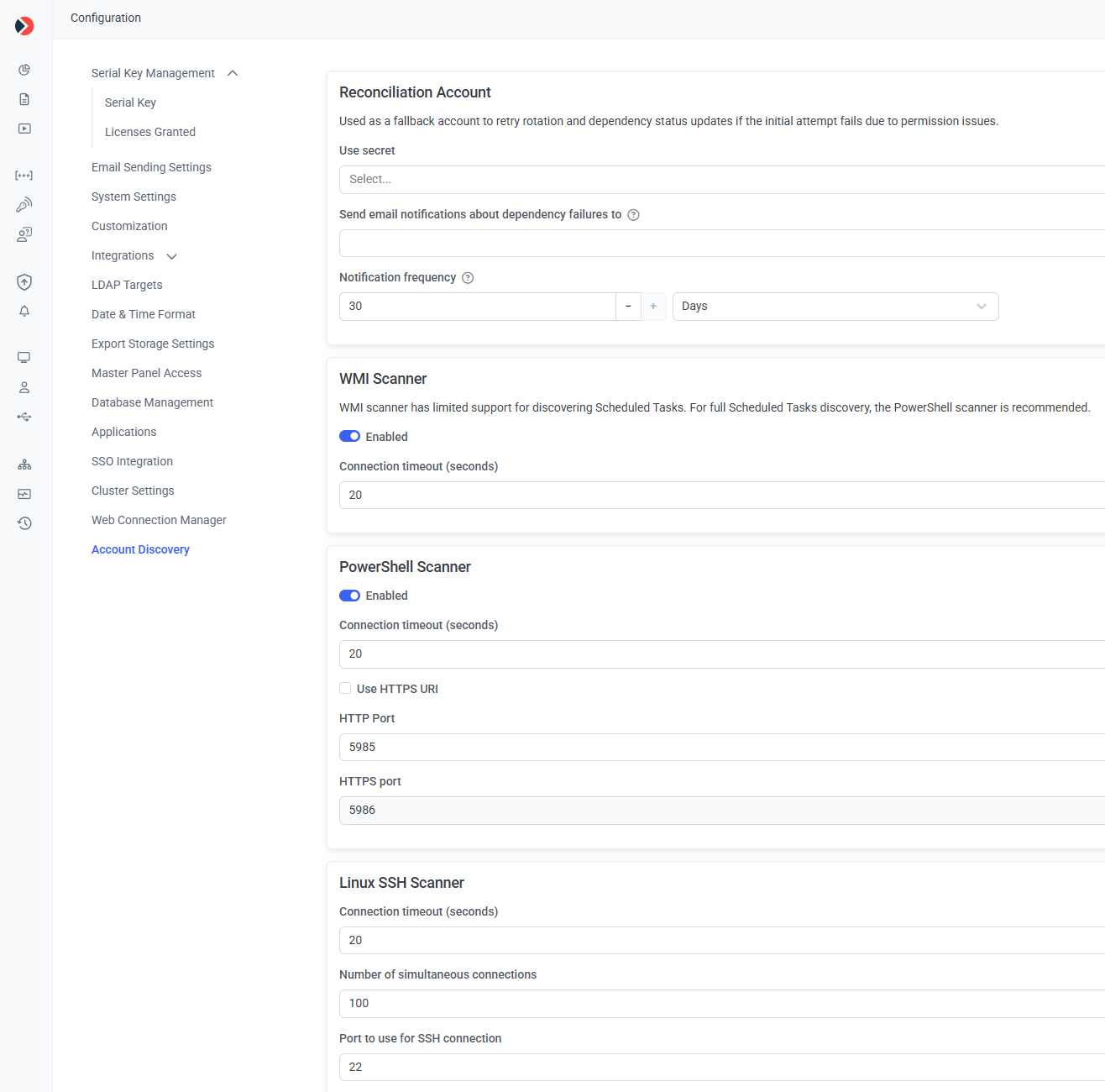 ## 1. Configure the reconciliation account
The **reconciliation account** is a fallback account (typically a domain admin) Syteca uses to retry password rotation and dependency restart/stop operations if the initial attempt fails on permissions. See [Onboarding workflow and retry logic](/docs/pam/discovery/service-account-dependencies#7--onboarding-workflow-and-retry-logic) for how it's used.
Log in as a user with the administrative **Tenant Management**, **System Configuration**, and **Privileged Accounts Management** permissions. Click **Configuration**, then select the **Account Discovery** tab.
In the **Reconciliation Account** section, use **Use secret** to select one or more Active Directory account secrets. Only secrets where you're the **Owner** are available.
To add a new secret without leaving this flow, click **Add Secret** at the top of the drop-down — it opens Password Management in a new browser tab.
Click **Save**.
## 1. Configure the reconciliation account
The **reconciliation account** is a fallback account (typically a domain admin) Syteca uses to retry password rotation and dependency restart/stop operations if the initial attempt fails on permissions. See [Onboarding workflow and retry logic](/docs/pam/discovery/service-account-dependencies#7--onboarding-workflow-and-retry-logic) for how it's used.
Log in as a user with the administrative **Tenant Management**, **System Configuration**, and **Privileged Accounts Management** permissions. Click **Configuration**, then select the **Account Discovery** tab.
In the **Reconciliation Account** section, use **Use secret** to select one or more Active Directory account secrets. Only secrets where you're the **Owner** are available.
To add a new secret without leaving this flow, click **Add Secret** at the top of the drop-down — it opens Password Management in a new browser tab.
Click **Save**.
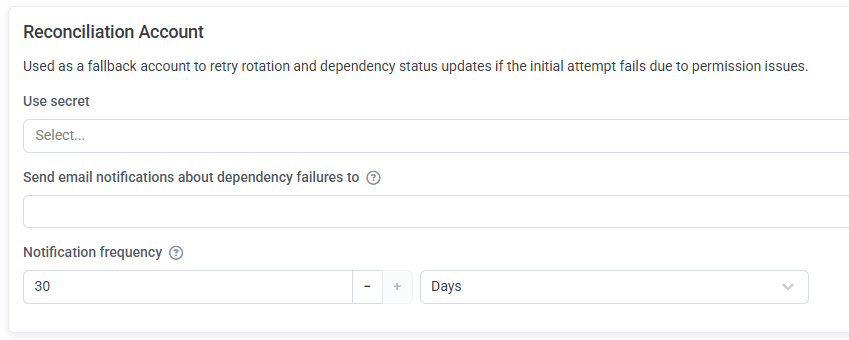 ## 2. Configure dependency failure notifications
The same section also configures email notifications for when a dependency restart/stop fails during password rotation.
In **Send email notifications about dependency failures to**, enter one or more addresses, separated by semicolons.
In **Notification frequency**, enter a numeric value and choose a unit:
| Unit | Range | Default | Increment |
| ------- | ------- | ------- | --------- |
| Minutes | 30–1440 | 30 | 30 |
| Hours | 1–24 | 1 | 1 |
| Days | 1–30 | 1 | 1 |
Click **Save**.
Switching units resets an out-of-range value to that unit's default. An out-of-range value shows a warning (for example, "Please enter a value greater than or equal to 30 and less than or equal to 1440."). A failure notification always sends immediately when a failure occurs, in addition to the recurring notification on this schedule. If no address is specified, no notifications are sent. Addresses are validated against standard email format.
If [Health Monitoring Notifications](/docs/administration/configuration/email-sending-settings#health-monitoring-notifications) is also enabled, dependency failures are additionally grouped into those notifications, on top of the dedicated ones configured here.
## 3. Configure the WMI Scanner
Controls the WMI scanner used during **Computer Discovery** scans to detect privileged Windows local accounts.
| Field | Description |
| -------------------------------- | ------------------------------------------------------------------------------- |
| **Enabled** | Enables/disables the WMI Scanner during Computer Discovery. Enabled by default. |
| **Connection timeout (seconds)** | Max seconds waiting to connect to one computer. Range: 1–6000. Default: 20. |
## 2. Configure dependency failure notifications
The same section also configures email notifications for when a dependency restart/stop fails during password rotation.
In **Send email notifications about dependency failures to**, enter one or more addresses, separated by semicolons.
In **Notification frequency**, enter a numeric value and choose a unit:
| Unit | Range | Default | Increment |
| ------- | ------- | ------- | --------- |
| Minutes | 30–1440 | 30 | 30 |
| Hours | 1–24 | 1 | 1 |
| Days | 1–30 | 1 | 1 |
Click **Save**.
Switching units resets an out-of-range value to that unit's default. An out-of-range value shows a warning (for example, "Please enter a value greater than or equal to 30 and less than or equal to 1440."). A failure notification always sends immediately when a failure occurs, in addition to the recurring notification on this schedule. If no address is specified, no notifications are sent. Addresses are validated against standard email format.
If [Health Monitoring Notifications](/docs/administration/configuration/email-sending-settings#health-monitoring-notifications) is also enabled, dependency failures are additionally grouped into those notifications, on top of the dedicated ones configured here.
## 3. Configure the WMI Scanner
Controls the WMI scanner used during **Computer Discovery** scans to detect privileged Windows local accounts.
| Field | Description |
| -------------------------------- | ------------------------------------------------------------------------------- |
| **Enabled** | Enables/disables the WMI Scanner during Computer Discovery. Enabled by default. |
| **Connection timeout (seconds)** | Max seconds waiting to connect to one computer. Range: 1–6000. Default: 20. |
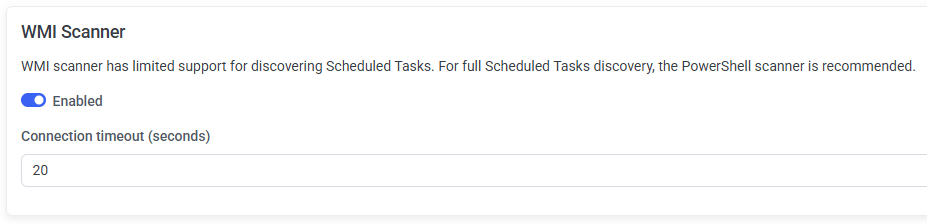 **Connection timeout (seconds)** is disabled while **Enabled** is off. Leaving it empty shows "The field is required." on Save. The WMI scanner has limited Scheduled Tasks discovery — for full coverage, use the PowerShell scanner.
## 4. Configure the PowerShell Scanner
Controls the PowerShell-based scanner used during **Computer Discovery** scans.
| Field | Description |
| -------------------------------- | ----------------------------------------------------------------------------------------------------------- |
| **Enabled** | Enables/disables the PowerShell Scanner. Enabled by default. |
| **Connection timeout (seconds)** | Max seconds waiting to connect to one computer. Range: 1–20. Default: 20. |
| **Use HTTPS URI** | Use HTTPS instead of HTTP to connect. Unchecked by default. |
| **HTTP port** | Port for HTTP connections. Range: 1–65535. Default: 5985. Disabled when **Use HTTPS URI** is selected. |
| **HTTPS port** | Port for HTTPS connections. Range: 1–65535. Default: 5986. Disabled when **Use HTTPS URI** is not selected. |
**Connection timeout (seconds)** is disabled while **Enabled** is off. Leaving it empty shows "The field is required." on Save. The WMI scanner has limited Scheduled Tasks discovery — for full coverage, use the PowerShell scanner.
## 4. Configure the PowerShell Scanner
Controls the PowerShell-based scanner used during **Computer Discovery** scans.
| Field | Description |
| -------------------------------- | ----------------------------------------------------------------------------------------------------------- |
| **Enabled** | Enables/disables the PowerShell Scanner. Enabled by default. |
| **Connection timeout (seconds)** | Max seconds waiting to connect to one computer. Range: 1–20. Default: 20. |
| **Use HTTPS URI** | Use HTTPS instead of HTTP to connect. Unchecked by default. |
| **HTTP port** | Port for HTTP connections. Range: 1–65535. Default: 5985. Disabled when **Use HTTPS URI** is selected. |
| **HTTPS port** | Port for HTTPS connections. Range: 1–65535. Default: 5986. Disabled when **Use HTTPS URI** is not selected. |
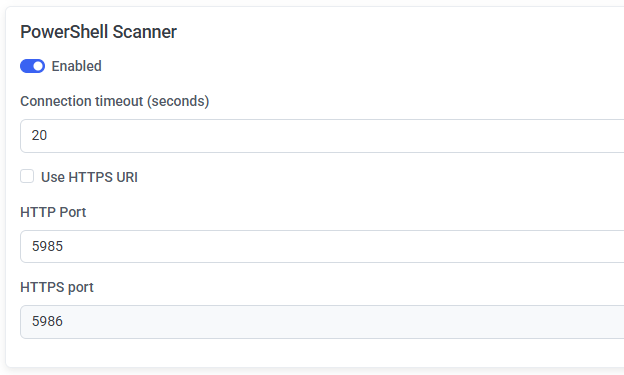 **Connection timeout (seconds)** is disabled while **Enabled** is off, and required when visible. **HTTP port** and **HTTPS port** are mutually exclusive based on **Use HTTPS URI**.
## 5. Configure the Linux SSH Scanner
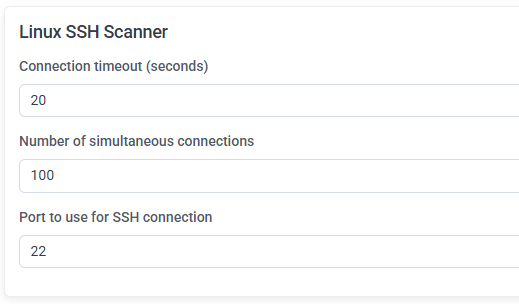
Controls the SSH scanner used during **Linux Discovery** scans.
| Field | Description |
| -------------------------------------- | --------------------------------------------------------------------------------- |
| **Connection timeout (seconds)** | Max seconds waiting to connect to one Linux computer. Range: 1–6000. Default: 20. |
| **Number of simultaneous connections** | Max concurrent SSH connections during a scan. Range: 1–10000. Default: 100. |
| **Port to use for SSH connection** | SSH port used to connect. Range: 1–65535. Default: 22. |
**Connection timeout (seconds)** is disabled while **Enabled** is off, and required when visible. **HTTP port** and **HTTPS port** are mutually exclusive based on **Use HTTPS URI**.
## 5. Configure the Linux SSH Scanner
Controls the SSH scanner used during **Linux Discovery** scans.
| Field | Description |
| -------------------------------------- | --------------------------------------------------------------------------------- |
| **Connection timeout (seconds)** | Max seconds waiting to connect to one Linux computer. Range: 1–6000. Default: 20. |
| **Number of simultaneous connections** | Max concurrent SSH connections during a scan. Range: 1–10000. Default: 100. |
| **Port to use for SSH connection** | SSH port used to connect. Range: 1–65535. Default: 22. |
 If any of the three fields is left empty, Save shows "The field is required." An out-of-range value shows "This field must be between {min} and {max}." Switching a field's unit resets an out-of-range value to that unit's default.
## 6. Audit Log events
Changes on this tab are recorded in the [Audit Log](/docs/administration/audit-log):
| Event | Category | Action | Details |
| ----------------------------------------------------------------------------------------- | ------------- | ---------------- | --------------------------------------------------------------------------------------------------------------------------------------------------------------------------------------------------------------------------- |
| WMI Scanner settings changed | Configuration | Editing settings | Enabled: ``; Connection timeout (seconds): `` |
| PowerShell Scanner settings changed | Configuration | Editing settings | Enabled: ``; Connection timeout (seconds): ``; Use HTTPS URI: ``; HTTP port: ``; HTTPS port: `` |
| Linux SSH Scanner settings changed | Configuration | Editing settings | Connection timeout (seconds): ``; Number of simultaneous connections: ``; Port to use for SSH connection: `` |
| Account Discovery Configuration Settings changed (Reconciliation Account / notifications) | Configuration | Editing settings | New settings: Reconciliation secrets: `` ("None" if not selected); Send email notifications about dependency failures to: `` ("None" if not specified); Frequency: Every `` `` |
## 7. Upgrade from a previous version
In earlier Syteca versions, the WMI Scanner, PowerShell Scanner, and Linux SSH Scanner settings were configured directly in the Application Server configuration file. After upgrading to a version with this Configuration tab, these settings are managed **exclusively** through the Management Tool here.
After upgrading, the following configuration file keys are removed and no longer take effect:
`WmiScanner`, `PowerShellScanner`, `WmiConnectionTimeoutSeconds`, `PowerShellConnectionTimeoutSeconds`, `PowerShellScannerUseHttps`, `PowerShellScannerHttpPort`, `PowerShellScannerHttpsPort`, `LinuxScanningConnectionTimeoutSeconds`, `LinuxScanningMaximumConnections`, `LinuxScanningPort`
If any of these are added back to the config file manually, they have no effect — all scanner configuration must happen on this tab.
## Related
The end-user workflow these settings support.
Discovery rule types and running scans.
Prerequisites for the scanners configured here.
Prerequisites for the Linux SSH Scanner.
If any of the three fields is left empty, Save shows "The field is required." An out-of-range value shows "This field must be between {min} and {max}." Switching a field's unit resets an out-of-range value to that unit's default.
## 6. Audit Log events
Changes on this tab are recorded in the [Audit Log](/docs/administration/audit-log):
| Event | Category | Action | Details |
| ----------------------------------------------------------------------------------------- | ------------- | ---------------- | --------------------------------------------------------------------------------------------------------------------------------------------------------------------------------------------------------------------------- |
| WMI Scanner settings changed | Configuration | Editing settings | Enabled: ``; Connection timeout (seconds): `` |
| PowerShell Scanner settings changed | Configuration | Editing settings | Enabled: ``; Connection timeout (seconds): ``; Use HTTPS URI: ``; HTTP port: ``; HTTPS port: `` |
| Linux SSH Scanner settings changed | Configuration | Editing settings | Connection timeout (seconds): ``; Number of simultaneous connections: ``; Port to use for SSH connection: `` |
| Account Discovery Configuration Settings changed (Reconciliation Account / notifications) | Configuration | Editing settings | New settings: Reconciliation secrets: `` ("None" if not selected); Send email notifications about dependency failures to: `` ("None" if not specified); Frequency: Every `` `` |
## 7. Upgrade from a previous version
In earlier Syteca versions, the WMI Scanner, PowerShell Scanner, and Linux SSH Scanner settings were configured directly in the Application Server configuration file. After upgrading to a version with this Configuration tab, these settings are managed **exclusively** through the Management Tool here.
After upgrading, the following configuration file keys are removed and no longer take effect:
`WmiScanner`, `PowerShellScanner`, `WmiConnectionTimeoutSeconds`, `PowerShellConnectionTimeoutSeconds`, `PowerShellScannerUseHttps`, `PowerShellScannerHttpPort`, `PowerShellScannerHttpsPort`, `LinuxScanningConnectionTimeoutSeconds`, `LinuxScanningMaximumConnections`, `LinuxScanningPort`
If any of these are added back to the config file manually, they have no effect — all scanner configuration must happen on this tab.
## Related
The end-user workflow these settings support.
Discovery rule types and running scans.
Prerequisites for the scanners configured here.
Prerequisites for the Linux SSH Scanner.