> ## Documentation Index
> Fetch the complete documentation index at: https://syteca.com/docs/llms.txt
> Use this file to discover all available pages before exploring further.
# Email Sending Settings
> Configure the SMTP server, credentials, and recipient rules Syteca uses to send alert, USB monitoring, report, and health monitoring email notifications.
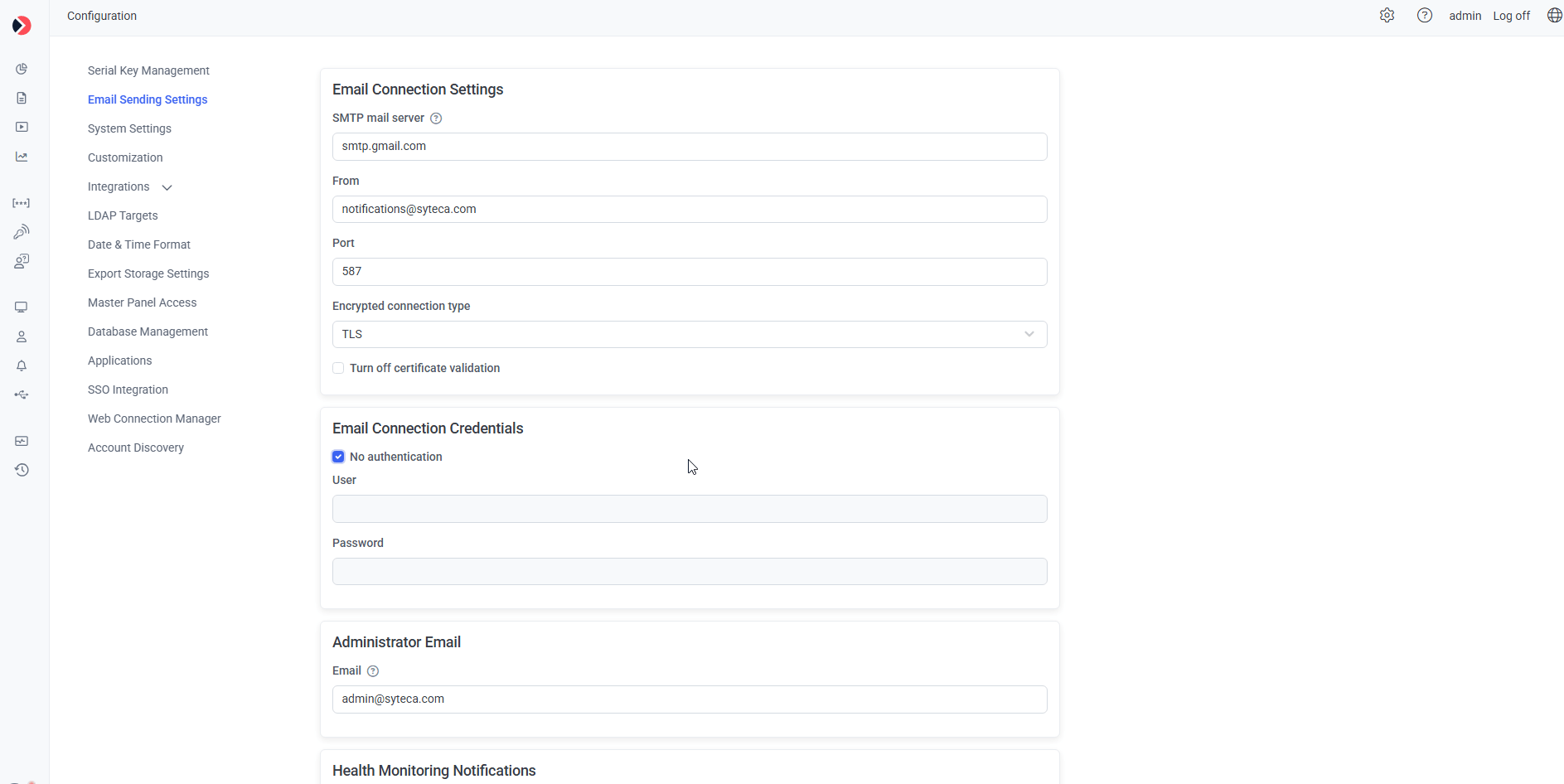
The **Email Sending Settings** tab controls how Syteca sends email notifications for alerts, USB monitoring, reports, and license expiration.
Editing requires the [administrative Client Installation and Management permission](/docs/administration/users/administrative-permissions).
Click **Configuration**, then select the **Email Sending Settings** tab.
## Email Connection Settings
**NOT AVAILABLE IN SAAS.**
* **SMTP mail server** — the outgoing mail server address.
Mail servers that only support NTLM authentication (for example, Microsoft Exchange Server) aren't supported.
* **From** — the email account notifications are sent from.
* **Port** — the SMTP port.
* **Encrypted connection type** — **None**, **SSL**, or **TLS**.
* **Turn off certificate validation** — skip certificate validation for the connection.
## Email Connection Credentials
**NOT AVAILABLE IN SAAS.**
Enter the **User** and **Password** for the mail server specified in **From** above. If the mail server doesn't require credentials, select **No authentication**.
## Administrator Email
Enter one or more email addresses (semicolon-separated) to receive license expiration notifications.
## Health Monitoring Notifications
**NOT AVAILABLE IN SAAS.**
* **Send notification on error events** — notify immediately on every [System Health error event](/docs/administration/dashboards/system-error-reference).
* **Minimal interval between the same error events (min)** — how often repeated instances of the same error trigger a new notification, bundling the count of repeats in between. Default: 10 minutes.
* **Send notification in case of no error events** — get a notification if the Transaction Log stays clear, at the interval set in **Send notification in case of no error events every (hours)**. Default: 6 hours.
* **Email** — one or more recipient addresses, semicolon-separated.
## Domain restrictions
**Allow Syteca to send emails only to the following domains** restricts outgoing email to specific domains — enter one or more, semicolon-separated.
## Test the connection
**NOT AVAILABLE IN SAAS.**
Send a test email to a specified address to confirm the connection settings above are correct.
 ## Related
Where health monitoring error events originate.
Configure alert rules that trigger these email notifications.
Other Configuration page settings.
## Related
Where health monitoring error events originate.
Configure alert rules that trigger these email notifications.
Other Configuration page settings.