> ## Documentation Index
> Fetch the complete documentation index at: https://syteca.com/docs/llms.txt
> Use this file to discover all available pages before exploring further.
# System Settings
> Configure Multi-Tenant mode, session timeouts, concurrent login rules, access request expiration, and logging levels on the System Settings tab.
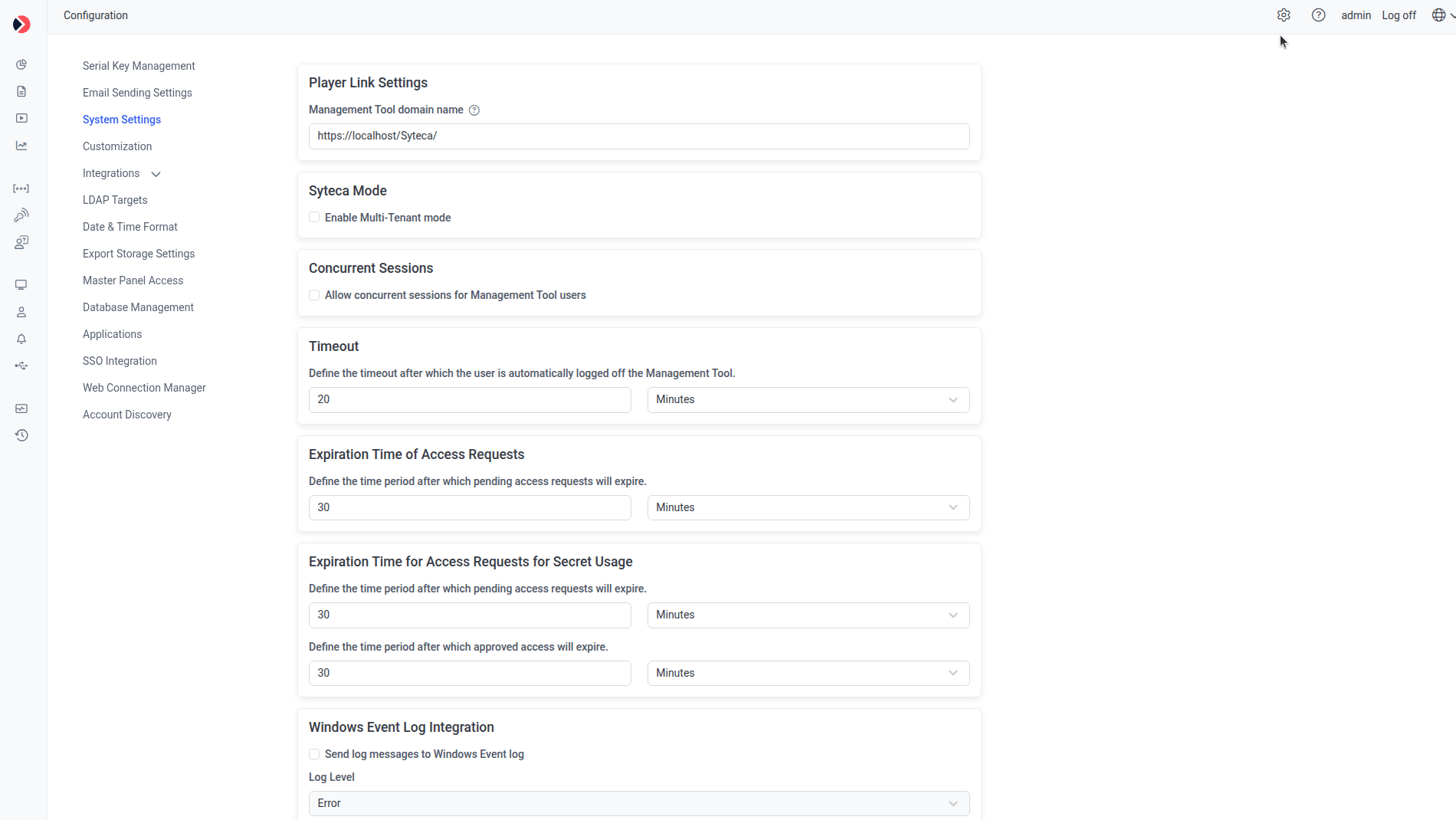
Click **Configuration**, then select the **System Settings** tab.
## Player Link Settings
**NOT AVAILABLE IN SAAS.**
Set the Management Tool domain name used in Session Player links included in alert notification emails, in the format:
```text theme={"system"}
https:///Syteca/
```
## Syteca Mode
**NOT AVAILABLE IN SAAS.**
Enable [Multi-Tenant mode](/docs/administration/multi-tenant/overview) here. Once enabled, each tenant's users only access their own tenant's Clients, configuration, alerts, and reports.
## Concurrent Sessions
**Allow concurrent sessions for Management Tool users** — when selected, the same credentials can be used to log in from multiple IP addresses simultaneously. When deselected, only one login is allowed at a time; a second login with the same credentials forces the first session out.
## Timeout
The idle time after which a Management Tool user is automatically logged out. Default: 20 minutes.
## Expiration Time of Access Requests
How long pending [access requests](/docs/administration/access/endpoint-access-control) remain valid before expiring. Default: 30 minutes.
## Expiration Time of Access Requests for Usage of Secrets
How long pending and approved [secret-usage access requests](/docs/pam/secrets/use-secrets) remain valid before expiring. Default: 30 minutes.
## Windows Event Log Integration
**NOT AVAILABLE IN SAAS.**
Select **Send log messages to Windows Event log** to forward Syteca log messages to the Application Server computer's Windows Event Log, and choose a severity level.
## Server Log Settings
**NOT AVAILABLE IN SAAS.**
Set the severity level for entries written to the [Application Server log files](/docs/resources/troubleshooting/logs#application-server-logs).
 ## In Multi-Tenant mode
A tenant admin sees a much smaller version of this tab — most settings above are system-wide and only configurable by the built-in default tenant's admin. Tenant admins instead see:
* **Account Access** — select **Grant a technician full access to my tenant account** to let the technician (the default tenant's admin) log in as the tenant admin and perform the same actions they can.
* **Windows Event Log Integration** — same as above.
## Related
Full Multi-Tenant mode documentation.
Application Server log collection and levels.
Other Configuration page settings.
## In Multi-Tenant mode
A tenant admin sees a much smaller version of this tab — most settings above are system-wide and only configurable by the built-in default tenant's admin. Tenant admins instead see:
* **Account Access** — select **Grant a technician full access to my tenant account** to let the technician (the default tenant's admin) log in as the tenant admin and perform the same actions they can.
* **Windows Event Log Integration** — same as above.
## Related
Full Multi-Tenant mode documentation.
Application Server log collection and levels.
Other Configuration page settings.