> ## Documentation Index
> Fetch the complete documentation index at: https://syteca.com/docs/llms.txt
> Use this file to discover all available pages before exploring further.
# Edit the Database Parameters
> Change the Application Server's database type, authentication method, encryption, and binary data storage location after installation.
**NOT AVAILABLE IN SAAS.**
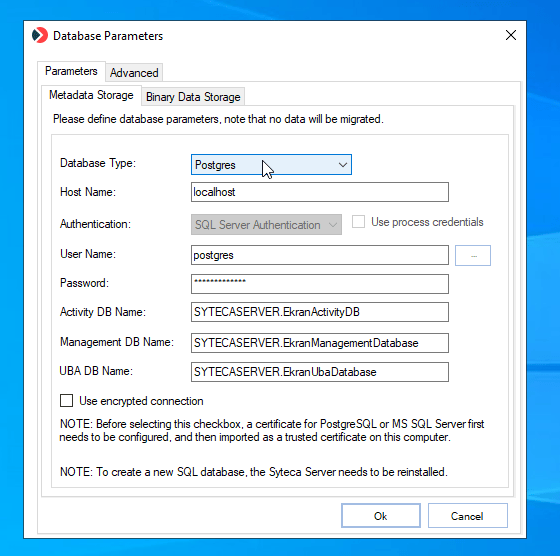
The database connection settings defined when Syteca Application Server was installed can be changed afterward using the **Syteca Server** tray application's **Database Parameters** tool (`DbSetupToolUI`).
Right-click the [Syteca Server tray icon](/docs/administration/deployment/server-tray-application) in the Windows notification area and select **Database Parameters**.
On the **Metadata Storage** sub-tab, configure:
* **Database Type** — the database engine to use for storing data.
Switching database types doesn't migrate existing data.
* **Host Name** — the hostname or IP address of the database server.
* **Authentication** *(MS SQL Server only)* — one of:
* **SQL Server Authentication** — enter the SQL Server **User Name** and **Password**.
* **Windows Authentication** — enter the user as `\` or `@`, or click **Browse** to select one.
* **Use process credentials** — for [gMSA/sMSA accounts](/docs/administration/database/gmsa-account) or to work around [NTLM authentication errors](/docs/administration/database/windows-authentication-ntlm) with Windows Authentication.
The database user specified must have `db_ddladmin`, `db_datareader`, `db_datawriter`, and `db_executor` permissions on the SQL database.
* **Use encrypted connection** — enables SSL encryption between the Application Server and the database.
Requires a database server certificate configured beforehand and imported as a trusted certificate on this computer.
On the **Binary Data Storage** sub-tab, select one option:
| Option | Recommended for | Notes |
| -------------------------- | ---------------------------- | --------------------------------------------------------------------------------------------------------------------------------------------------------------------------------------------------------------------------------------------------------------------------- |
| **SQL Database** | Small deployments only | All monitoring data received from Clients is stored on the SQL server's computer. |
| **File System** | Medium and large deployments | Stores binary data in a shared or local folder. Shared folder format: `\\\` or `\\\` (for example `\\admin-pc\SharedFolder`). Local folder format: `` (for example `C:\BinaryDataFolder`). |
| **Amazon S3-like storage** | Medium and large deployments | Stores binary data in an existing Amazon S3 location. See [Configure Syteca to store binary data in Amazon S3](/docs/administration/database/binary-storage-s3) for the parameters this requires. |
If the File System folder becomes inaccessible, monitoring data is written to the local cache instead, and sent automatically once the folder is reachable again. Check the [System Health](/docs/administration/dashboards/system-health-dashboards) page for related error events.
Click **OK**. If using Windows Authentication, you'll be prompted to validate the database logon for the current Windows user running the Database Parameters tool — this succeeds only if the Application Server is also running as that same user.
Restart the **EkranServer** service to apply the changes.
 ## Related
Archive, cleanup, and PostgreSQL maintenance settings.
Store binary session data in Amazon S3 instead of the file system.
Monitor database connectivity and error events.
Database considerations for multi-server deployments.
## Related
Archive, cleanup, and PostgreSQL maintenance settings.
Store binary session data in Amazon S3 instead of the file system.
Monitor database connectivity and error events.
Database considerations for multi-server deployments.