> ## Documentation Index
> Fetch the complete documentation index at: https://syteca.com/docs/llms.txt
> Use this file to discover all available pages before exploring further.
# Configure Windows Firewall
> Ports Syteca needs open in Windows Firewall, and how to open them on current and legacy Windows versions.
Windows Firewall is configured automatically for the ports it can detect if it's enabled during Application Server installation. Use this page to configure it manually, or to configure a different (non-Windows) firewall.
## Ports reference
Open these ports depending on your deployment and configuration:
| Port(s) | Purpose |
| --------------------- | ---------------------------------------------------------------------------------------------------------------------------------------------------------------------------- |
| **TCP/9447** | Required. Application Server to Client connection, for receiving session data. |
| **TCP/22713 & 22714** | Management Tool to Application Server connection, if installed on different machines. Enable on both machines. |
| **TCP/22712** | Connection to the [Tray Notifications application](/docs/administration/deployment/tray-notifications), if installed on a different machine than the Application Server. |
| **TCP/443** | Access to the Management Tool, if it's installed on the same machine as the Application Server. |
| **TCP/135 & 445** | Remote Windows Client installation. |
| **TCP/5432** | Application Server to PostgreSQL, if installed on different machines. |
| **TCP/1433** | Application Server to MS SQL Server, if installed on different machines. See [Configuring the MS SQL Server database](/docs/administration/database/creating-databases-manually). |
## Configure the firewall on current Windows versions
Applies to Windows 11, Windows 10, Windows 8.1, Windows 8, Windows 7, and Windows Server 2012. It isn't necessary to disable the firewall on any of these.
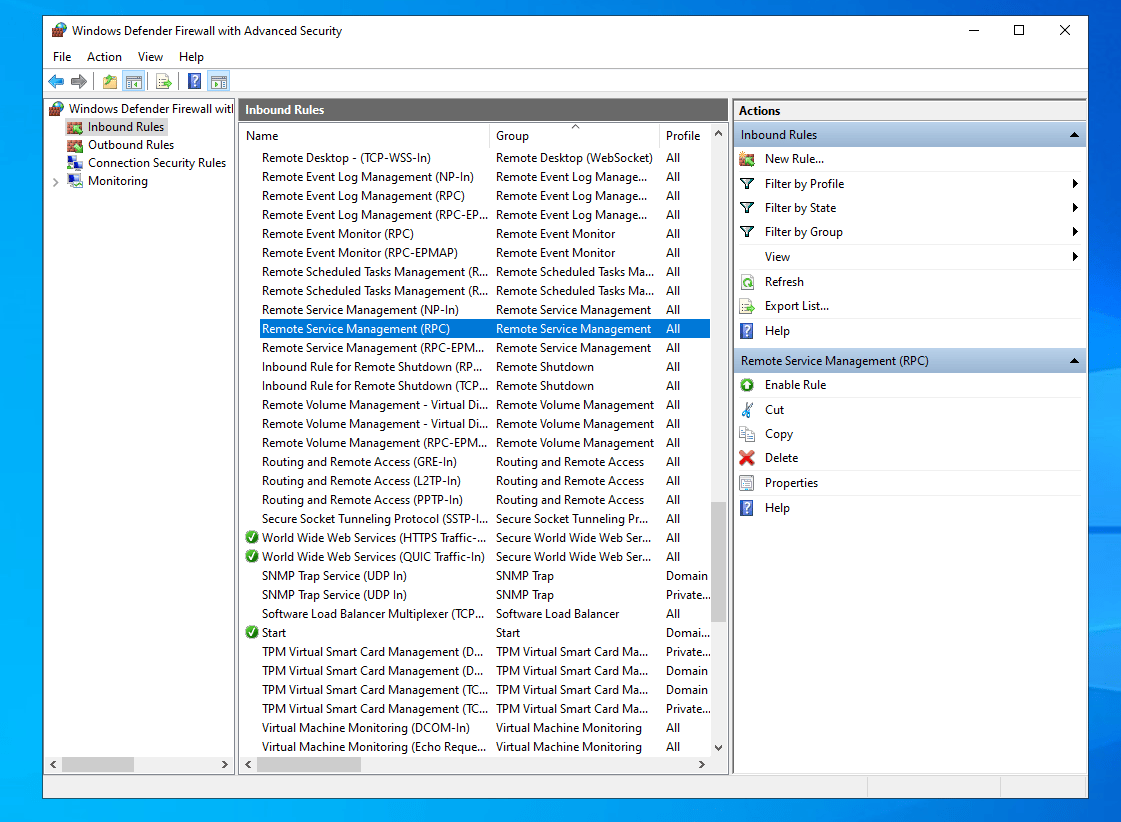
Remote Client installation requires inbound connections allowed for **Remote Service Management (RPC)**, plus **File and Printer Sharing** enabled.
### Enable Remote Service Management (RPC)
Go to **Control Panel > System and Security > Windows Firewall**, then click **Advanced settings**.
In **Windows Firewall with Advanced Security**, click **Inbound Rules**, then double-click **Remote Service Management (RPC)**.
On the **General** tab, select **Enabled** and choose **Allow the connection** under **Action**.
On the **Advanced** tab, select the profile(s) matching the network used to connect remote computers to the server.
Click **Apply**, then **OK**, and close the Windows Firewall window.
### Enable File and Printer Sharing
Go to **Control Panel > System and Security > Windows Firewall**, then click **Allow an app or feature through Windows Firewall**.
Click **Change settings**.
Select the **File and Printer Sharing** checkbox and click **OK**.
 ## Legacy Windows versions
Windows Server 2003 reached end of life in 2015. This section is preserved for environments still running it, but isn't recommended for new deployments.
It isn't necessary to disable the firewall on Windows Server 2003. To allow remote Client installation, enable File and Printer Sharing:
Go to **Start > Control Panel > Windows Firewall**.
Select the **Exceptions** tab.
Select the **File and Printer Sharing** checkbox.
## Related
Ports and versions for MS SQL Server and PostgreSQL.
Windows Client installation and configuration.
Manual database setup for MS SQL Server and PostgreSQL.
## Legacy Windows versions
Windows Server 2003 reached end of life in 2015. This section is preserved for environments still running it, but isn't recommended for new deployments.
It isn't necessary to disable the firewall on Windows Server 2003. To allow remote Client installation, enable File and Printer Sharing:
Go to **Start > Control Panel > Windows Firewall**.
Select the **Exceptions** tab.
Select the **File and Printer Sharing** checkbox.
## Related
Ports and versions for MS SQL Server and PostgreSQL.
Windows Client installation and configuration.
Manual database setup for MS SQL Server and PostgreSQL.