> ## Documentation Index
> Fetch the complete documentation index at: https://syteca.com/docs/llms.txt
> Use this file to discover all available pages before exploring further.
# Configuring LDAP Integration in a Kerberos-Only Authentication Environment
> Set up Syteca in a Windows environment where NTLM is disabled and Kerberos is the only available authentication method, and resolve the connectivity issues that come with it.
**Kerberos** is a network authentication protocol that lets computers prove their identity over an unsecured network without transmitting passwords in plain text. It supports centralized authentication and is the foundation Single Sign-On (SSO) is built on.
Kerberos is based on the concept of a **Ticket** - an encrypted data packet issued by the **Key Distribution Center (KDC)**. On initial authentication, the KDC issues a **Ticket Granting Ticket (TGT)**. When the user accesses a specific resource, they present the TGT to receive a **Service Ticket (TGS)** for that resource.
This page covers configuring Syteca to work correctly once NTLM is disabled and Kerberos is the only authentication method available in the domain, plus the connectivity issues that setup commonly introduces.
## Configure Group Policy for Kerberos-only authentication
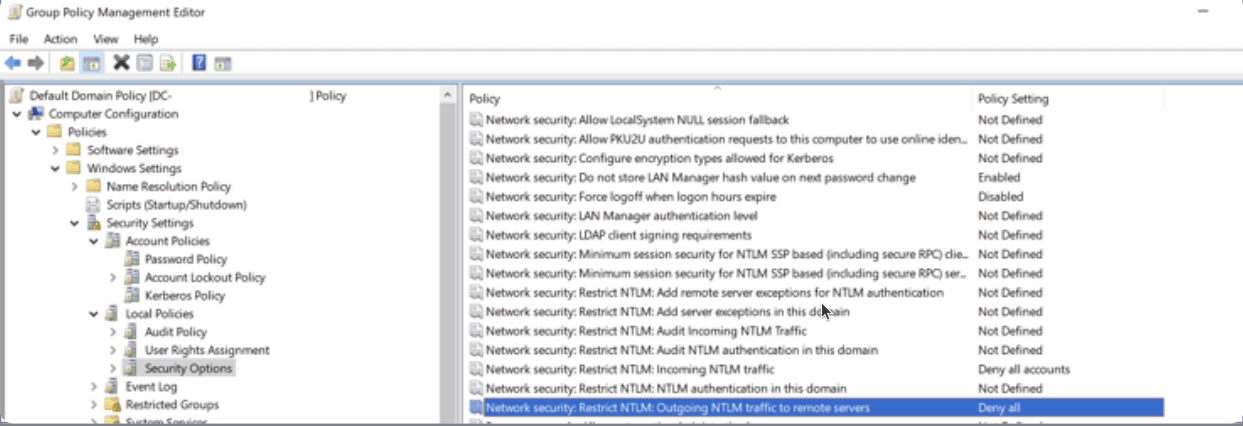
To disable NTLM and enforce Kerberos authentication:
Open **Group Policy Management** and navigate to **Policies > Windows Settings > Security Settings > Local Policies > Security Options**.
Set the following two policies:
| Policy | Setting |
| - | - |
| **Restrict NTLM: Incoming NTLM Traffic** | Deny All Accounts |
| **Restrict NTLM: Outgoing NTLM traffic to remote Servers** | Deny All |
Run the following command to apply the updated policies immediately:
```bat theme={"system"}
gpupdate /force
```
 ## Configure Syteca Server for Kerberos environments
To ensure Syteca Server operates correctly in an environment where Kerberos is the only available authentication method:
Start Syteca Server under an Active Directory user account that belongs to the **Domain Admins** group.
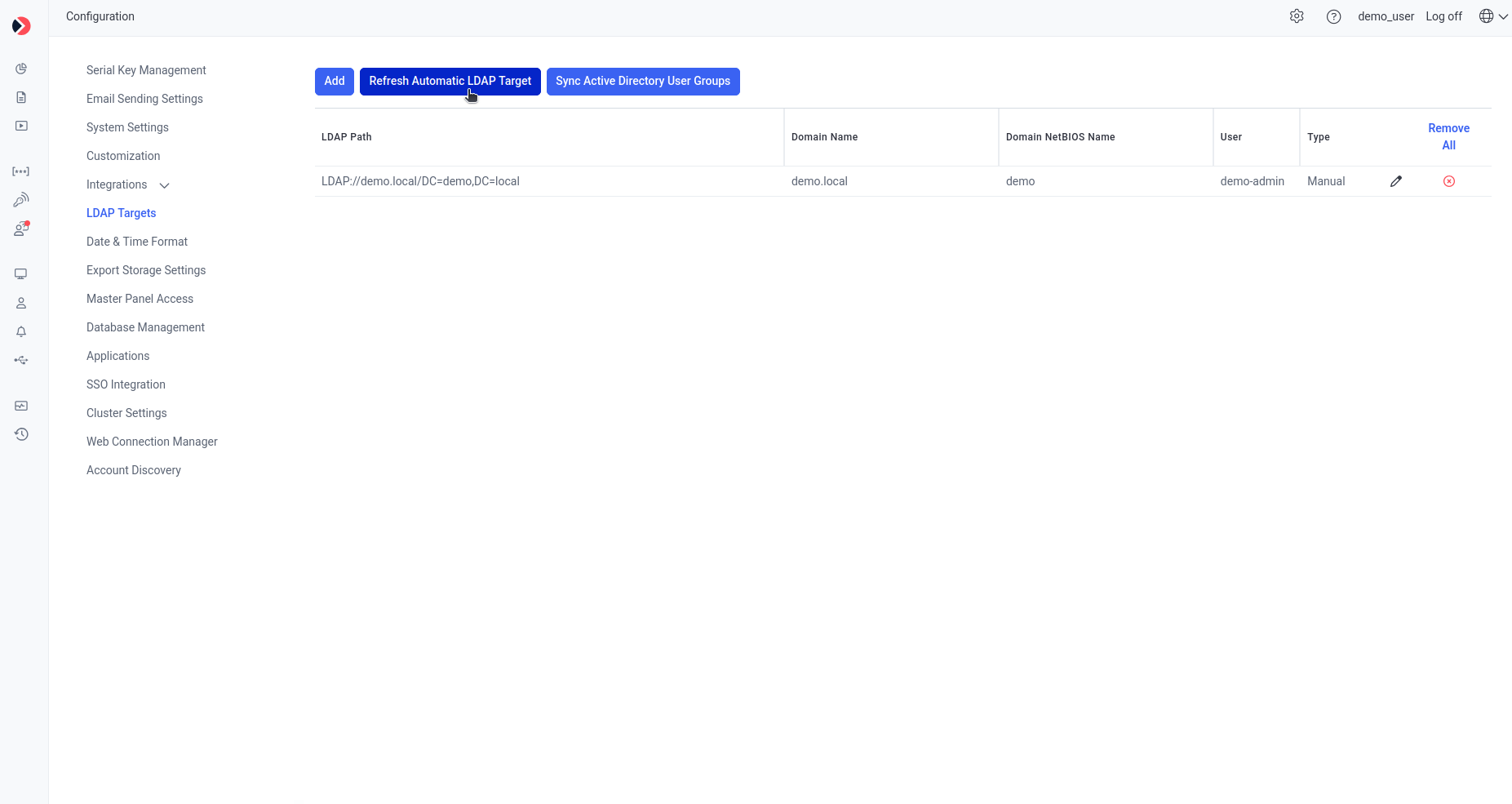
In the Management Tool, go to **Configuration > LDAP Targets** and click **Refresh Automatic LDAP Target**.
## Configure Syteca Server for Kerberos environments
To ensure Syteca Server operates correctly in an environment where Kerberos is the only available authentication method:
Start Syteca Server under an Active Directory user account that belongs to the **Domain Admins** group.
In the Management Tool, go to **Configuration > LDAP Targets** and click **Refresh Automatic LDAP Target**.
 Running Syteca Server under a Domain Admins account is specifically required for Kerberos-only environments - this is a broader privilege than Syteca normally needs, so scope it to this use case rather than applying it by default.
## Troubleshooting
### RDP access issues after disabling NTLM
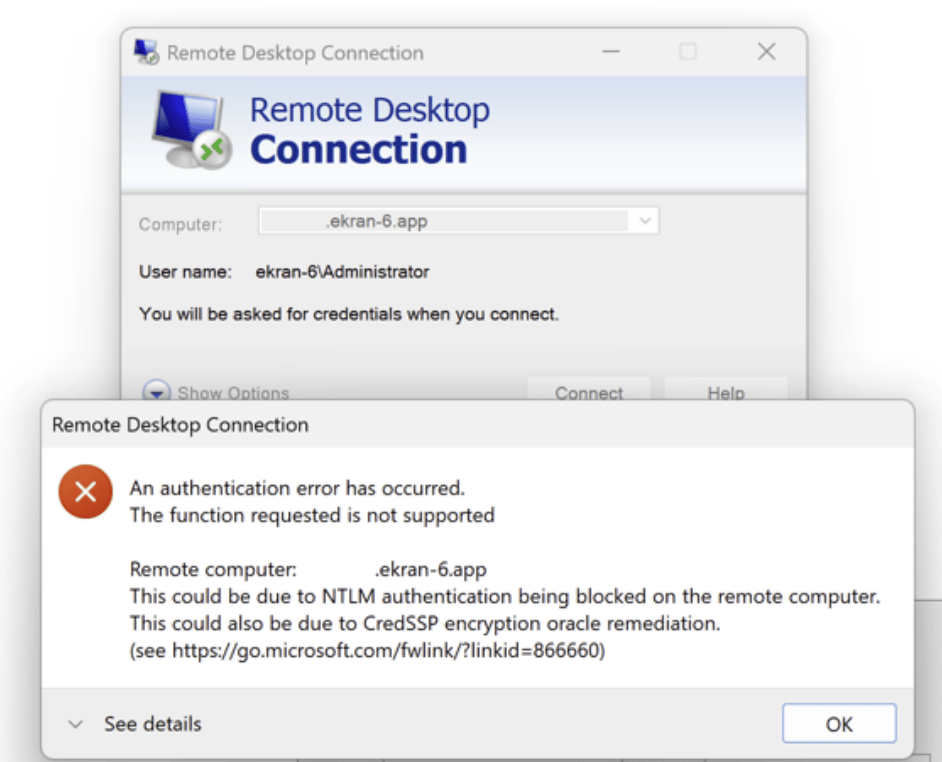
After disabling NTLM, the following RDP scenarios no longer work:
* Logging in as a local user over RDP
* Connecting via IP address over RDP
* Connecting with Network Level Authentication (NLA)
Running Syteca Server under a Domain Admins account is specifically required for Kerberos-only environments - this is a broader privilege than Syteca normally needs, so scope it to this use case rather than applying it by default.
## Troubleshooting
### RDP access issues after disabling NTLM
After disabling NTLM, the following RDP scenarios no longer work:
* Logging in as a local user over RDP
* Connecting via IP address over RDP
* Connecting with Network Level Authentication (NLA)
 To avoid connectivity issues:
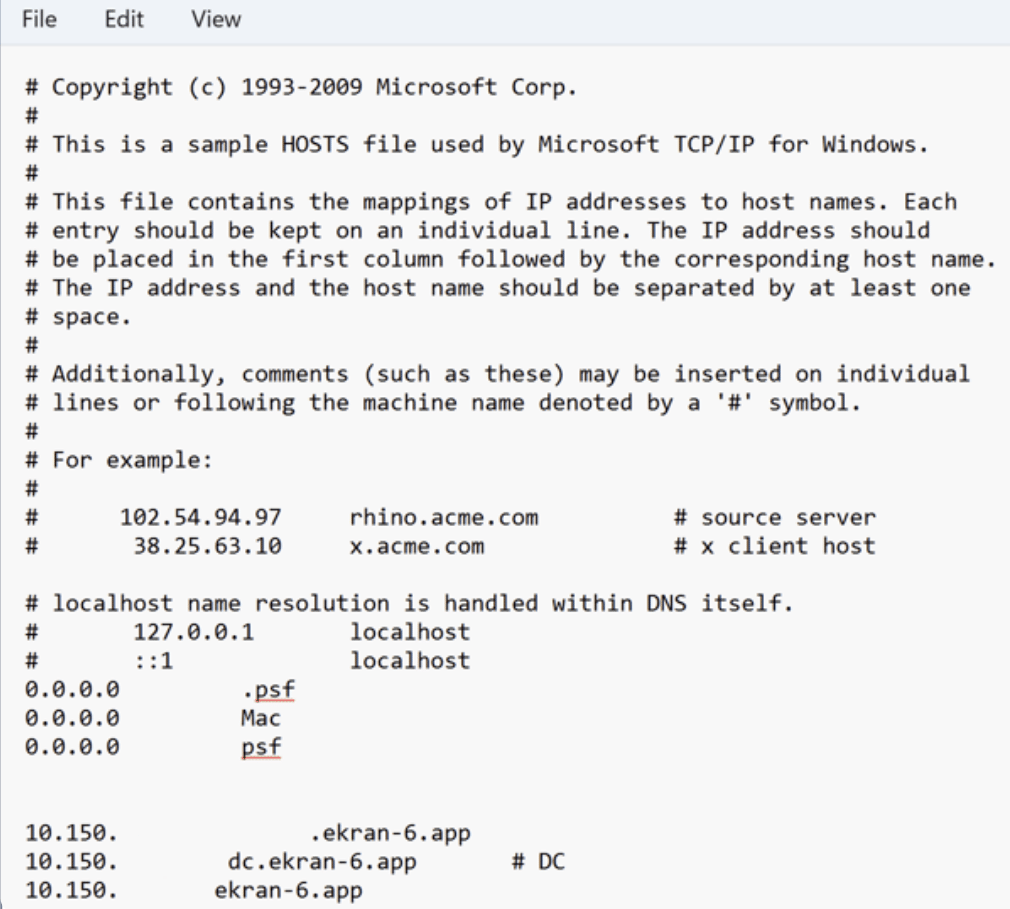
If the PC you're connecting from isn't in the domain, add the Domain Controller and target machine to its `hosts` file.
To avoid connectivity issues:
If the PC you're connecting from isn't in the domain, add the Domain Controller and target machine to its `hosts` file.
 Kerberos doesn't issue tokens for local accounts - logging in as a local user won't authenticate.
Kerberos ties authentication to the hostname; connecting by IP address breaks the ticket exchange.
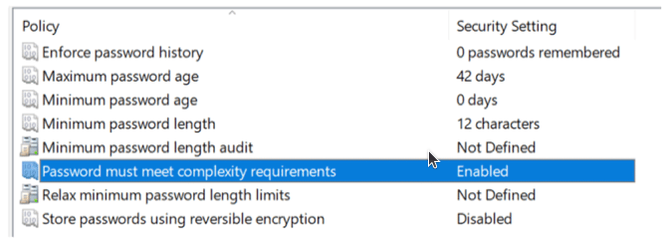
### Password rotation errors
You may encounter the error **"New password does not meet password policy"** when rotating passwords for [Secrets](/docs/pam/secrets/add-secret) under an AD account.
To resolve this, adjust the following settings in **Group Policy Management > Policies > Windows Settings > Security Settings > Account Policies > Password Policy**:
| Setting | Change to | Why |
| - | - | - |
| **Minimum password age** | `0` | The default of 1 day prevents changing a password more than once per 24 hours, which blocks automated rotation from running more than once a day. |
| **Enforce password history** | `0` or disabled | If the generated password matches one already in the AD history (by default, the last 24 passwords), Active Directory rejects it. |
Kerberos doesn't issue tokens for local accounts - logging in as a local user won't authenticate.
Kerberos ties authentication to the hostname; connecting by IP address breaks the ticket exchange.
### Password rotation errors
You may encounter the error **"New password does not meet password policy"** when rotating passwords for [Secrets](/docs/pam/secrets/add-secret) under an AD account.
To resolve this, adjust the following settings in **Group Policy Management > Policies > Windows Settings > Security Settings > Account Policies > Password Policy**:
| Setting | Change to | Why |
| - | - | - |
| **Minimum password age** | `0` | The default of 1 day prevents changing a password more than once per 24 hours, which blocks automated rotation from running more than once a day. |
| **Enforce password history** | `0` or disabled | If the generated password matches one already in the AD history (by default, the last 24 passwords), Active Directory rejects it. |
 ### Manual LDAP target not working
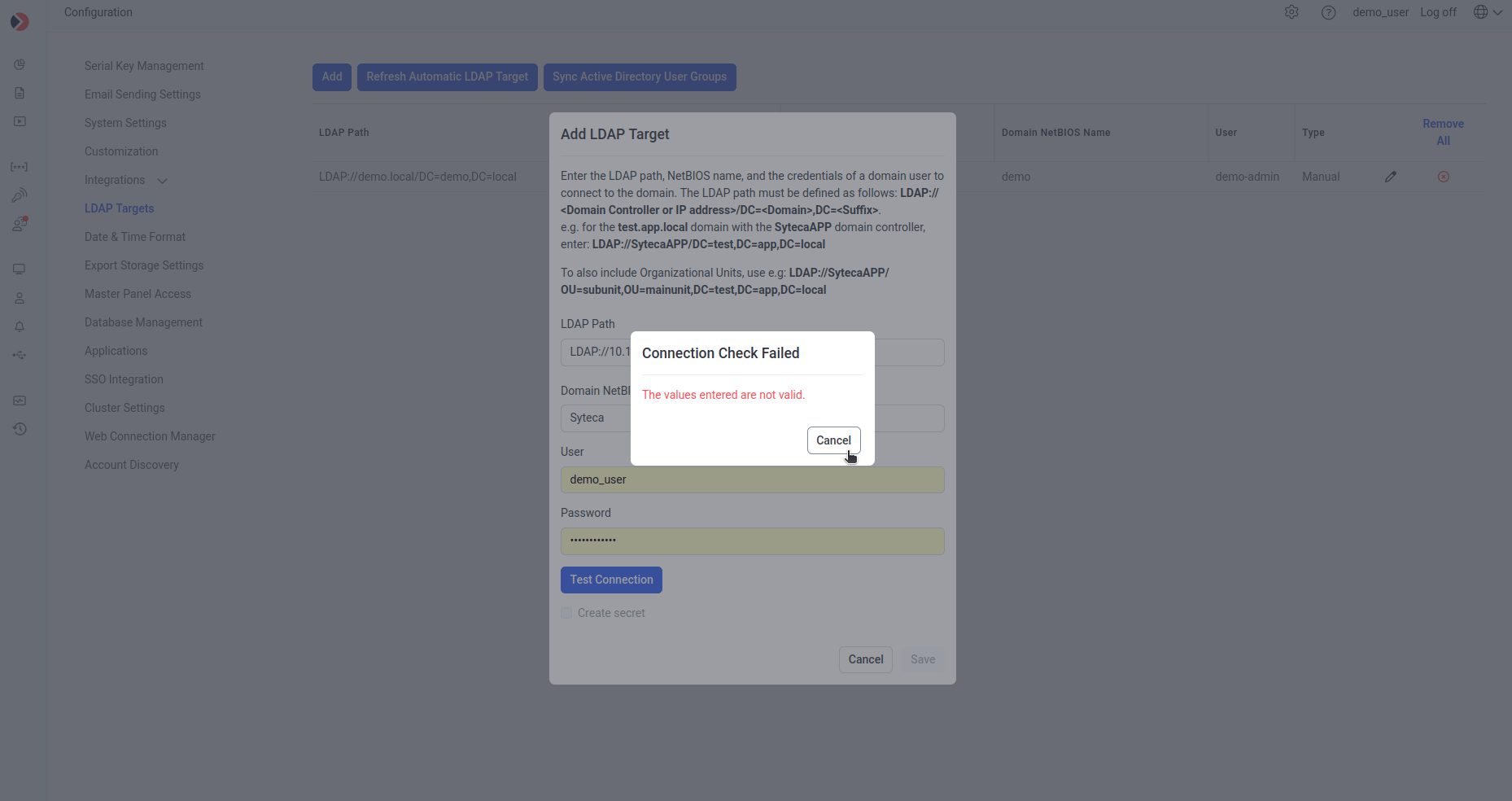
Adding a manual LDAP target doesn't work in Kerberos-only environments.
To resolve this, use **Refresh Automatic LDAP Target** instead of adding an LDAP target manually - see [Configure Syteca Server for Kerberos environments](#configure-syteca-server-for-kerberos-environments) above.
### Manual LDAP target not working
Adding a manual LDAP target doesn't work in Kerberos-only environments.
To resolve this, use **Refresh Automatic LDAP Target** instead of adding an LDAP target manually - see [Configure Syteca Server for Kerberos environments](#configure-syteca-server-for-kerberos-environments) above.
 ## Related
General LDAP target configuration, automatic and manual.
The rotation mechanism affected by AD password policy settings above.
Configure the AD account secrets referenced in this guide.
## Related
General LDAP target configuration, automatic and manual.
The rotation mechanism affected by AD password policy settings above.
Configure the AD account secrets referenced in this guide.