> ## Documentation Index
> Fetch the complete documentation index at: https://syteca.com/docs/llms.txt
> Use this file to discover all available pages before exploring further.
# Configure Azure SSO Integration
> Set up SAML 2.0 Single Sign-On between Microsoft Azure Enterprise Applications and the Syteca Management Tool.
This page configures SAML 2.0 authentication between Microsoft Azure (Entra ID) Enterprise Applications and the Syteca Management Tool. See [SSO integration overview](/docs/administration/integrations/sso) for what SSO integration does and the Management Tool settings shared across every provider.
## Configure Microsoft Azure
On the Azure **Home** page, click **Enterprise applications**, then **New application**, then **Create your own application**. Enter a name for the application and click **Create**.
Select **Assign users and user groups**, click **Add user/group**, and select the users or groups that should be able to log in to Syteca through Azure SSO.
After adding a user or group, confirm the assigned **Role** is correct, and edit it if needed.
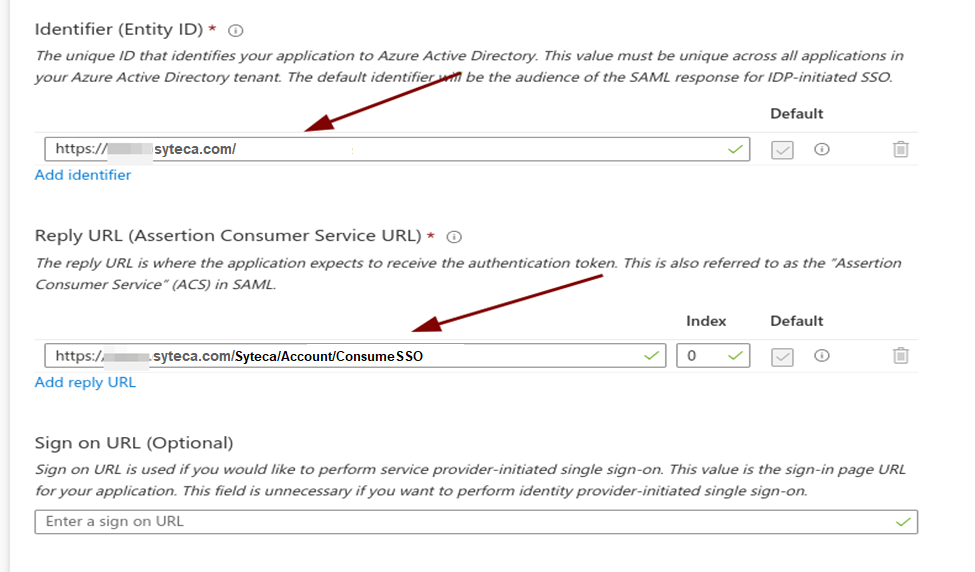
Open the **Single sign-on** section and select **SAML**. On the **Set up Single Sign-On with SAML** page, click **Edit**.
Set the following fields:
* **Identifier (Entity ID):** your Management Tool URL, for example `https:///Ekran System`
* **Reply URL (Assertion Consumer Service URL):** `https:///Ekran System/Account/ConsumeSSO`
Click **Save**.
Scroll to the **SAML Signing Certificate** section and download the **Federation Metadata XML** file (named `SytecaSSO.xml`).
## Configure the Management Tool
Click **Configuration** at the top of the Management Tool, then select the **SSO Integration** tab.
In **Issuer Name**, enter the Management Tool URL. Upload the `SytecaSSO.xml` file using **Choose File**.
The **Auto-create a Management Tool account for a new user on the first SSO login** checkbox is selected by default. See [SSO integration overview](/docs/administration/integrations/sso#what-every-integration-configures-in-common) for what this controls.
Click **Save**, then copy the **Metadata URL** into a new browser tab to download `Metadata.xml`.
In Azure, go to **Home → Enterprise applications → All Applications → Browse Azure AD Gallery → SytecaSSO**, click **Upload metadata file**, and select `Metadata.xml`. Click **Save**.
Log in to the Management Tool using **Log in with SSO** to confirm the integration works.
 SSO authentication is not currently supported in [Multi-Tenant mode](/docs/administration/multi-tenant/overview).
## Related
All supported SSO providers and shared Management Tool settings.
Configure SSO through Okta instead.
Configure SSO through ForgeRock instead.
Managing Management Tool user accounts and permissions.
SSO authentication is not currently supported in [Multi-Tenant mode](/docs/administration/multi-tenant/overview).
## Related
All supported SSO providers and shared Management Tool settings.
Configure SSO through Okta instead.
Configure SSO through ForgeRock instead.
Managing Management Tool user accounts and permissions.