> ## Documentation Index
> Fetch the complete documentation index at: https://syteca.com/docs/llms.txt
> Use this file to discover all available pages before exploring further.
# Ticketing System Integration
> Tie privileged access to a real ticket: Syteca validates the ticket number at login, blocks access without one, and attaches the session recording back to the ticket.
## No ticket, no access — and a session link back on every ticket
Privileged access without a paper trail is a compliance and forensic nightmare. **Ticketing System Integration** ties every privileged login to a real, open ticket in your change-management system: the user enters a ticket number when they log in, Syteca validates it against your ticketing platform, and if the ticket isn't open the login is denied. When the session ends, Syteca writes a link to the corresponding session recording back into the ticket — so anyone reviewing that ticket can replay exactly what was done under its authority.
It's the bridge between "we have a PAM platform" and "every privileged action is traceable to an approved change." Auditors love this. SOC teams love this. Anyone investigating an incident six months later loves this.
**Use Ticketing System Integration when you need to:**
* Enforce "no privileged work without an approved ticket" as policy.
* Make every recorded session findable from your change-management system, not just from Syteca.
* Meet audit requirements that demand a documented business reason for privileged access (PCI DSS, SOC 2, ISO 27001, ITIL change control).
* Eliminate the gap between "the ticket was approved" and "what actually happened during the work."
Syteca integrates directly with **SysAid** and **ServiceNow**, and supports any other ticketing system — including in-house and custom systems — through the [API Bridge](/docs/api/integrations/api-bridge), a self-hosted REST adapter you build once for your platform.
## How it works
When the appropriate options are enabled, a user connecting to a Windows endpoint must enter a ticket number. Syteca validates that number with the ticketing system, and if the ticket has the **open** status, log on is permitted. Syteca then attaches a URL to the ticket so the corresponding session can be reviewed.
Syteca supports **SysAid** and **ServiceNow** directly. To integrate any other ticketing system, use the [API Bridge](/docs/api/integrations/api-bridge) — a REST-based application you run yourself — or contact the [Support team](https://support.syteca.com) to discuss your system.
## Before you start
* You sign in with a user that has the [administrative Database Management permission](/docs/administration/users/administrative-permissions). Only such users can edit ticketing system integration settings.
* You have the connection details for your ticketing system (URL, account, login, and password).
* If you require users to enter a ticket number at login, the corresponding login option must also be enabled. See [the additional message on user login parameter](/docs/administration/clients/parameters/additional-login-message).
## Open the Ticketing System Integration settings
Click the **Configuration** button at the top of the Management Tool.
On the **Configuration** page, select the **Integrations** tab.
Select the **Ticketing System Integration** sub-tab.
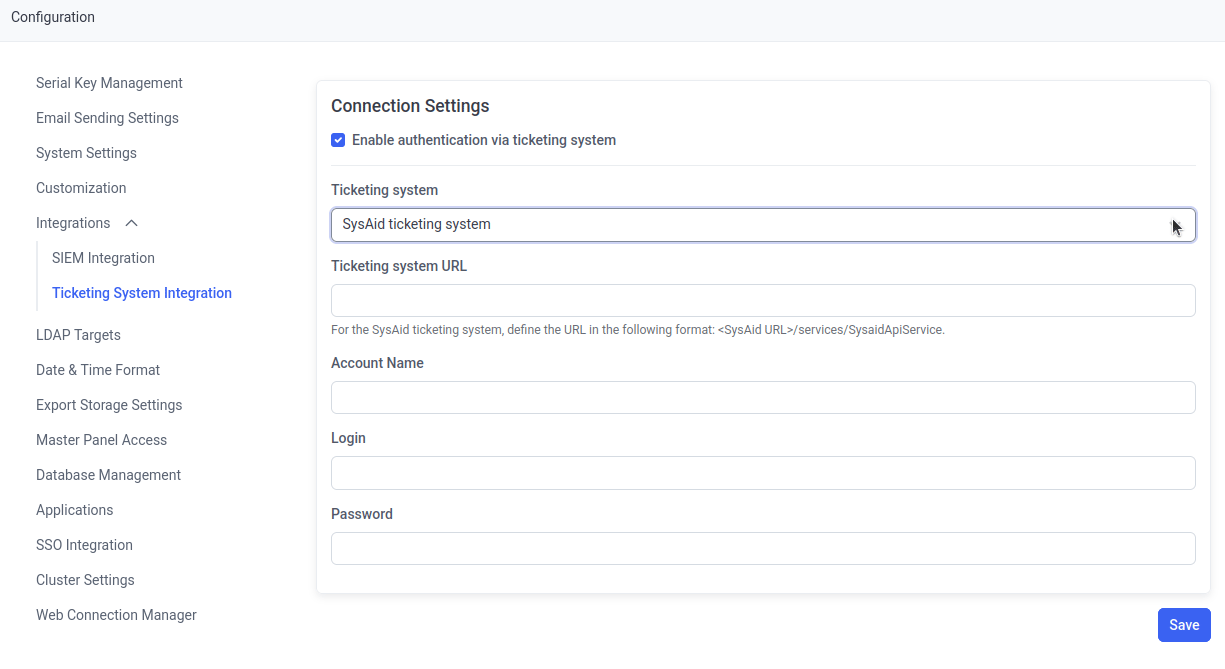 ## Configure the integration
Select **Enable authentication via ticketing system**.
In **Ticketing System**, select **SysAid**, **ServiceNow**, or **API Bridge**, then fill in the parameters for that system using the tabs below.
| Field | What to enter |
| ------------------------ | ------------------------------------------------------------------------- |
| **Ticketing System URL** | A valid SysAid URL in the format `/services/SysaidApiService` |
| **Account Name** | The name of the account the serial key is associated with |
| **Login** | The user name of an existing account with access to the ticketing system |
| **Password** | The password for that account |
| Field | What to enter |
| ----------------- | ------------------------------------------------------------------------ |
| **Instance Name** | The ServiceNow instance name |
| **Table Names** | The table names to search for a ticket number in |
| **Login** | The user name of an existing account with access to the ticketing system |
| **Password** | The password for that account |
| Field | What to enter |
| ------------------------ | ------------------------------------------------------------------------------------------- |
| **Ticketing System URL** | A valid URL and port for your ticketing system, in the format `` |
| **Login** | The user name of an existing account with access to the ticketing system |
| **Password** | The password for that account |
The port you enter here must match the port the API Bridge service is running on. See [Set up the API Bridge](/docs/api/integrations/api-bridge) for how to run the service and choose its port.
## Related
Integrate any custom or unsupported ticketing system using the REST-based API Bridge.
Forward Syteca events to Splunk, ArcSight, or IBM QRadar.
## Configure the integration
Select **Enable authentication via ticketing system**.
In **Ticketing System**, select **SysAid**, **ServiceNow**, or **API Bridge**, then fill in the parameters for that system using the tabs below.
| Field | What to enter |
| ------------------------ | ------------------------------------------------------------------------- |
| **Ticketing System URL** | A valid SysAid URL in the format `/services/SysaidApiService` |
| **Account Name** | The name of the account the serial key is associated with |
| **Login** | The user name of an existing account with access to the ticketing system |
| **Password** | The password for that account |
| Field | What to enter |
| ----------------- | ------------------------------------------------------------------------ |
| **Instance Name** | The ServiceNow instance name |
| **Table Names** | The table names to search for a ticket number in |
| **Login** | The user name of an existing account with access to the ticketing system |
| **Password** | The password for that account |
| Field | What to enter |
| ------------------------ | ------------------------------------------------------------------------------------------- |
| **Ticketing System URL** | A valid URL and port for your ticketing system, in the format `` |
| **Login** | The user name of an existing account with access to the ticketing system |
| **Password** | The password for that account |
The port you enter here must match the port the API Bridge service is running on. See [Set up the API Bridge](/docs/api/integrations/api-bridge) for how to run the service and choose its port.
## Related
Integrate any custom or unsupported ticketing system using the REST-based API Bridge.
Forward Syteca events to Splunk, ArcSight, or IBM QRadar.