> ## Documentation Index
> Fetch the complete documentation index at: https://syteca.com/docs/llms.txt
> Use this file to discover all available pages before exploring further.
# Automatic License Assignment
> Assign endpoint licenses with ordered rules that match endpoints, groups, hostname masks, subnets, or IP ranges, with reserved pools for Golden image deployments.
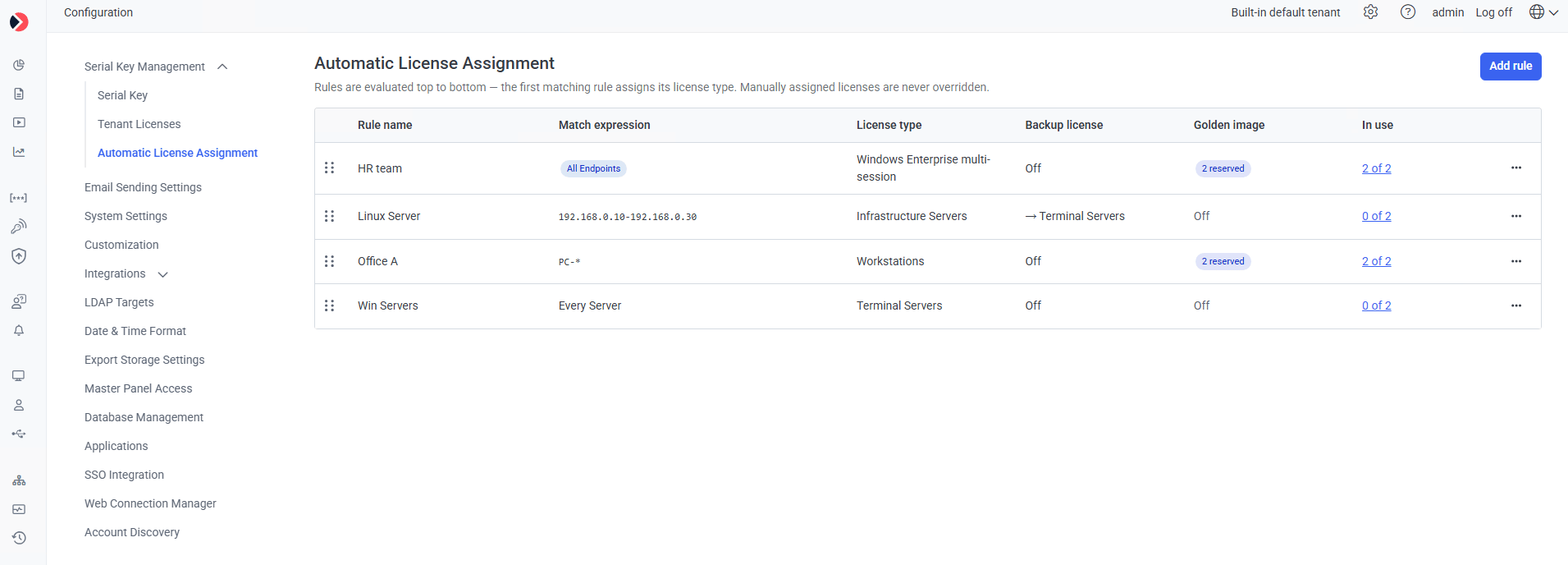
Endpoint licenses are assigned by rules you configure on the **Automatic License Assignment** page. Rules are evaluated from top to bottom, and the first rule that matches an endpoint assigns its license type. Licenses you assigned by hand are never changed by the rules.
This replaces the license auto-assignment settings that used to live in the Application Server configuration file, including the legacy Golden Image mode key. Everything is now configured, visible, and audited in one place.
Find the page at **Configuration → Serial Key Management → Automatic License Assignment**. The Serial Key Management tab is now an expandable section with three sub-items: **Serial Key**, **Tenant Licenses**, and **Automatic License Assignment**.
## How a license gets assigned
When an endpoint needs a license, the Application Server resolves it in this order:
| Step | What happens |
| - | - |
| 1 | If the endpoint has a **manually assigned** license, it keeps it and no rules are evaluated. |
| 2 | Otherwise the rules are evaluated strictly top to bottom. The first rule whose match expression matches the endpoint assigns its license type. |
| 3 | If the matched rule has **Golden image Off**, the endpoint takes a license from the general pool and holds it whether it is online or offline. |
| 4 | If the matched rule has **Golden image On**, the endpoint takes a license from that rule's reserved pool and returns it when it goes offline. |
| 5 | If the matched rule has no license available, the backup license applies where one is configured. Otherwise the endpoint stays unlicensed and a System Health record is created. |
| 6 | If no rule matches, no license is assigned. |
Only position in the table decides priority. A rule matching a single IP address has no precedence over a rule matching an endpoint group simply because it is more specific, so put narrow rules above broad ones.
A manually assigned license is never released when an endpoint goes offline, and is never overridden by a rule. Automatic release on offline applies only to endpoints licensed by a Golden image rule.
 ## The rules table
| Column | Shows |
| - | - |
| Drag handle | Reorders the rule. Drop the row and the new order saves immediately. |
| Rule name | The name you gave the rule. |
| Match expression | Endpoints and endpoint groups appear as up to three chips, with a **+N** chip when more are selected. Hostname masks, subnets, and IP ranges appear as the raw value. The default rules show **Every Server** or **Every Workstation**. |
| License type | The license type the rule assigns. |
| Backup license | **Off**, or an arrow followed by the backup license type name. |
| Golden image | **Off**, or the number of reserved licenses, for example **20 reserved**. |
| In use | How many licenses of this rule's license type are in use, out of the total in the activated serial key. |
| Actions | **Duplicate rule** and **Delete rule**. |
A few things about these values that are easy to misread:
* **In use** counts licenses reserved by any Golden image rule as used, and is not affected by the rule's backup license. Clicking it opens the Endpoints section filtered to that license type.
* **In use** refreshes when the page loads or updates, not continuously while you watch it.
* **Default for Servers** and **Default for Workstations** are ordinary rules. They can be reordered, edited, duplicated, and deleted like any other, and they carry no special styling.
* **Duplicate rule** places the copy directly below the original and adds "(copy)" to the name. The Golden image toggle and its reservation are not copied, so the duplicate starts with Golden image off.
## Create a rule
## The rules table
| Column | Shows |
| - | - |
| Drag handle | Reorders the rule. Drop the row and the new order saves immediately. |
| Rule name | The name you gave the rule. |
| Match expression | Endpoints and endpoint groups appear as up to three chips, with a **+N** chip when more are selected. Hostname masks, subnets, and IP ranges appear as the raw value. The default rules show **Every Server** or **Every Workstation**. |
| License type | The license type the rule assigns. |
| Backup license | **Off**, or an arrow followed by the backup license type name. |
| Golden image | **Off**, or the number of reserved licenses, for example **20 reserved**. |
| In use | How many licenses of this rule's license type are in use, out of the total in the activated serial key. |
| Actions | **Duplicate rule** and **Delete rule**. |
A few things about these values that are easy to misread:
* **In use** counts licenses reserved by any Golden image rule as used, and is not affected by the rule's backup license. Clicking it opens the Endpoints section filtered to that license type.
* **In use** refreshes when the page loads or updates, not continuously while you watch it.
* **Default for Servers** and **Default for Workstations** are ordinary rules. They can be reordered, edited, duplicated, and deleted like any other, and they carry no special styling.
* **Duplicate rule** places the copy directly below the original and adds "(copy)" to the name. The Golden image toggle and its reservation are not copied, so the duplicate starts with Golden image off.
## Create a rule
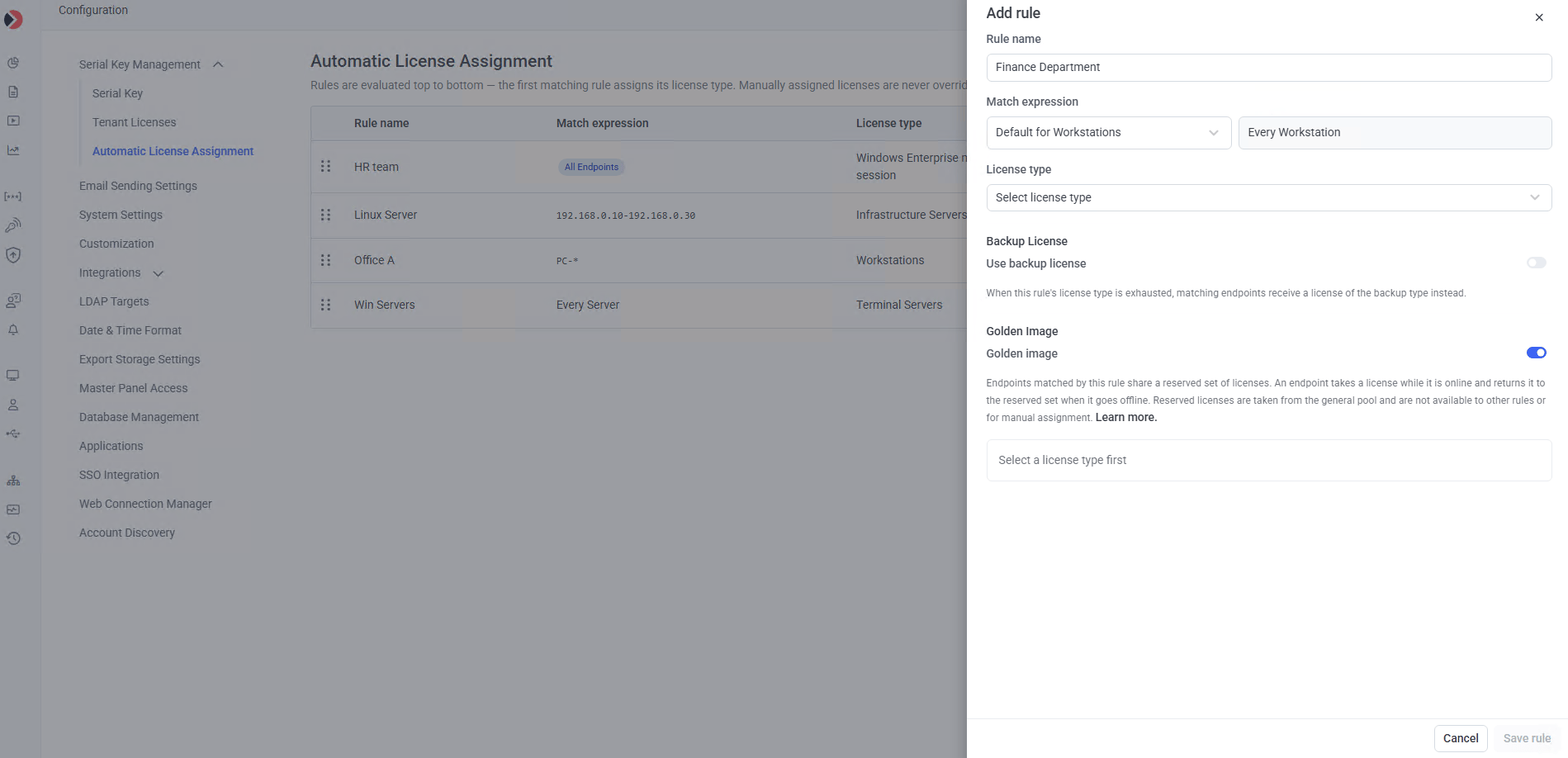 The rule form opens. Rule name and License type are always required.
Use a name that says which machines it covers, because the name is what appears in the audit log and in System Health records when something goes wrong.
Pick an expression type, then fill in the dependent input:
| Expression type | Input |
| - | - |
| **Endpoints** | Multi-select list with search. Selected endpoints appear. |
| **Endpoint groups** | Multi-select list with search. Selected groups appear. |
| **Hostname mask** | Text, for example `srv0*` |
| **Subnet / wildcard** | Text, for example `192.168.10.*` |
| **IP range** | Text, for example `10.0.0.1-10.0.0.50` |
| **Default for Servers** | No input. Matches every server. |
| **Default for Workstations** | No input. Matches every workstation. |
Only one Default for Servers rule and one Default for Workstations rule can exist per tenant. Once one exists, that option disappears from the list.
The list contains every endpoint license type in the activated serial key. Custom license types appear under the unique name defined for them.
Turn on **Use backup license** and pick a second license type to fall back to. The list excludes the rule's own license type, since a rule cannot back itself up.
With the toggle off, an endpoint that matches the rule stays unlicensed when the license type is exhausted.
Leave **Golden image** off for permanent assignment. Turn it on for VDI and other non-persistent endpoints, and enter how many licenses to reserve. See [Golden image rules](#golden-image-rules).
Click **Save rule**. The rule is added to the table, and any endpoints affected by it are re-evaluated.
### Validation
| Field | Requirement |
| - | - |
| Rule name | Required |
| License type | Required |
| Endpoints / Endpoint groups | At least one item selected |
| Hostname mask / Subnet / IP range | Non-empty value |
| Backup license type | Required while **Use backup license** is on |
| Reserved number | Required while **Golden image** is on. At least 1, and no greater than the **Available** value shown. |
If you change a rule's license type to the type currently selected as its backup, the backup selection is cleared. Pick a different backup type or switch the toggle off, because the rule can't be saved with the toggle on and no type selected.
## Golden image rules
With Golden image on, endpoints matched by the rule share a reserved set of licenses rather than each holding one permanently. An endpoint takes a license from the reserved pool while it is online and returns it when it goes offline, so a pool of 20 can serve a much larger population of non-persistent machines.
Reserved licenses leave the general pool as soon as you save the rule, whether or not any endpoint currently matches. If your serial key holds 100 Workstation licenses and a rule reserves 20, the other 80 remain available to every other rule and to manual assignment, and a second Workstation rule can reserve at most 80.
| If you | Then |
| - | - |
| Change the rule's license type while Golden image is on | The reservation is cancelled, the licenses return to the general pool, and you enter a new number for the new type |
| Switch Golden image off | The reservation is cancelled and the licenses return to the general pool |
| Delete a rule with Golden image on | The confirmation prompt states that the reserved licenses return to the general pool |
| Reduce the tenant's allocation, or update or deactivate the license | The rule keeps working with whatever is actually available. The reserved number is not changed, the Golden image column shows both figures, for example **50 reserved (30 available)**, and a System Health record is created |
Backup license and Golden image cannot both be on for one rule. Switching Golden image on turns the backup toggle off and disables it. The reserved pool is the rule's hard limit: when it is fully used, further matching endpoints stay unlicensed.
### Golden image and the legacy mode
After the update, the legacy Golden Image mode key in `EkranServer.Settings.config` is no longer read, even if it is still present in the file. Rule settings are the only source of truth.
## When licenses run short
If the number of licenses of a type decreases, licenses are removed in this order:
1. Free licenses in the general pool that no rule uses as a backup type.
2. Free licenses in the general pool that a rule uses as a backup type.
3. Free licenses in Golden image reserved pools.
4. Licenses automatically assigned as a backup license.
5. Licenses automatically assigned as a rule's own license type.
6. Manually assigned licenses.
Within each step, licenses are taken starting from the rule lowest in the table. Removing free licenses from a reserved pool does not change the reserved number configured in the rule.
### If a license type disappears
A rule whose license type is removed from the license is not deleted and does not move. It stops assigning that type: matching endpoints receive the backup license if one is configured and available, and otherwise stay unlicensed. The License type column shows the name with a **not available** indicator, and a System Health record is created.
If only the rule's **backup** type is deactivated or removed, the rule carries on working with its own license type. Only the backup path stops.
### If no license is activated
No automatic assignment happens, and existing rules are not deleted.
| State | What the page does |
| - | - |
| No license activated, or the license was deactivated | Rules are shown read-only. Adding, editing, deleting, and reordering are unavailable, and the page shows "Activate a license to configure automatic license assignment." |
| Serial key expired | Rules stay editable, and the page shows "The serial key has expired. Licenses are not assigned until the key is renewed." |
Activating a license, or renewing an expired key, re-evaluates endpoints against the existing rules with no further action from you.
When a serial key is activated and no Default rule exists, the missing ones are created automatically. **Default for Servers** uses the endpoint license type with the highest number of concurrent sessions, **Default for Workstations** uses the type with one concurrent session, and Golden image is off on both. If no suitable license type exists for one of them, that rule is not created. Existing rules are never changed by key activation.
## When rules are re-evaluated
An endpoint that already holds a license is only re-evaluated by these events:
| Trigger | Which endpoints are re-evaluated |
| - | - |
| Rule added | Endpoints matching the new rule that no rule above it matches |
| Rule edited (match expression, license type, backup license, or Golden image) | Endpoints matching the old expression or the new one |
| Rule deleted | Endpoints the deleted rule matched |
| Rules reordered | Endpoints matched by the rules whose relative order changed |
| Endpoint group membership changed | The affected endpoint only |
| Manual license reset | The affected endpoint only |
| License activated, or licenses allocated to the tenant | All endpoints without a license |
Reconnecting after being offline does **not** re-evaluate the rules, and neither does a short connection loss that doesn't put the endpoint into the offline state. An endpoint matched by a Golden image rule simply takes a license from the same reserved pool as before.
Online endpoints are re-evaluated without disconnecting. Offline endpoints are evaluated the next time they connect.
## On the Endpoints page
| Where | What changes |
| - | - |
| Endpoints grid | An endpoint holding a license from a Golden image rule shows **Golden image** in the license column instead of the license type name |
| Endpoints grid filters | A new optional **Golden image** filter (Yes / No). It is a filter only, with no new column |
| Editing Endpoint page | The **Assigned license** field shows **Golden image** for such an endpoint |
The **Assigned license** drop-down list is unchanged and still contains **None** plus the license types in the activated serial key. Golden image is a state, not something you can select.
Selecting a license type for a Golden image endpoint makes the assignment manual. The endpoint leaves the rule's reserved pool and the license it held returns to that pool. Selecting **None** removes the manual assignment and the endpoint is re-evaluated, which may put it straight back into the same reserved pool.
## After updating
The migration runs once per deployment, the first time you update to a version with this feature.
| Before the update | After the update |
| - | - |
| A license was designated **Default for Servers** or **Default for Workstations** | A matching rule is created for each. If no default was designated, no default rules are created now, and they are created when a serial key is activated |
| The legacy Golden Image mode key was enabled | Golden image is switched on for the Default rules created above |
| Golden image was enabled | Each of those rules reserves all remaining licenses of its license type, reproducing the previous behaviour where every endpoint released its license on going offline |
| Licenses were assigned, manually or otherwise | All existing assignments are marked as automatically assigned, then endpoints are evaluated against the new rules |
When both Default rules use the same license type, the remaining licenses of that type are split between them in proportion to the number of registered endpoints of each OS type. Connection state is not used, because it isn't available during the update. With 100 Workstation licenses, 60 registered servers, and 20 registered workstations, the split is 75 to Default for Servers and 25 to Default for Workstations.
If Default rules are created with Golden image enabled, every endpoint is licensed by those rules. An endpoint whose license was previously assigned by hand may end up with a different license type. Reassign those endpoints manually after the update if the type matters.
You'll see a one-time dialog, **License assignment has changed**, explaining that assignments are now managed by rules and linking to the page. It appears only if rules were created during the migration.
There is no separate legacy mode. The behaviour from before the update is expressed as ordinary rule settings, so you can reduce a reserved number or switch Golden image off whenever you like.
## Multi-tenant and high availability
Rules and reserved pools apply within a tenant, and a reservation is limited by the endpoint licenses allocated to that tenant.
Changing the serial key, or activating one with fewer licenses, resets the distribution of licenses between tenants and allocates all of them to the default tenant. Rules are not deleted and reserved numbers are not changed, but in a tenant left with no licenses, Golden image rules stop assigning until you allocate licenses to it again. A System Health record is created for each affected tenant.
In [high availability](/docs/administration/deployment/high-availability) deployments, the licensing state of an endpoint lives in the shared database and is the same for every Application Server node. An endpoint is online while at least one node has an active connection to it, and offline only when no node does. A license returns to its reserved pool only once the endpoint is offline by that definition.
## System Health records
All of these are logged with the category **License assignment** and the source **Server**.
| Record | Severity | Raised when |
| - | - | - |
| Endpoint did not receive a license. Names the endpoint, the rule, the license type, and the backup license state | Critical | An endpoint stays unlicensed because nothing was available. Repeat occurrences for the same rule increase the Count value rather than adding a record |
| A rule's reservation exceeds what is available | High | The available licenses of a reserved type drop below the reserved number |
| Tenant has no endpoint licenses after a serial key change | High | A serial key change leaves a tenant with no licenses. One record per tenant |
| A rule issued more licenses than it reserved | High | Nodes issued licenses from the same reserved pool at the same time. Licenses already issued are not revoked and endpoints keep working |
See [System Health dashboards](/docs/administration/dashboards/system-health-dashboards) for where these appear and how long they are kept.
## Audit log
Rule changes are written to the [audit log](/docs/administration/audit-log) under the category **License Management**. Each entry records the client IP address.
| Action | Object | Details |
| - | - | - |
| Adding assignment rule | Rule name | Match expression, license type, backup license, Golden image, and position |
| Editing assignment rule | Rule name | The changed fields, with old and new values |
| Deleting assignment rule | Rule name | Match expression, license type, and Golden image |
| Reordering assignment rules | Assignment rules | The rule that moved, with its old and new positions |
| Changing Golden image reservation | Rule name | License type, with the old and new reserved numbers |
## Permissions
| To | You need |
| - | - |
| View the page, the rules table, and the audit log | **Management Tool Access** and **Tenant Management and System Configuration** |
| Create, edit, delete, or reorder rules | The above, plus **License Management** |
Users with the viewing permissions but not License Management see the page read-only: the table and audit log are visible, while **Add rule**, the Actions menu, and drag-to-reorder are disabled. See [Administrative permissions](/docs/administration/users/administrative-permissions).
## Related
Assign and reassign licenses to individual endpoints by hand.
View the serial key and the endpoint licenses it contains.
License types, seats, and how Syteca licensing works.
Build the endpoint groups that rules match on.
Where unlicensed endpoints and reservation problems are reported.
The record of every rule change.
This documentation is built and hosted on [Mintlify](https://mintlify.com), a developer documentation platform.
The rule form opens. Rule name and License type are always required.
Use a name that says which machines it covers, because the name is what appears in the audit log and in System Health records when something goes wrong.
Pick an expression type, then fill in the dependent input:
| Expression type | Input |
| - | - |
| **Endpoints** | Multi-select list with search. Selected endpoints appear. |
| **Endpoint groups** | Multi-select list with search. Selected groups appear. |
| **Hostname mask** | Text, for example `srv0*` |
| **Subnet / wildcard** | Text, for example `192.168.10.*` |
| **IP range** | Text, for example `10.0.0.1-10.0.0.50` |
| **Default for Servers** | No input. Matches every server. |
| **Default for Workstations** | No input. Matches every workstation. |
Only one Default for Servers rule and one Default for Workstations rule can exist per tenant. Once one exists, that option disappears from the list.
The list contains every endpoint license type in the activated serial key. Custom license types appear under the unique name defined for them.
Turn on **Use backup license** and pick a second license type to fall back to. The list excludes the rule's own license type, since a rule cannot back itself up.
With the toggle off, an endpoint that matches the rule stays unlicensed when the license type is exhausted.
Leave **Golden image** off for permanent assignment. Turn it on for VDI and other non-persistent endpoints, and enter how many licenses to reserve. See [Golden image rules](#golden-image-rules).
Click **Save rule**. The rule is added to the table, and any endpoints affected by it are re-evaluated.
### Validation
| Field | Requirement |
| - | - |
| Rule name | Required |
| License type | Required |
| Endpoints / Endpoint groups | At least one item selected |
| Hostname mask / Subnet / IP range | Non-empty value |
| Backup license type | Required while **Use backup license** is on |
| Reserved number | Required while **Golden image** is on. At least 1, and no greater than the **Available** value shown. |
If you change a rule's license type to the type currently selected as its backup, the backup selection is cleared. Pick a different backup type or switch the toggle off, because the rule can't be saved with the toggle on and no type selected.
## Golden image rules
With Golden image on, endpoints matched by the rule share a reserved set of licenses rather than each holding one permanently. An endpoint takes a license from the reserved pool while it is online and returns it when it goes offline, so a pool of 20 can serve a much larger population of non-persistent machines.
Reserved licenses leave the general pool as soon as you save the rule, whether or not any endpoint currently matches. If your serial key holds 100 Workstation licenses and a rule reserves 20, the other 80 remain available to every other rule and to manual assignment, and a second Workstation rule can reserve at most 80.
| If you | Then |
| - | - |
| Change the rule's license type while Golden image is on | The reservation is cancelled, the licenses return to the general pool, and you enter a new number for the new type |
| Switch Golden image off | The reservation is cancelled and the licenses return to the general pool |
| Delete a rule with Golden image on | The confirmation prompt states that the reserved licenses return to the general pool |
| Reduce the tenant's allocation, or update or deactivate the license | The rule keeps working with whatever is actually available. The reserved number is not changed, the Golden image column shows both figures, for example **50 reserved (30 available)**, and a System Health record is created |
Backup license and Golden image cannot both be on for one rule. Switching Golden image on turns the backup toggle off and disables it. The reserved pool is the rule's hard limit: when it is fully used, further matching endpoints stay unlicensed.
### Golden image and the legacy mode
After the update, the legacy Golden Image mode key in `EkranServer.Settings.config` is no longer read, even if it is still present in the file. Rule settings are the only source of truth.
## When licenses run short
If the number of licenses of a type decreases, licenses are removed in this order:
1. Free licenses in the general pool that no rule uses as a backup type.
2. Free licenses in the general pool that a rule uses as a backup type.
3. Free licenses in Golden image reserved pools.
4. Licenses automatically assigned as a backup license.
5. Licenses automatically assigned as a rule's own license type.
6. Manually assigned licenses.
Within each step, licenses are taken starting from the rule lowest in the table. Removing free licenses from a reserved pool does not change the reserved number configured in the rule.
### If a license type disappears
A rule whose license type is removed from the license is not deleted and does not move. It stops assigning that type: matching endpoints receive the backup license if one is configured and available, and otherwise stay unlicensed. The License type column shows the name with a **not available** indicator, and a System Health record is created.
If only the rule's **backup** type is deactivated or removed, the rule carries on working with its own license type. Only the backup path stops.
### If no license is activated
No automatic assignment happens, and existing rules are not deleted.
| State | What the page does |
| - | - |
| No license activated, or the license was deactivated | Rules are shown read-only. Adding, editing, deleting, and reordering are unavailable, and the page shows "Activate a license to configure automatic license assignment." |
| Serial key expired | Rules stay editable, and the page shows "The serial key has expired. Licenses are not assigned until the key is renewed." |
Activating a license, or renewing an expired key, re-evaluates endpoints against the existing rules with no further action from you.
When a serial key is activated and no Default rule exists, the missing ones are created automatically. **Default for Servers** uses the endpoint license type with the highest number of concurrent sessions, **Default for Workstations** uses the type with one concurrent session, and Golden image is off on both. If no suitable license type exists for one of them, that rule is not created. Existing rules are never changed by key activation.
## When rules are re-evaluated
An endpoint that already holds a license is only re-evaluated by these events:
| Trigger | Which endpoints are re-evaluated |
| - | - |
| Rule added | Endpoints matching the new rule that no rule above it matches |
| Rule edited (match expression, license type, backup license, or Golden image) | Endpoints matching the old expression or the new one |
| Rule deleted | Endpoints the deleted rule matched |
| Rules reordered | Endpoints matched by the rules whose relative order changed |
| Endpoint group membership changed | The affected endpoint only |
| Manual license reset | The affected endpoint only |
| License activated, or licenses allocated to the tenant | All endpoints without a license |
Reconnecting after being offline does **not** re-evaluate the rules, and neither does a short connection loss that doesn't put the endpoint into the offline state. An endpoint matched by a Golden image rule simply takes a license from the same reserved pool as before.
Online endpoints are re-evaluated without disconnecting. Offline endpoints are evaluated the next time they connect.
## On the Endpoints page
| Where | What changes |
| - | - |
| Endpoints grid | An endpoint holding a license from a Golden image rule shows **Golden image** in the license column instead of the license type name |
| Endpoints grid filters | A new optional **Golden image** filter (Yes / No). It is a filter only, with no new column |
| Editing Endpoint page | The **Assigned license** field shows **Golden image** for such an endpoint |
The **Assigned license** drop-down list is unchanged and still contains **None** plus the license types in the activated serial key. Golden image is a state, not something you can select.
Selecting a license type for a Golden image endpoint makes the assignment manual. The endpoint leaves the rule's reserved pool and the license it held returns to that pool. Selecting **None** removes the manual assignment and the endpoint is re-evaluated, which may put it straight back into the same reserved pool.
## After updating
The migration runs once per deployment, the first time you update to a version with this feature.
| Before the update | After the update |
| - | - |
| A license was designated **Default for Servers** or **Default for Workstations** | A matching rule is created for each. If no default was designated, no default rules are created now, and they are created when a serial key is activated |
| The legacy Golden Image mode key was enabled | Golden image is switched on for the Default rules created above |
| Golden image was enabled | Each of those rules reserves all remaining licenses of its license type, reproducing the previous behaviour where every endpoint released its license on going offline |
| Licenses were assigned, manually or otherwise | All existing assignments are marked as automatically assigned, then endpoints are evaluated against the new rules |
When both Default rules use the same license type, the remaining licenses of that type are split between them in proportion to the number of registered endpoints of each OS type. Connection state is not used, because it isn't available during the update. With 100 Workstation licenses, 60 registered servers, and 20 registered workstations, the split is 75 to Default for Servers and 25 to Default for Workstations.
If Default rules are created with Golden image enabled, every endpoint is licensed by those rules. An endpoint whose license was previously assigned by hand may end up with a different license type. Reassign those endpoints manually after the update if the type matters.
You'll see a one-time dialog, **License assignment has changed**, explaining that assignments are now managed by rules and linking to the page. It appears only if rules were created during the migration.
There is no separate legacy mode. The behaviour from before the update is expressed as ordinary rule settings, so you can reduce a reserved number or switch Golden image off whenever you like.
## Multi-tenant and high availability
Rules and reserved pools apply within a tenant, and a reservation is limited by the endpoint licenses allocated to that tenant.
Changing the serial key, or activating one with fewer licenses, resets the distribution of licenses between tenants and allocates all of them to the default tenant. Rules are not deleted and reserved numbers are not changed, but in a tenant left with no licenses, Golden image rules stop assigning until you allocate licenses to it again. A System Health record is created for each affected tenant.
In [high availability](/docs/administration/deployment/high-availability) deployments, the licensing state of an endpoint lives in the shared database and is the same for every Application Server node. An endpoint is online while at least one node has an active connection to it, and offline only when no node does. A license returns to its reserved pool only once the endpoint is offline by that definition.
## System Health records
All of these are logged with the category **License assignment** and the source **Server**.
| Record | Severity | Raised when |
| - | - | - |
| Endpoint did not receive a license. Names the endpoint, the rule, the license type, and the backup license state | Critical | An endpoint stays unlicensed because nothing was available. Repeat occurrences for the same rule increase the Count value rather than adding a record |
| A rule's reservation exceeds what is available | High | The available licenses of a reserved type drop below the reserved number |
| Tenant has no endpoint licenses after a serial key change | High | A serial key change leaves a tenant with no licenses. One record per tenant |
| A rule issued more licenses than it reserved | High | Nodes issued licenses from the same reserved pool at the same time. Licenses already issued are not revoked and endpoints keep working |
See [System Health dashboards](/docs/administration/dashboards/system-health-dashboards) for where these appear and how long they are kept.
## Audit log
Rule changes are written to the [audit log](/docs/administration/audit-log) under the category **License Management**. Each entry records the client IP address.
| Action | Object | Details |
| - | - | - |
| Adding assignment rule | Rule name | Match expression, license type, backup license, Golden image, and position |
| Editing assignment rule | Rule name | The changed fields, with old and new values |
| Deleting assignment rule | Rule name | Match expression, license type, and Golden image |
| Reordering assignment rules | Assignment rules | The rule that moved, with its old and new positions |
| Changing Golden image reservation | Rule name | License type, with the old and new reserved numbers |
## Permissions
| To | You need |
| - | - |
| View the page, the rules table, and the audit log | **Management Tool Access** and **Tenant Management and System Configuration** |
| Create, edit, delete, or reorder rules | The above, plus **License Management** |
Users with the viewing permissions but not License Management see the page read-only: the table and audit log are visible, while **Add rule**, the Actions menu, and drag-to-reorder are disabled. See [Administrative permissions](/docs/administration/users/administrative-permissions).
## Related
Assign and reassign licenses to individual endpoints by hand.
View the serial key and the endpoint licenses it contains.
License types, seats, and how Syteca licensing works.
Build the endpoint groups that rules match on.
Where unlicensed endpoints and reservation problems are reported.
The record of every rule change.
This documentation is built and hosted on [Mintlify](https://mintlify.com), a developer documentation platform.