> ## Documentation Index
> Fetch the complete documentation index at: https://syteca.com/docs/llms.txt
> Use this file to discover all available pages before exploring further.
# Cross-Tenant Access
> How a Syteca tenant admin grants the technician (admin of the built-in default tenant) full access to their tenant account — opt-in and revocable.
By default, **only users of a tenant have access to that tenant's data** — the technician (the admin user of the built-in default tenant) cannot see inside a non-default tenant. This is the core isolation guarantee of Multi-Tenant mode.
When the tenant admin needs hands-on help — troubleshooting, support, migration assistance — they can **opt in** to grant the technician full access to their tenant account. Once granted, the technician can [switch to that tenant](/docs/administration/multi-tenant/manage-tenants#switch-to-another-tenant-account) and perform the same actions as the tenant admin. The grant can be turned off again at any time.
**Not available in SaaS.** Multi-Tenant mode is only supported on on-premises and self-hosted Syteca deployments.
This action is performed by the **tenant admin**, not by the technician. The technician cannot grant themselves access — the opt-in must come from inside the tenant.
## Grant the technician access to your tenant
Sign in to the Management Tool as the tenant admin of the tenant you want to grant access to.
Click the **Configuration** button at the top of the Management Tool.
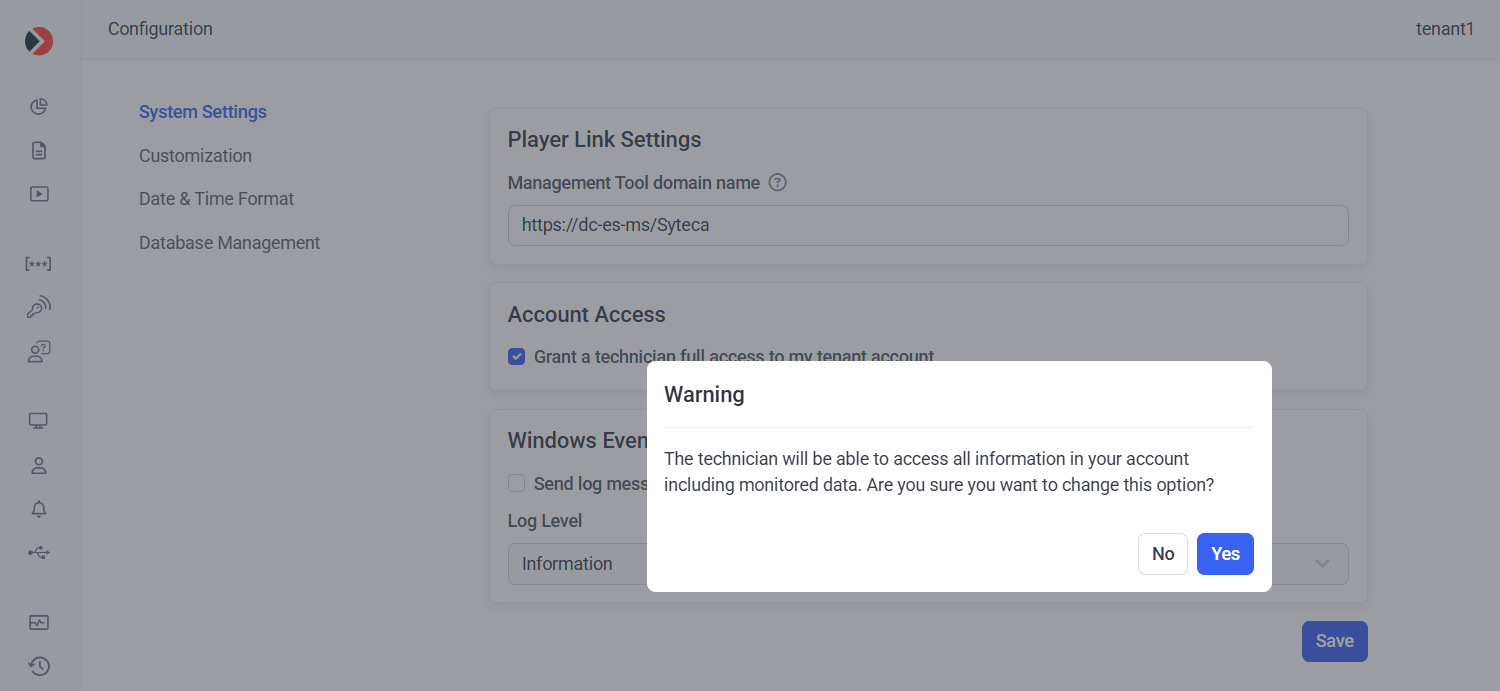
On the **System Settings** tab, in the **Account Access** section at the top, select **Grant a technician full access to my tenant account**.
In the **Warning** pop-up, click **Yes** to confirm.
Click **Save** in the bottom right of the page.
The technician can now [switch to your tenant](/docs/administration/multi-tenant/manage-tenants#switch-to-another-tenant-account) from the Tenants page and perform any action available to you as the tenant admin.
 ## Revoke the grant
To revoke the technician's access at any time, return to the same setting and **clear** the **Grant a technician full access to my tenant account** checkbox, then click **Save**. The technician immediately loses the **Switch To** option for your tenant.
## Related
The conceptual overview, user types, and role comparison table.
Add, edit, delete, and switch to tenants from the Tenants page.
## Revoke the grant
To revoke the technician's access at any time, return to the same setting and **clear** the **Grant a technician full access to my tenant account** checkbox, then click **Save**. The technician immediately loses the **Switch To** option for your tenant.
## Related
The conceptual overview, user types, and role comparison table.
Add, edit, delete, and switch to tenants from the Tenants page.