> ## Documentation Index
> Fetch the complete documentation index at: https://syteca.com/docs/llms.txt
> Use this file to discover all available pages before exploring further.
# Set Up a User Account for ACB
> Configure a Management Tool user for ACB API access — Application Account Settings, the Refresh Token, Authorization token lifetime, and IP Address restriction.
Before the ACB API can be called, you need a Management Tool user with a **Refresh Token** — the long-lived credential that's exchanged for short-lived Access Tokens during normal API operation. This page walks through creating that user and configuring the Application Account Settings.
**NOT AVAILABLE IN SAAS.** This procedure applies to **on-premises** deployments only.
## Two account types, two use cases
The ACB API can authenticate against two different account types in Syteca:
| Account type | Use case | Note |
| ---------------------------------------------------------------------------- | ------------------------------------------------------------------------------------------------------------ | ------------------------------------------------------------------------------------------------------------- |
| **Application Account** *(any user type except Active Directory user group)* | Standard ACB use — secret retrieval, folder management, rotation, bulk operations | Cannot rotate the default `admin` user's password |
| **Internal user or AD user with administrative User Management permission** | For [rotating the default `admin` password](/docs/api/acb/admin-password-rotation) from an external secrets vault | Configured with the same Application Account Settings, plus the **administrative User Management permission** |
Application Accounts can't have administrative permissions like User Management — that's intentional. To rotate the `admin` password, you need a regular Internal or AD user with that permission, and the same external-app toggle enabled.
## Prerequisites
* An [installed and registered](/docs/api/acb/install) ACB service.
* A Management Tool user with the [administrative User Management permission](/docs/administration/users/administrative-permissions) to create or edit the API consumer account.
* For the API consumer to actually work with secrets, the user also needs:
* The [administrative Privileged Accounts Management permission](/docs/administration/users/administrative-permissions).
* A [PAM seat license assigned](/docs/administration/licensing/assign-pam-seat-licenses).
* The Password Management application (with the Automation feature) enabled in the [product license serial key](/docs/administration/licensing/manage-serial-key).
Without these three, the Automation tab won't appear on the Edit Secret and Edit Folder pages — making secret IDs and folder IDs inaccessible.
## Create the user
Sign in to the Management Tool as a user with the administrative User Management permission. Click **Users** in the left navigation.
Click the **Add User** button in the top right.
Either [add an Internal user or an Application Account user](/docs/administration/users/users#add-a-user), or edit an existing **Active Directory** user.
For rotating the default `admin` user's password, use an **Internal** or **Active Directory** user — Application Accounts can't have the administrative User Management permission, which is required for the admin-password endpoints.
Fill in the standard user fields (Login, password, etc.) as per the [Add a user](/docs/administration/users/users#add-a-user) procedure.
## Configure Application Account Settings
After creating the user, the **Application Account Settings** section on the **User Details** tab is where the Refresh Token lives.
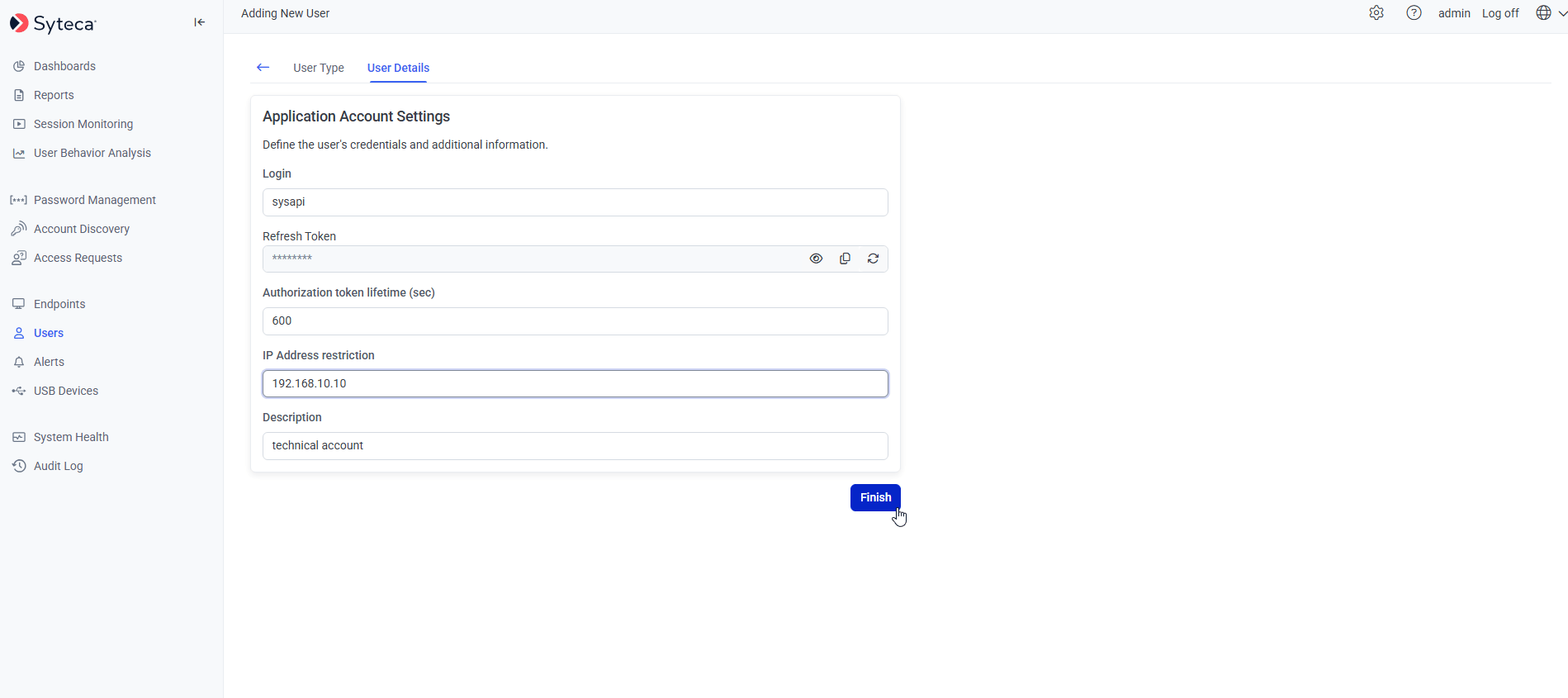 On the **User Details** tab, scroll to the **Application Account Settings** section. Move the **Allow this user account to be used by external applications** toggle to the **right** to enable.
The **Refresh Token** field becomes visible after the toggle is enabled. Click the **Copy** icon next to it to copy the token to your clipboard.
**Treat the Refresh Token like a password.** Anyone with this token can obtain Access Tokens and call the API on this user's behalf. Store it in a secrets vault, not in source control or pipeline config.
The **Authorization token lifetime (sec)** field controls how long Access Tokens are valid after they're issued.
| Value | Meaning |
| -------------------- | ---------------------------------------- |
| `600` *(default)* | Access Token valid for 10 minutes |
| Any positive integer | Access Token valid for that many seconds |
| `0` | Access Token **never expires** |
Long-lived Access Tokens reduce friction for automation, but increase the blast radius if a token is leaked. The default 600s is a reasonable balance for most workflows.
The **IP Address restriction** field limits the API consumer to a specific IP address. Requests from any other IP return **403 Forbidden**.
Use this for production deployments where the API caller's IP is known and stable (e.g. a dedicated CI/CD runner, a CMDB host, a SOAR appliance).
Click **Save** to commit the changes.
## What happens when the toggle is disabled
Disabling the **Allow this user account to be used by external applications** toggle:
* **Hides** the Refresh Token, Authorization token lifetime, and IP Address restriction fields.
* **Expires the Refresh Token immediately.** Any in-flight automation calling the API on behalf of this user starts failing with **401 Unauthorized**.
Re-enabling the toggle generates a **new** Refresh Token — the old one is permanently invalid.
## Next steps
| Task | Page |
| ---------------------------------------------------------- | ---------------------------------------------------------------- |
| Grant the user permissions on specific secrets and folders | [Secret permissions](/docs/api/acb/secret-permissions) |
| Exchange the Refresh Token for an Access Token | [GET access token endpoint](/docs/api/acb/endpoints/get-access-token) |
| Start calling the API | [API reference](/docs/api/acb/api-reference) |
## Related
Grant the user Owner / Editor / PAM User roles on specific secrets and folders.
Full reference for adding and editing Syteca users.
The permissions required for ACB API access.
Base URL, authentication, status codes.
On the **User Details** tab, scroll to the **Application Account Settings** section. Move the **Allow this user account to be used by external applications** toggle to the **right** to enable.
The **Refresh Token** field becomes visible after the toggle is enabled. Click the **Copy** icon next to it to copy the token to your clipboard.
**Treat the Refresh Token like a password.** Anyone with this token can obtain Access Tokens and call the API on this user's behalf. Store it in a secrets vault, not in source control or pipeline config.
The **Authorization token lifetime (sec)** field controls how long Access Tokens are valid after they're issued.
| Value | Meaning |
| -------------------- | ---------------------------------------- |
| `600` *(default)* | Access Token valid for 10 minutes |
| Any positive integer | Access Token valid for that many seconds |
| `0` | Access Token **never expires** |
Long-lived Access Tokens reduce friction for automation, but increase the blast radius if a token is leaked. The default 600s is a reasonable balance for most workflows.
The **IP Address restriction** field limits the API consumer to a specific IP address. Requests from any other IP return **403 Forbidden**.
Use this for production deployments where the API caller's IP is known and stable (e.g. a dedicated CI/CD runner, a CMDB host, a SOAR appliance).
Click **Save** to commit the changes.
## What happens when the toggle is disabled
Disabling the **Allow this user account to be used by external applications** toggle:
* **Hides** the Refresh Token, Authorization token lifetime, and IP Address restriction fields.
* **Expires the Refresh Token immediately.** Any in-flight automation calling the API on behalf of this user starts failing with **401 Unauthorized**.
Re-enabling the toggle generates a **new** Refresh Token — the old one is permanently invalid.
## Next steps
| Task | Page |
| ---------------------------------------------------------- | ---------------------------------------------------------------- |
| Grant the user permissions on specific secrets and folders | [Secret permissions](/docs/api/acb/secret-permissions) |
| Exchange the Refresh Token for an Access Token | [GET access token endpoint](/docs/api/acb/endpoints/get-access-token) |
| Start calling the API | [API reference](/docs/api/acb/api-reference) |
## Related
Grant the user Owner / Editor / PAM User roles on specific secrets and folders.
Full reference for adding and editing Syteca users.
The permissions required for ACB API access.
Base URL, authentication, status codes.