> ## Documentation Index
> Fetch the complete documentation index at: https://syteca.com/docs/llms.txt
> Use this file to discover all available pages before exploring further.
# Managing policies
> Assign and unassign policies for endpoints and endpoint groups to control which risk factors are evaluated during endpoint health assessments.
The **Managing Policies** section explains how to assign and unassign policies for individual endpoints and endpoint groups. Policy assignments determine which risk factors are evaluated during health calculations and directly affect endpoint health scores.
When a policy assignment changes, the change is recorded in the endpoint's policy history and the endpoint health is automatically recalculated.
### Managing Assigned Endpoints
To manage policy assignment to endpoints, you need to have have the [Endpoint Configuration Management permission](/docs/administration/users/client-permissions).
### Assigning a Policy to Endpoints
Assign a policy to one or more endpoints to include the policy's risk factors in endpoint health calculations.
To assign a policy:
1. Open the [Policy details](/docs/espm/policies/policy-details) page.
2. Select the **Endpoints** tab.
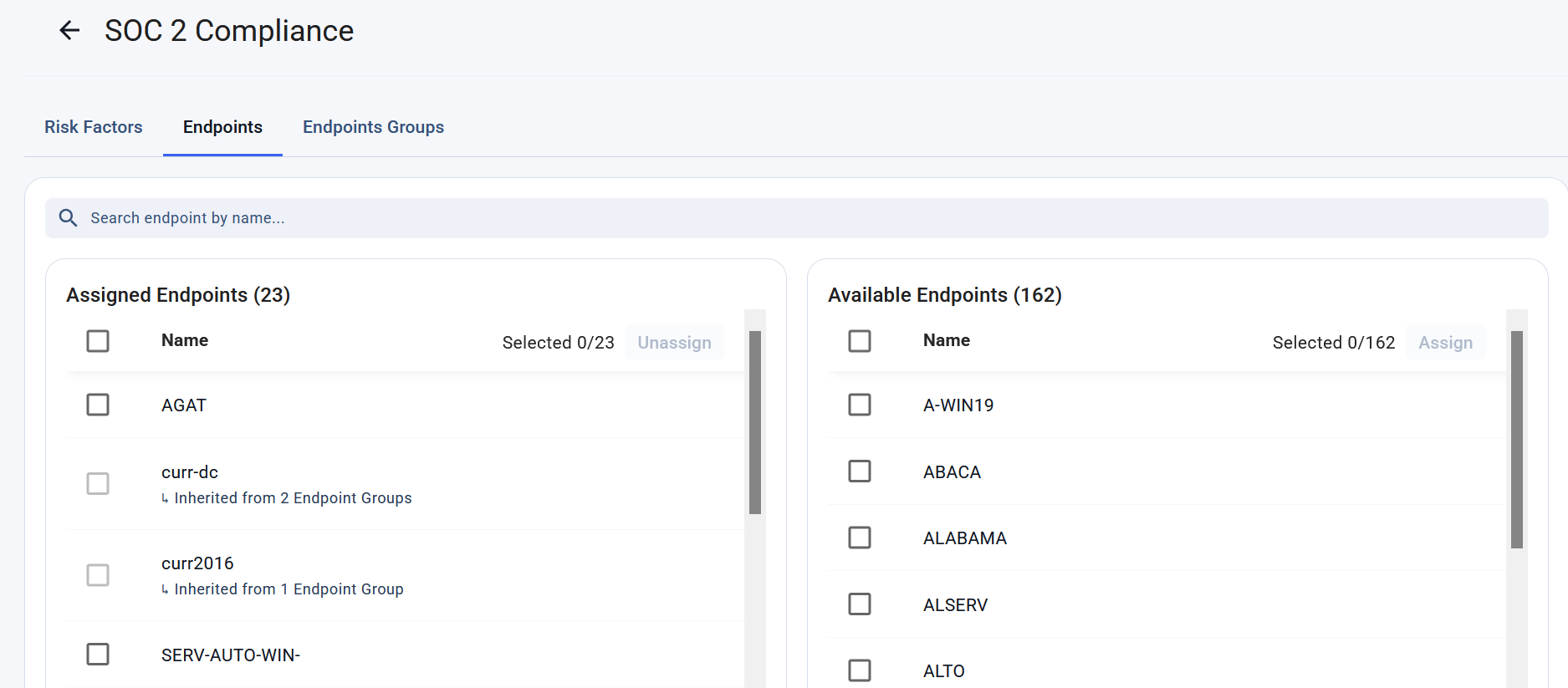
3. Select one or more endpoints in the **Available Endpoints** list.
4. Click **Assign**.
5. Review the confirmation message.
6. Click **Confirm** to apply the change.
What Happens Next
* The policy is assigned to the selected endpoints.
* A policy assignment event is recorded in the endpoint's [Policy Changes History](/docs/espm/endpoints/endpoint-history#policy-changes-history).
* Online endpoints collect any additional data required by the policy. Offline endpoints start collecting information as soon as they get online.
* Endpoint health is recalculated after data collection is completed.
* Risk factors defined by the policy become available for evaluation.
### Unassigning a Policy from Endpoints
Unassign a policy to exclude its risk factors from future endpoint health calculations.
Policies inherited from endpoint groups cannot be unassigned directly from an endpoint. To remove such assignments, unassign the policy from the corresponding endpoint group.
To unassign a policy:
1. Open the [Policy details](/docs/espm/policies/policy-details) page.
2. Select the **Endpoints** tab.
3. Select one or more endpoints in the **Assigned Endpoints** list.
4. Click **Unassign**.
5. Review the confirmation message.
6. Click **Confirm** to apply the change.
What Happens Next
* The policy is removed from the selected endpoints.
* A policy removal event is recorded in the endpoint's [Policy Changes History](/docs/espm/endpoints/endpoint-history#policy-changes-history).
* Endpoint health is recalculated after the change is applied.
* Risk factors that belong exclusively to the removed policy no longer appear in [Endpoint details](/docs/espm/endpoints/endpoint-details) after health data is updated.
 ### Managing Assigned Endpoint Groups
To manage policy assignment to endpoint groups, you need to have have the [Endpoint Configuration Management permission](/docs/administration/users/client-permissions). The change is applied to all endpoints in the group.
### Assigning a Policy to Endpoint Groups
Assign a policy to an endpoint group to apply the policy to all endpoints that belong to the group.
To assign a policy:
1. Open the [Policy details](/docs/espm/policies/policy-details) page.
2. Select the **Endpoint Groups** tab.
3. Select one or more endpoint groups in the **Available Endpoint Groups** list.
4. Click **Assign**.
5. Review the confirmation message.
6. Click **Confirm** to apply the change.
What Happens Next
* The policy is assigned to the selected endpoint groups.
* The policy is applied to endpoints that belong to those groups.
* Online endpoints collect any additional data required by the policy. Offline endpoints start collecting information as soon as they get online.
* Endpoint health is recalculated after data collection is completed.
### Unassigning a Policy from Endpoint Groups
Remove a policy from an endpoint group when the policy should no longer apply to endpoints within that group.
To unassign a policy:
1. Open the [Policy details](/docs/espm/policies/policy-details) page.
2. Select the **Endpoint Groups** tab.
3. Select one or more endpoint groups in the **Assigned Endpoint Groups** list.
4. Click **Unassign**.
5. Review the confirmation message.
6. Click **Confirm** to apply the change.
What Happens Next
* The policy is removed from the selected endpoint groups.
* Endpoints within those groups stop using the policy for health calculations.
* Endpoint health is automatically recalculated.
* Risk factors belonging exclusively to the removed policy disappear from [Endpoint details](/docs/espm/endpoints/endpoint-details)after health data is refreshed.
## Related
Explore security and compliance policies, understand how risk factors, controls, and severity ratings contribute to policy health scores.
Understand how endpoint, policy, and control health scores are calculated from detected risks.
Health trends and active risk factors on the individual endpoint dashboard.
The history of endpoint health, policy assignments, and risk factor status changes.
### Managing Assigned Endpoint Groups
To manage policy assignment to endpoint groups, you need to have have the [Endpoint Configuration Management permission](/docs/administration/users/client-permissions). The change is applied to all endpoints in the group.
### Assigning a Policy to Endpoint Groups
Assign a policy to an endpoint group to apply the policy to all endpoints that belong to the group.
To assign a policy:
1. Open the [Policy details](/docs/espm/policies/policy-details) page.
2. Select the **Endpoint Groups** tab.
3. Select one or more endpoint groups in the **Available Endpoint Groups** list.
4. Click **Assign**.
5. Review the confirmation message.
6. Click **Confirm** to apply the change.
What Happens Next
* The policy is assigned to the selected endpoint groups.
* The policy is applied to endpoints that belong to those groups.
* Online endpoints collect any additional data required by the policy. Offline endpoints start collecting information as soon as they get online.
* Endpoint health is recalculated after data collection is completed.
### Unassigning a Policy from Endpoint Groups
Remove a policy from an endpoint group when the policy should no longer apply to endpoints within that group.
To unassign a policy:
1. Open the [Policy details](/docs/espm/policies/policy-details) page.
2. Select the **Endpoint Groups** tab.
3. Select one or more endpoint groups in the **Assigned Endpoint Groups** list.
4. Click **Unassign**.
5. Review the confirmation message.
6. Click **Confirm** to apply the change.
What Happens Next
* The policy is removed from the selected endpoint groups.
* Endpoints within those groups stop using the policy for health calculations.
* Endpoint health is automatically recalculated.
* Risk factors belonging exclusively to the removed policy disappear from [Endpoint details](/docs/espm/endpoints/endpoint-details)after health data is refreshed.
## Related
Explore security and compliance policies, understand how risk factors, controls, and severity ratings contribute to policy health scores.
Understand how endpoint, policy, and control health scores are calculated from detected risks.
Health trends and active risk factors on the individual endpoint dashboard.
The history of endpoint health, policy assignments, and risk factor status changes.