> ## Documentation Index
> Fetch the complete documentation index at: https://syteca.com/docs/llms.txt
> Use this file to discover all available pages before exploring further.
# Desktop Connection Manager
> Syteca's PAM jump server / gateway. Broker recorded privileged sessions to Windows, Linux, Active Directory, MS SQL, and web accounts through a Windows Client.
## Recorded privileged sessions through a PAM gateway
The **Desktop Connection Manager** is Syteca's PAM jump server — a hardened Windows computer that brokers privileged connections to your servers, databases, and admin accounts **with full session recording**. Users sign in to the jump server, pick a secret from the Connection Manager, and connect to the target system using native tools (RDP, PuTTY, SSMS) — without ever seeing the credentials, and with every keystroke and screen captured for audit.
This is the right tool when you need a strict, recorded, auditable flow for day-to-day administrators — the kind of access compliance frameworks (PCI DSS, SOC 2, HIPAA) expect to see fully logged. For lighter or agentless scenarios — contractors, BYOD, remote staff — pair it with the [Web Connection Manager](/docs/pam/access/web-connection-manager), which runs in the browser without an agent.
**Choose the Desktop Connection Manager when you need:**
* Full keystroke and screen recording of privileged sessions for audit.
* Support for every secret type (Active Directory, Windows, Linux SSH/Telnet, MS SQL, Web).
* A controlled gateway through which all privileged access must flow.
* Secondary user authentication so a shared admin account is always traceable to an individual.
**Pair it with the [Web Connection Manager](/docs/pam/access/web-connection-manager) for users who don't need recording** — contractors, third-party admins, BYOD, and incident-response break-glass.
Before secrets can be used on the desktop, you configure a Windows Client computer — often a dedicated jump server, also called a PAM gateway — where users with the right [permissions](/docs/pam/secrets/permissions) connect through this Connection Manager.
[PAM seat licenses must be assigned to users](/docs/administration/licensing/assign-pam-seat-licenses) before they can use PAM, including the Desktop Connection Manager.
The Desktop Connection Manager requires **.NET Framework 4.8** on the Client computer.
## Before you start
* You sign in with the [Client Configuration Management permission for Clients](/docs/administration/users/client-permissions).
* The Windows Client you'll use as the gateway is already connected to the Management Tool.
A jump server is only needed if two or more concurrent sessions are required on the Client computer running the Desktop Connection Manager. A Windows Server operating system is recommended for it.
## Configure the Client computer
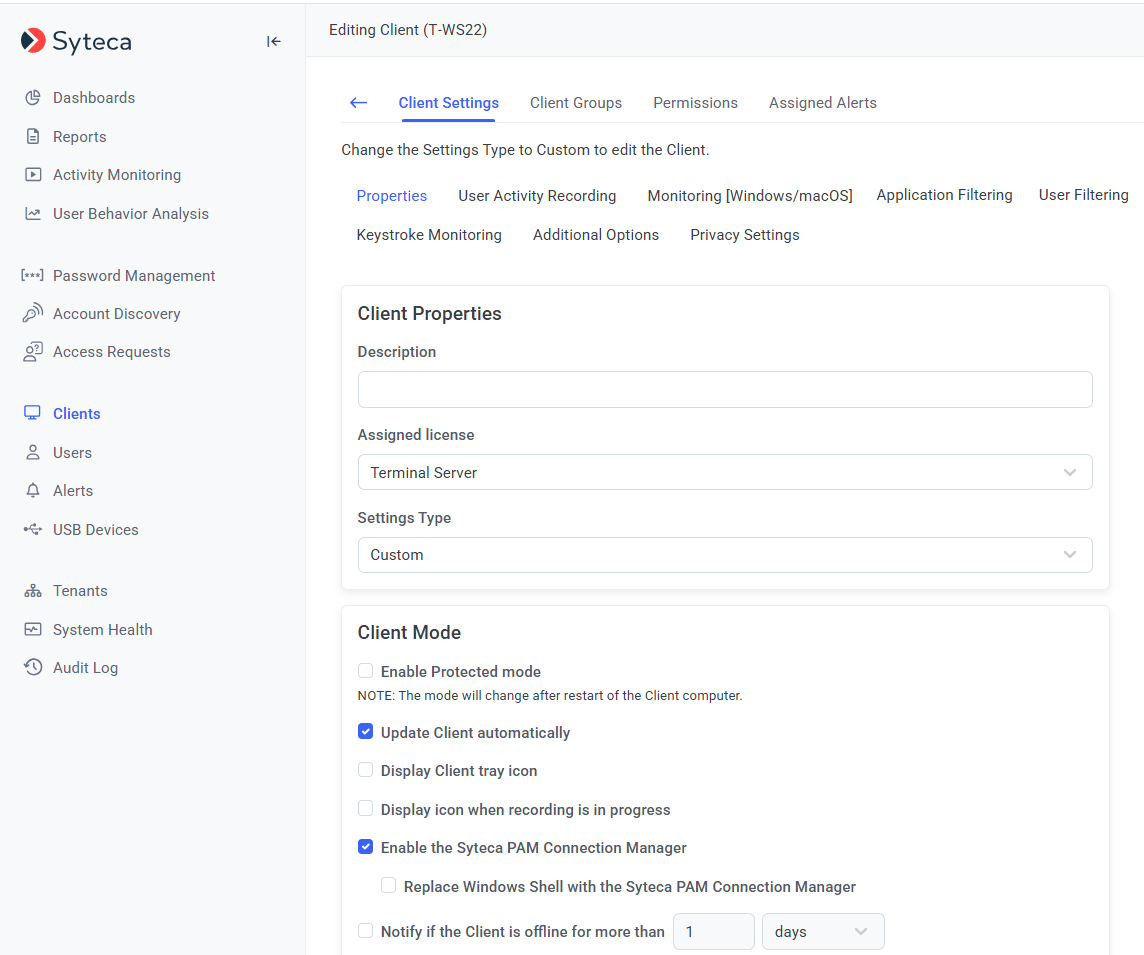
Sign in to the Management Tool, click **Clients**, find the Windows Client to use as the gateway, and click its name in the **Client Name** column.
On the **Properties** tab, scroll to **Client Mode** and select:
* **Enable the Syteca PAM Connection Manager** — turns on the Desktop Connection Manager.
* **Replace Windows Shell with the Syteca PAM Connection Manager** (optional) — shows users only the Connection Manager window, not the Client desktop.
With a custom Windows shell, the Connection Manager shortcut may not appear on the desktop. Find it in `C:\Users\Public\Desktop`.
Select the **Authentication Options** tab, scroll to **Two-Factor and Secondary Authentication**, and select **Enable secondary user authentication on login** so users can access secrets.
Secondary user authentication is not required for Active Directory users.
Click **Finish**. The Client is now configured, and users can connect to accounts using the [Desktop Connection Manager](/docs/pam/secrets/use-secrets).
 ## Related
Connect from the Management Tool without a jump server.
Step-by-step connection for each secret type.
The full PAM configuration order.
Create a secret to use through the gateway.
## Related
Connect from the Management Tool without a jump server.
Step-by-step connection for each secret type.
The full PAM configuration order.
Create a secret to use through the gateway.