> ## Documentation Index
> Fetch the complete documentation index at: https://syteca.com/docs/llms.txt
> Use this file to discover all available pages before exploring further.

# Syteca PAM Connection Manager for Linux

> Use the pacm command-line tool to list, inspect, and connect to Secrets directly from a Linux SSH or terminal session — no desktop GUI required.

The **Syteca PAM Connection Manager for Linux** (**PACM**) lets users work with [Secrets](/docs/pam/secrets/view-manage-secrets) directly from Linux SSH and terminal sessions — the same experience as the [Desktop Connection Manager](/docs/pam/access/desktop-connection-manager), but entirely within the terminal, using a single `pacm` command. A user can list the Secrets available to them, view Secret details, request access, and connect to a target system, all without leaving the terminal.

<Info>
  **Use this when you need to:**

  * Give Linux/SSH-based administrators PAM access without a GUI or a Windows jump server.
  * Let users on a Linux Endpoint browse, request, and use Secrets entirely from the command line.
  * Extend recorded, credential-less privileged access to environments that are Linux-first.
</Info>

Only **SSH/Network Device** (password- or key-based) and **Telnet** Secrets are supported for connection.

<Note>
  Using the PAM Connection Manager requires a **Password Management (PAM) seat license**. See [Assigning PAM seat licenses](/docs/administration/licensing/assign-pam-seat-licenses).
</Note>

## 1. Prerequisites

Before a user can connect to a Secret with PACM, the following must be in place on the Linux computer running the Connection Manager:

* **For Telnet Secrets:** a Telnet Client installed and configured.
* **For key-based Unix SSH Secrets:** PuTTYgen installed.

If a required component is missing, the connection doesn't happen — see [Connection errors](#connection-errors) below for the exact message.

Additional conditions:

* The **Enable the Syteca PAM Connection Manager** option must be enabled on the Linux Endpoint (see below).
* The user must have a **PAM seat license** assigned.
* The user must have the **Owner**, **Editor**, or **PAM User** permission for each Secret they want to view or use.
* An unlimited number of users can use the Connection Manager on the same Linux Endpoint at the same time.

## 2. Enable the PAM Connection Manager on a Linux Endpoint

PACM is enabled per Linux Endpoint, from the Management Tool.

<Steps>
  <Step title="Open the Endpoint">
    On the **Endpoints** page, open the Linux Endpoint for editing.
  </Step>

  <Step title="Enable the option">
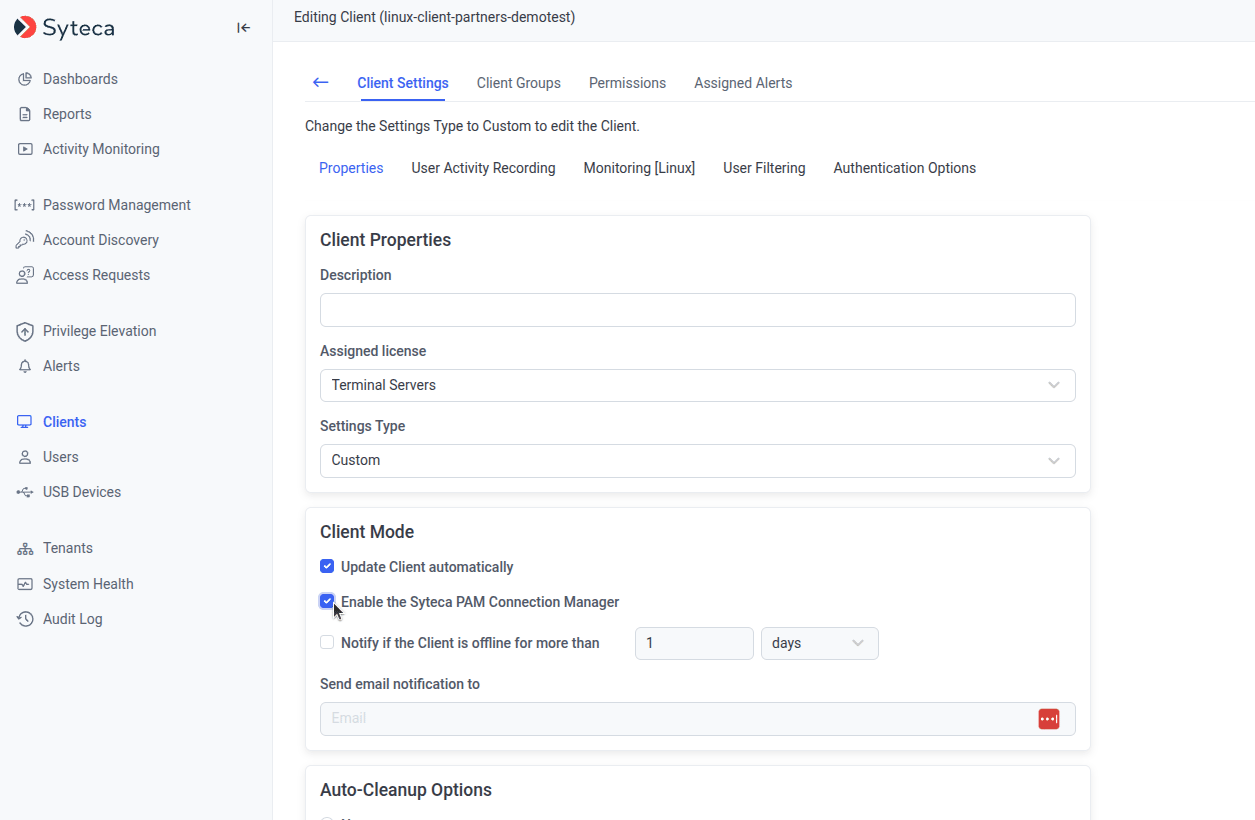
    In the **Endpoint Mode** section of the **Editing Endpoint** page, select **Enable the Syteca PAM Connection Manager**.
  </Step>

  <Step title="Save">
    Save the changes.
  </Step>
</Steps>

<Frame caption="The Enable the Syteca PAM Connection Manager checkbox in the Endpoint Mode section.">
  <img src="https://mintcdn.com/syteca/FKrkO8bEqEQ6WSgs/images/pam/access/linux-pacm-enable-endpoint-mode.png?fit=max&auto=format&n=FKrkO8bEqEQ6WSgs&q=85&s=4dc8c6e20e250a4d71813c617bbe44de" alt="Editing Endpoint page showing the Enable the Syteca PAM Connection Manager checkbox" width="1255" height="820" data-path="images/pam/access/linux-pacm-enable-endpoint-mode.png" />
</Frame>

<Note>
  **Unchecked by default.** If a Linux Endpoint belongs to an Endpoint group and inherits its settings, and the group has this option enabled, the Endpoint inherits it too.
</Note>

## 3. Launch the Connection Manager

Run the following command in a Linux SSH or local terminal session:

```bash theme={"system"}
pacm
```

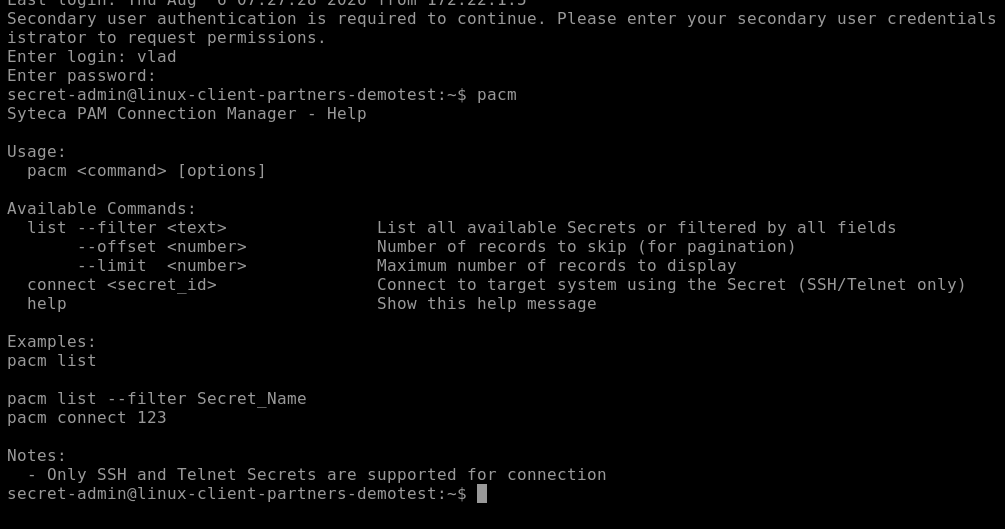
A local Linux user accesses Secrets using the credentials of a [secondary user](/docs/administration/clients/parameters/secondary-user-authentication) (an internal Syteca user or an Active Directory user assigned as the secondary user).

If the option is enabled and a PAM seat license is assigned, the Connection Manager launches with a confirmation message.

<Frame caption="PACM launching successfully in a terminal session.">
  <img src="https://mintcdn.com/syteca/FKrkO8bEqEQ6WSgs/images/pam/access/linux-pacm-launch.png?fit=max&auto=format&n=FKrkO8bEqEQ6WSgs&q=85&s=b9ca36ff5825b728cbb2b073762063c7" alt="Terminal showing pacm launching with a confirmation message" width="1005" height="529" data-path="images/pam/access/linux-pacm-launch.png" />
</Frame>

| Condition                                           | Message shown                                                                                                                |
| --------------------------------------------------- | ---------------------------------------------------------------------------------------------------------------------------- |
| Option disabled on the Endpoint                     | `Connection Manager is not enabled on this Endpoint.`<br />`Please contact your administrator to gain access to use secrets` |
| No PAM seat license, or no permission to any Secret | `A Password Management seat license is required. Please contact your System Administrator.`                                  |

### Error messages

| Situation                                                                | Message                                                                                   |
| ------------------------------------------------------------------------ | ----------------------------------------------------------------------------------------- |
| Unknown command or unsupported parameters                                | `Error: Unknown command: <entered_command>`                                               |
| Launched in a Linux graphical (UI) session instead of SSH/local terminal | `Error: PACM must be run from an SSH session or a local terminal session.`                |
| Unexpected internal error (for example, Syteca Server is stopped)        | `Error: An internal error occurred while processing the request. Please try again later.` |

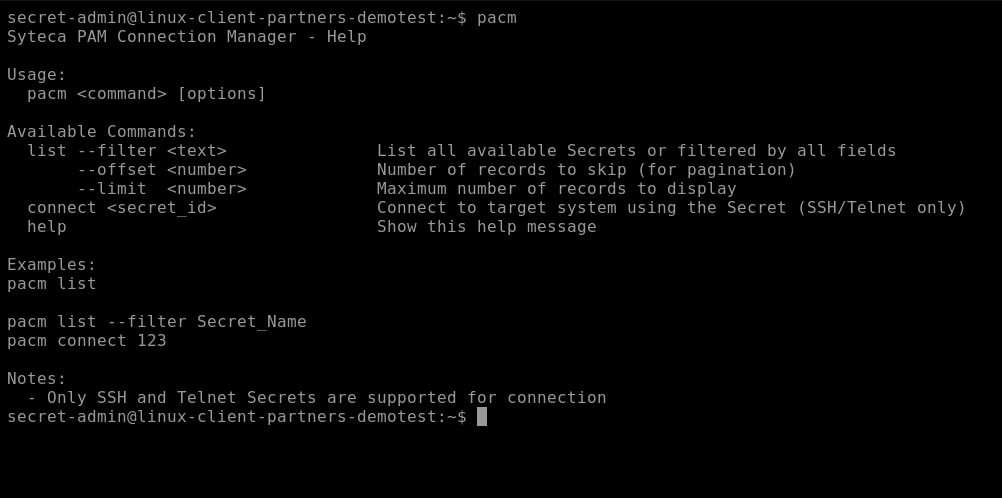
## 4. View available commands

```bash theme={"system"}
pacm help
```

<Frame caption="Output of the pacm help command.">
  <img src="https://mintcdn.com/syteca/FKrkO8bEqEQ6WSgs/images/pam/access/linux-pacm-help.png?fit=max&auto=format&n=FKrkO8bEqEQ6WSgs&q=85&s=429beca3f7b2597f7452f2ae6c82fd53" alt="Terminal output listing pacm commands" width="1002" height="498" data-path="images/pam/access/linux-pacm-help.png" />
</Frame>

## 5. List available Secrets

```bash theme={"system"}
pacm list
```

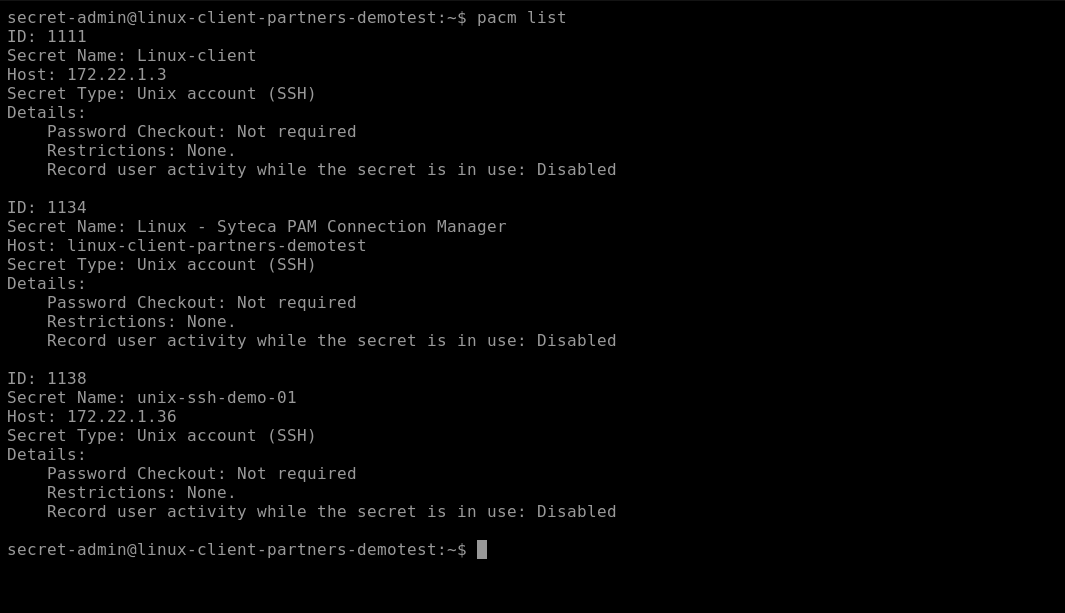
Shows every **SSH** (password- or key-based) and **Telnet** Secret you have **Owner**, **Editor**, or **PAM User** permission for. Each Secret is shown as:

```text theme={"system"}
ID: <secret_id>
Secret Name: <secret_name>
Host: <host>
Secret Type: <Unix account (SSH) / Unix account (Telnet)>
Details:
Password Checkout: <Requires checkout / Checked out>
Restrictions: <Allowed during working hours / Requires approval / Waiting for Approval / Approved. Expiration date/time [xx:xx] / Denied>
Record user activity while the secret is in use: <User activity will be recorded while the secret is in use / None>
```

Multiple Secrets are separated by an empty line. If none are shared with the secondary user: `No secrets available.`

<Frame caption="Output of pacm list, showing multiple available Secrets.">
  <img src="https://mintcdn.com/syteca/FKrkO8bEqEQ6WSgs/images/pam/access/linux-pacm-list.png?fit=max&auto=format&n=FKrkO8bEqEQ6WSgs&q=85&s=b841d2f1ec316bc62067359e8247eaf9" alt="Terminal output showing multiple Secret entries from pacm list" width="1065" height="613" data-path="images/pam/access/linux-pacm-list.png" />
</Frame>

### Filter the list

```bash theme={"system"}
pacm list --filter <text>
```

* Matches the **ID**, **Secret Name**, **Host**, **Secret Type**, and **Details** fields — a Secret is included if the filter value matches at least one field.
* Matches as a **substring**, not a full match (`--filter test` matches `test-db`, `testware`, `secret-test`).
* **Case-insensitive.**
* Only a single `--filter` per command.

| Filter by   | Command                            |
| ----------- | ---------------------------------- |
| ID          | `pacm list --filter 123`           |
| Secret Name | `pacm list --filter test`          |
| Host        | `pacm list --filter rhel`          |
| Type        | `pacm list --filter SSH`           |
| Details     | `pacm list --filter "Checked out"` |

If nothing matches: `No secrets available.`

### Paginate the list

```bash theme={"system"}
pacm list --offset <n> --limit <n>
```

* `--offset` — number of records to skip.
* `--limit` — maximum number of records to display.

Invalid values (negative or non-numeric) produce: `Error: Invalid pagination parameters.`

## 6. Connect to a Secret

```bash theme={"system"}
pacm connect <secret_id | secret_name>
```

With the required permission (**Owner**, **Editor**, or **PAM User**), this starts an SSH or Telnet session using the specified Secret.

* Connect by **Secret name** or by **ID**.
* Secret name matching is case-insensitive (`Test-Server` matches `test-server`).
* Press **Ctrl+C** to close a connection established via a Secret.

### Entering the secondary user password

You may be prompted for the secondary user's password before connecting:

* **Not requested** if you logged in to the Endpoint session, or entered a password to connect to another Secret, **less than 5 minutes ago**.
* **Requested** if more than 5 minutes have passed.

```text theme={"system"}
Enter your Secondary user password:
```

You get **3 attempts**. Each failed attempt shows `Sorry, try again.` After 3 failures: `3 incorrect password attempts`, and the connection is terminated.

### Access restrictions and approval

Behavior depends on the Secret's restriction settings:

| Restriction                                                       | Behavior                                                                                                                                                                                                                                                                                                                                               |
| ----------------------------------------------------------------- | ------------------------------------------------------------------------------------------------------------------------------------------------------------------------------------------------------------------------------------------------------------------------------------------------------------------------------------------------------ |
| Access already approved, or "Access without restrictions"         | Connects immediately, no restrictions.                                                                                                                                                                                                                                                                                                                 |
| "Allow access without approval during work hours" — during hours  | Connects immediately. 10 minutes before the approved window ends: `Access to this computer is allowed only until <time>. You will be logged out at <time>` — then the connection closes automatically.                                                                                                                                                 |
| "Allow access without approval during work hours" — outside hours | `You are attempting to use this secret outside of your permitted working hours. Enter a comment and request access from your administrator.` A comment is required — pressing Enter with an empty comment re-prompts. The access request then appears in the Management Tool with the comment, computer name, username, and timestamp.                 |
| "Always require approval on secret usage"                         | `Usage of this secret requires approval. Enter a comment and request access from your administrator.` Once approved: `Approved. Expiration date/time <time>`. 10 minutes before expiration, the same warning as above appears, then the connection closes automatically. If approved for under 10 minutes, the connection just closes with no warning. |
| Access requested, not yet approved                                | `Your access request for usage of this secret is awaiting approval.` (repeats on Enter)                                                                                                                                                                                                                                                                |
| Access denied                                                     | `Error: Secret usage approval was denied by the administrator.` You can request again with a new comment.                                                                                                                                                                                                                                              |
| Approval expired before connecting                                | `Error: Secret usage approval request has expired. Please submit a new request`                                                                                                                                                                                                                                                                        |

<Note>
  **Owners** and **Approvers** connect without restrictions unless **Owners or Approvers also require approval** is selected for the Secret — in which case they're restricted too.
</Note>

### Password checkout

| Checkout state                           | Behavior                                                                                                                                         |
| ---------------------------------------- | ------------------------------------------------------------------------------------------------------------------------------------------------ |
| Already **Checked out** by another user  | `Error: The requested secret is currently checked out by another user. Please try again later.`                                                  |
| **Requires Checkout**                    | Connection succeeds; status changes to **Checked out** everywhere — Management Tool, other Connection Managers, and this one under other users.  |
| **Check in automatically after** \<time> | Connection closes: `The password was checked in automatically (by the timer in the password settings).` Status returns to **Requires Checkout**. |
| **Force Check in** (by an Owner/Editor)  | Connection closes: `The password was checked in forcibly by the password Owner or an Editor`                                                     |
| **Change password on check in**          | After a **Requires Checkout** Secret is checked in, its password rotates.                                                                        |

### Connection errors

| Situation                                                | Message                                                                                                                              |
| -------------------------------------------------------- | ------------------------------------------------------------------------------------------------------------------------------------ |
| Secret doesn't exist, isn't SSH/Telnet, or no permission | `Unable to connect to the specified secret. The secret does not exist, is not supported, or you do not have sufficient permissions.` |
| Secondary user lacks a PAM seat license                  | `A Password Management seat license is required. Please contact your System Administrator`                                           |
| Telnet Endpoint not installed (Telnet Secret)            | `Please install and configure Telnet Endpoint on the current host to use a Telnet Secret type`                                       |
| PuTTYgen not installed (key-based SSH Secret)            | `Please install PuTTYgen on the current host to use a key-based Unix SSH Secret.`                                                    |

## 7. Recording Secret usage

When **Record user activity while the secret is in use** is selected for a Secret, activity performed while it's in use can be recorded.

* If the Endpoint has a license but **not UAM**, a session is still created, but contains only the activity performed while using the Secret — starting on connect, stopping on disconnect.
* If both **UAM** and **PAM** are in the serial key and **PAM → Session Recording** is on, Secret usage is recorded for Secrets with **Enable session monitoring when the secret is being used** selected, regardless of the **Record user activity only on alert or USB monitoring rule triggering** setting.

| Endpoint license | UAM in key | PAM in key | PAM → Session Recording | Recording behavior                                                                                                                                                  |
| ---------------- | ---------- | ---------- | ----------------------- | ------------------------------------------------------------------------------------------------------------------------------------------------------------------- |
| ✓                | ✓          | ✓          | ✓                       | Recorded per Endpoint settings (unchanged).                                                                                                                         |
| ✓                | ✓          | ✓          | —                       | Recorded per Endpoint settings.                                                                                                                                     |
| ✓                | ✓          | —          | n/a                     | Recorded per Endpoint settings.                                                                                                                                     |
| ✓                | —          | ✓          | ✓                       | Recording starts only if the user uses a Secret with **Enable session monitoring when the secret is being used** selected — starts on connect, stops on disconnect. |
| —                | ✓          | ✓          | ✓                       | Session (Secret usage only) created and recorded.                                                                                                                   |
| —                | —          | ✓          | ✓                       | Session (Secret usage only) created and recorded.                                                                                                                   |
| ✓                | —          | ✓          | —                       | No session recording.                                                                                                                                               |

## 8. View Secret usage in the Management Tool

### Activity Monitoring

* Secret usage in local Linux terminal and SSH sessions is marked on both the **metadata grid** and the **progress bar** of the relevant session.
* Hovering over the progress bar mark shows: **Use of Secret \<secret name>**.
* Usage marks remain visible after the session is **archived**, and appear in **exported forensic** sessions.
* On **Endpoint Sessions**, use the **Secret Usage** filter to find Linux local terminal and SSH sessions that used a Secret.

### Audit Log

A record is added after a Secret is used in a Linux local terminal or SSH session:

| Time     | User Name                | User Groups     | Category       | Action       | Object          | Details                                                                                    |
| -------- | ------------------------ | --------------- | -------------- | ------------ | --------------- | ------------------------------------------------------------------------------------------ |
| `<time>` | `<secondary or AD user>` | `<User Groups>` | Secret Manager | Using secret | `<Secret Name>` | Endpoint Computer Name: `<Computer name>`; User activity recording: `<enabled / disabled>` |

## Multi-Tenant and Load Balancing modes

* **Multi-Tenant mode:** works the same on a non-default tenant as on the default tenant.
* **Load Balancing mode:** once **Enable the Syteca PAM Connection Manager** is enabled on one node for a Linux Endpoint, the setting is shared across all nodes.

## Related

<CardGroup cols={2}>
  <Card title="Desktop Connection Manager" icon="monitor" href="/docs/pam/access/desktop-connection-manager">
    The equivalent GUI-based jump server experience for Windows.
  </Card>

  <Card title="Web Connection Manager" icon="globe" href="/docs/pam/access/web-connection-manager">
    Browser-based, agentless access to Secrets.
  </Card>

  <Card title="PAM Connection Manager (Jump Server Mode)" icon="arrow-right-left" href="/docs/administration/clients/parameters/pam-connection-manager">
    The parameter that enables jump-server mode on a Client.
  </Card>

  <Card title="Assigning PAM seat licenses" icon="key" href="/docs/administration/licensing/assign-pam-seat-licenses">
    The license this feature requires.
  </Card>
</CardGroup>