> ## Documentation Index
> Fetch the complete documentation index at: https://syteca.com/docs/llms.txt
> Use this file to discover all available pages before exploring further.
# Account Discovery
> Syteca Account Discovery: scan your network for privileged Active Directory, Windows, and Linux accounts, then onboard them into managed secrets — credentials unknown.
## Find every privileged account — even the ones you forgot about
You can't protect what you don't know exists. Most organizations have far more privileged accounts than the spreadsheet says: domain admins created during long-forgotten projects, local administrators left on every server image, service accounts spun up by automation, `root` accounts on Linux hosts nobody's logged into for years. Each is a blind spot — a credential nobody is rotating, monitoring, or auditing.
The alternative most teams default to is a tracking spreadsheet, a few one-off PowerShell scripts, and an annual review that's out of date the day after it ends. **Syteca Account Discovery** replaces that with continuous, automated scanning across your Active Directory, Windows, and Linux estate — and onboards what it finds into the vault as managed secrets, **even when you don't currently know the account's password**. The existing credential is rotated during onboarding, so the moment an account enters the vault, only Syteca knows it.
**Use Account Discovery when you need to:**
* Build a complete, continuously-refreshed inventory of privileged accounts across AD, Windows, and Linux — without manual spreadsheets or one-off scripts.
* Onboard hundreds or thousands of accounts into PAM in a single pass, instead of adding each one by hand.
* Catch newly-created privileged accounts on a schedule, so nothing stays unmanaged for long.
* Identify orphaned, stale, or unauthorized privileged accounts during access reviews.
* Meet the "discover and protect all privileged accounts" expectation in PCI DSS, NIST 800-53, ISO 27001, and SOC 2 audits.
**Pair it with [Password Management](/docs/pam/overview)** — Account Discovery surfaces accounts; Password Management secures, rotates, and brokers access to them.
This page is the operational reference: how to define scan rules, run them, and onboard the accounts they find. For the standalone scanner setup that AD/Windows/Linux Discovery depends on, see [WMI and PowerShell configuration](/docs/pam/discovery/wmi-powershell) and [SSH connections for Linux scanning](/docs/pam/discovery/ssh-linux-scanning).
The Account Discovery page is available only to Management Tool users with the [Privileged Accounts Management administrative permission](/docs/administration/users/administrative-permissions) and a [PAM seat license](/docs/administration/licensing/assign-endpoint-licenses).
## Discovery rule types
You discover accounts by creating and running rules of three types:
| Rule type | Discovers | Notes |
| ---------------------------------------------- | ---------------------------------------------------------------------------------------------------- | ------------------------------------------------------------------------------------------------------------------------------ |
| **Active Directory Discovery** | Privileged Active Directory domain accounts (Domain Admins, Enterprise Admins) | Requires an [LDAP target](/docs/administration/integrations/ldap-targets). |
| **Computer Discovery** | Privileged Windows local accounts (local Administrators, and accounts granted privileges via GPO) | Requires an LDAP target. [WMI and PowerShell scanners can be configured](/docs/pam/discovery/wmi-powershell) to maximize detection. |
| **Linux Discovery**\*(not available in SaaS)\* | Privileged Linux accounts, optionally service/application accounts and accounts with public SSH keys | Requires [SSH connections configured for scanning](/docs/pam/discovery/ssh-linux-scanning). Not supported on Solaris. |
For Active Directory and Windows local accounts to be discovered, the associated [LDAP target](/docs/administration/integrations/ldap-targets) must first be added on the **LDAP Targets** tab of the Configuration page.
## View and edit rules
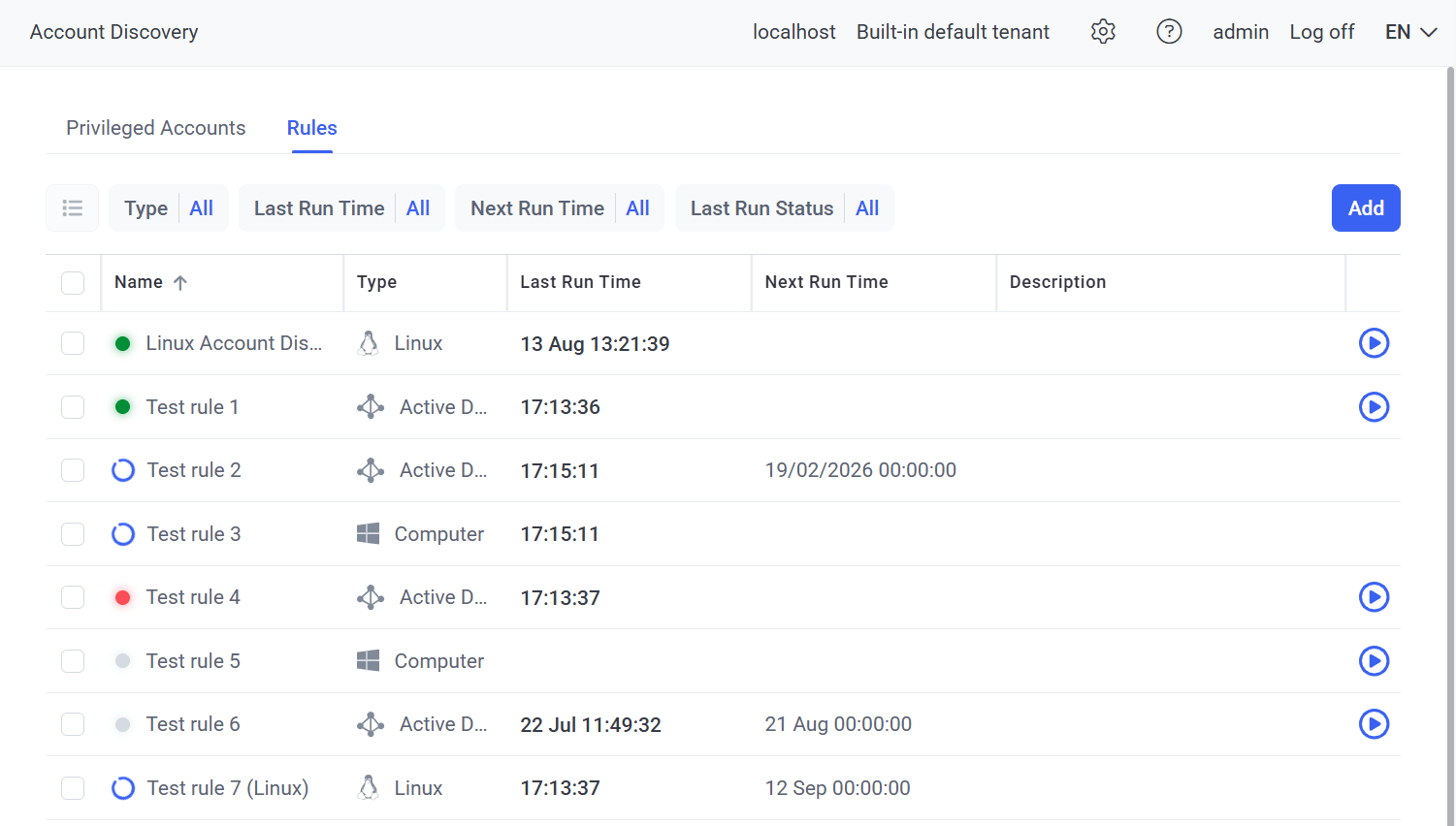
Sign in with the **Privileged Accounts Management** permission, click **Account Discovery**, and select the **Rules** tab to see all rules.
Each rule shows a color-coded status for its last run: **Completed**, **Completed with errors**, **Canceled / Not executed**, or **In Progress**. The **Type** column shows an Active Directory, Windows, or Linux icon. **Last Run Time** and **Next Run Time** (if scheduled) are also shown.
Click anywhere on a rule's row to edit it (or delete it with **Delete** while editing).
 ## Add and run a rule
On the **Rules** tab, click **Add**.
Enter a unique **Rule name** and optional **Description**, then choose the **Type**:
* **Active Directory Discovery** — AD users in the Domain Admins or Enterprise Admins group.
* **Computer Discovery** — Windows local accounts with Administrator permissions or GPO-granted privileges (for example, `SeTcbPrivilege`, `SeBackupPrivilege`).
* **Linux Discovery** — Linux accounts; choose **All Accounts** (privileged, service, application) or **Privileged Accounts** (manually created non-daemon accounts and `root`), and optionally include accounts with **Public SSH keys**.
* **Linux Discovery:** enter an **IP range for scanning** (for example `10.100.10.10-10.100.10.40`) or a semicolon-separated list, and choose the **Account type**.
* **Active Directory / Computer Discovery:** select the **Source domain** (from added LDAP targets) and optionally restrict to specific OUs or groups.
In **Select account to use for scans**, choose the secret(s) to run scans under (you need the Owner or Editor [Role Type](/docs/pam/secrets/permissions)):
* AD / Computer Discovery: one Active Directory or Windows account secret.
* Linux Discovery: one or more **Unix account (SSH) secrets with private SSH keys**.
For security, only Unix (SSH) secrets with private SSH keys can be selected for Linux scans, and they must have [passwordless sudo configured](/docs/pam/discovery/ssh-linux-scanning) to discover Linux accounts with public SSH keys. You can also click **Add Secret** at the top of the drop-down to create one.
In **Select account to use for scans**, choose the secret(s) to run scans under (you need the Owner or Editor [Role Type](/docs/pam/secrets/permissions)):
* AD / Computer Discovery: one Active Directory or Windows account secret.
* Linux Discovery: one or more **Unix account (SSH) secrets with private SSH keys**.
For security, only Unix (SSH) secrets with private SSH keys can be selected for Linux scans, and they must have [passwordless sudo configured](/docs/pam/discovery/ssh-linux-scanning) to discover Linux accounts with public SSH keys. You can also click **Add Secret** at the top of the drop-down to create one.
Enable **Scheduled Discovery** to run scans automatically — set **Recurring scans every** (days or hours) and a **Start at** time (for daily scans).
In **Actions**, select users to email when new accounts are found. They must have an email address in their user account.
Click **Save**. To run a rule manually, click its **Start** icon, or select several rules and use **Bulk Action → Start**. (**Bulk Action → Remove** deletes rules without deleting the accounts they already discovered.)
While a discovery rule runs, if the scan secret has **Enable remote password rotation** on, [rotation](/docs/pam/secrets/remote-password-rotation) is postponed and **Rotate Now** is disabled. If it has **Requires check out** on, the [secret is checked out](/docs/pam/secrets/password-checkout) by the system and can't be used by another user during the scan.
### When a rule runs
Each run creates an **Account Discovery** task on the **Tasks List** tab of the System Health page, where you can cancel it (while Queued or In Progress), download its log (when Finished or Failed), or remove it. When the task finishes, the notification email is sent.
* The scan secret's most recent [password/SSH key rotation](/docs/pam/secrets/remote-password-rotation) failed.
* The credentials stored in the scan secret are invalid.
* The scan secret is checked out by another user.
* The account in the secret lacks the required domain admin privileges (Domain Admins / Enterprise Admins).
* The associated [LDAP target](/docs/administration/integrations/ldap-targets) no longer exists.
If scanning fails on some computers in a Computer or Linux Discovery rule, the task is **Failed** (and the rule shows **Completed with errors**), but accounts found on other computers are still added.
## View and manage discovered accounts
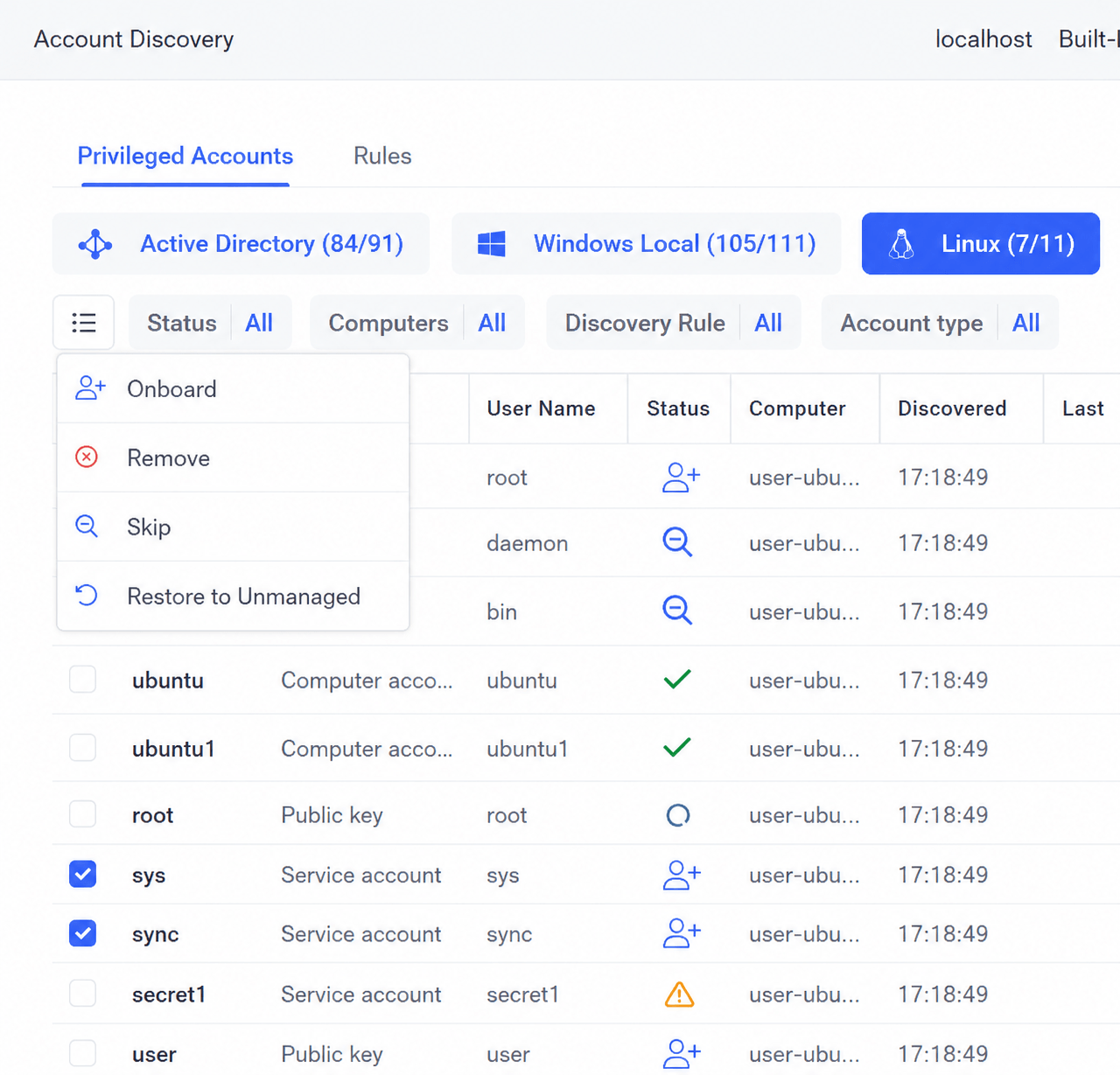
On the **Privileged Accounts** tab (with **Active Directory**, **Windows Local**, and **Linux** sub-tabs), discovered accounts appear in a grid showing **Login**, **User Name**, **Type** (Linux only), **Status**, **Computer** (Windows/Linux), **Discovered** time, **Last Onboarding Time**, **Secret Name**, and **Discovery Rule**.
Account statuses:
| Status | Meaning |
| -------------------------- | -------------------------------------------- |
| **Unmanaged** | Discovered but not yet onboarded (default). |
| **Managed** | Already onboarded into a secret. |
| **Expired** | Found in a previous scan but not the latest. |
| **Skipped** | Manually marked not to be onboarded. |
| **Onboarding in Progress** | An onboarding task is Queued or In Progress. |
Using **Bulk Action**, you can **Remove** Unmanaged/Expired/Skipped accounts, **Skip** Unmanaged accounts, or **Restore to Unmanaged** any Skipped accounts. Managed and Onboarding-in-Progress accounts have no checkbox (delete the secret to restore them to Unmanaged). Use the **Search** box (Login, User Name, Computer, Secret Name) and filters to narrow the list.
## Add and run a rule
On the **Rules** tab, click **Add**.
Enter a unique **Rule name** and optional **Description**, then choose the **Type**:
* **Active Directory Discovery** — AD users in the Domain Admins or Enterprise Admins group.
* **Computer Discovery** — Windows local accounts with Administrator permissions or GPO-granted privileges (for example, `SeTcbPrivilege`, `SeBackupPrivilege`).
* **Linux Discovery** — Linux accounts; choose **All Accounts** (privileged, service, application) or **Privileged Accounts** (manually created non-daemon accounts and `root`), and optionally include accounts with **Public SSH keys**.
* **Linux Discovery:** enter an **IP range for scanning** (for example `10.100.10.10-10.100.10.40`) or a semicolon-separated list, and choose the **Account type**.
* **Active Directory / Computer Discovery:** select the **Source domain** (from added LDAP targets) and optionally restrict to specific OUs or groups.
In **Select account to use for scans**, choose the secret(s) to run scans under (you need the Owner or Editor [Role Type](/docs/pam/secrets/permissions)):
* AD / Computer Discovery: one Active Directory or Windows account secret.
* Linux Discovery: one or more **Unix account (SSH) secrets with private SSH keys**.
For security, only Unix (SSH) secrets with private SSH keys can be selected for Linux scans, and they must have [passwordless sudo configured](/docs/pam/discovery/ssh-linux-scanning) to discover Linux accounts with public SSH keys. You can also click **Add Secret** at the top of the drop-down to create one.
In **Select account to use for scans**, choose the secret(s) to run scans under (you need the Owner or Editor [Role Type](/docs/pam/secrets/permissions)):
* AD / Computer Discovery: one Active Directory or Windows account secret.
* Linux Discovery: one or more **Unix account (SSH) secrets with private SSH keys**.
For security, only Unix (SSH) secrets with private SSH keys can be selected for Linux scans, and they must have [passwordless sudo configured](/docs/pam/discovery/ssh-linux-scanning) to discover Linux accounts with public SSH keys. You can also click **Add Secret** at the top of the drop-down to create one.
Enable **Scheduled Discovery** to run scans automatically — set **Recurring scans every** (days or hours) and a **Start at** time (for daily scans).
In **Actions**, select users to email when new accounts are found. They must have an email address in their user account.
Click **Save**. To run a rule manually, click its **Start** icon, or select several rules and use **Bulk Action → Start**. (**Bulk Action → Remove** deletes rules without deleting the accounts they already discovered.)
While a discovery rule runs, if the scan secret has **Enable remote password rotation** on, [rotation](/docs/pam/secrets/remote-password-rotation) is postponed and **Rotate Now** is disabled. If it has **Requires check out** on, the [secret is checked out](/docs/pam/secrets/password-checkout) by the system and can't be used by another user during the scan.
### When a rule runs
Each run creates an **Account Discovery** task on the **Tasks List** tab of the System Health page, where you can cancel it (while Queued or In Progress), download its log (when Finished or Failed), or remove it. When the task finishes, the notification email is sent.
* The scan secret's most recent [password/SSH key rotation](/docs/pam/secrets/remote-password-rotation) failed.
* The credentials stored in the scan secret are invalid.
* The scan secret is checked out by another user.
* The account in the secret lacks the required domain admin privileges (Domain Admins / Enterprise Admins).
* The associated [LDAP target](/docs/administration/integrations/ldap-targets) no longer exists.
If scanning fails on some computers in a Computer or Linux Discovery rule, the task is **Failed** (and the rule shows **Completed with errors**), but accounts found on other computers are still added.
## View and manage discovered accounts
On the **Privileged Accounts** tab (with **Active Directory**, **Windows Local**, and **Linux** sub-tabs), discovered accounts appear in a grid showing **Login**, **User Name**, **Type** (Linux only), **Status**, **Computer** (Windows/Linux), **Discovered** time, **Last Onboarding Time**, **Secret Name**, and **Discovery Rule**.
Account statuses:
| Status | Meaning |
| -------------------------- | -------------------------------------------- |
| **Unmanaged** | Discovered but not yet onboarded (default). |
| **Managed** | Already onboarded into a secret. |
| **Expired** | Found in a previous scan but not the latest. |
| **Skipped** | Manually marked not to be onboarded. |
| **Onboarding in Progress** | An onboarding task is Queued or In Progress. |
Using **Bulk Action**, you can **Remove** Unmanaged/Expired/Skipped accounts, **Skip** Unmanaged accounts, or **Restore to Unmanaged** any Skipped accounts. Managed and Onboarding-in-Progress accounts have no checkbox (delete the secret to restore them to Unmanaged). Use the **Search** box (Login, User Name, Computer, Secret Name) and filters to narrow the list.
 ## Onboard discovered accounts
Before onboarding, [remote password (or SSH key) rotation](/docs/pam/secrets/remote-password-rotation) must be configured on the target host computers.
On the **Privileged Accounts** tab, either click an **Unmanaged** account's status icon to onboard one, or select several Unmanaged accounts and use **Bulk Action → Onboard**.
With Bulk Action, Linux "Public key" accounts can't be selected together with Computer or Service accounts.
In **Onboard Account(s)**, set the **Secret Name** (auto-generated for bulk onboarding, e.g. `$DOMAIN\$LOGIN`, `$COMPUTER\$LOGIN`) and optionally **Change** the destination folder (one you have Owner/Editor permission for).
Pick one:
* **Use automatically generated password** (forced for Bulk Action).
* **Use current password** (not rotated during onboarding; not available for Linux service accounts).
* **Specify new password manually** (rotated during onboarding).
* **Import Private Key** (Linux accounts with public SSH keys).
Unless using the current password, set **Account(s) for Rotation** — a secret you have Owner/Editor permission for (AD/Windows account secrets for AD/Windows accounts; Unix SSH secrets with private keys for Linux). Or, for non-Linux accounts, **Enter credentials manually** for an account with local admin privileges.
For Active Directory accounts, rotation during onboarding uses the account defined in the associated [LDAP target](/docs/administration/integrations/ldap-targets). With an automatic LDAP target, the server service must run under a domain admin account.
Set the **Automation**, **Security**, **Permissions**, and **Restrictions** tabs as when [adding a secret](/docs/pam/secrets/add-secret), then click **Onboard**.
Watch the **Account Onboarding** tasks on the System Health **Tasks List** tab. When finished, the account shows **Managed** on the Privileged Accounts tab.
Onboarding an Active Directory or Windows local account that has associated Windows services, scheduled tasks, or IIS application pools? See [Service Account Dependency Discovery](/docs/pam/discovery/service-account-dependencies) — it keeps those dependencies running through password rotation instead of breaking them.
## Related
What discovered accounts become once onboarded — rotation, brokered access, audit.
The full secret configuration reference used during onboarding.
Required on target hosts before onboarding.
The Owner/Editor permissions needed for scan secrets.
Track Windows services, scheduled tasks, and IIS pools tied to a discovered account.
## Onboard discovered accounts
Before onboarding, [remote password (or SSH key) rotation](/docs/pam/secrets/remote-password-rotation) must be configured on the target host computers.
On the **Privileged Accounts** tab, either click an **Unmanaged** account's status icon to onboard one, or select several Unmanaged accounts and use **Bulk Action → Onboard**.
With Bulk Action, Linux "Public key" accounts can't be selected together with Computer or Service accounts.
In **Onboard Account(s)**, set the **Secret Name** (auto-generated for bulk onboarding, e.g. `$DOMAIN\$LOGIN`, `$COMPUTER\$LOGIN`) and optionally **Change** the destination folder (one you have Owner/Editor permission for).
Pick one:
* **Use automatically generated password** (forced for Bulk Action).
* **Use current password** (not rotated during onboarding; not available for Linux service accounts).
* **Specify new password manually** (rotated during onboarding).
* **Import Private Key** (Linux accounts with public SSH keys).
Unless using the current password, set **Account(s) for Rotation** — a secret you have Owner/Editor permission for (AD/Windows account secrets for AD/Windows accounts; Unix SSH secrets with private keys for Linux). Or, for non-Linux accounts, **Enter credentials manually** for an account with local admin privileges.
For Active Directory accounts, rotation during onboarding uses the account defined in the associated [LDAP target](/docs/administration/integrations/ldap-targets). With an automatic LDAP target, the server service must run under a domain admin account.
Set the **Automation**, **Security**, **Permissions**, and **Restrictions** tabs as when [adding a secret](/docs/pam/secrets/add-secret), then click **Onboard**.
Watch the **Account Onboarding** tasks on the System Health **Tasks List** tab. When finished, the account shows **Managed** on the Privileged Accounts tab.
Onboarding an Active Directory or Windows local account that has associated Windows services, scheduled tasks, or IIS application pools? See [Service Account Dependency Discovery](/docs/pam/discovery/service-account-dependencies) — it keeps those dependencies running through password rotation instead of breaking them.
## Related
What discovered accounts become once onboarded — rotation, brokered access, audit.
The full secret configuration reference used during onboarding.
Required on target hosts before onboarding.
The Owner/Editor permissions needed for scan secrets.
Track Windows services, scheduled tasks, and IIS pools tied to a discovered account.