> ## Documentation Index
> Fetch the complete documentation index at: https://syteca.com/docs/llms.txt
> Use this file to discover all available pages before exploring further.
# Privileged Access Management
> Syteca PAM: vault privileged credentials, broker access without exposing passwords, rotate automatically, and record privileged sessions for audit and compliance.
## Privileged credentials, controlled and accountable
Syteca **Privileged Access Management** is a unified vault, access broker, and session recorder for the shared admin accounts your team relies on — domain administrators, root accounts, database superusers, service accounts. It eliminates the practice of passing privileged passwords around in spreadsheets, Slack messages, or sticky notes, and replaces it with a controlled flow: credentials are stored encrypted, access is granted by role and approval, sessions are brokered without ever revealing the password, and every action is auditable.
PAM matters most for the accounts that, if compromised, would let an attacker (or a careless insider) move freely across your environment. Auditors ask about how they're managed. Insurers ask. Regulators ask. Syteca PAM is the answer.
**Use Syteca PAM if you need to:**
* Stop sharing privileged passwords in chat, email, or spreadsheets.
* Onboard and offboard contractor / third-party access in minutes, not days.
* Rotate privileged passwords automatically on a schedule — or after every use.
* Record what privileged users actually do during a session, for audit and incident response.
* Meet compliance requirements (PCI DSS, HIPAA, SOC 2, ISO 27001) that mandate privileged access controls.
PAM in Syteca is built from two features that work together: **Password Management** (storing and using secrets) and [Account Discovery](/docs/pam/discovery/overview) (finding and onboarding accounts automatically). A separate REST API tool, the [Application Credentials Broker (ACB)](/docs/api/acb/overview), lets applications retrieve secret data securely without logging in to the Management Tool.
PAM is available only with an activated [license serial key](/docs/administration/licensing/overview#what-a-serial-key-contains) that includes the Password Management application and PAM seat licenses. [Seat licenses must be assigned to users](/docs/administration/licensing/assign-pam-seat-licenses) before they can use any PAM functionality.
## How it works
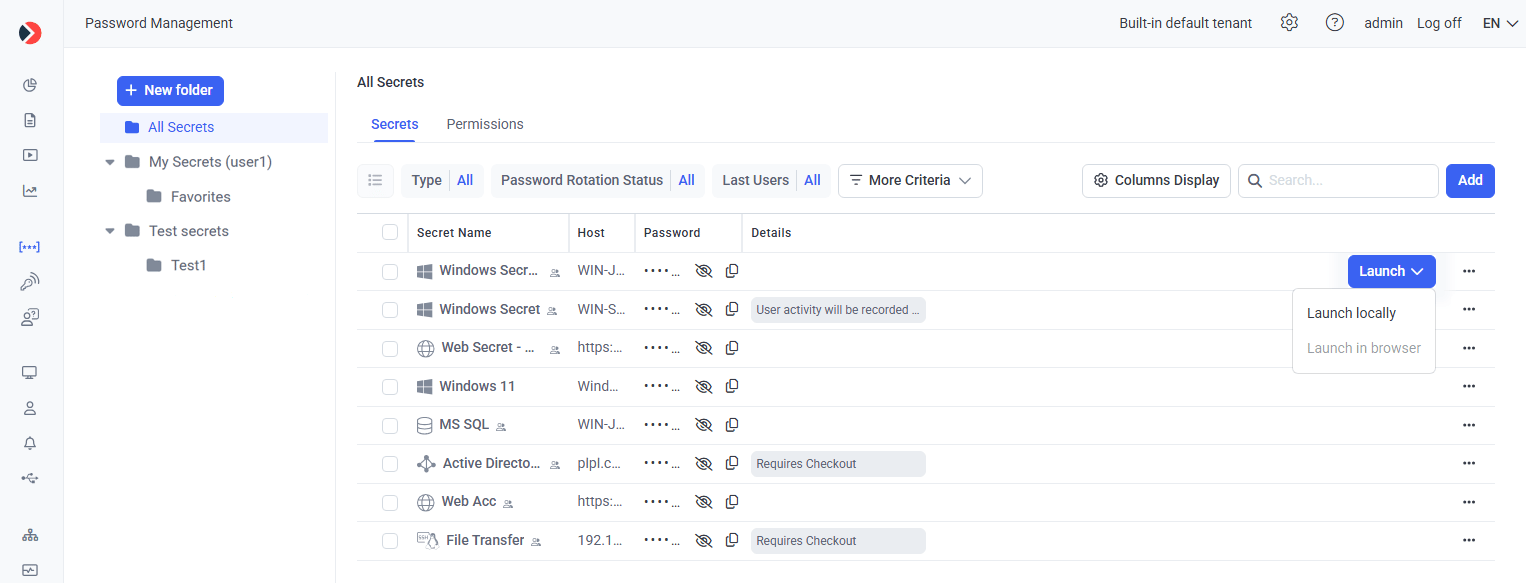 Privileged account credentials are stored encrypted in [secrets](/docs/pam/secrets/add-secret), organized into folders with role-based permissions.
[Permissions](/docs/pam/secrets/permissions) (Owner, Editor, PAM User) plus advanced permissions decide who can view, edit, and use each secret.
Users reach the account through the [Web](/docs/pam/access/web-connection-manager) or [Desktop](/docs/pam/access/desktop-connection-manager) Connection Manager — the credential is injected, never shown.
[Rotate passwords](/docs/pam/secrets/remote-password-rotation) automatically, restrict a secret to [one user at a time](/docs/pam/secrets/password-checkout), and audit every brokered session.
## What you can do
Workforce Password Management (WPM) stores credentials in an encrypted vault scoped by user, role, and project. Permissions on a secret are independent of permissions on the system it unlocks.
A user can connect to a target system through the Desktop or Web Connection Manager. The credential is injected by Syteca; the user never sees it.
Remote Password Rotation updates the target system and the vault in one transaction, with verification and rollback.
Every connection brokered through Syteca is recorded with the same fidelity as a User Activity Monitoring session. The Session Player and search work identically.
This is a new step which will be removed.
Licensing, LDAP, seat licenses, and the configuration order to get started.
Create and configure a secret for any account type.
Use a secret to connect to a privileged account.
Scan the network and onboard accounts into secrets automatically.
## System notes
* The [Desktop Connection Manager](/docs/pam/access/desktop-connection-manager) requires **.NET Framework 4.8** on the Client computer.
* A jump server computer is only needed if two or more concurrent sessions are required on the Client computer running the Desktop Connection Manager; a Windows Server operating system is recommended for it.
## Related
Owner, Editor, and PAM User roles explained.
Retrieve secrets from applications via REST API.
Privileged account credentials are stored encrypted in [secrets](/docs/pam/secrets/add-secret), organized into folders with role-based permissions.
[Permissions](/docs/pam/secrets/permissions) (Owner, Editor, PAM User) plus advanced permissions decide who can view, edit, and use each secret.
Users reach the account through the [Web](/docs/pam/access/web-connection-manager) or [Desktop](/docs/pam/access/desktop-connection-manager) Connection Manager — the credential is injected, never shown.
[Rotate passwords](/docs/pam/secrets/remote-password-rotation) automatically, restrict a secret to [one user at a time](/docs/pam/secrets/password-checkout), and audit every brokered session.
## What you can do
Workforce Password Management (WPM) stores credentials in an encrypted vault scoped by user, role, and project. Permissions on a secret are independent of permissions on the system it unlocks.
A user can connect to a target system through the Desktop or Web Connection Manager. The credential is injected by Syteca; the user never sees it.
Remote Password Rotation updates the target system and the vault in one transaction, with verification and rollback.
Every connection brokered through Syteca is recorded with the same fidelity as a User Activity Monitoring session. The Session Player and search work identically.
This is a new step which will be removed.
Licensing, LDAP, seat licenses, and the configuration order to get started.
Create and configure a secret for any account type.
Use a secret to connect to a privileged account.
Scan the network and onboard accounts into secrets automatically.
## System notes
* The [Desktop Connection Manager](/docs/pam/access/desktop-connection-manager) requires **.NET Framework 4.8** on the Client computer.
* A jump server computer is only needed if two or more concurrent sessions are required on the Client computer running the Desktop Connection Manager; a Windows Server operating system is recommended for it.
## Related
Owner, Editor, and PAM User roles explained.
Retrieve secrets from applications via REST API.