> ## Documentation Index
> Fetch the complete documentation index at: https://syteca.com/docs/llms.txt
> Use this file to discover all available pages before exploring further.
# End-User Experience
> What a user sees when they try to run an application as administrator under a Privilege Elevation rule.
Once a Privilege Elevation rule is active on an endpoint, Syteca replaces the native Windows UAC prompt with its own experience, matching whatever elevation mode the applicable rule specifies.
## What the user sees, per elevation mode
No pop-up, and no UAC window. The application starts immediately with administrator privileges.
Instead of the UAC window, a Syteca pop-up appears:
> **Request to launch application**
> According to company policy, application usage requires approval from an administrator. Specify a reason for...
> **Comment** (optional)
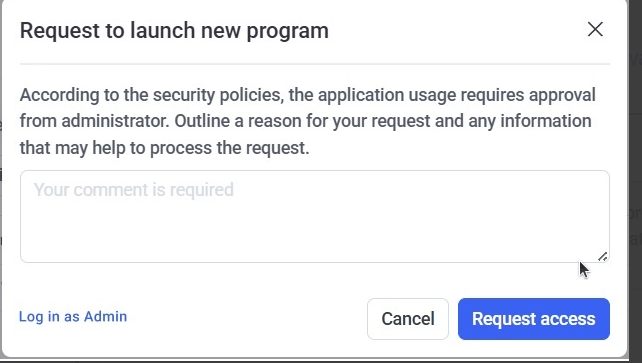 From here, the user can:
* **Request access** — sends the request to the approvers defined on the rule. A confirmation appears: *"Your access request is pending approval. You will receive a notification once the approver responds. You can review the request status in Syteca Access Center."* The application doesn't run until an approver acts on the request.
* **Cancel** — nothing is sent to the server; the user continues without administrator rights.
* **Log in as admin** — shows the native Windows UAC window, for entering administrator credentials manually instead of requesting approval.
Once approved, the application launches automatically with administrator rights for the duration the approver granted.
The launch is blocked immediately, and a Syteca pop-up appears — by default:
> According to company policy, your request for elevation to admin permissions was denied.
This message is customizable per rule (up to 500 characters) — see [Creating and managing rules](/docs/pam/privilege-elevation/rules#2--elevation-mode).
## When the endpoint is offline
Without a connection to the Application Server, Syteca can't check for approval or confirm an Auto-elevate schedule — so it falls back to denying elevation, regardless of the rule's configured mode:
| Rule's configured mode | Offline behavior |
| - | - |
| **Auto-elevate** or **Require approval** | Denied. Pop-up: *"Elevation could not be completed. Please contact your administrator."* — with a **Log in as admin** button, opening the native UAC window for manual credential entry. |
| **Deny** | Denied. Same pop-up text, but without the **Log in as admin** button. |
## Requesting and approving access
### The approver's side
A **Require approval** request appears on the **Access Requests** page in the Management Tool, visible to the users or groups selected as approvers on the rule. An email notification is also sent to them, including the request date/time, the requesting user and endpoint, their comment, the rule name, and the application's path.
Opening a request shows the same details, plus (once processed) who approved or denied it and when. Approving a request opens a follow-up pop-up where the approver sets **how long** the granted administrator access should last before it's automatically revoked.
The **Request Type** filter on the Access Requests page includes **Privilege Elevation** as its own type, alongside your existing PAM access request types.
### The user's side, after a decision
| Outcome | What the user sees |
| - | - |
| **Approved** | A Windows tray notification: *"Access request approved,"* with a **Run** button. Clicking **Run** launches the application with administrator rights for the approved duration. |
| **Denied** | A Windows tray notification informing the user the request was denied. |
| **About to expire** | About 5 minutes before the granted time runs out, a warning appears. If the time expires while the application is still open, it's closed automatically. |
## Syteca Access Center
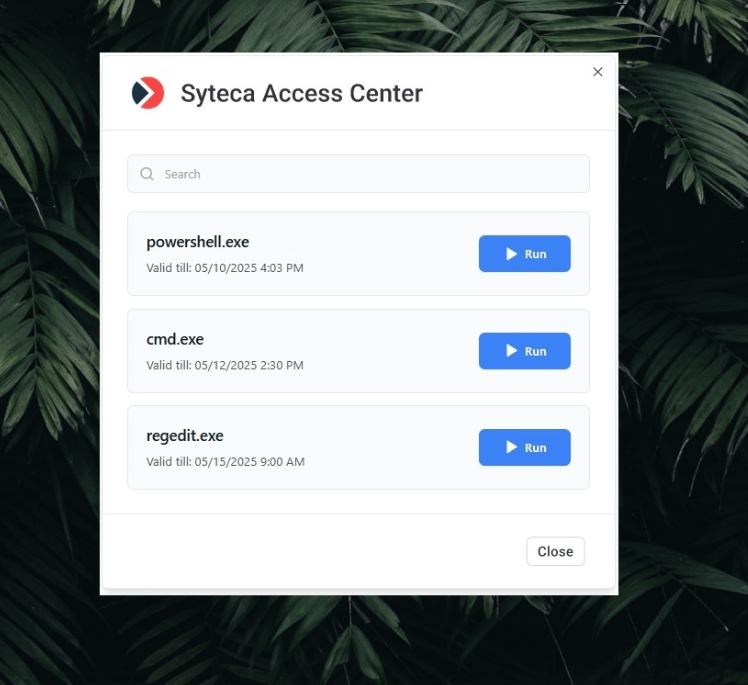
Once at least one Privilege Elevation request has been approved for an endpoint, a **Syteca Access Center** icon appears in that endpoint's Windows notification area.
Right-click the Syteca Client tray icon and select the Access Center option.
See every **Approved**, **Pending**, **Denied**, and **Expired** access request available to you. Use **Search** to find one by application or file name.
Each approved entry shows how long it remains valid, with a **Run** button to launch it directly — no need to trigger a new elevation attempt.
From here, the user can:
* **Request access** — sends the request to the approvers defined on the rule. A confirmation appears: *"Your access request is pending approval. You will receive a notification once the approver responds. You can review the request status in Syteca Access Center."* The application doesn't run until an approver acts on the request.
* **Cancel** — nothing is sent to the server; the user continues without administrator rights.
* **Log in as admin** — shows the native Windows UAC window, for entering administrator credentials manually instead of requesting approval.
Once approved, the application launches automatically with administrator rights for the duration the approver granted.
The launch is blocked immediately, and a Syteca pop-up appears — by default:
> According to company policy, your request for elevation to admin permissions was denied.
This message is customizable per rule (up to 500 characters) — see [Creating and managing rules](/docs/pam/privilege-elevation/rules#2--elevation-mode).
## When the endpoint is offline
Without a connection to the Application Server, Syteca can't check for approval or confirm an Auto-elevate schedule — so it falls back to denying elevation, regardless of the rule's configured mode:
| Rule's configured mode | Offline behavior |
| - | - |
| **Auto-elevate** or **Require approval** | Denied. Pop-up: *"Elevation could not be completed. Please contact your administrator."* — with a **Log in as admin** button, opening the native UAC window for manual credential entry. |
| **Deny** | Denied. Same pop-up text, but without the **Log in as admin** button. |
## Requesting and approving access
### The approver's side
A **Require approval** request appears on the **Access Requests** page in the Management Tool, visible to the users or groups selected as approvers on the rule. An email notification is also sent to them, including the request date/time, the requesting user and endpoint, their comment, the rule name, and the application's path.
Opening a request shows the same details, plus (once processed) who approved or denied it and when. Approving a request opens a follow-up pop-up where the approver sets **how long** the granted administrator access should last before it's automatically revoked.
The **Request Type** filter on the Access Requests page includes **Privilege Elevation** as its own type, alongside your existing PAM access request types.
### The user's side, after a decision
| Outcome | What the user sees |
| - | - |
| **Approved** | A Windows tray notification: *"Access request approved,"* with a **Run** button. Clicking **Run** launches the application with administrator rights for the approved duration. |
| **Denied** | A Windows tray notification informing the user the request was denied. |
| **About to expire** | About 5 minutes before the granted time runs out, a warning appears. If the time expires while the application is still open, it's closed automatically. |
## Syteca Access Center
Once at least one Privilege Elevation request has been approved for an endpoint, a **Syteca Access Center** icon appears in that endpoint's Windows notification area.
Right-click the Syteca Client tray icon and select the Access Center option.
See every **Approved**, **Pending**, **Denied**, and **Expired** access request available to you. Use **Search** to find one by application or file name.
Each approved entry shows how long it remains valid, with a **Run** button to launch it directly — no need to trigger a new elevation attempt.
 ## When elevation fails outright
Separate from a **Deny** decision, an elevation attempt can fail for operational reasons — for example, the account in the rule's Secret no longer belongs to the local admin group, its password was changed outside Syteca, or the rule only has an Active Directory Secret but the endpoint isn't domain-joined. In these cases, an error pop-up (*"Elevation failed"*) tells the user to contact their administrator, and — if configured — the [failure notification](/docs/pam/privilege-elevation/rules#1--details) is emailed to the recipients defined on the rule.
## Related
What Privilege Elevation does and how it's licensed.
Configure the elevation mode and approval settings referenced here.
Every request and decision, logged for audit.
This documentation is built and hosted on [Mintlify](https://mintlify.com), a developer documentation platform.
## When elevation fails outright
Separate from a **Deny** decision, an elevation attempt can fail for operational reasons — for example, the account in the rule's Secret no longer belongs to the local admin group, its password was changed outside Syteca, or the rule only has an Active Directory Secret but the endpoint isn't domain-joined. In these cases, an error pop-up (*"Elevation failed"*) tells the user to contact their administrator, and — if configured — the [failure notification](/docs/pam/privilege-elevation/rules#1--details) is emailed to the recipients defined on the rule.
## Related
What Privilege Elevation does and how it's licensed.
Configure the elevation mode and approval settings referenced here.
Every request and decision, logged for audit.
This documentation is built and hosted on [Mintlify](https://mintlify.com), a developer documentation platform.