> ## Documentation Index
> Fetch the complete documentation index at: https://syteca.com/docs/llms.txt
> Use this file to discover all available pages before exploring further.
# Events and Monitoring
> The full audit trail of every Privilege Elevation decision. Auto-elevate, Require approval, and Deny plus how session recording behaves depending on your Syteca license.
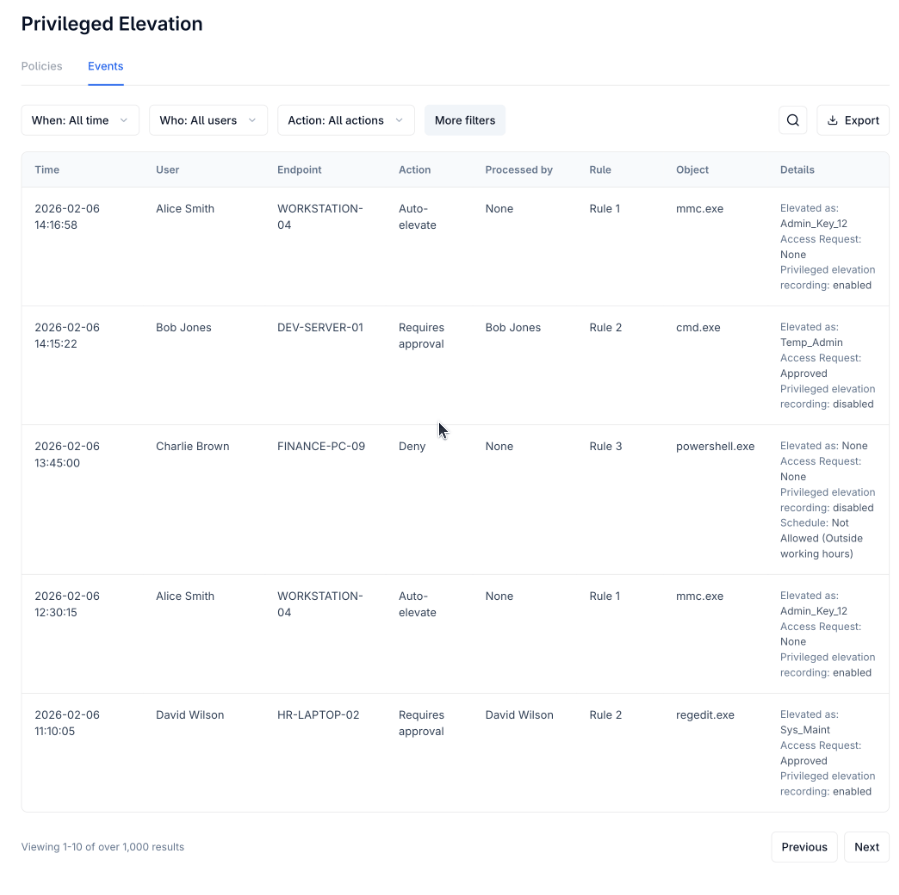
Every Privilege Elevation decision automatic, approved, denied, or blocked is recorded on the **Events** tab, giving you a complete, permanent audit trail independent of whether the rule that triggered it still exists.
Access to the Events tab requires the **Privilege Elevation** administrative permission. Without it, the tab isn't shown, and its data isn't reachable by direct URL either.
## Open the Events tab
In the left navigation, under **Security**, click **Privilege Elevation**.
Shows every recorded transaction, most recent first.
 ## The Events grid
| Column | Shows |
| - | - |
| **Time** | When the event occurred, formatted per your [Date & Time Format settings](/docs/administration/configuration/date-time-format). |
| **User** | The user who triggered the elevation attempt. |
| **Endpoint** | The hostname of the endpoint where it happened. |
| **Action** | **Auto-elevate**, **Require approval**, or **Deny** — the final decision applied. |
| **Processed By** | The username of whoever approved or denied the request. Shows **None** if the request expired, or if the rule never required a decision (Auto-elevate/Deny). |
| **Rule** | The name of the rule that was applied. |
| **Object** | The elevation target — the application's file name (for example `powershell.exe`). |
| **Details** | A fixed set of lines — see below. |
Events remain in the grid even after the rule that generated them is deleted — the audit trail doesn't depend on the rule still existing.
### What the Details column shows
Every event shows three consistent lines:
```text theme={"system"}
Elevated as: / None
Access Request: Approved / Denied / Expired / None
Privilege Elevation recording: enabled / disabled
```
* For **Deny** events, all three are fixed: `Elevated as: None`, `Access Request: None`, `Privilege Elevation recording: disabled`.
* For a scheduled **Auto-elevate** rule blocked by its own schedule (outside allowed hours), the event logs as **Deny** with `Elevated as: None`, plus a note on why (for example, outside working hours).
### Filters, search, and export
**Default filters:** **When** (date range, defaults to all time), **Who** (defaults to all users), **Action** (Auto-elevate / Require approval / Deny, defaults to all).
**More Criteria:** **Rule**, **Endpoint**, **Object**, **Processed By**.
**Search** matches User, Endpoint, Secret, Approver, and Object fields.
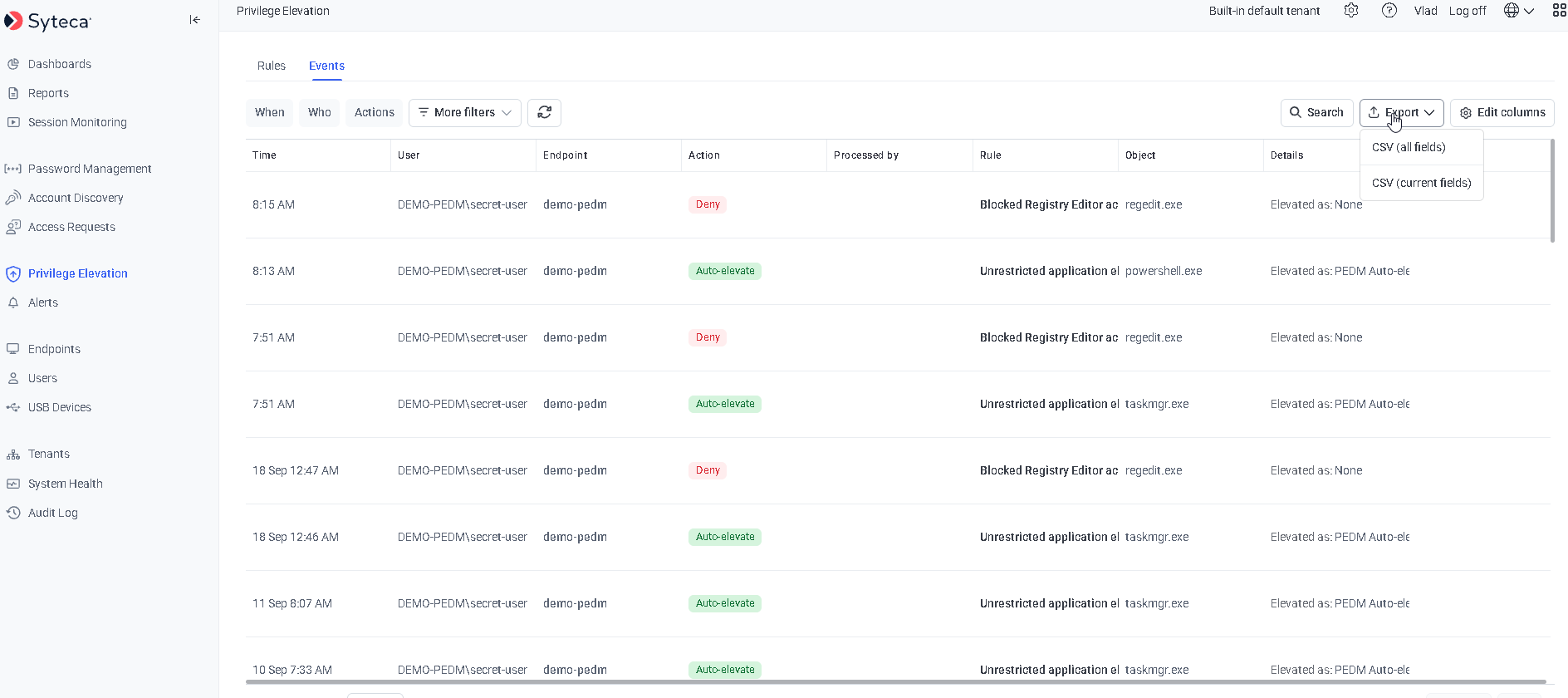
**Export** produces a CSV containing every column, respecting whatever filters are currently applied.
## The Events grid
| Column | Shows |
| - | - |
| **Time** | When the event occurred, formatted per your [Date & Time Format settings](/docs/administration/configuration/date-time-format). |
| **User** | The user who triggered the elevation attempt. |
| **Endpoint** | The hostname of the endpoint where it happened. |
| **Action** | **Auto-elevate**, **Require approval**, or **Deny** — the final decision applied. |
| **Processed By** | The username of whoever approved or denied the request. Shows **None** if the request expired, or if the rule never required a decision (Auto-elevate/Deny). |
| **Rule** | The name of the rule that was applied. |
| **Object** | The elevation target — the application's file name (for example `powershell.exe`). |
| **Details** | A fixed set of lines — see below. |
Events remain in the grid even after the rule that generated them is deleted — the audit trail doesn't depend on the rule still existing.
### What the Details column shows
Every event shows three consistent lines:
```text theme={"system"}
Elevated as: / None
Access Request: Approved / Denied / Expired / None
Privilege Elevation recording: enabled / disabled
```
* For **Deny** events, all three are fixed: `Elevated as: None`, `Access Request: None`, `Privilege Elevation recording: disabled`.
* For a scheduled **Auto-elevate** rule blocked by its own schedule (outside allowed hours), the event logs as **Deny** with `Elevated as: None`, plus a note on why (for example, outside working hours).
### Filters, search, and export
**Default filters:** **When** (date range, defaults to all time), **Who** (defaults to all users), **Action** (Auto-elevate / Require approval / Deny, defaults to all).
**More Criteria:** **Rule**, **Endpoint**, **Object**, **Processed By**.
**Search** matches User, Endpoint, Secret, Approver, and Object fields.
**Export** produces a CSV containing every column, respecting whatever filters are currently applied.
 ## Session recording during elevation
If **Session recording during elevation** was enabled on the rule (available for Auto-elevate and Require approval, not Deny), Syteca can additionally record the elevated session itself — capturing screen, keyboard, and command input for the duration.
What actually gets recorded depends on your license:
| License | Recording behavior |
| - | - |
| **Privilege Elevation + User Activity Monitoring (UAM)** | Full session activity is recorded using standard UAM logic — the same screen, input, and contextual capture as any other monitored session, for the duration of the elevated session. |
| **Privilege Elevation only (no UAM)** | Recording is scoped narrowly: only the specific elevated application or file, starting when it launches and stopping as soon as it's closed. No background or session-wide activity is captured — conceptually the same as [recording tied to a Secret's use](/docs/pam/access/linux-pacm#7--recording-secret-usage) rather than a full monitored session. |
**Deny** mode never triggers or allows recording — there's no elevated session to capture.
## Related
What Privilege Elevation does and how it's licensed.
Where Session recording during elevation is enabled per rule.
What triggers each of the Action values shown here.
The administrative audit trail for Management Tool configuration changes.
This documentation is built and hosted on [Mintlify](https://mintlify.com), a developer documentation platform.
## Session recording during elevation
If **Session recording during elevation** was enabled on the rule (available for Auto-elevate and Require approval, not Deny), Syteca can additionally record the elevated session itself — capturing screen, keyboard, and command input for the duration.
What actually gets recorded depends on your license:
| License | Recording behavior |
| - | - |
| **Privilege Elevation + User Activity Monitoring (UAM)** | Full session activity is recorded using standard UAM logic — the same screen, input, and contextual capture as any other monitored session, for the duration of the elevated session. |
| **Privilege Elevation only (no UAM)** | Recording is scoped narrowly: only the specific elevated application or file, starting when it launches and stopping as soon as it's closed. No background or session-wide activity is captured — conceptually the same as [recording tied to a Secret's use](/docs/pam/access/linux-pacm#7--recording-secret-usage) rather than a full monitored session. |
**Deny** mode never triggers or allows recording — there's no elevated session to capture.
## Related
What Privilege Elevation does and how it's licensed.
Where Session recording during elevation is enabled per rule.
What triggers each of the Action values shown here.
The administrative audit trail for Management Tool configuration changes.
This documentation is built and hosted on [Mintlify](https://mintlify.com), a developer documentation platform.