> ## Documentation Index
> Fetch the complete documentation index at: https://syteca.com/docs/llms.txt
> Use this file to discover all available pages before exploring further.
# Set Up Password Management
> The configuration order to enable Syteca Password Management: license serial key, LDAP targets, PAM seat licenses, a Connection Manager, and your first secrets.
Before anyone can use a secret to connect to a privileged account, Password Management has to be set up. This page is the configuration checklist — do these steps in order, then your team can start adding and using secrets.
## Before you start
You need an activated [license serial key](/docs/administration/licensing/manage-serial-key) that includes the **Password Management** application and **PAM seat licenses**.
## Configuration order
Make sure your serial key includes the Password Management application and PAM seat licenses.
To use Active Directory account secrets, first [configure an LDAP target](/docs/administration/integrations/ldap-targets).
[Assign PAM seat licenses to users](/docs/administration/licensing/assign-endpoint-licenses) on the **Users** page. This gives them access to the **Password Management** and [Account Discovery](/docs/pam/discovery/overview) pages, and to the Connection Managers.
Choose how users will connect:
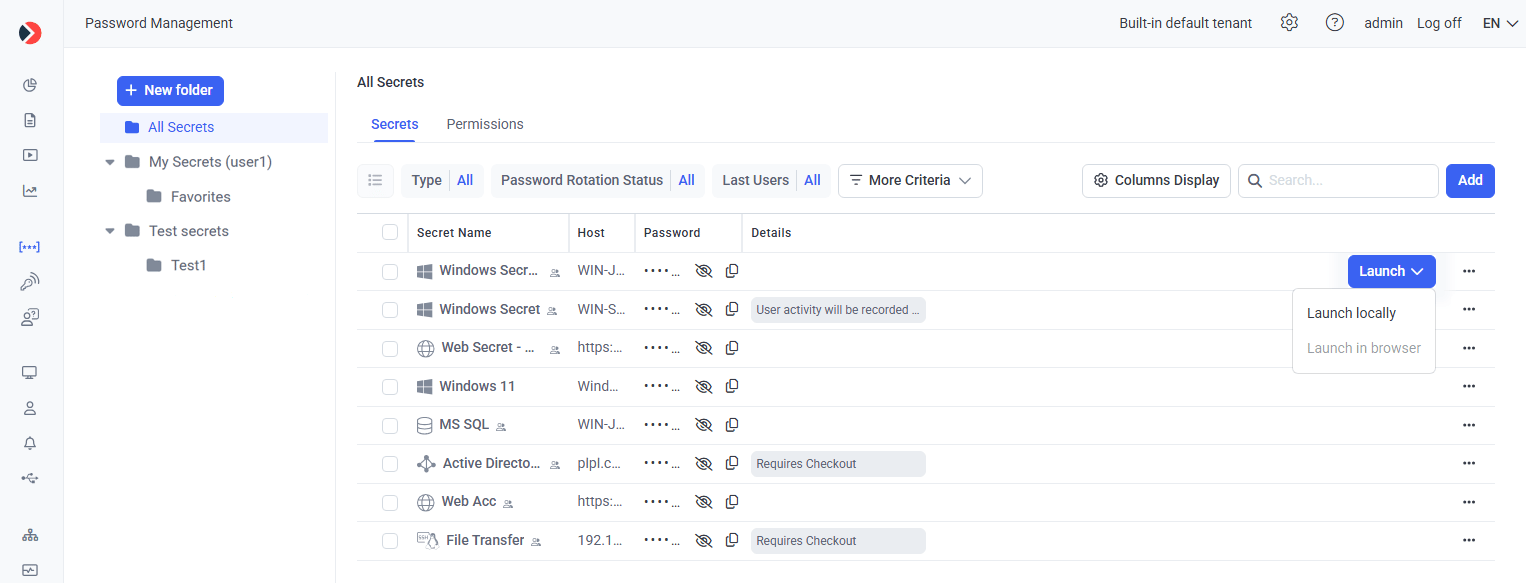
* [Web Connection Manager](/docs/pam/access/web-connection-manager) — used directly from the Management Tool, with **Launch in browser** (agentless) and **Launch locally** options.
* [Desktop Connection Manager](/docs/pam/access/desktop-connection-manager) — used on a Windows Client computer (for example, a jump server).
[Add secrets manually](/docs/pam/secrets/add-secret), or use [Account Discovery](/docs/pam/discovery/overview) to find and onboard accounts automatically.
Users with PAM seat licenses and the right [permissions](/docs/pam/secrets/permissions) can now [connect to privileged accounts](/docs/pam/secrets/use-secrets) using the secrets.
 ## Related
Configure agentless and local launch from the Management Tool.
Configure a Windows Client or jump server.
Create your first secret.
Find and onboard accounts automatically.
## Related
Configure agentless and local launch from the Management Tool.
Configure a Windows Client or jump server.
Create your first secret.
Find and onboard accounts automatically.