> ## Documentation Index
> Fetch the complete documentation index at: https://syteca.com/docs/llms.txt
> Use this file to discover all available pages before exploring further.
# Delete a Secret
> Delete one or more secrets in Syteca from the Password Management page using the Bulk Action menu, with a confirmation step before removal.
Deleting a secret removes it from Syteca. You can delete a single secret or several at once from the Password Management page. This page explains who can delete secrets and the steps to do it.
A secret can only be deleted by a user with the **Owner** [Role Type permissions](/docs/pam/secrets/permissions) for that secret.
Deleting a secret is permanent. Make sure the secret is no longer needed before you confirm.
## Delete one or more secrets
Log in with an account that has Owner permissions for the secrets you want to delete.
Click the **Password Management** tab in the left navigation.
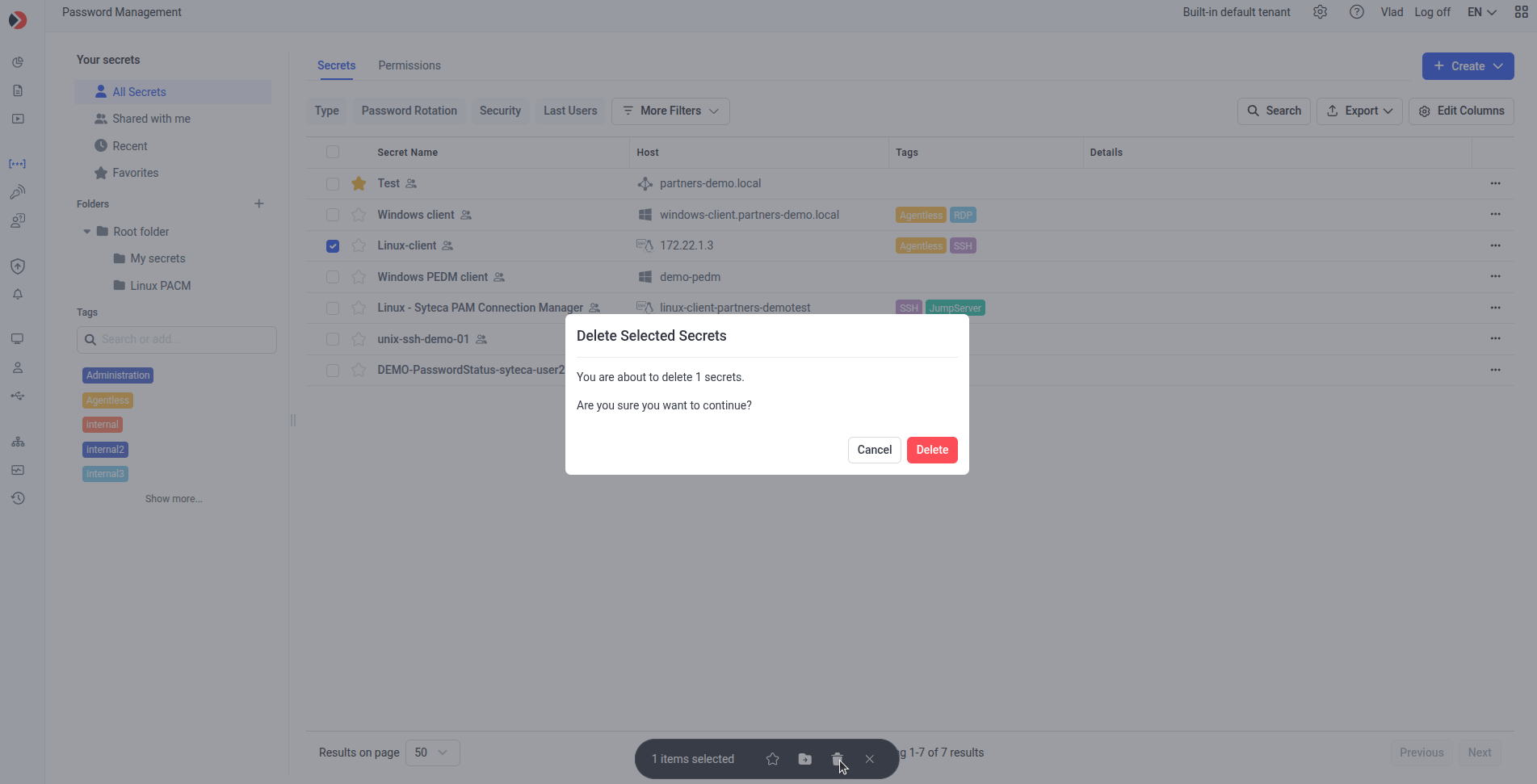
Select the checkboxes to the left of each secret you want to delete. You can select one or several.
Once at least one is selected, the bulk action bar appears, where we need to click on the **Delete** icon.
In the confirmation window that opens, click **Delete**.
The selected secret or secrets are removed from the Secrets list.
 ## Next steps
Create and configure a new secret from scratch.
Change a secret's properties or rotate its password on demand.
## Next steps
Create and configure a new secret from scratch.
Change a secret's properties or rotate its password on demand.