> ## Documentation Index
> Fetch the complete documentation index at: https://syteca.com/docs/llms.txt
> Use this file to discover all available pages before exploring further.
# Edit a Secret
> Edit an existing secret in Syteca: the redesigned Edit Secret panel, its Details tab, launching a secret, and the options available only when editing.
A secret can only be edited by a user with the **Owner** or **Editor** Role Type [permissions](/docs/pam/secrets/permissions) for it.
As a root user, the built-in default **admin** user has **Owner** Role Type permissions for every secret, and can therefore edit any secret added by other users.
## Open a secret for editing
Log in with an account that has **Owner** or **Editor** permissions for the secret.
Click **Password Management** in the left navigation.
On the **Secrets** tab, click anywhere on the secret to open it in **Edit** mode.
Edit the secret across the available tabs.
Click **Save** to apply your changes.
In Edit mode, the additional options from the [per-secret actions menu](/docs/pam/secrets/view-manage-secrets#actions-with-secrets) appear in the panel's upper-right corner (except **Edit** itself, since you're already there).
A tab unavailable to you (insufficient permissions) or unsupported for this secret type appears grayed out. Hovering it shows: *"The feature is not supported for this secret type."*
## The Edit Secret panel
The panel has these tabs and buttons:
* **Details**
* **Automation**
* **Security**
* **Just In Time Access**
* **Password Policy**
* **Permission**
* **Dependencies**
* **Launch**, **Cancel**, and **Save** buttons
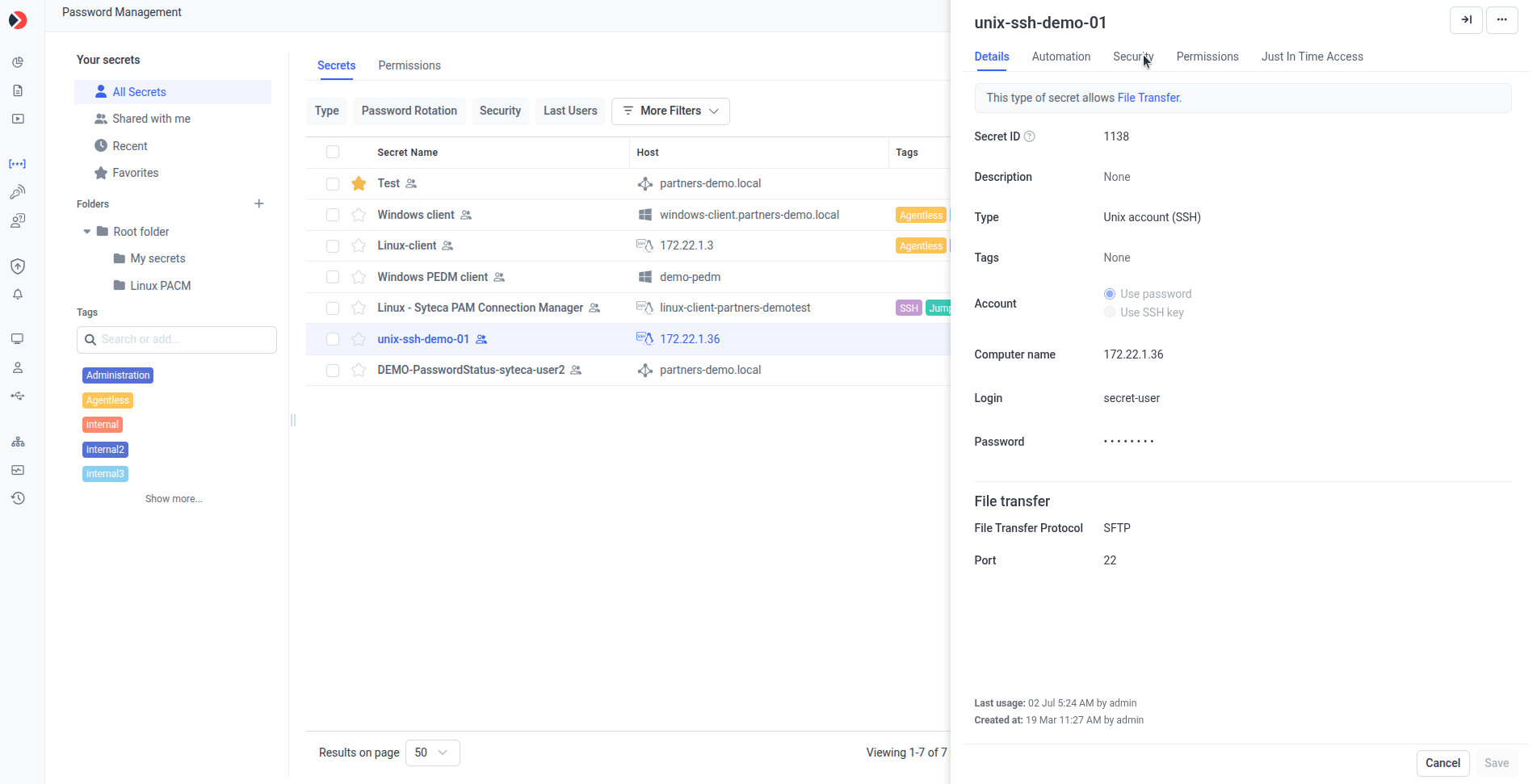 **Cancel** and **Save** are shown on every tab. Any change shows a **You have unsaved changes** message next to them — changes save only when you click **Save**. Closing the panel with unsaved changes (via **Cancel** or the right-arrow-with-pipe icon) discards them.
### Details tab
General information about the secret, and the ability to launch it:
| Field | Notes |
| -------------------------------------- | ------------------------------------------------------------------------------------------------------------------------------------------------------------------------------------------------------------------------------------------------------------------ |
| **Secret ID** | Shown at the top. Hover the field for a link to the Knowledge Base; hover the value for a **copy** icon (for use with the [Syteca Application Credentials Broker](/docs/api/acb/overview)). |
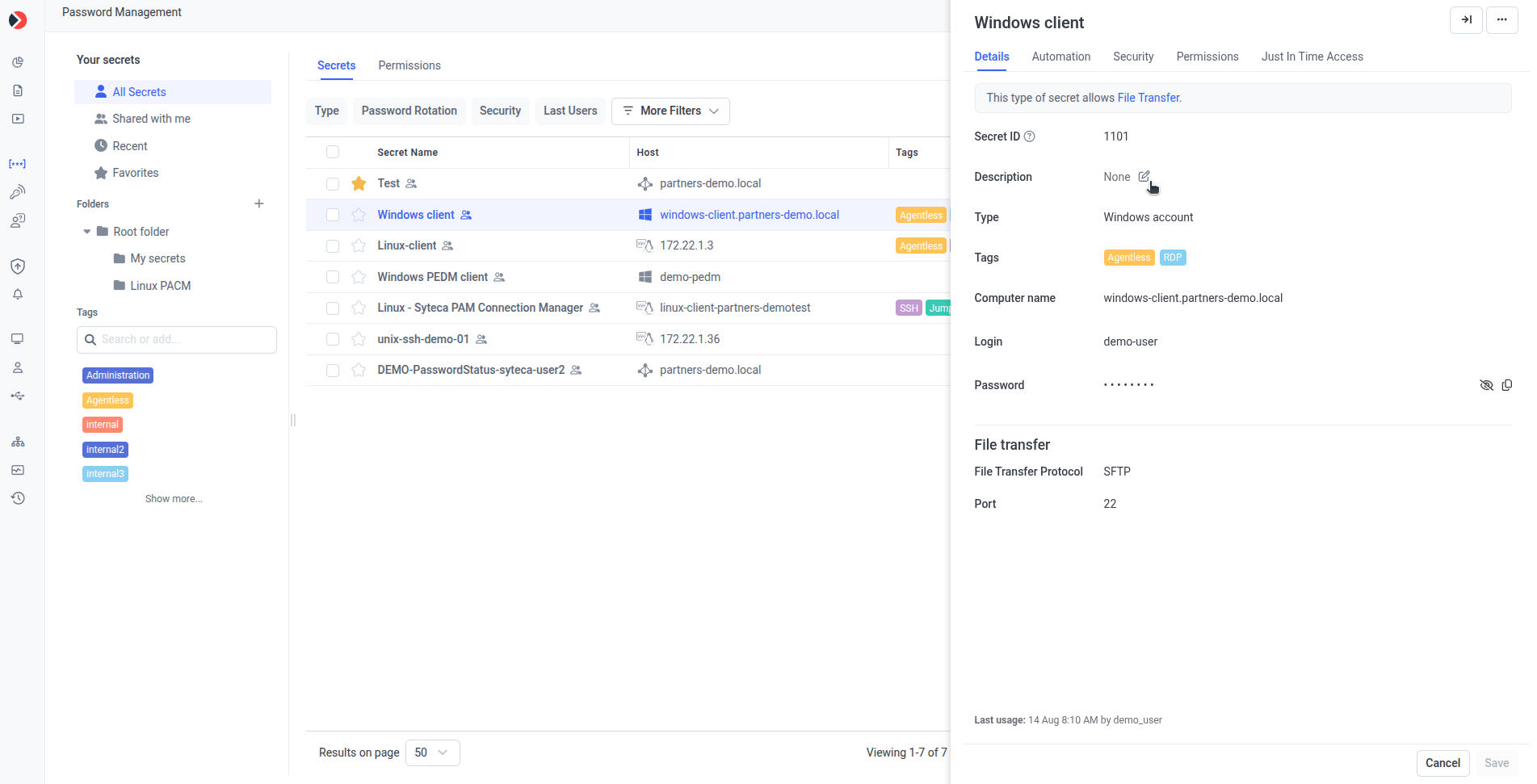
| **Description** | Optional free text, up to 500 characters. Shows 5 lines with a scrollbar beyond that; click the **Edit** (pencil) icon to change it. Shows **None** when empty. |
| **Tags** | Click to open a drop-down for assigning or removing tags — supports search, and typing a name that doesn't exist shows **\ (New Tag)**; press **Enter** or click it to create and assign in one step. Only **Owner** and **Editor** can assign tags. |
| **Type** | The secret type (Active Directory, Windows, Web, and so on). |
| **Password** | Masked with asterisks. **Copy** and **View** icons appear if you have the corresponding permission. For a **Unix account (SSH)** secret using an SSH key, this is replaced by **Private Key** (with a **Choose File** button) and **Private Key Passphrase**. |
| **Server / Login / Domain / Computer** | Vary by secret type; hover for a copy icon. |
| **URL** | Web account secrets only; hover for a copy icon. |
| **Last usage** / **Created** | Timestamps of the corresponding transactions. |
For **Active Directory account**, **Windows account**, and **Unix account (SSH)** secrets, the Details tab also has a **File Transfer** section, where the available protocol (SCP, SFTP, or FTP) is configured — see [Transfer files with WinSCP](/docs/pam/secrets/file-transfer).
**Cancel** and **Save** are shown on every tab. Any change shows a **You have unsaved changes** message next to them — changes save only when you click **Save**. Closing the panel with unsaved changes (via **Cancel** or the right-arrow-with-pipe icon) discards them.
### Details tab
General information about the secret, and the ability to launch it:
| Field | Notes |
| -------------------------------------- | ------------------------------------------------------------------------------------------------------------------------------------------------------------------------------------------------------------------------------------------------------------------ |
| **Secret ID** | Shown at the top. Hover the field for a link to the Knowledge Base; hover the value for a **copy** icon (for use with the [Syteca Application Credentials Broker](/docs/api/acb/overview)). |
| **Description** | Optional free text, up to 500 characters. Shows 5 lines with a scrollbar beyond that; click the **Edit** (pencil) icon to change it. Shows **None** when empty. |
| **Tags** | Click to open a drop-down for assigning or removing tags — supports search, and typing a name that doesn't exist shows **\ (New Tag)**; press **Enter** or click it to create and assign in one step. Only **Owner** and **Editor** can assign tags. |
| **Type** | The secret type (Active Directory, Windows, Web, and so on). |
| **Password** | Masked with asterisks. **Copy** and **View** icons appear if you have the corresponding permission. For a **Unix account (SSH)** secret using an SSH key, this is replaced by **Private Key** (with a **Choose File** button) and **Private Key Passphrase**. |
| **Server / Login / Domain / Computer** | Vary by secret type; hover for a copy icon. |
| **URL** | Web account secrets only; hover for a copy icon. |
| **Last usage** / **Created** | Timestamps of the corresponding transactions. |
For **Active Directory account**, **Windows account**, and **Unix account (SSH)** secrets, the Details tab also has a **File Transfer** section, where the available protocol (SCP, SFTP, or FTP) is configured — see [Transfer files with WinSCP](/docs/pam/secrets/file-transfer).
 ### Automation, Security, Just In Time Access, Password Policy, Permission, and Dependencies tabs
These tabs keep the same settings and functionality as when [adding a secret](/docs/pam/secrets/add-secret) — see that page for full descriptions of each setting. Editing adds a few extras:
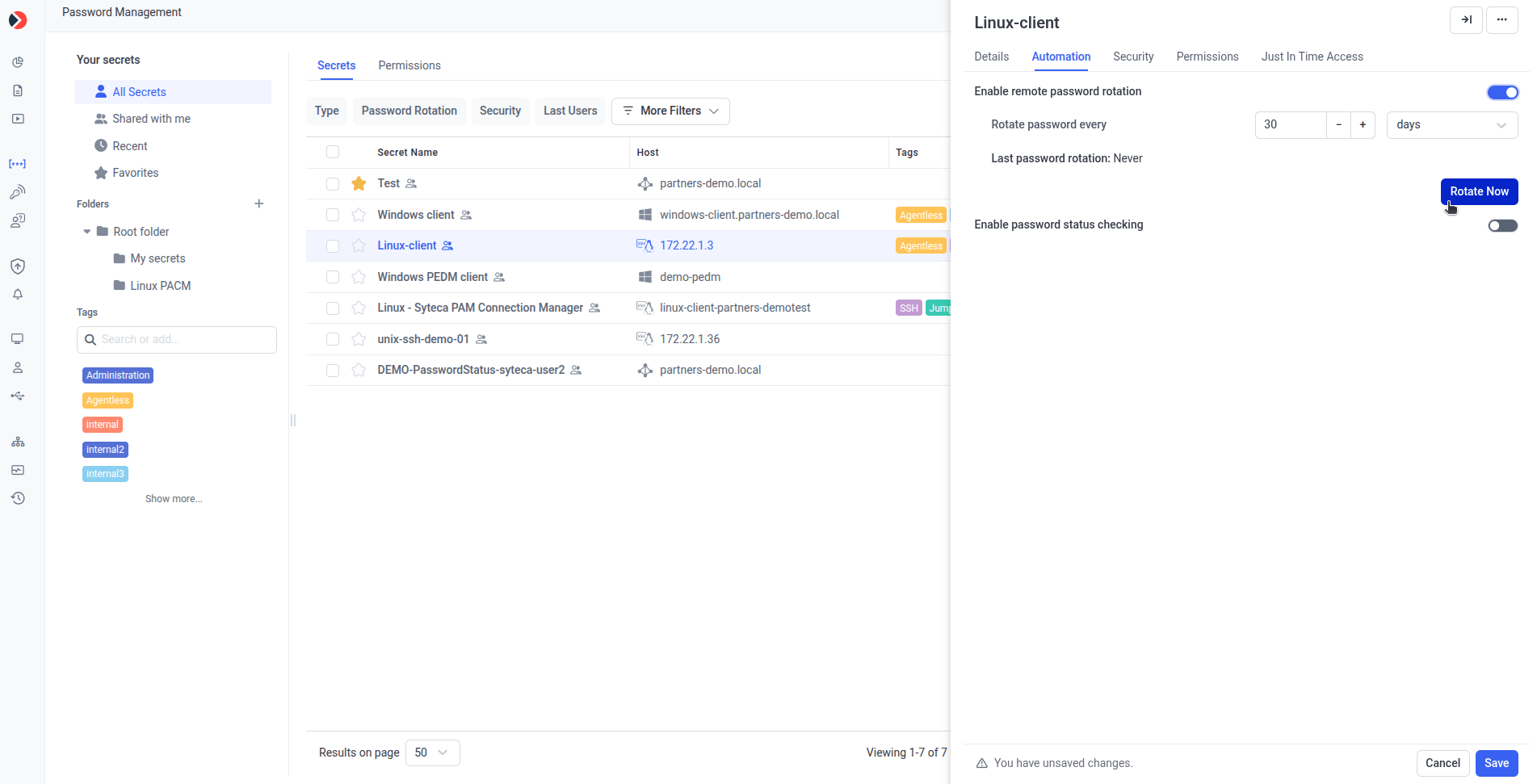
**Automation tab:**
* **Rotate Now** — if scheduled password rotation is enabled and configured, click to rotate the account's password (or SSH key) immediately. **Last password rotation** shows once rotation is enabled.
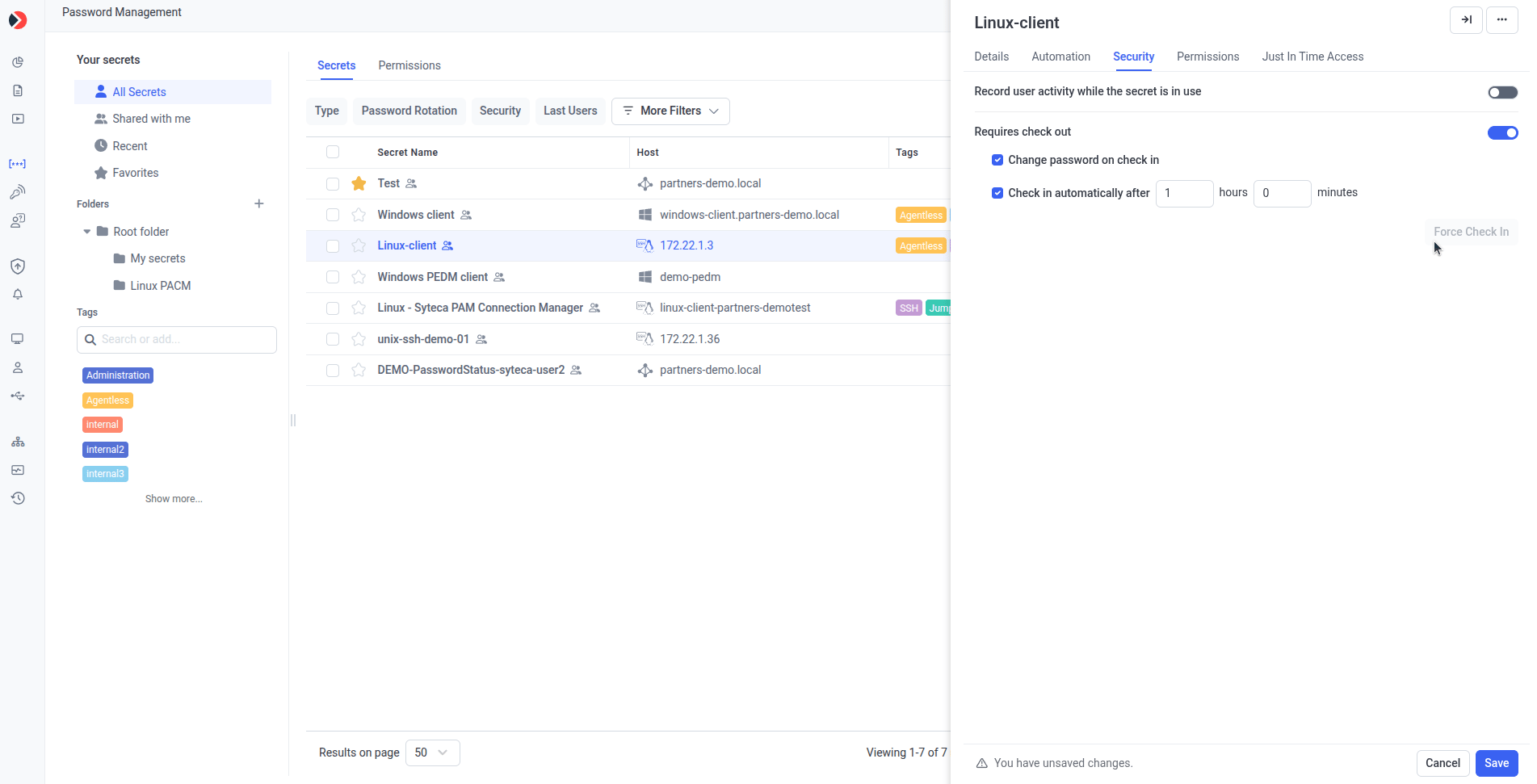
**Security tab:**
* **Force Check In** — if **Requires check out** is enabled and the secret is currently checked out, click to check the password back in immediately, forcibly disconnecting the current user.
Every tab also has a **Reset to Folder Settings** button.
### Automation, Security, Just In Time Access, Password Policy, Permission, and Dependencies tabs
These tabs keep the same settings and functionality as when [adding a secret](/docs/pam/secrets/add-secret) — see that page for full descriptions of each setting. Editing adds a few extras:
**Automation tab:**
* **Rotate Now** — if scheduled password rotation is enabled and configured, click to rotate the account's password (or SSH key) immediately. **Last password rotation** shows once rotation is enabled.
**Security tab:**
* **Force Check In** — if **Requires check out** is enabled and the secret is currently checked out, click to check the password back in immediately, forcibly disconnecting the current user.
Every tab also has a **Reset to Folder Settings** button.
 ### Reset a secret to folder settings
Click **Reset to Folder Settings** on any tab to return that tab's settings from **Custom** back to the parent folder's settings.
When a secret inherits settings from its folder, the first change you make shows a warning message. Once dismissed, further changes on that secret don't show it again.
## Launch a secret
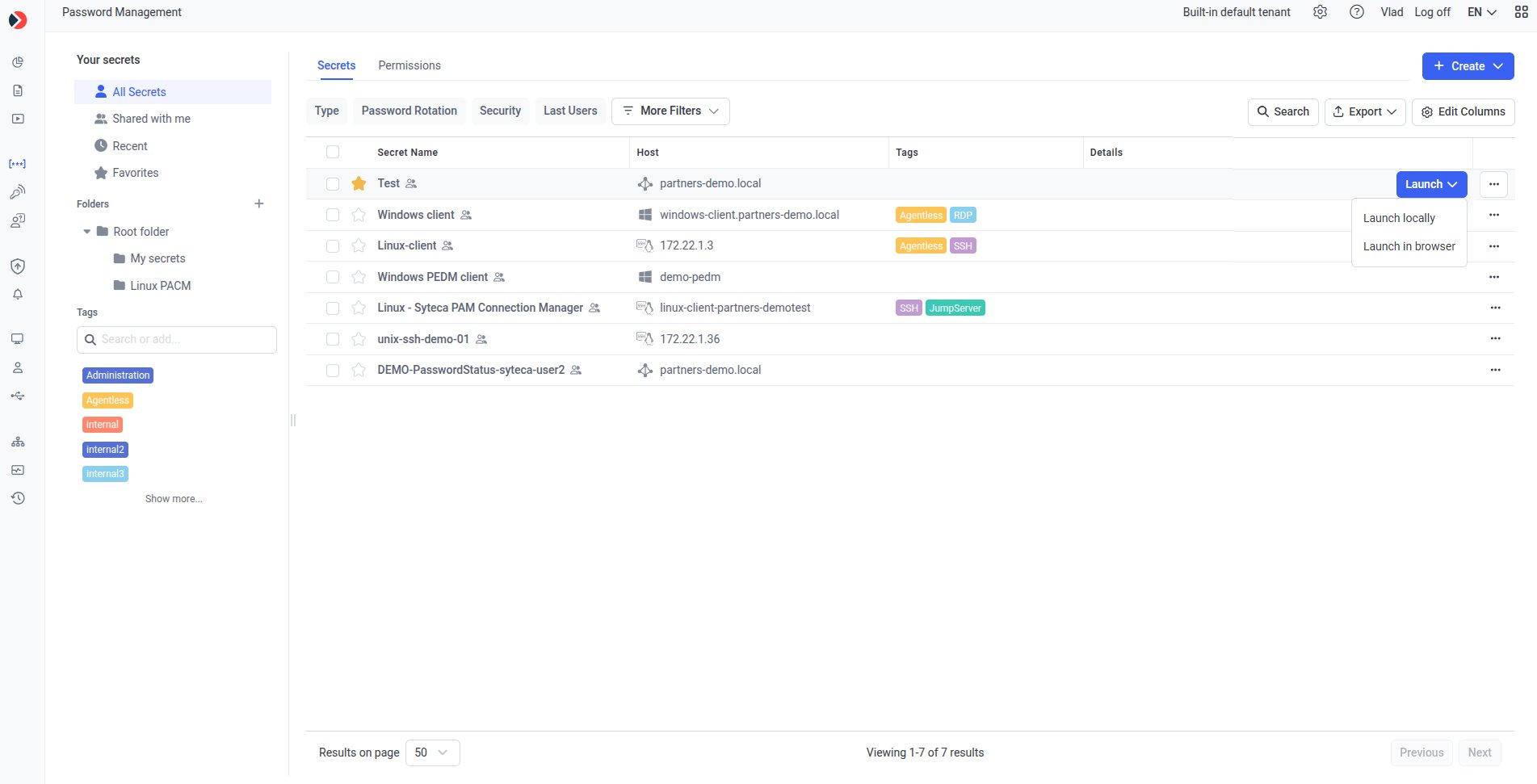
Launch a secret from the grid (hover it and click **Launch**) or from the **Edit Secret** / **Secret View** panel. If it has more than one launch type (browser or local), a drop-down of launch options appears.
### Reset a secret to folder settings
Click **Reset to Folder Settings** on any tab to return that tab's settings from **Custom** back to the parent folder's settings.
When a secret inherits settings from its folder, the first change you make shows a warning message. Once dismissed, further changes on that secret don't show it again.
## Launch a secret
Launch a secret from the grid (hover it and click **Launch**) or from the **Edit Secret** / **Secret View** panel. If it has more than one launch type (browser or local), a drop-down of launch options appears.
 Once you click **Save**, your changes apply to the secret immediately.
## Related
Create and configure a new secret from scratch.
The grid, folders, and Tags this panel is opened from.
Remove one or more secrets you no longer need.
Retrieve secrets from scripts and CI/CD using the Secret ID.
Once you click **Save**, your changes apply to the secret immediately.
## Related
Create and configure a new secret from scratch.
The grid, folders, and Tags this panel is opened from.
Remove one or more secrets you no longer need.
Retrieve secrets from scripts and CI/CD using the Secret ID.