> ## Documentation Index
> Fetch the complete documentation index at: https://syteca.com/docs/llms.txt
> Use this file to discover all available pages before exploring further.
# Transfer Files with WinSCP
> Transfer files between the Connection Manager computer and a remote host through a Syteca secret using the WinSCP application, over SCP, SFTP, or FTP.
The File Transfer feature lets users of a secret move files between the Connection Manager computer and the remote computer the secret accesses, using the **WinSCP** (Windows Secure Copy) application version 6.0 or higher. WinSCP must be installed and added to the `PATH` environment variable on the Client computer.
When File Transfer is configured and permitted, a user transfers files through the secret in WinSCP instead of connecting directly to the remote computer.
This works in the desktop Syteca Connection Manager and, in a similar way, directly from the Management Tool using [Syteca Web Connection Manager](/docs/pam/access/web-connection-manager).
## Supported secret types and protocols
| Secret type | SCP | SFTP | FTP |
| ------------------------ | --- | ---- | --- |
| Active Directory account | ✗ | ✓ | ✓ |
| Windows account | ✗ | ✓ | ✓ |
| Unix account (SSH) | ✓ | ✓ | ✓ |
**Active Directory and Windows accounts:** SFTP requires an OpenSSH server on the remote computer; FTP requires an FTP server on the remote computer.
**Unix account (SSH):** SCP and SFTP require an OpenSSH server on the remote computer.
## 1. Configure file transfer for a secret
Sign in to the Management Tool with the [Management Tool Access permission](/docs/administration/users/administrative-permissions), then [add a new secret](/docs/pam/secrets/add-secret) or edit an existing one.
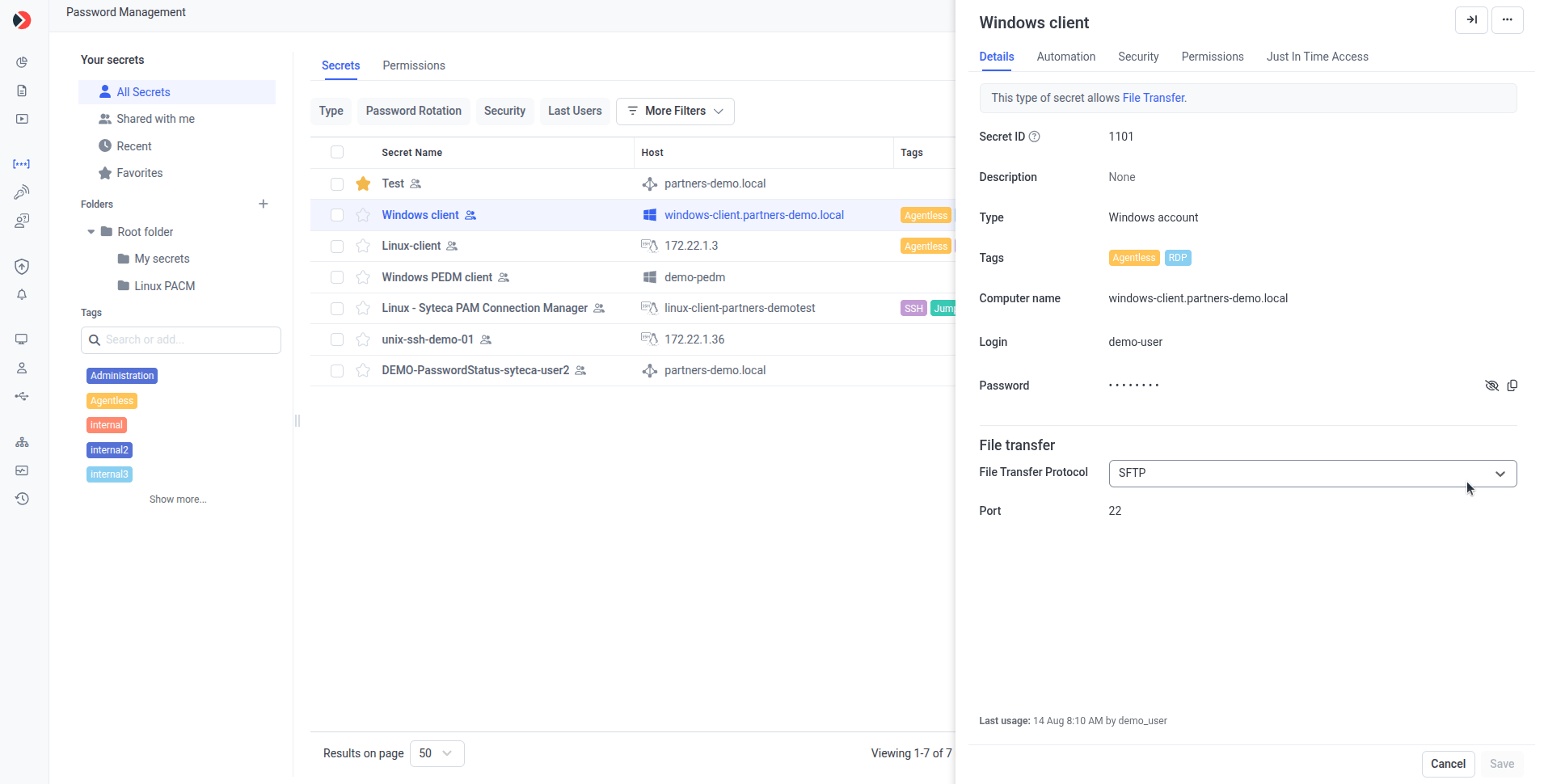
On the **Details** tab, in the **File Transfer** section, select the **File Transfer Protocol** (SFTP by default) and enter the **Port** (defaults: `22` for SFTP/SCP, `21` for FTP).
For Unix account (SSH) secrets, the FTP protocol cannot be used together with the **Use SSH key** option.
For Active Directory account secrets, the protocol and port are configured later, in a pop-up shown while connecting through WinSCP (see Step 2).
On the **Automation** tab, select **Enable remote password rotation** and set the rotation frequency. See [Remote password rotation](/docs/pam/secrets/remote-password-rotation).
File transfer does not work until the password has been rotated at least once, or if rotation has failed.
On the **Security** tab, select both **Requires check out** and **Change password on check in** (and optionally **Check in automatically after**).
File transfer will not work unless both of these are selected — and you won't be able to save the secret after enabling File Transfer permissions for any user without them.
On the **Permissions** tab, click **Add**, select the users or user groups, and for each set the **Role Type** to **Owner** or **Editor** and select the **File Transfer** checkbox. You can instead inherit users and the File Transfer permission from the parent folder (except "Root folder").
Click **Save**. Then either wait for the first automatic rotation, or edit the secret and click **Rotate Now** on the **Automation** tab (Rotate Now appears only when editing an existing secret). Save again.
 ## 2. Transfer files
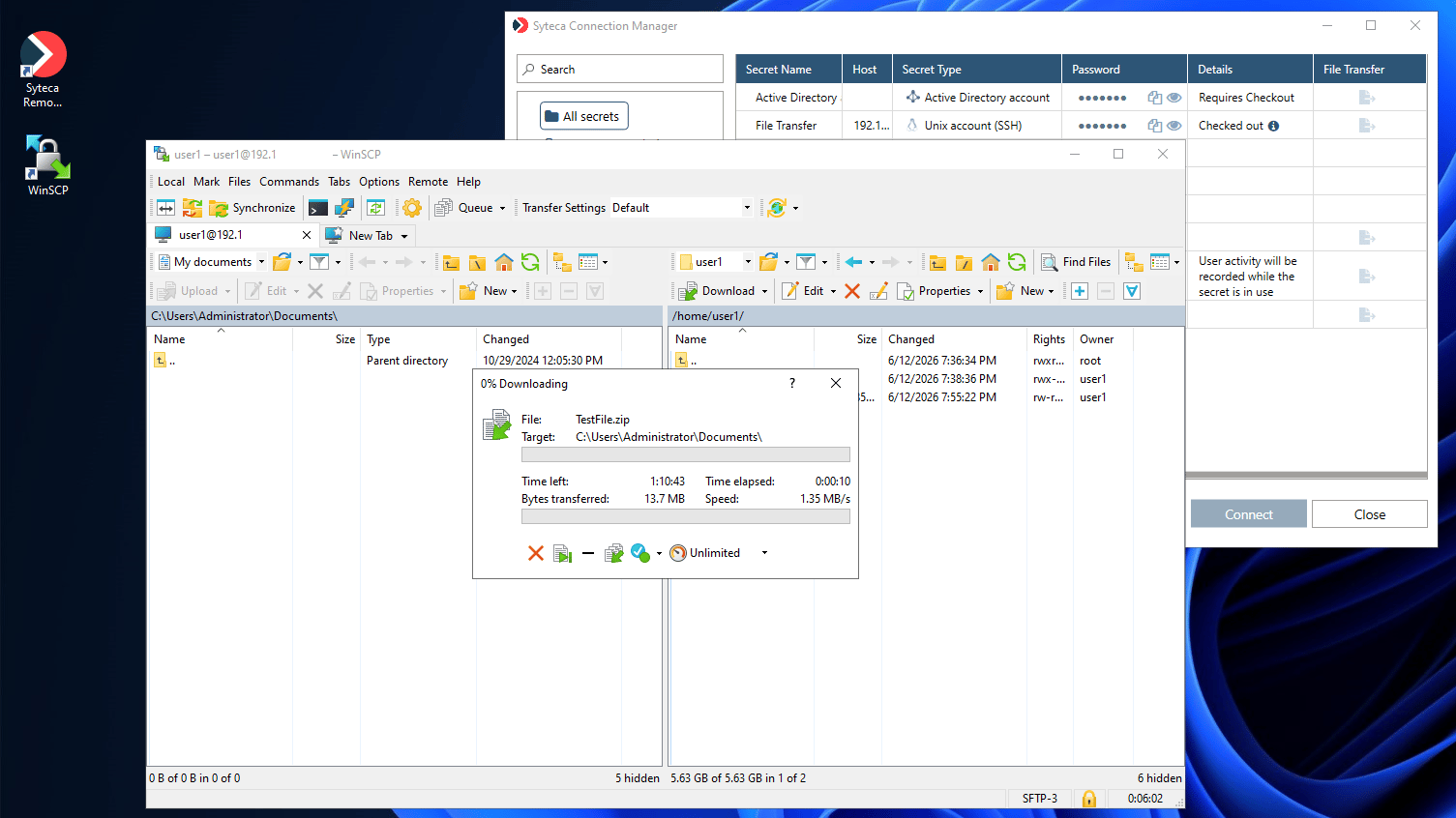
In Syteca Connection Manager, instead of **Connect**, click the dark blue icon in the **File Transfer** column for the secret. (A gray icon means file transfer isn't fully configured for that secret and can't be used.)
For Active Directory account secrets, a pop-up opens: enter the remote computer's name or IP, select the **File Transfer Protocol** and **Port** (or use the defaults), then click **Connect**.
If the secret only allows connections to specific computers in the domain, first expand the parent secret (click the down-arrow) to show its child secrets — one per allowed computer — then click the dark blue File Transfer icon on the row for the computer you want.
WinSCP opens (if version 6.0+ is installed) on the Client computer. Transfer files between the Connection Manager computer and the remote host in WinSCP.
## 2. Transfer files
In Syteca Connection Manager, instead of **Connect**, click the dark blue icon in the **File Transfer** column for the secret. (A gray icon means file transfer isn't fully configured for that secret and can't be used.)
For Active Directory account secrets, a pop-up opens: enter the remote computer's name or IP, select the **File Transfer Protocol** and **Port** (or use the defaults), then click **Connect**.
If the secret only allows connections to specific computers in the domain, first expand the parent secret (click the down-arrow) to show its child secrets — one per allowed computer — then click the dark blue File Transfer icon on the row for the computer you want.
WinSCP opens (if version 6.0+ is installed) on the Client computer. Transfer files between the Connection Manager computer and the remote host in WinSCP.
 ## Related
Configure file transfer while creating a secret.
Both checkout options are required for file transfer.
The password must be rotated once before file transfer works.
The File Transfer advanced permission.
## Related
Configure file transfer while creating a secret.
Both checkout options are required for file transfer.
The password must be rotated once before file transfer works.
The File Transfer advanced permission.