> ## Documentation Index
> Fetch the complete documentation index at: https://syteca.com/docs/llms.txt
> Use this file to discover all available pages before exploring further.
# Permissions for Secrets
> Understand Owner, Editor, and PAM User roles plus the File Transfer, View Password, and Copy Password advanced permissions for Syteca secrets and folders.
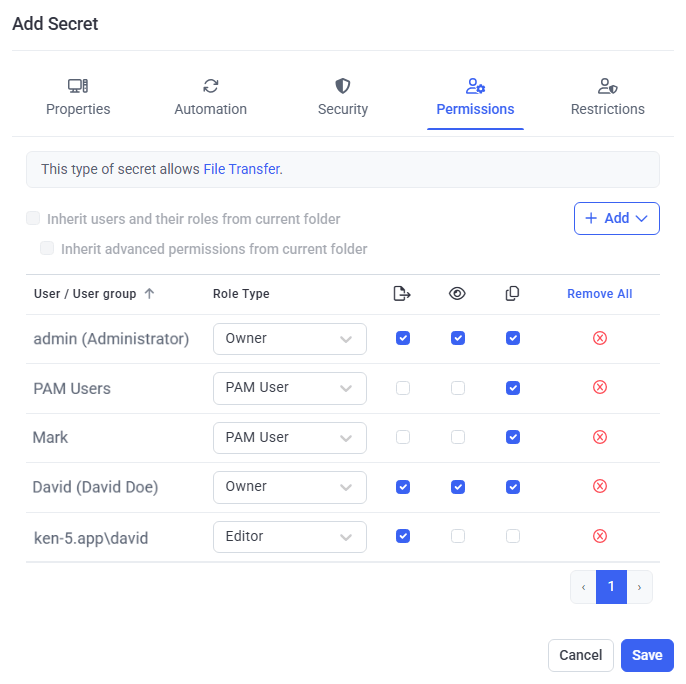
Permissions define what a user can do with a secret — or with all the secrets in a folder. A Management Tool user with the [Management Tool Access administrative permission](/docs/administration/users/administrative-permissions) sets them on the **Permissions** tab when [adding](/docs/pam/secrets/add-secret) or [editing](/docs/pam/secrets/edit-secret) a secret, or when adding or editing a folder.
There are two layers: a **Role Type** (one per user, sets the baseline of what they can do) and **advanced permissions** (extra capabilities you grant on top).
## Role Type permissions
Each user or user group gets exactly one Role Type, selected in the **Role Type** column.
| Role Type | What it allows |
| ------------ | --------------------------------------------------------------------------------------------------------------------------------------------------------------------------------------------------------------------------------------------------------------- |
| **Owner** | Grant any Role Type and advanced permission; view secret/folder data (including the credentials of shared privileged accounts); edit the secret/folder; delete the secret/folder; configure remote password rotation; and use the secret to access the account. |
| **Editor** | Grant the Editor and PAM User Role Types and advanced permissions; view the secret/folder data; edit the secret/folder; and use the secret to access the account. |
| **PAM User** | Use the secret to access the associated account. |
As a root user, the built-in default **admin** user has the **Owner** Role Type for all secrets and can edit and access every secret added by other users.
## Advanced permissions
Advanced permissions are extra capabilities granted by selecting checkboxes in the matching columns. Each can only be granted to users who already have the **Owner** or **Editor** Role Type for the secret.
| Advanced permission | What it allows |
| ------------------- | ----------------------------------------------------------------------------------------------------- |
| **File Transfer** | Transfer files using the WinSCP application. See [File transfer](/docs/pam/secrets/file-transfer). |
| **View Password** | View the secret's password. See [View and copy a secret's password](/docs/pam/secrets/view-copy-password). |
| **Copy Password** | Copy the secret's password. See [View and copy a secret's password](/docs/pam/secrets/view-copy-password). |
If permissions are granted to a user group, every user in that group inherits them.
 ## View the Role Type permissions that are granted
The **Permissions** tab of the **Password Management** page lists the Role Type permissions granted to users of the secrets in the selected folder, in a grid with these columns:
| Column | Shows |
| ------------------- | --------------------------------------------------- |
| **User/Group Name** | The user or user group the Role Type is granted to. |
| **Secret Name** | The secret the Role Type is granted for. |
| **Secret Type** | The type of that secret. |
| **Permissions** | The Role Type granted (Owner, Editor, or PAM User). |
| **Description** | The secret's description. |
You can **filter** the grid by Secret Name, User group, or User, and **sort** any column by clicking its header (click again to reverse the order).
## Related
Grant and use the View Password and Copy Password permissions.
Grant and use the File Transfer permission with WinSCP.
Create a secret and set its permissions from scratch.
Work with the secrets grid and folder structure.
## View the Role Type permissions that are granted
The **Permissions** tab of the **Password Management** page lists the Role Type permissions granted to users of the secrets in the selected folder, in a grid with these columns:
| Column | Shows |
| ------------------- | --------------------------------------------------- |
| **User/Group Name** | The user or user group the Role Type is granted to. |
| **Secret Name** | The secret the Role Type is granted for. |
| **Secret Type** | The type of that secret. |
| **Permissions** | The Role Type granted (Owner, Editor, or PAM User). |
| **Description** | The secret's description. |
You can **filter** the grid by Secret Name, User group, or User, and **sort** any column by clicking its header (click again to reverse the order).
## Related
Grant and use the View Password and Copy Password permissions.
Grant and use the File Transfer permission with WinSCP.
Create a secret and set its permissions from scratch.
Work with the secrets grid and folder structure.