> ## Documentation Index
> Fetch the complete documentation index at: https://syteca.com/docs/llms.txt
> Use this file to discover all available pages before exploring further.
# Remote Password and SSH Key Rotation
> Automatically rotate the password or SSH key of a privileged account in Syteca on a schedule or on demand. Includes Windows and Unix SSH preconditions.
Remote Password Rotation changes the password (or SSH key) of a privileged account automatically — to a new, randomly generated value — at a frequency you set, and on demand at any time. Regular rotation reduces the risk of a compromised credential being usable.
Rotation can be enabled only for the **Active Directory account**, **Windows account**, **Unix account (SSH)**, and **MS SQL account** secret types, by a user with the **Owner** or **Editor** [Role Type](/docs/pam/secrets/permissions). SSH keys can also be rotated for the **Unix account (SSH)** type.
## Configure rotation
Sign in to the Management Tool, click **Password Management**, and click the required secret to edit it.
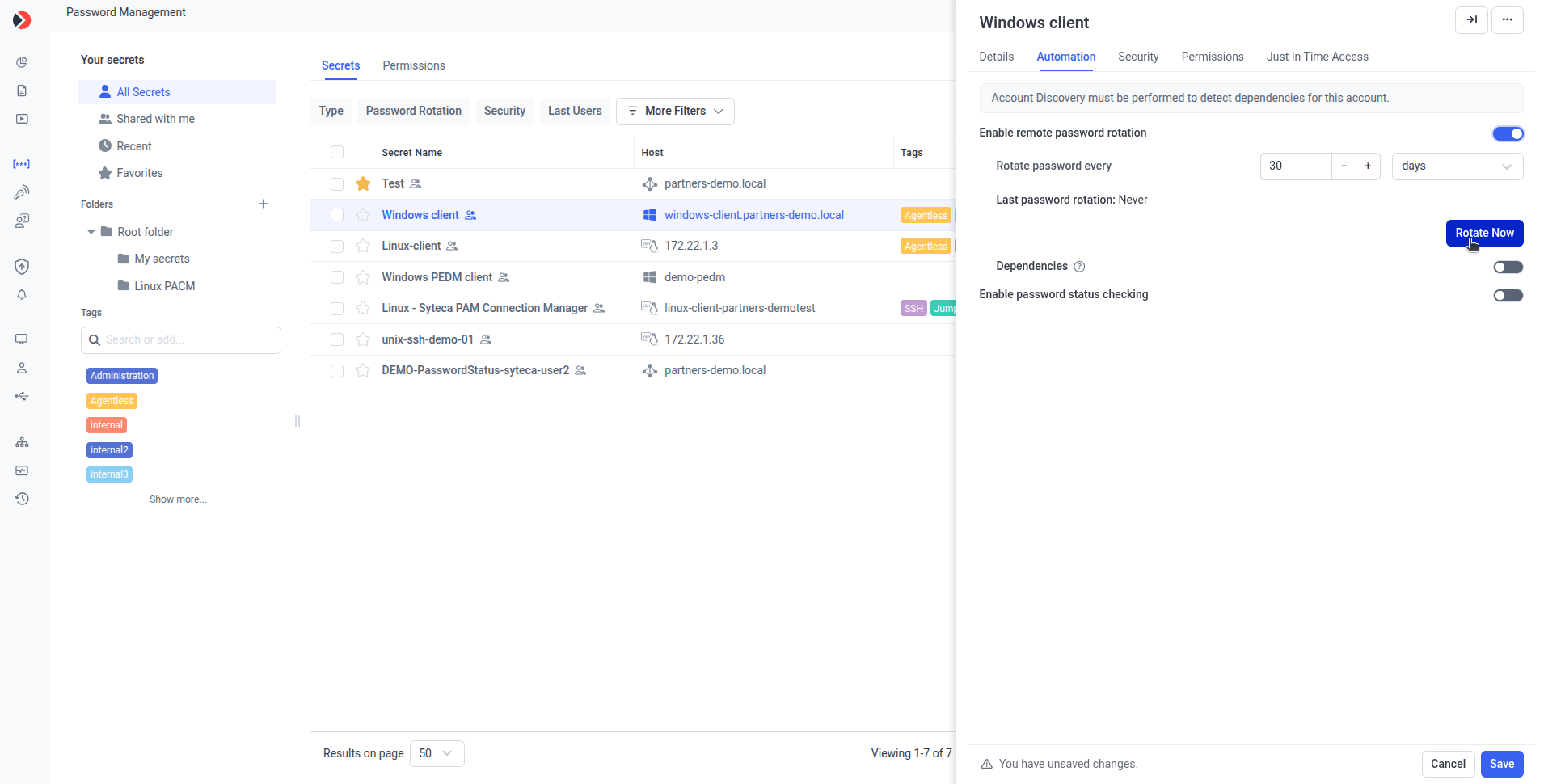
In the **Edit Secret** window, select the **Automation** tab.
Select **Enable remote password rotation** and set the frequency in **Rotate Password Every**. To rotate immediately, click **Rotate Now**.
 If Remote Password Rotation fails, the **“Failed”** status is displayed in the **Password Rotation Status** column on the **Password Management** page, and a corresponding error event appears on the [System Health](/docs/administration/dashboards/system-health-dashboards) page. In this case, further automatic password changes will not occur.
For rotation to work, the account must be configured appropriately on its host (with no conflicting policies) **and** the preconditions below must be met.
## Password complexity policy (optional)
You can change the minimum complexity of generated passwords by adding any of these keys to the `EkranServer.Settings.config` file and setting the value (defaults shown):
```xml EkranServer.Settings.config theme={"system"}
```
| Key | Controls | Min | Max |
| -------------------------------- | -------------------------- | --- | --- |
| `PasswordRotationPolicy.Length` | Minimum password length | 14 | 128 |
| `PasswordRotationPolicy.Digits` | Minimum number of digits | 1 | 16 |
| `PasswordRotationPolicy.Upper` | Minimum uppercase letters | 1 | 16 |
| `PasswordRotationPolicy.Lower` | Minimum lowercase letters | 1 | 16 |
| `PasswordRotationPolicy.Symbols` | Minimum special characters | 1 | 16 |
The source describes the `Digits`, `Upper`, and `Lower` keys with overlapping labels (the descriptions and the key names don't line up cleanly). The key names and min/max values above are reproduced exactly from the source; confirm which key maps to which character class during review before publishing.
`EkranServer.Settings.config` is in `C:\Program Files\Ekran System\Ekran System\Server` on the Application Server host. Confirm whether this path has changed under the Syteca brand.
## Preconditions for Windows account secrets
These must be met on the remote computer where the Windows account is located.
1. Open the Windows Registry Editor.
2. Select `HKEY_LOCAL_MACHINE\SOFTWARE\Microsoft\Windows\CurrentVersion\Policies\System`.
3. If `LocalAccountTokenFilterPolicy` does not exist, choose **Edit > New > DWORD (32-bit) Value** and add — Value name: `LocalAccountTokenFilterPolicy`, Value data: `1`.
4. If it already exists, right-click it, choose **Modify**, set **Value data** to `1`, and click **OK**.
5. Restart the computer.
The **Remote Registry** service must be running (including on Windows 10 and 11 desktop OSs). On some OSs it can stop automatically after a while (for example, after 10 minutes), which causes rotation to fail. To prevent it from idling out, set:
* Key: `HKEY_LOCAL_MACHINE\SOFTWARE\Microsoft\Windows NT\CurrentVersion\RemoteRegistry`
* Name: `DisableIdleStop`
* Type/data: `REG_DWORD`, `1`
1. Press **Win+R**, enter `secpol.msc`, press **Enter**.
2. Select **Security Settings**.
3. Open **Account Policies > Account Lockout Policy**.
4. Double-click **Account lockout threshold**.
5. Set **Account will lock out after** to `0` (disabled), then **Apply** and **OK**.
1. Press **Win+R**, enter `lusrmgr.msc`, press **Enter**.
2. Under **Local Users and Groups (Local)**, select **Users**.
3. Right-click the user, choose **Properties**.
4. On the **General** tab, select **Password never expires**, then **OK**.
* **Remote Service Management (NP-In)**
* **Remote Service Management (RPC)**
1. In **Local Security Policy**, open **Security Settings > Account Policies > Password Policy**.
2. Set **Minimum password age** to `0` days.
The Application Server host must be able to resolve target computer hostnames during account onboarding (see [Account Discovery](/docs/pam/discovery/overview)). If a Windows local account is onboarded by hostname, the Application Server must resolve that hostname — important when the target is in a different domain. One option is to configure a domain suffix search list on the Application Server host that includes all network domains ([Microsoft guidance](https://learn.microsoft.com/en-us/troubleshoot/windows-client/networking/configure-domain-suffix-search-list-domain-name-system-clients)). Alternatively, use FQDNs or IP addresses during onboarding.
Remote Password Rotation is only available for local administrator accounts. The `EkranServer` service must run under a user account other than `LocalSystem` on the Application Server host.
## Preconditions for Unix account (SSH) secrets
For Unix account (SSH) secrets, [PuTTY must be installed](/docs/pam/secrets/add-secret) on the Connection Manager computer. You can select **Use SSH key** instead of **Use password** when adding the secret. The examples below assume the target host runs an OpenSSH server (the common case on Linux).
Syteca rotates SSH passwords and SSH keys differently, because the Unix (SSH) secret type connects either with a password or with an SSH key.
### SSH password rotation
**Precondition:** the **Login** and **Password** in the secret must be valid for the target host.
**How it works:** the Application Server connects with the secret's credentials and changes the current user's password to a newly generated one. Both old and new passwords are stored in the database during the operation; the old one is deleted only after everything succeeds. On failure, the password is restored to a valid state from one of the two.
### SSH key rotation
**Precondition:** the **Login**, **Private Key**, and **Private Key Passphrase** in the secret must be valid for the target host, and the matching public key must be in `~/.ssh/authorized_keys` in the user's home directory. PuTTY can be used as the SSH client; the key in the secret must be in PuTTY format ([PuTTYgen guidance](https://www.ssh.com/academy/ssh/putty/windows/puttygen)).
**How it works:** the Application Server connects with the **Login** and **Private Key** and replaces the public key in `~/.ssh/authorized_keys` with the new one matching the newly generated PuTTY key. Both old and new keys (and passphrases) are stored during the operation; the old key is deleted only after success. On failure, the key is restored from one of the two.
If an SSH-key connection succeeds but password rotation fails with `Password rotation for Secret SSH failed. Error: Permission denied (publickey)` in the System Health transaction log, add `PubkeyAcceptedKeyTypes +ssh-rsa` to `/etc/ssh/sshd_config`:
1. In `/etc/ssh`, open the read-only `./sshd_config` file in an editor.
2. Add `PubkeyAcceptedKeyTypes +ssh-rsa` and save.
3. Run `sudo systemctl restart sshd`.
### Establish the SSH connection
This sub-section is **not available in SaaS**.
Use these checks to confirm an SSH connection can be established to the target (for password rotation, SSH key rotation, and Linux account discovery).
Make sure the target computer is reachable.
```bash theme={"system"}
sudo systemctl status ssh
```
If it isn't installed and running:
```bash theme={"system"}
sudo apt update
sudo apt install openssh-server
sudo systemctl start ssh
sudo systemctl enable ssh
```
Debian/Ubuntu:
```bash theme={"system"}
sudo ufw allow ssh
sudo ufw enable
```
CentOS/RHEL:
```bash theme={"system"}
sudo firewall-cmd --permanent --add-service=ssh
sudo firewall-cmd --reload
```
Debian/Ubuntu:
```bash theme={"system"}
sudo ufw allow 22/tcp
sudo ufw reload
```
CentOS/RHEL:
```bash theme={"system"}
sudo firewall-cmd --permanent --add-port=22/tcp
sudo firewall-cmd --reload
```
```bash theme={"system"}
sudo sshd -t
```
No output means the configuration file is valid.
Open a command prompt (**Win+R**, `cmd`) and run:
```bash theme={"system"}
ssh {username}@{targetComputer ip or hostname} -p 22
```
Add the host to known hosts if prompted (this does not affect scanning or onboarding). A successful connection confirms SSH works.
```bash theme={"system"}
which bash
```
Empty output means Bash is not installed for that user. Bash is required for rotation and for Linux account discovery and onboarding.
## Related
Enable rotation while creating a secret.
Optionally rotate on every check-in.
Requires the password to be rotated at least once.
Discover and onboard accounts to manage.
If Remote Password Rotation fails, the **“Failed”** status is displayed in the **Password Rotation Status** column on the **Password Management** page, and a corresponding error event appears on the [System Health](/docs/administration/dashboards/system-health-dashboards) page. In this case, further automatic password changes will not occur.
For rotation to work, the account must be configured appropriately on its host (with no conflicting policies) **and** the preconditions below must be met.
## Password complexity policy (optional)
You can change the minimum complexity of generated passwords by adding any of these keys to the `EkranServer.Settings.config` file and setting the value (defaults shown):
```xml EkranServer.Settings.config theme={"system"}
```
| Key | Controls | Min | Max |
| -------------------------------- | -------------------------- | --- | --- |
| `PasswordRotationPolicy.Length` | Minimum password length | 14 | 128 |
| `PasswordRotationPolicy.Digits` | Minimum number of digits | 1 | 16 |
| `PasswordRotationPolicy.Upper` | Minimum uppercase letters | 1 | 16 |
| `PasswordRotationPolicy.Lower` | Minimum lowercase letters | 1 | 16 |
| `PasswordRotationPolicy.Symbols` | Minimum special characters | 1 | 16 |
The source describes the `Digits`, `Upper`, and `Lower` keys with overlapping labels (the descriptions and the key names don't line up cleanly). The key names and min/max values above are reproduced exactly from the source; confirm which key maps to which character class during review before publishing.
`EkranServer.Settings.config` is in `C:\Program Files\Ekran System\Ekran System\Server` on the Application Server host. Confirm whether this path has changed under the Syteca brand.
## Preconditions for Windows account secrets
These must be met on the remote computer where the Windows account is located.
1. Open the Windows Registry Editor.
2. Select `HKEY_LOCAL_MACHINE\SOFTWARE\Microsoft\Windows\CurrentVersion\Policies\System`.
3. If `LocalAccountTokenFilterPolicy` does not exist, choose **Edit > New > DWORD (32-bit) Value** and add — Value name: `LocalAccountTokenFilterPolicy`, Value data: `1`.
4. If it already exists, right-click it, choose **Modify**, set **Value data** to `1`, and click **OK**.
5. Restart the computer.
The **Remote Registry** service must be running (including on Windows 10 and 11 desktop OSs). On some OSs it can stop automatically after a while (for example, after 10 minutes), which causes rotation to fail. To prevent it from idling out, set:
* Key: `HKEY_LOCAL_MACHINE\SOFTWARE\Microsoft\Windows NT\CurrentVersion\RemoteRegistry`
* Name: `DisableIdleStop`
* Type/data: `REG_DWORD`, `1`
1. Press **Win+R**, enter `secpol.msc`, press **Enter**.
2. Select **Security Settings**.
3. Open **Account Policies > Account Lockout Policy**.
4. Double-click **Account lockout threshold**.
5. Set **Account will lock out after** to `0` (disabled), then **Apply** and **OK**.
1. Press **Win+R**, enter `lusrmgr.msc`, press **Enter**.
2. Under **Local Users and Groups (Local)**, select **Users**.
3. Right-click the user, choose **Properties**.
4. On the **General** tab, select **Password never expires**, then **OK**.
* **Remote Service Management (NP-In)**
* **Remote Service Management (RPC)**
1. In **Local Security Policy**, open **Security Settings > Account Policies > Password Policy**.
2. Set **Minimum password age** to `0` days.
The Application Server host must be able to resolve target computer hostnames during account onboarding (see [Account Discovery](/docs/pam/discovery/overview)). If a Windows local account is onboarded by hostname, the Application Server must resolve that hostname — important when the target is in a different domain. One option is to configure a domain suffix search list on the Application Server host that includes all network domains ([Microsoft guidance](https://learn.microsoft.com/en-us/troubleshoot/windows-client/networking/configure-domain-suffix-search-list-domain-name-system-clients)). Alternatively, use FQDNs or IP addresses during onboarding.
Remote Password Rotation is only available for local administrator accounts. The `EkranServer` service must run under a user account other than `LocalSystem` on the Application Server host.
## Preconditions for Unix account (SSH) secrets
For Unix account (SSH) secrets, [PuTTY must be installed](/docs/pam/secrets/add-secret) on the Connection Manager computer. You can select **Use SSH key** instead of **Use password** when adding the secret. The examples below assume the target host runs an OpenSSH server (the common case on Linux).
Syteca rotates SSH passwords and SSH keys differently, because the Unix (SSH) secret type connects either with a password or with an SSH key.
### SSH password rotation
**Precondition:** the **Login** and **Password** in the secret must be valid for the target host.
**How it works:** the Application Server connects with the secret's credentials and changes the current user's password to a newly generated one. Both old and new passwords are stored in the database during the operation; the old one is deleted only after everything succeeds. On failure, the password is restored to a valid state from one of the two.
### SSH key rotation
**Precondition:** the **Login**, **Private Key**, and **Private Key Passphrase** in the secret must be valid for the target host, and the matching public key must be in `~/.ssh/authorized_keys` in the user's home directory. PuTTY can be used as the SSH client; the key in the secret must be in PuTTY format ([PuTTYgen guidance](https://www.ssh.com/academy/ssh/putty/windows/puttygen)).
**How it works:** the Application Server connects with the **Login** and **Private Key** and replaces the public key in `~/.ssh/authorized_keys` with the new one matching the newly generated PuTTY key. Both old and new keys (and passphrases) are stored during the operation; the old key is deleted only after success. On failure, the key is restored from one of the two.
If an SSH-key connection succeeds but password rotation fails with `Password rotation for Secret SSH failed. Error: Permission denied (publickey)` in the System Health transaction log, add `PubkeyAcceptedKeyTypes +ssh-rsa` to `/etc/ssh/sshd_config`:
1. In `/etc/ssh`, open the read-only `./sshd_config` file in an editor.
2. Add `PubkeyAcceptedKeyTypes +ssh-rsa` and save.
3. Run `sudo systemctl restart sshd`.
### Establish the SSH connection
This sub-section is **not available in SaaS**.
Use these checks to confirm an SSH connection can be established to the target (for password rotation, SSH key rotation, and Linux account discovery).
Make sure the target computer is reachable.
```bash theme={"system"}
sudo systemctl status ssh
```
If it isn't installed and running:
```bash theme={"system"}
sudo apt update
sudo apt install openssh-server
sudo systemctl start ssh
sudo systemctl enable ssh
```
Debian/Ubuntu:
```bash theme={"system"}
sudo ufw allow ssh
sudo ufw enable
```
CentOS/RHEL:
```bash theme={"system"}
sudo firewall-cmd --permanent --add-service=ssh
sudo firewall-cmd --reload
```
Debian/Ubuntu:
```bash theme={"system"}
sudo ufw allow 22/tcp
sudo ufw reload
```
CentOS/RHEL:
```bash theme={"system"}
sudo firewall-cmd --permanent --add-port=22/tcp
sudo firewall-cmd --reload
```
```bash theme={"system"}
sudo sshd -t
```
No output means the configuration file is valid.
Open a command prompt (**Win+R**, `cmd`) and run:
```bash theme={"system"}
ssh {username}@{targetComputer ip or hostname} -p 22
```
Add the host to known hosts if prompted (this does not affect scanning or onboarding). A successful connection confirms SSH works.
```bash theme={"system"}
which bash
```
Empty output means Bash is not installed for that user. Bash is required for rotation and for Linux account discovery and onboarding.
## Related
Enable rotation while creating a secret.
Optionally rotate on every check-in.
Requires the password to be rotated at least once.
Discover and onboard accounts to manage.