> ## Documentation Index
> Fetch the complete documentation index at: https://syteca.com/docs/llms.txt
> Use this file to discover all available pages before exploring further.
# Connect Using a Secret
> Connect to a privileged account with a Syteca secret in the Desktop or Web Connection Manager, across Active Directory, Windows, Unix, Web, and MS SQL accounts.
Once a secret exists and you have permission to use it, you connect to the privileged account through a Connection Manager — the credential is injected for you, never shown. This page covers connecting in the Desktop Connection Manager and the specifics for each account type.
Everything here also works from the Management Tool using the [Web Connection Manager](/docs/pam/access/web-connection-manager), in a similar way.
As a root user, the built-in default **admin** user has the **Owner** [Role Type](/docs/pam/secrets/permissions) for all secrets and can access every secret added by other users.
## Connect in the Desktop Connection Manager
Log in to the computer running the Connection Manager, remotely or locally. If [secondary user authentication](/docs/administration/clients/parameters/secondary-user-authentication) is enabled, enter the secondary user's credentials.
Right-click the **Client** tray icon and choose **Remote Access**, or double-click the **Syteca Remote Access** desktop icon.
With a custom Windows shell, the Remote Access shortcut may not be on the desktop. Find it in `C:\Users\Public\Desktop`.
The Connection Manager shows the secrets and folders you have [permission](/docs/pam/secrets/permissions) to use. Click **Refresh** any time to update the list. The **Details** column shows status for access approval, [Password Checkout](/docs/pam/secrets/password-checkout), and recording — the same statuses described in [View and manage secrets](/docs/pam/secrets/view-manage-secrets).
Click the secret, then **Connect**. Request access approval if prompted.
For an Active Directory account secret, enter the **Computer** name or IP in the pop-up, then click **Connect**.
If the secret only allows specific computers in the domain, expand the parent secret (click the down-arrow) to show one child secret per allowed computer, then select the child and click **Connect**.
A connection is established according to the [secret type](/docs/pam/secrets/add-secret) and you're logged in to the account automatically.
A watchdog for the Connection Manager provides automatic recovery in case of failure.
## Per-account-type notes
Each secret type connects to its kind of account, and most require a third-party application on the Connection Manager computer.
Lets you choose which computer to connect to in the domain. Requires **Microsoft Remote Desktop Connection** (`mstsc.exe`). After **Connect**, enter the computer name or IP; Syteca logs you in automatically.
Works with local and domain accounts on a specific computer. Requires **Microsoft Remote Desktop Connection** (`mstsc.exe`). Syteca logs you in automatically on **Connect**.
Connects to a Unix account over SSH. Requires **PuTTY**. The **Use SSH key** option can be selected instead of a password when [adding the secret](/docs/pam/secrets/add-secret). Syteca logs you in automatically on **Connect**.
Connects to a Unix account over Telnet. Requires **PuTTY**. The **Use SSH key** option can be selected instead of a password when [adding the secret](/docs/pam/secrets/add-secret). Syteca logs you in automatically on **Connect**.
Connects to a web account. Only compatible with **Google Chrome**, and always opens in **Incognito** mode (no data caching). If auto-login doesn't happen, a Syteca Chrome extension can insert the username and password.
Connects to an MS SQL database. Requires **Microsoft SQL Server Management Studio (SSMS) 18–20**. Syteca logs you in to SSMS automatically on **Connect**.
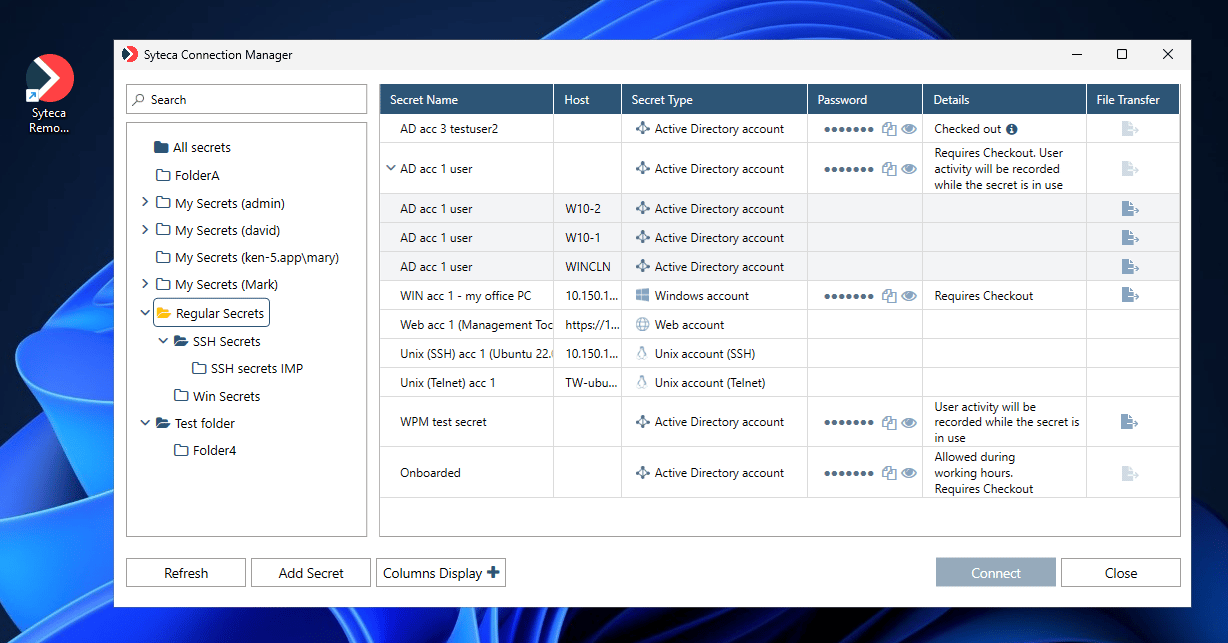 ## Per-secret actions
If you have the right [advanced permissions](/docs/pam/secrets/permissions), each secret row also lets you:
* [Copy or view the password](/docs/pam/secrets/view-copy-password) (after confirming your account password).
* [Transfer files](/docs/pam/secrets/file-transfer) with WinSCP (dark blue icon; a gray icon means it isn't fully configured).
## Choose which columns are shown
Click **Columns Display** (bottom right of the Connection Manager) and select or clear columns. The **Secret Name** column can't be hidden.
## Add your own private secrets (WPM)
Click **Add Secret** at the bottom of the Connection Manager to add and manage your own [Workforce Password Management](/docs/pam/secrets/workforce-password-management) secrets — private to you unless you share them.
## Related
Connect from the browser or locally, via the Management Tool.
The secrets grid, columns, and Details statuses.
What the Checked out / Requires checkout statuses mean.
Manage your own private secrets.
## Per-secret actions
If you have the right [advanced permissions](/docs/pam/secrets/permissions), each secret row also lets you:
* [Copy or view the password](/docs/pam/secrets/view-copy-password) (after confirming your account password).
* [Transfer files](/docs/pam/secrets/file-transfer) with WinSCP (dark blue icon; a gray icon means it isn't fully configured).
## Choose which columns are shown
Click **Columns Display** (bottom right of the Connection Manager) and select or clear columns. The **Secret Name** column can't be hidden.
## Add your own private secrets (WPM)
Click **Add Secret** at the bottom of the Connection Manager to add and manage your own [Workforce Password Management](/docs/pam/secrets/workforce-password-management) secrets — private to you unless you share them.
## Related
Connect from the browser or locally, via the Management Tool.
The secrets grid, columns, and Details statuses.
What the Checked out / Requires checkout statuses mean.
Manage your own private secrets.