> ## Documentation Index
> Fetch the complete documentation index at: https://syteca.com/docs/llms.txt
> Use this file to discover all available pages before exploring further.
# View and Copy a Secret's Password
> Grant View Password and Copy Password permissions on a Syteca secret, then securely view or copy the password in Connection Manager or the Management Tool.
The **View Password** and **Copy Password** permissions let a secret's Owner or Editor allow specific users to securely view or copy the secret's password — which is also the password of the account the secret connects to. This page covers granting those permissions and then using them.
This works in the desktop Syteca Connection Manager and, in a similar way, directly from the Management Tool using [Syteca Web Connection Manager](/docs/pam/access/web-connection-manager).
## 1. Allow users to view or copy the password
Sign in to the Management Tool with the [Management Tool Access permission](/docs/administration/users/administrative-permissions), then [add a new secret](/docs/pam/secrets/add-secret) or edit an existing one as its **Owner** or **Editor**.
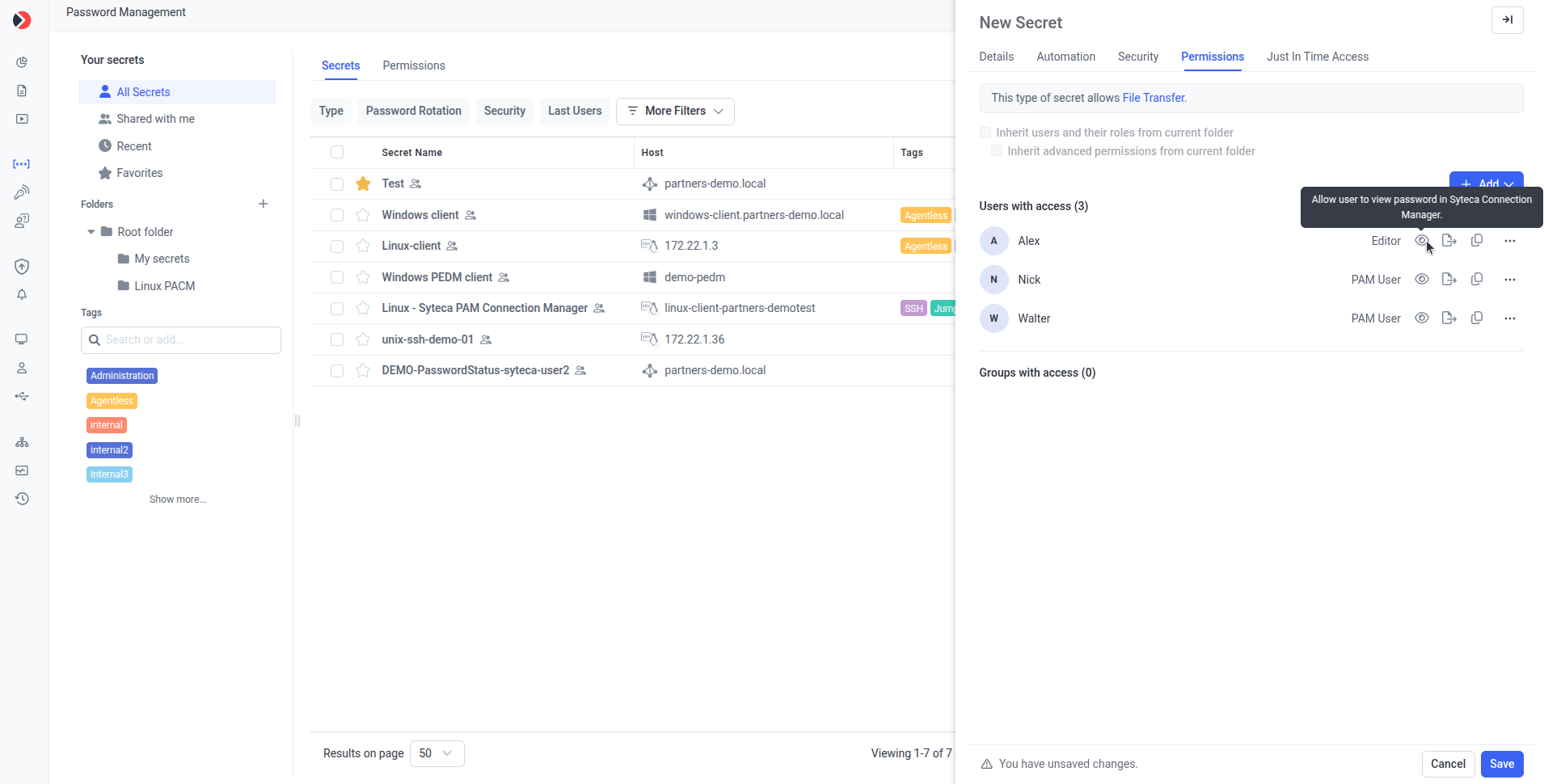
On the **Permissions** tab, click **Add** and select the users or user groups who will use the secret.
For each user or group, select a [Role Type](/docs/pam/secrets/permissions) (Owner, Editor, or PAM User) in the **Role Type** column.
Select the checkbox in the **View Password** column, the **Copy Password** column, or both, for each user who needs it.
Click **Save** in the bottom right.
The same View Password and Copy Password permissions can be granted for [folders of secrets](/docs/pam/secrets/view-manage-secrets), so every secret in the folder inherits them.
 ## 2. View or copy the password
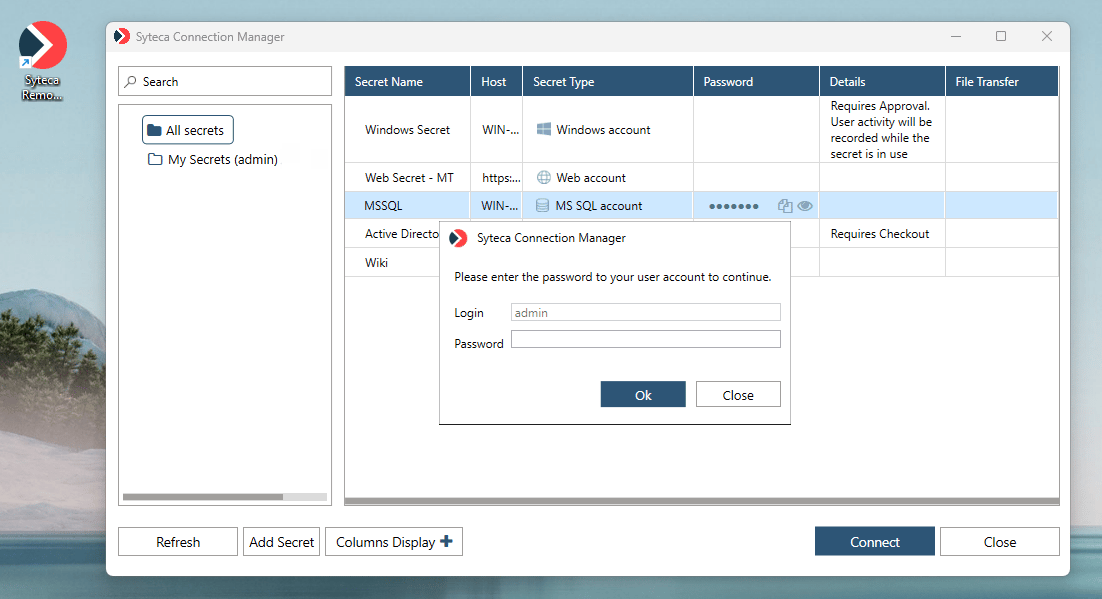
In Syteca Connection Manager (or the Management Tool secrets grid), click the **View** or **Copy** icon in the **Password** column for the secret. In the pop-up that opens, enter the password for your own Management Tool account and click **OK**.
After clicking **View** and confirming your account password:
* The password is visible for **5 seconds**, then hides automatically.
* If it's too long to fit, hover over it to see the full value in a tooltip.
* The **View** icon shows as crossed out during those 5 seconds; click it to hide the password immediately.
After clicking **Copy** and confirming your account password, the value is copied to your clipboard. Hovering over the icon shows a **Copied to clipboard** confirmation.
After you confirm your account password once, you can view or copy it without re-entering it for a **5-minute** grace period (applies to both **Connection Manager** and the **Management Tool**).
## 2. View or copy the password
In Syteca Connection Manager (or the Management Tool secrets grid), click the **View** or **Copy** icon in the **Password** column for the secret. In the pop-up that opens, enter the password for your own Management Tool account and click **OK**.
After clicking **View** and confirming your account password:
* The password is visible for **5 seconds**, then hides automatically.
* If it's too long to fit, hover over it to see the full value in a tooltip.
* The **View** icon shows as crossed out during those 5 seconds; click it to hide the password immediately.
After clicking **Copy** and confirming your account password, the value is copied to your clipboard. Hovering over the icon shows a **Copied to clipboard** confirmation.
After you confirm your account password once, you can view or copy it without re-entering it for a **5-minute** grace period (applies to both **Connection Manager** and the **Management Tool**).
 ## Related
The full reference for Role Types and advanced permissions.
Where the View and Copy icons appear in the secrets grid.
## Related
The full reference for Role Types and advanced permissions.
Where the View and Copy icons appear in the secrets grid.