> ## Documentation Index
> Fetch the complete documentation index at: https://syteca.com/docs/llms.txt
> Use this file to discover all available pages before exploring further.
# View and Manage Secrets and Folders
> Work with the redesigned Syteca Password Management page: the left-side menu, Tags, the secrets grid, bulk actions, filtering, and exporting.
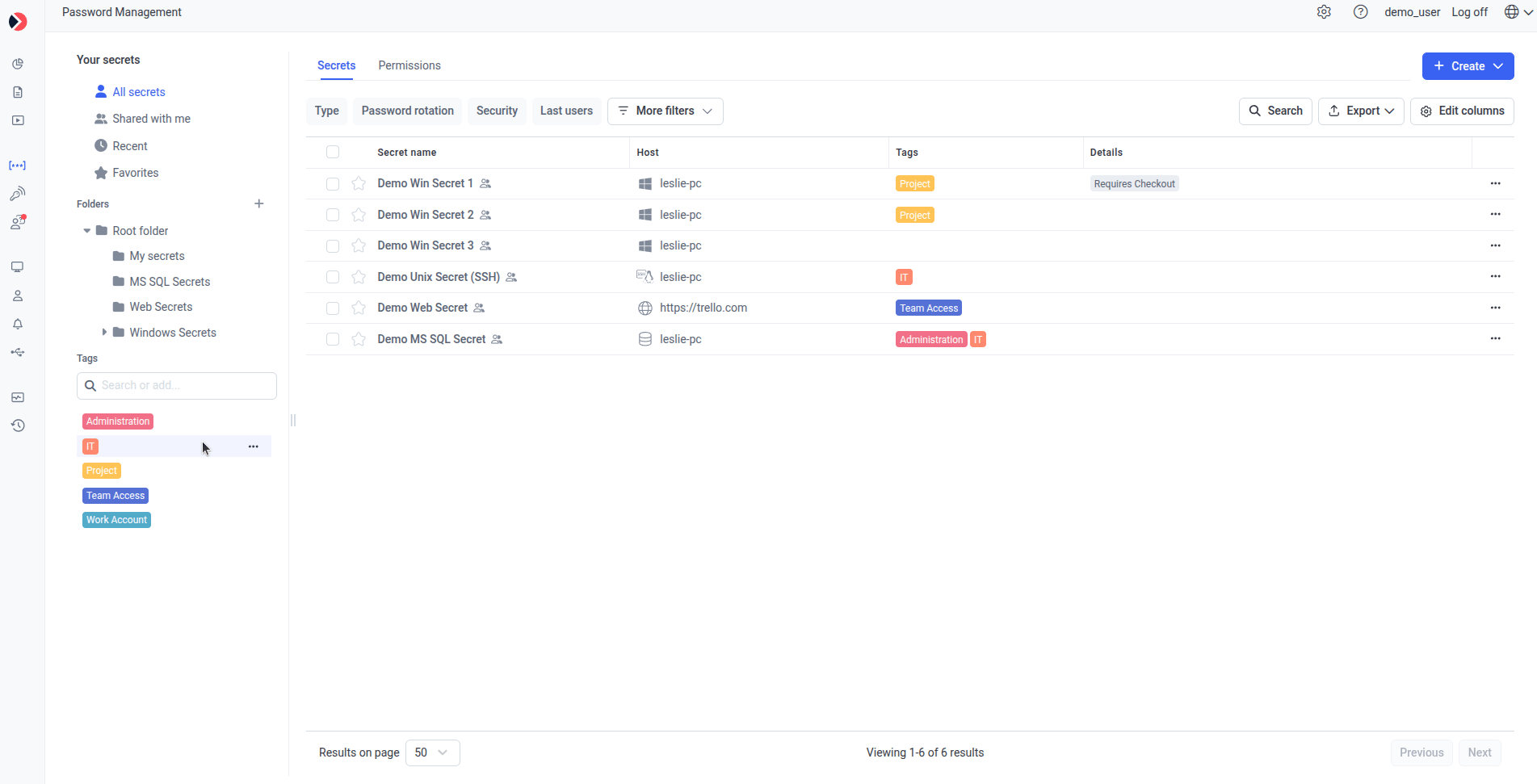
Secrets are displayed in the Management Tool on the **Password Management** page, on the **Secrets** tab. The page has three areas: a **left-side menu** for navigating and filtering, the **secret grid** listing secrets in the selected folder, and a **right-side panel** that opens when you view or edit a secret or folder.
As a root user, the built-in default **admin** user has **Owner** Role Type [permissions](/docs/pam/secrets/permissions) for every secret and folder, and can edit all secrets and folders added by other users.
## The left-side menu
Resizable manually, the left-side menu has three sections.
### Your Secrets
Quick access to predefined folders, each showing only the secrets available to you based on your permissions:
| Item | Contents |
| ------------------- | ------------------------------------------------------------------------------------------------------------------------------------------------------------------------------------- |
| **My Secrets** | Redirects to your personal **My Secrets** folder, created via [Workforce Password Management](/docs/pam/secrets/workforce-password-management). |
| **Shared with me** | Secrets shared with you (you have **PAM User**, **Editor**, or **Owner** permission, but aren't the Creator). |
| **Recent** | The last 10 secrets you **launched** (via Web Connection Manager or the PAM Connection Manager) or **edited** — not added — within the last 7 days. Sorted by most recently accessed. |
| **Favorites** | Secrets you've marked as favorites. |
| **Access mismatch** | Secrets with custom (overridden) permissions. |
### Folders
All available secrets in a tree-view folder structure:
* **Root folder** — the top-level folder (previously called **All Secrets**). Every other folder is a child of it; secrets can't be stored directly in the Root folder.
* **My Secrets** (your Workforce folder) — always shown first, directly under the Root folder, ahead of alphabetical order.
* **Other folders** — sorted alphabetically below.
Workforce folders show as **My Secrets** for their owner. For other users, they show as **\ \ (\)** — falling back to whichever name is available, or just the username if neither exists.
Opening a folder shows the policies assigned to it, below the folder path.
### Tags
The tags available for categorizing and filtering secrets — see [Managing tags](#managing-tags) below.
 ## Managing folders
### Add a folder
Next to the **Folders** section, click **+**. The **Add Folder** panel opens, adding the new folder as a child of the Root folder.
On the **Details** tab, set the **Folder Name** and, optionally, a **Description**.
The default name is **New Folder**. To rename it, click the **Edit** (pencil) icon next to the folder name and enter a unique name.
Folder names must be unique. A duplicate name shows: "A folder with this name already exists," and isn't saved until you provide a unique one.
### Edit a folder
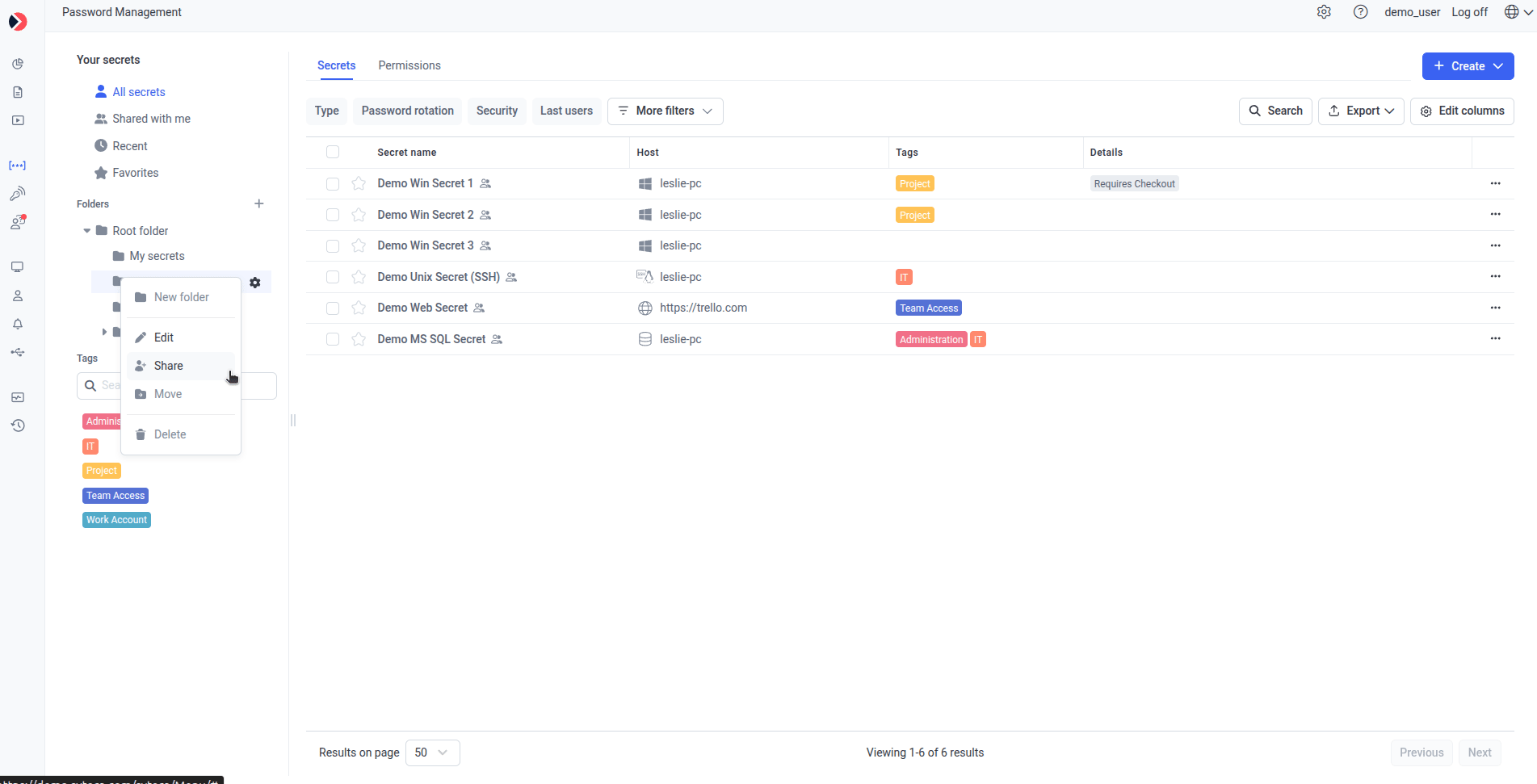
Hover the folder name and click the **gear** icon:
| Option | Does |
| -------------- | ---------------------------------------------------------------------------------------------------------------------------------------------------------------------------------------------------------- |
| **New folder** | Creates a subfolder. |
| **Edit** | Opens **Edit Folder**, where you can change **Folder Name**, **Description**, and **Permissions**. Shows the **Folder ID** at the top, and **Created: \ by \** at the bottom. |
| **Share** | Opens **Edit Folder** directly on the **Permissions** tab. |
| **Move** | Moves the folder to a different parent folder. |
| **Delete** | Deletes the folder and everything in it — subfolders and secrets. |
## Managing folders
### Add a folder
Next to the **Folders** section, click **+**. The **Add Folder** panel opens, adding the new folder as a child of the Root folder.
On the **Details** tab, set the **Folder Name** and, optionally, a **Description**.
The default name is **New Folder**. To rename it, click the **Edit** (pencil) icon next to the folder name and enter a unique name.
Folder names must be unique. A duplicate name shows: "A folder with this name already exists," and isn't saved until you provide a unique one.
### Edit a folder
Hover the folder name and click the **gear** icon:
| Option | Does |
| -------------- | ---------------------------------------------------------------------------------------------------------------------------------------------------------------------------------------------------------- |
| **New folder** | Creates a subfolder. |
| **Edit** | Opens **Edit Folder**, where you can change **Folder Name**, **Description**, and **Permissions**. Shows the **Folder ID** at the top, and **Created: \ by \** at the bottom. |
| **Share** | Opens **Edit Folder** directly on the **Permissions** tab. |
| **Move** | Moves the folder to a different parent folder. |
| **Delete** | Deletes the folder and everything in it — subfolders and secrets. |
 To move a folder: click the **Edit** (pencil) icon next to the **Current** folder field, select a new parent from the tree-view drop-down, and confirm with **Move** (or **Cancel**).
On the **Permissions** tab, select **Inherit users and their roles from parent folder** and **Inherit advanced permissions from parent folder** to inherit instead of setting custom permissions. To add access, click **+ Add**, search for and select users/groups, and click **Apply** — new entries default to **PAM User**; change via the three-dot menu next to the name (**Owner**, **Editor**, **PAM User**, or **Remove access**). See [Permissions for secrets](/docs/pam/secrets/permissions).
### Delete a folder
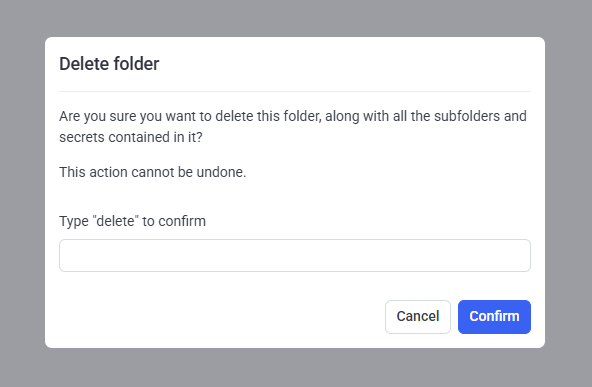
Selecting **Delete** shows a confirmation:
> **Delete Folder**
> Are you sure you want to delete this folder, along with all the subfolders and secrets contained in it? This action cannot be undone.
> Type "delete" to confirm:
Type `delete` and click **Confirm**. A success message follows: *"The \ folder was deleted successfully."*
To move a folder: click the **Edit** (pencil) icon next to the **Current** folder field, select a new parent from the tree-view drop-down, and confirm with **Move** (or **Cancel**).
On the **Permissions** tab, select **Inherit users and their roles from parent folder** and **Inherit advanced permissions from parent folder** to inherit instead of setting custom permissions. To add access, click **+ Add**, search for and select users/groups, and click **Apply** — new entries default to **PAM User**; change via the three-dot menu next to the name (**Owner**, **Editor**, **PAM User**, or **Remove access**). See [Permissions for secrets](/docs/pam/secrets/permissions).
### Delete a folder
Selecting **Delete** shows a confirmation:
> **Delete Folder**
> Are you sure you want to delete this folder, along with all the subfolders and secrets contained in it? This action cannot be undone.
> Type "delete" to confirm:
Type `delete` and click **Confirm**. A success message follows: *"The \ folder was deleted successfully."*
 ## Managing tags
Tags are colored labels used to filter the secret grid. Any user with **Owner**, **Editor**, or **PAM User** permission can create, edit, and delete tags; everyone can view them.
### Create a tag
In the **Tags** section's search field, start typing the tag name (up to 50 characters).
Select a color. New tags default to **gray**.
Click **+**.
## Managing tags
Tags are colored labels used to filter the secret grid. Any user with **Owner**, **Editor**, or **PAM User** permission can create, edit, and delete tags; everyone can view them.
### Create a tag
In the **Tags** section's search field, start typing the tag name (up to 50 characters).
Select a color. New tags default to **gray**.
Click **+**.
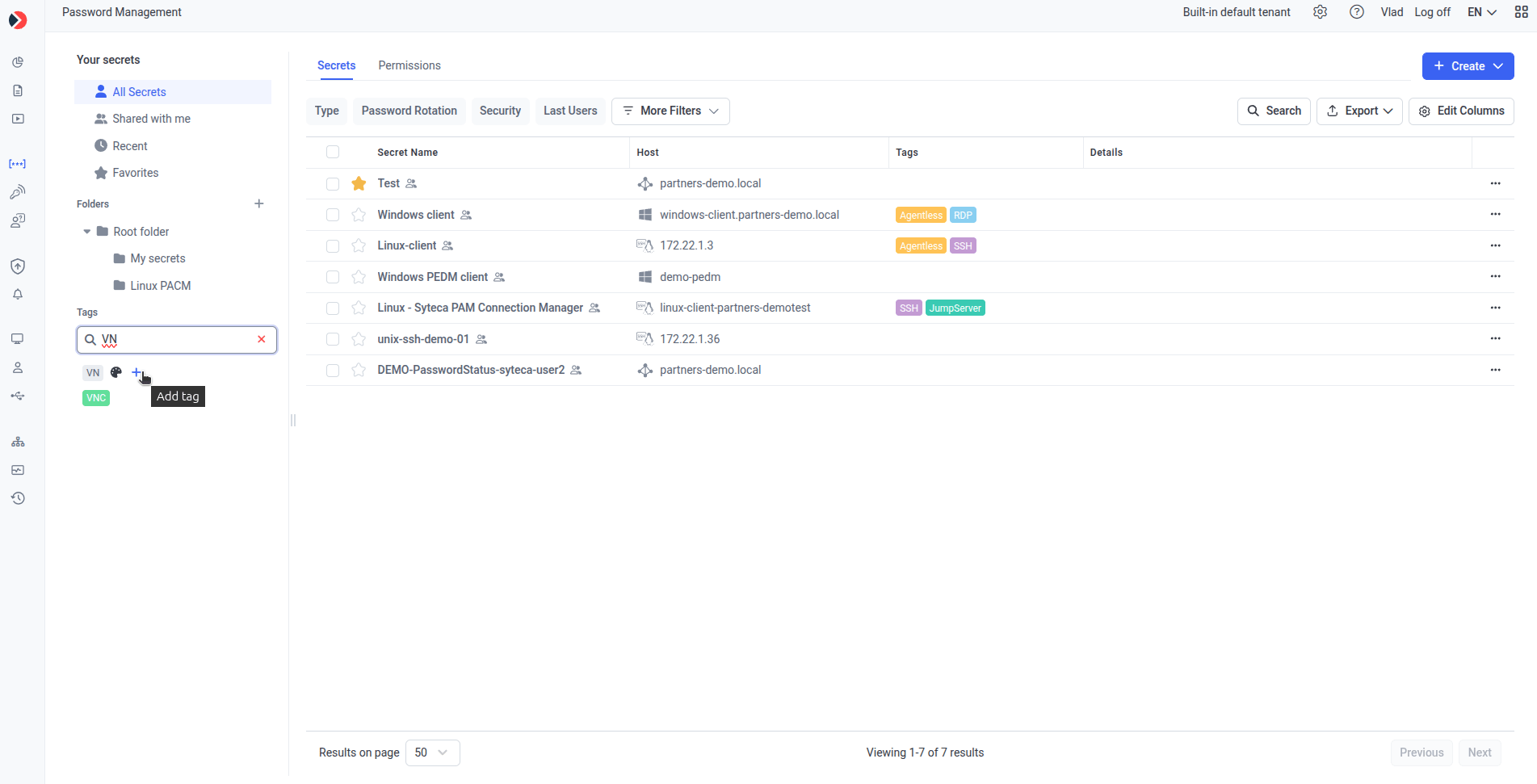 A toast confirms: *"Tag has been created successfully."*
Tag names are case-insensitive and must be unique (in Multi-Tenant mode, unique per tenant). A duplicate shows: "A Tag with this name already exists."
### Edit or delete a tag
Hover the tag and click the three-dot menu:
* **Edit color** — opens a color picker.
* **Delete** — removes the tag, after confirmation.
A tag assigned to at least one secret can't be deleted: "Tag deletion failed: the tag is assigned to one or more secrets."
### System tags
Two system tags are always shown first and can't be deleted — they're assigned automatically:
| Tag | Assigned when |
| ------------------- | ------------------------------------------------------------------------------------------------------ |
| **Custom Settings** | The secret has custom (overridden) settings, rather than inheriting from the parent folder's policies. |
| **Access Mismatch** | The secret has custom (overridden) permissions, rather than inheriting from the parent folder. |
By default, the first 5 tags show (alphabetically, A→Z) in the left panel; a **Show more…** link expands the rest with a scrollbar.
### Filter by tag
Click a tag in the sidebar to filter the grid to secrets that have it.
* Only **one** tag can be active at a time — the active tag is outlined.
* Click it again to remove the filter, or click a different tag to switch.
* The folder tree doesn't change with a tag filter applied; a folder with no matching secrets just shows empty.
The **Tags** section is hidden while the **Permissions** tab is open.
## The secret grid
Default columns:
| Column | What it shows |
| ------------------------ | --------------------------------------------------------------------------------------------------------------------------------------------------- |
| **Favorite** | Star icon — mark a secret as a favorite. |
| **Secret Name** | The secret's name. |
| **Settings** | **Folder-Based** (inherits from the parent folder's policies) or **Custom** (overridden). |
| **Host** | The host where the account is located, with the secret type icon. |
| **Password** | **Copy** and/or **View** icons, if you have the corresponding advanced permission — see [View or copy a password](/docs/pam/secrets/view-copy-password). |
| **Details** | Status for optional features — see below. |
| **Tags** | The tags assigned to the secret. |
| **Permissions** | **Inherited from folder** or **Access Mismatch** (overridden). |
| **Actions** (three dots) | Opens the [per-secret actions menu](#actions-with-secrets). |
After logging in, a secret's password can be viewed and copied without re-entering your password for the first 5 minutes — and for 5 minutes after any later re-entry.
### What the Details column shows
* **Access approval** (if required, set on the secret's [Just In Time Access tab](/docs/pam/secrets/add-secret#7---set-access-restrictions)): *Allowed during working hours*, *Requires approval*, *Waiting for Approval*, *Approved. Expiration date/time \[xx:xx]*, or *Denied*.
* **Password Checkout** (if enabled on the [Security tab](/docs/pam/secrets/password-checkout)): *Requires checkout* or *Checked out* — hover for **Checked out to** and **Auto Check-in** details.
* **Heartbeat** (if [Scheduled Heartbeat](/docs/pam/secrets/heartbeat) is enabled on the Automation tab): the secret's current [Heartbeat status](/docs/pam/secrets/heartbeat#heartbeat-status-values).
* **Recording**: *User activity will be recorded while the secret is in use*, if enabled on the Security tab.
### Create and launch secrets
* **Create**: click **Create**, select a secret type from the drop-down — see [Add a secret](/docs/pam/secrets/add-secret).
* **Launch**: hover a secret and click **Launch**, or launch from the **Secret View** panel opened by clicking the secret. If more than one launch type is available (browser or local), a drop-down shows the options.
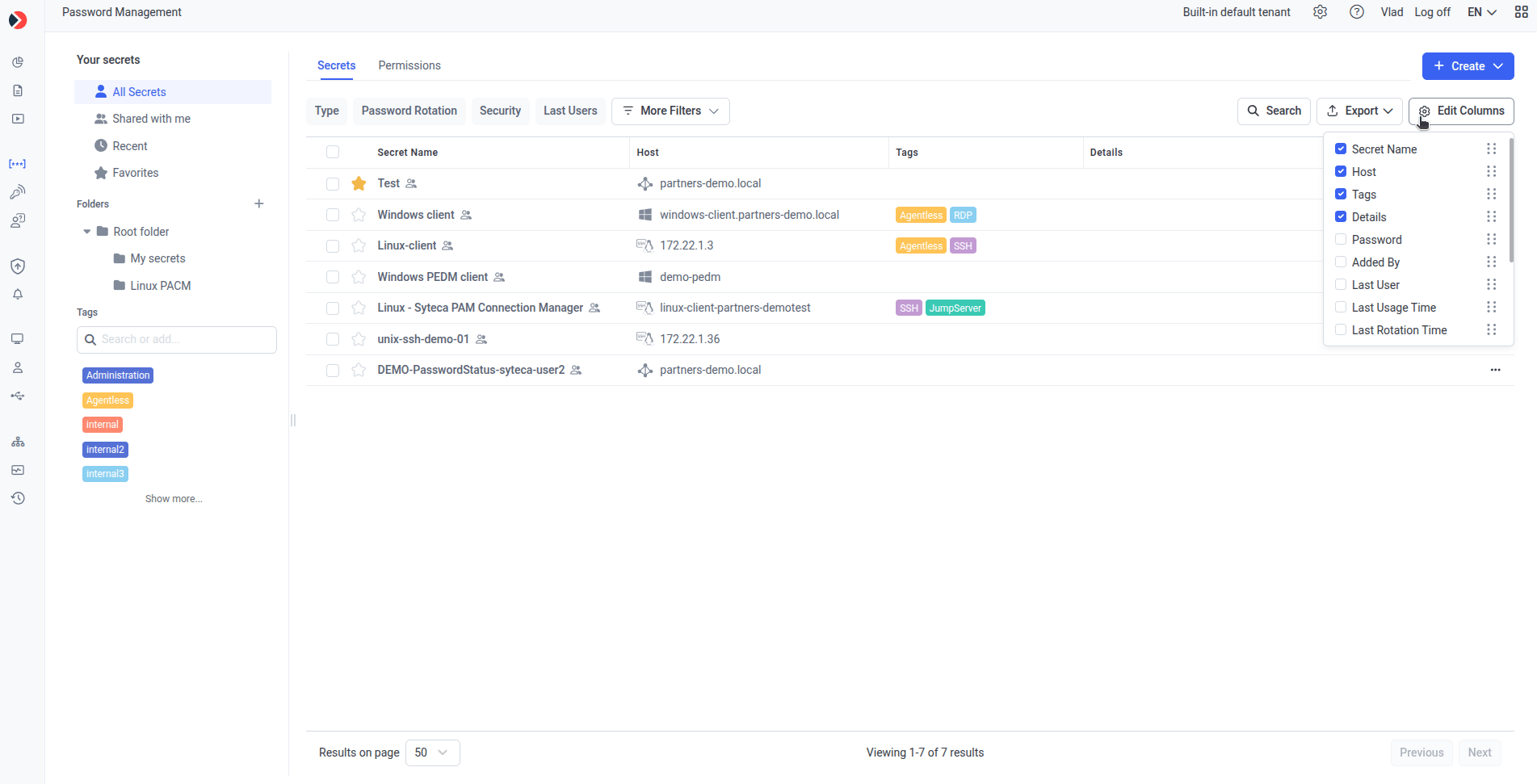
## Displaying and arranging columns
These columns are hidden by default — add them via **Edit Columns**:
* **Last User** (login)
* **Last Usage Time**
* **Added By** (first name)
* **Description**
* **Password Rotation Status**
* **Last Rotation Time**
* **Check-in / Check out**
* **Last Heartbeat check**
* **Heartbeat Status**
Columns can be resized, reordered, and (once hidden) reached via the horizontal scrollbar.
A toast confirms: *"Tag has been created successfully."*
Tag names are case-insensitive and must be unique (in Multi-Tenant mode, unique per tenant). A duplicate shows: "A Tag with this name already exists."
### Edit or delete a tag
Hover the tag and click the three-dot menu:
* **Edit color** — opens a color picker.
* **Delete** — removes the tag, after confirmation.
A tag assigned to at least one secret can't be deleted: "Tag deletion failed: the tag is assigned to one or more secrets."
### System tags
Two system tags are always shown first and can't be deleted — they're assigned automatically:
| Tag | Assigned when |
| ------------------- | ------------------------------------------------------------------------------------------------------ |
| **Custom Settings** | The secret has custom (overridden) settings, rather than inheriting from the parent folder's policies. |
| **Access Mismatch** | The secret has custom (overridden) permissions, rather than inheriting from the parent folder. |
By default, the first 5 tags show (alphabetically, A→Z) in the left panel; a **Show more…** link expands the rest with a scrollbar.
### Filter by tag
Click a tag in the sidebar to filter the grid to secrets that have it.
* Only **one** tag can be active at a time — the active tag is outlined.
* Click it again to remove the filter, or click a different tag to switch.
* The folder tree doesn't change with a tag filter applied; a folder with no matching secrets just shows empty.
The **Tags** section is hidden while the **Permissions** tab is open.
## The secret grid
Default columns:
| Column | What it shows |
| ------------------------ | --------------------------------------------------------------------------------------------------------------------------------------------------- |
| **Favorite** | Star icon — mark a secret as a favorite. |
| **Secret Name** | The secret's name. |
| **Settings** | **Folder-Based** (inherits from the parent folder's policies) or **Custom** (overridden). |
| **Host** | The host where the account is located, with the secret type icon. |
| **Password** | **Copy** and/or **View** icons, if you have the corresponding advanced permission — see [View or copy a password](/docs/pam/secrets/view-copy-password). |
| **Details** | Status for optional features — see below. |
| **Tags** | The tags assigned to the secret. |
| **Permissions** | **Inherited from folder** or **Access Mismatch** (overridden). |
| **Actions** (three dots) | Opens the [per-secret actions menu](#actions-with-secrets). |
After logging in, a secret's password can be viewed and copied without re-entering your password for the first 5 minutes — and for 5 minutes after any later re-entry.
### What the Details column shows
* **Access approval** (if required, set on the secret's [Just In Time Access tab](/docs/pam/secrets/add-secret#7---set-access-restrictions)): *Allowed during working hours*, *Requires approval*, *Waiting for Approval*, *Approved. Expiration date/time \[xx:xx]*, or *Denied*.
* **Password Checkout** (if enabled on the [Security tab](/docs/pam/secrets/password-checkout)): *Requires checkout* or *Checked out* — hover for **Checked out to** and **Auto Check-in** details.
* **Heartbeat** (if [Scheduled Heartbeat](/docs/pam/secrets/heartbeat) is enabled on the Automation tab): the secret's current [Heartbeat status](/docs/pam/secrets/heartbeat#heartbeat-status-values).
* **Recording**: *User activity will be recorded while the secret is in use*, if enabled on the Security tab.
### Create and launch secrets
* **Create**: click **Create**, select a secret type from the drop-down — see [Add a secret](/docs/pam/secrets/add-secret).
* **Launch**: hover a secret and click **Launch**, or launch from the **Secret View** panel opened by clicking the secret. If more than one launch type is available (browser or local), a drop-down shows the options.
## Displaying and arranging columns
These columns are hidden by default — add them via **Edit Columns**:
* **Last User** (login)
* **Last Usage Time**
* **Added By** (first name)
* **Description**
* **Password Rotation Status**
* **Last Rotation Time**
* **Check-in / Check out**
* **Last Heartbeat check**
* **Heartbeat Status**
Columns can be resized, reordered, and (once hidden) reached via the horizontal scrollbar.
 The grid paginates at 50 records per page by default — change to 50, 100, or 200. The total shows as "Viewing 1–50 of \ results."
## Actions with secrets
Click the **Actions** (three dots) icon on any row:
| Option | Does |
| ------------------------------------------------ | ---------------------------------------------------------------------------------------------------------------------------------------------------------------------------------------------------------- |
| **Edit** | Opens [Edit Secret](/docs/pam/secrets/edit-secret). |
| **Play sessions** | Opens Activity Monitoring, filtered to sessions where this secret was used. |
| **Share** | Opens the secret's permissions for editing. |
| **Move** | Moves the secret to another folder. |
| **Add to Favorites** / **Remove from favorites** | Toggles favorite status. |
| **Reset access permission** | Only shown for secrets with **Access Mismatch** status — returns the secret to the parent folder's permissions. |
| **Audit secret** | Opens the [Audit Log](/docs/administration/audit-log), filtered to this secret. |
| **Open secret's folder** | Opens the folder the secret is stored in. |
| **File Transfer** | Only shown for secrets launchable via Web Connection Manager that support [File Transfer](/docs/pam/secrets/file-transfer) (Active Directory account, Windows account, Unix account (SSH)) and have it enabled. |
The grid paginates at 50 records per page by default — change to 50, 100, or 200. The total shows as "Viewing 1–50 of \ results."
## Actions with secrets
Click the **Actions** (three dots) icon on any row:
| Option | Does |
| ------------------------------------------------ | ---------------------------------------------------------------------------------------------------------------------------------------------------------------------------------------------------------- |
| **Edit** | Opens [Edit Secret](/docs/pam/secrets/edit-secret). |
| **Play sessions** | Opens Activity Monitoring, filtered to sessions where this secret was used. |
| **Share** | Opens the secret's permissions for editing. |
| **Move** | Moves the secret to another folder. |
| **Add to Favorites** / **Remove from favorites** | Toggles favorite status. |
| **Reset access permission** | Only shown for secrets with **Access Mismatch** status — returns the secret to the parent folder's permissions. |
| **Audit secret** | Opens the [Audit Log](/docs/administration/audit-log), filtered to this secret. |
| **Open secret's folder** | Opens the folder the secret is stored in. |
| **File Transfer** | Only shown for secrets launchable via Web Connection Manager that support [File Transfer](/docs/pam/secrets/file-transfer) (Active Directory account, Windows account, Unix account (SSH)) and have it enabled. |
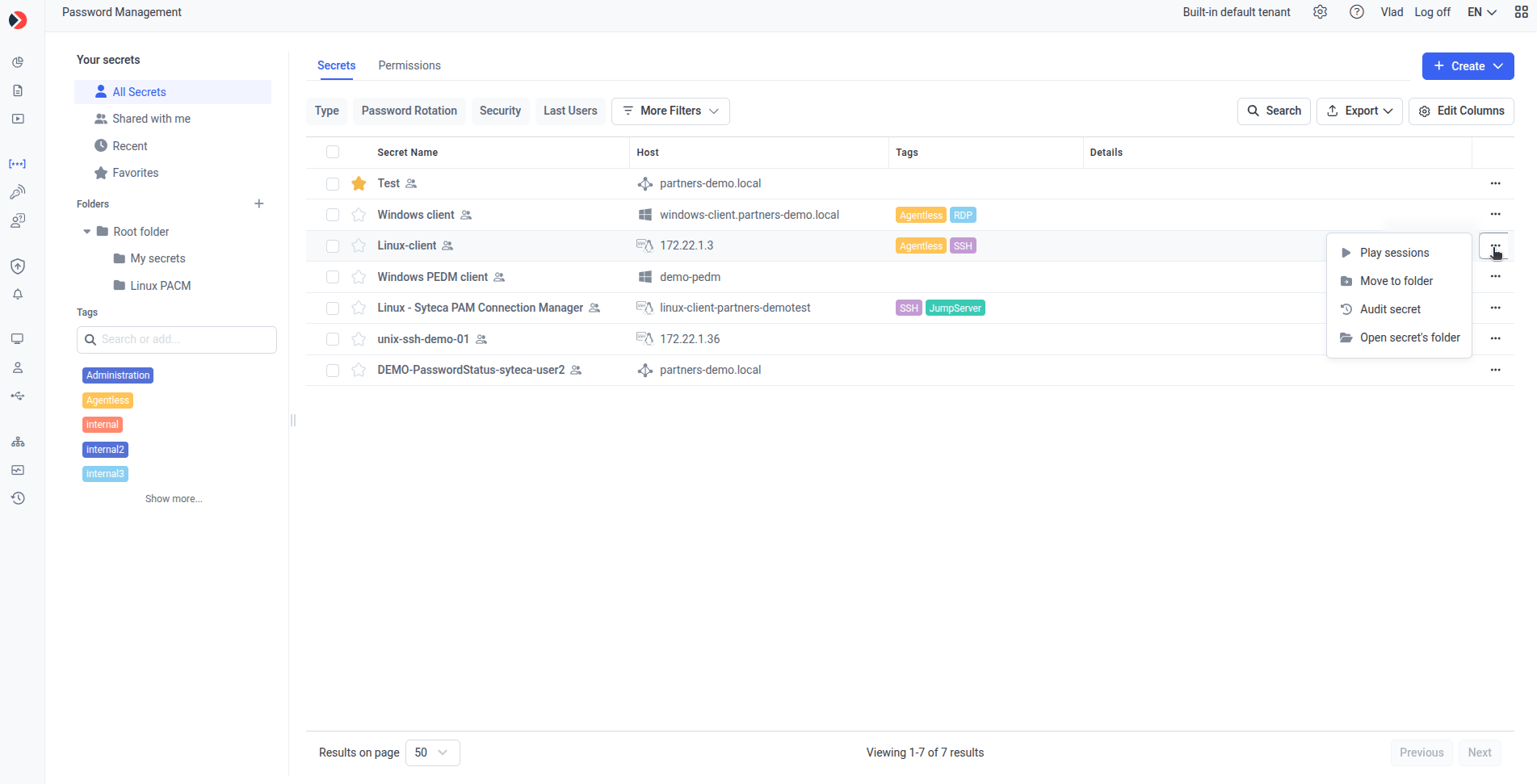 **File Transfer** is inactive if **Change password on check in** and/or Remote Password Rotation is disabled, or if the last rotation failed — hover the option for a tooltip explaining what to enable.
## Bulk actions
Select one or more secrets' checkboxes. Once at least one is selected, the bulk action bar appears (showing "\ items selected") with:
* **Delete**
* **Move**
* **Add to favorites**
* **Remove from favorites**
**File Transfer** is inactive if **Change password on check in** and/or Remote Password Rotation is disabled, or if the last rotation failed — hover the option for a tooltip explaining what to enable.
## Bulk actions
Select one or more secrets' checkboxes. Once at least one is selected, the bulk action bar appears (showing "\ items selected") with:
* **Delete**
* **Move**
* **Add to favorites**
* **Remove from favorites**
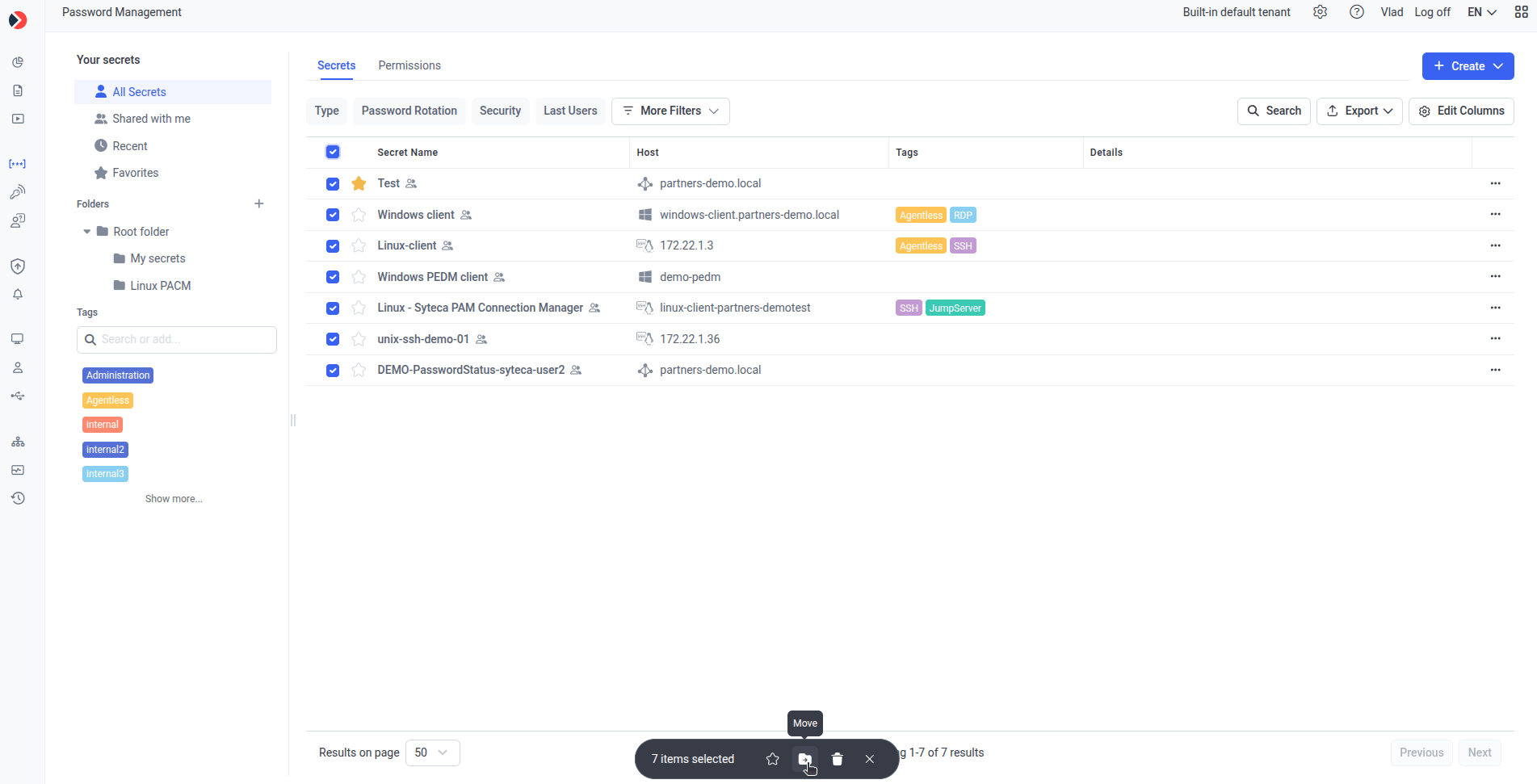 Click **X** to close the bar and clear all selections.
## Filtering and searching
**Filters** shown by default: **Type**, **Password Rotation**, **Security Status**, **Last User**. Under **More filters**: **Last Usage**, **Last Rotation Time**, **Tags**.
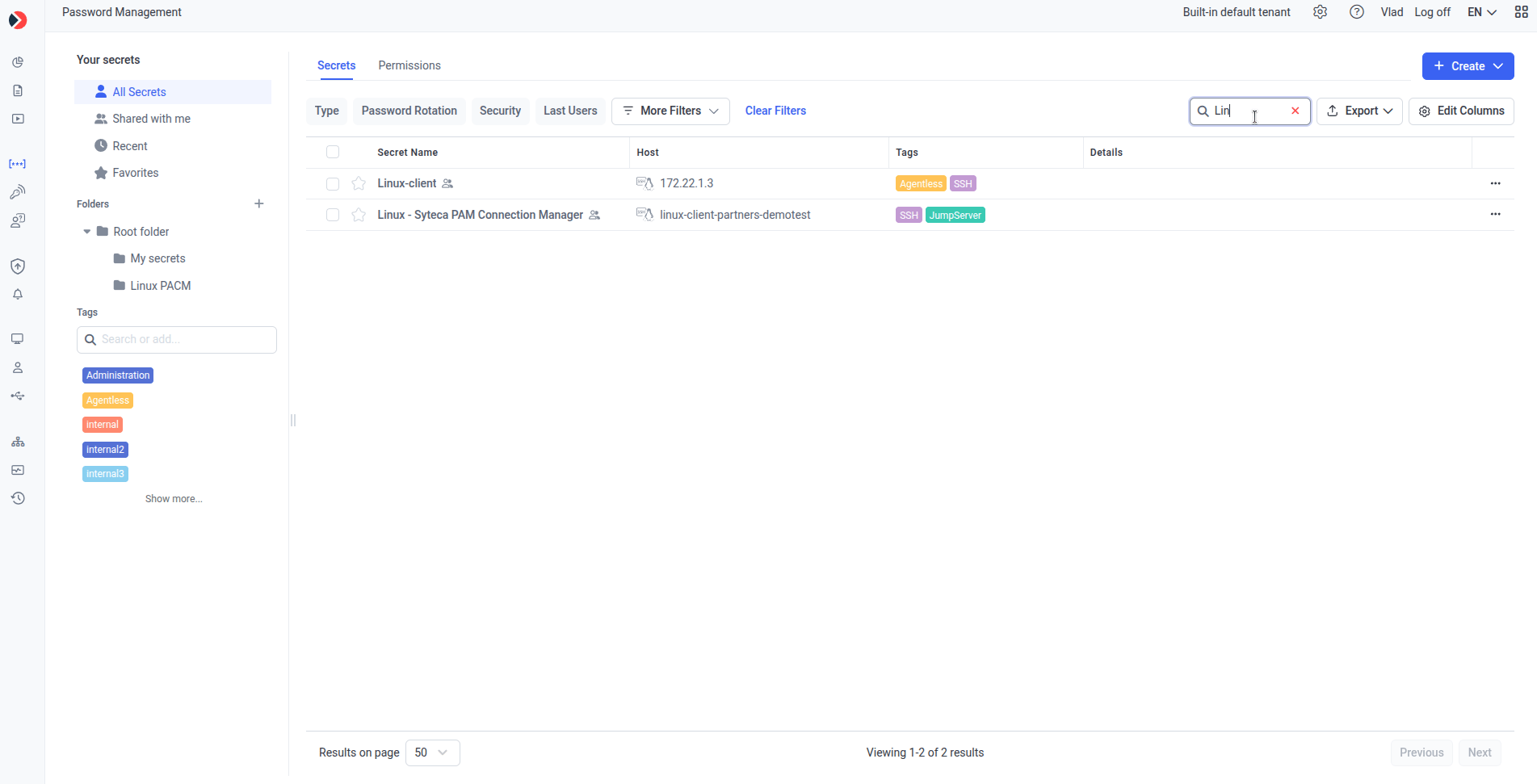
* **Clear Filters** appears once any filter is applied, resetting all filters to default.
**Search**: click the **Search** button to turn it into an input field, then type to filter the grid. Clear the field (manually or via **X**) and click outside to revert it to a button.
Click **X** to close the bar and clear all selections.
## Filtering and searching
**Filters** shown by default: **Type**, **Password Rotation**, **Security Status**, **Last User**. Under **More filters**: **Last Usage**, **Last Rotation Time**, **Tags**.
* **Clear Filters** appears once any filter is applied, resetting all filters to default.
**Search**: click the **Search** button to turn it into an input field, then type to filter the grid. Clear the field (manually or via **X**) and click outside to revert it to a button.
 ## Exporting secrets
Click **Export** and choose:
* **CSV (All fields)** — every available field for the secrets on the page (pagination ignored).
* **CSV (Current fields)** — only currently visible fields, respecting applied filters and column visibility (pagination ignored).
The **Password** column is never exported. UI columns combining multiple attributes (for example, **Secret Name** with a shared-status indicator, or **Host** with a type icon) export as separate plain-text CSV columns, without icons or UI labels.
## Related
Create and configure a new secret.
Change an existing secret's settings.
Role Types and advanced permissions for secrets and folders.
The status shown in the Details column and its own grid columns.
## Exporting secrets
Click **Export** and choose:
* **CSV (All fields)** — every available field for the secrets on the page (pagination ignored).
* **CSV (Current fields)** — only currently visible fields, respecting applied filters and column visibility (pagination ignored).
The **Password** column is never exported. UI columns combining multiple attributes (for example, **Secret Name** with a shared-status indicator, or **Host** with a type icon) export as separate plain-text CSV columns, without icons or UI labels.
## Related
Create and configure a new secret.
Change an existing secret's settings.
Role Types and advanced permissions for secrets and folders.
The status shown in the Details column and its own grid columns.