> ## Documentation Index
> Fetch the complete documentation index at: https://syteca.com/docs/llms.txt
> Use this file to discover all available pages before exploring further.
# Client Troubleshooting
> Diagnose why a Syteca Client shows as offline, and define which network interface a Windows Client uses to connect to the Application Server.
## Why is a Client displayed as offline?
If any or all Syteca Clients show as offline on the **Clients** page, the cause is usually one of the following.
Uninstalling a Client doesn't remove it from the Management Tool automatically. [Delete the Client](/docs/administration/clients/uninstall) after uninstallation — its data is removed and it stops appearing in the list.
Disable [Isolation mode](/docs/administration/deployment/database-management#isolate-the-database-from-clients) to restore the connection.
Turn the Client computer on.
Diagnose and resolve the underlying network connectivity problem.
Either disable the firewall or open the port (9447 by default) — see [Windows Firewall configuration](/docs/administration/deployment/windows-firewall-configuration).
Start the **EkranClient** service manually, and confirm all required files are present in the Client's installation folder. Reinstall the Client if files are missing.
Either reinstall the affected Clients, or update their connection settings directly — see [Migration of the Application Server](/docs/administration/deployment/migrate-application-server).
## Not all Client sessions are displayed
If sessions are missing from the **Client Sessions** tab of the Activity Monitoring page, log in as a user with full administrative permissions and check the following, in order.
On the **Clients** page, confirm the Client shows as online and has a license assigned. If it's offline, see [Why is a Client displayed as offline?](#why-is-a-client-displayed-as-offline) above. If unlicensed, see [Assign endpoint licenses manually](/docs/administration/licensing/assign-endpoint-licenses#assign-endpoint-licenses-manually).
Confirm whether the Client uses its own **Custom** settings or **Inherited** settings from a Client group — this affects which configuration actually applies.
While [editing the Client](/docs/administration/clients/windows) (or Client group), review each of the following tabs for a rule that could be suppressing recording:
* **User Activity Recording** — confirm no restrictive checkboxes are selected. In particular, **Record user activity only on alert or USB monitoring rule triggering** means the Client only records when a rule fires.
* **[Filtering parameters](/docs/session-monitoring/recording/filtering)** (Application, User, Monitoring Time, Remote Host IP) — confirm no narrow include/exclude rule is unintentionally limiting what's recorded.
* **[Keystroke logging](/docs/session-monitoring/recording/keystroke-logging)** — confirm no keyword-triggered monitoring rule is delaying recording start.
On the **Users** page, edit the Management Tool user account you're logged in as (or the user group it inherits from):
* On **Administrative Permissions** and **Client Access**, confirm the required permissions are present to view the sessions in question.
* On **User Access**, confirm there's no unexpected restriction limiting which endpoint users' sessions this account can see. An empty table here means no restriction — every endpoint user's sessions are visible.
If everything above looks correct, try opening the Management Tool in a different browser or in Incognito mode.
If sessions are still missing after all of the above, you'll need direct access to the affected Client computer(s) to investigate further.
## Why can I only see old sessions, but not the latest ones?
This is most commonly caused by a lack of available database storage space.
See [Database management](/docs/administration/deployment/database-management) for cleanup and archiving options.
Configure [automatic cleanup and archiving on a schedule](/docs/administration/clients/parameters/auto-cleanup#scheduled-cleanup) so this doesn't recur.
If a Client shows online but none of its sessions display at all, first confirm a license is assigned to it. If it is, see [Issues with receiving data from Windows Clients](/docs/resources/troubleshooting/application-server-troubleshooting) or [Issues with receiving data from Linux Clients](/docs/resources/troubleshooting/linux-client-troubleshooting).
Also keep in mind: a Client sends no data at all while the endpoint is in an **Idle** state (no user activity).
## Define the Windows Client IP address with multiple NICs
Applies to Windows Clients only.
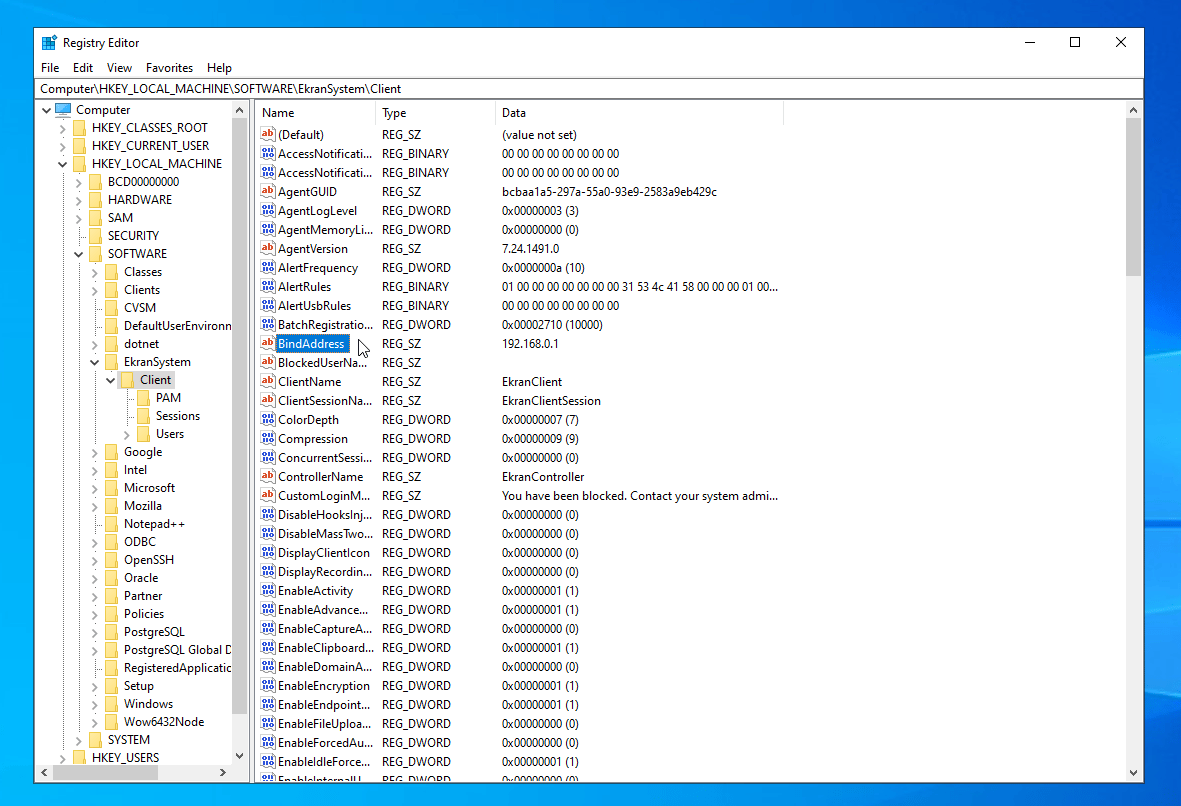
When a Windows Client computer has multiple network interface cards (NICs), Syteca picks one automatically to connect to the Application Server — and that address is also what's displayed on the **Clients** page. To control which one is used instead of relying on automatic selection:
Log in to the Client computer and open Windows Registry Editor.
Select `HKEY_LOCAL_MACHINE\SOFTWARE\EkranSystem\Client`.
Select **Edit > New > String Value**, name it `BindAddress`, and set its value to the IP address of the NIC you want the Client to use to connect to the Application Server.
A subnet can be specified instead of a single address, for example `192.168.0.1/24`.
Restart the computer to apply the change.
 ## Issues receiving data from Windows Clients
* Confirm the Client is installed and its services are running.
* Check for network issues: from the Application Server, run `ping ` and resolve any problems found.
* Confirm antivirus software isn't blocking the Client's processes or services.
Update the Client side too:
Navigate to `HKEY_LOCAL_MACHINE\SOFTWARE\EkranSystem\Client`.
Double-click **RemoteHost** and enter the Application Server's new name or IP address.
Restart to apply the change.
If the Client isn't in Protected mode, you can instead just reinstall it remotely from the Management Tool with the new address.
* Confirm user activity recording is enabled in the Client configuration.
* Confirm a license is assigned.
* Confirm at least 500 MB of free disk space on the Client computer.
* Confirm the database isn't full (no free disk space where it's stored).
* Confirm the Client's processes haven't been terminated.
* Confirm the **EkranClient** service is running.
* Confirm the Client computer is online with no network issues.
* Confirm antivirus software isn't blocking the Client.
* Confirm no firewall is blocking the connection.
## Issues receiving data from Linux Clients
**NOT AVAILABLE IN SAAS.**
* Confirm the Client is installed and running by checking its state.
* Check for network issues: from the Application Server, run `ping ` and resolve any problems found.
* Confirm a license is assigned.
* Confirm sufficient free disk space on the Client computer.
* Confirm the database isn't full (no free disk space on the database server).
* Confirm the Client is running:
```bash theme={"system"}
ps -ef | grep -i ekran
```
* Confirm the Client computer is online with no network issues.
## I installed a Client but can't see it on the Clients page
Typically, the Application Server IP address or hostname provided during Client installation is incorrect.
On the Client computer, open Registry Editor and check `HKEY_LOCAL_MACHINE\SOFTWARE\EkranSystem\Client\RemoteHost`.
From the Client computer, ping the Application Server machine to confirm the address is correct and reachable.
## USB monitoring doesn't detect devices
If a Client with USB monitoring/blocking enabled doesn't detect USB devices, check whether the USB drivers are installed:
```bat theme={"system"}
UninstallClient.exe /usbcheck
```
```bat theme={"system"}
UninstallClient.exe /usb=true /key='uninstall key'
```
```bat theme={"system"}
UninstallClient.exe /usb=false /key='uninstall key'
```
Then repeat the install command above.
## Reconnect Windows Clients to a different Application Server
**NOT AVAILABLE IN SAAS.**
To reconnect a Windows Client to a different Application Server, start [remote installation](/docs/administration/clients/install-windows#remote-installation-using-psexec) from that Application Server — the Client reconnects to it automatically.
This only works for Clients not running in [Protected mode](/docs/administration/clients/parameters/protected-mode). Disable Protected mode first if it's enabled.
## Related
Ports Syteca needs open for Client connectivity.
Full Windows Client installation and configuration reference.
Diagnose issues on the Application Server side.
Collect Client logs for deeper diagnosis.
## Issues receiving data from Windows Clients
* Confirm the Client is installed and its services are running.
* Check for network issues: from the Application Server, run `ping ` and resolve any problems found.
* Confirm antivirus software isn't blocking the Client's processes or services.
Update the Client side too:
Navigate to `HKEY_LOCAL_MACHINE\SOFTWARE\EkranSystem\Client`.
Double-click **RemoteHost** and enter the Application Server's new name or IP address.
Restart to apply the change.
If the Client isn't in Protected mode, you can instead just reinstall it remotely from the Management Tool with the new address.
* Confirm user activity recording is enabled in the Client configuration.
* Confirm a license is assigned.
* Confirm at least 500 MB of free disk space on the Client computer.
* Confirm the database isn't full (no free disk space where it's stored).
* Confirm the Client's processes haven't been terminated.
* Confirm the **EkranClient** service is running.
* Confirm the Client computer is online with no network issues.
* Confirm antivirus software isn't blocking the Client.
* Confirm no firewall is blocking the connection.
## Issues receiving data from Linux Clients
**NOT AVAILABLE IN SAAS.**
* Confirm the Client is installed and running by checking its state.
* Check for network issues: from the Application Server, run `ping ` and resolve any problems found.
* Confirm a license is assigned.
* Confirm sufficient free disk space on the Client computer.
* Confirm the database isn't full (no free disk space on the database server).
* Confirm the Client is running:
```bash theme={"system"}
ps -ef | grep -i ekran
```
* Confirm the Client computer is online with no network issues.
## I installed a Client but can't see it on the Clients page
Typically, the Application Server IP address or hostname provided during Client installation is incorrect.
On the Client computer, open Registry Editor and check `HKEY_LOCAL_MACHINE\SOFTWARE\EkranSystem\Client\RemoteHost`.
From the Client computer, ping the Application Server machine to confirm the address is correct and reachable.
## USB monitoring doesn't detect devices
If a Client with USB monitoring/blocking enabled doesn't detect USB devices, check whether the USB drivers are installed:
```bat theme={"system"}
UninstallClient.exe /usbcheck
```
```bat theme={"system"}
UninstallClient.exe /usb=true /key='uninstall key'
```
```bat theme={"system"}
UninstallClient.exe /usb=false /key='uninstall key'
```
Then repeat the install command above.
## Reconnect Windows Clients to a different Application Server
**NOT AVAILABLE IN SAAS.**
To reconnect a Windows Client to a different Application Server, start [remote installation](/docs/administration/clients/install-windows#remote-installation-using-psexec) from that Application Server — the Client reconnects to it automatically.
This only works for Clients not running in [Protected mode](/docs/administration/clients/parameters/protected-mode). Disable Protected mode first if it's enabled.
## Related
Ports Syteca needs open for Client connectivity.
Full Windows Client installation and configuration reference.
Diagnose issues on the Application Server side.
Collect Client logs for deeper diagnosis.