> ## Documentation Index
> Fetch the complete documentation index at: https://syteca.com/docs/llms.txt
> Use this file to discover all available pages before exploring further.
# Management Tool Troubleshooting
> Fix the System Health free-space warning, resolve a Chrome browser SSL certificate error, and legacy Internet Explorer login steps.
## Fix the "Running out of free space" warning
**NOT AVAILABLE IN SAAS.** Contact your Syteca vendor or the Syteca Support team to change this value in a SaaS environment.
The System Health Transaction log adds a **"Running out of free space"** warning when the storage location used for Syteca data has less than an average of 2.5 GB of free space per Client. For example, with 10 Clients installed, the location needs more than 25 GB free to avoid this warning.
On the Application Server computer, open `EkranServer.Settings.config` (by default in `C:\Program Files\Ekran System\Ekran System\Server`).
```xml theme={"system"}
```
This sets the minimum required average free space per Client, in MB, before the warning is logged.
Save the file, then restart the **EkranServer** service from Task Manager.
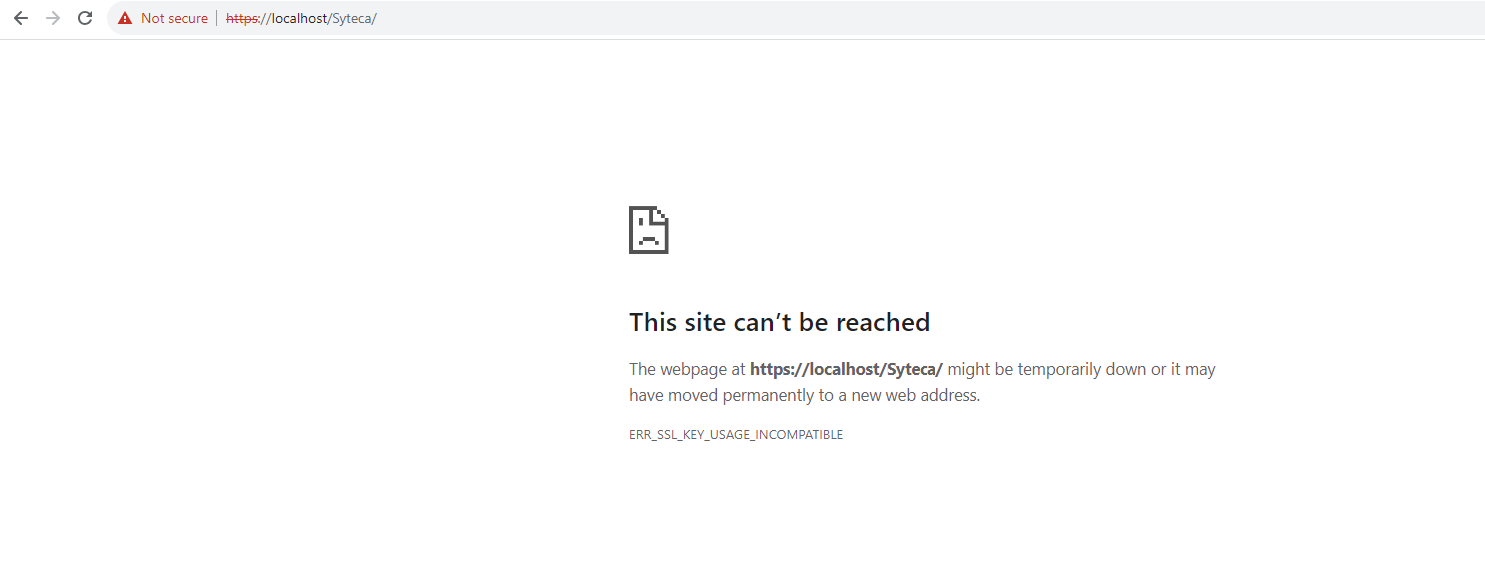
## Fix ERR\_SSL\_KEY\_USAGE\_INCOMPATIBLE in Chrome
Chrome version 119.0.6045.160 and later require the **Digital Signature** key usage parameter on any certificate used to serve the Management Tool over HTTPS. Without it, Chrome blocks the login page with this error.
### 1. Create a trusted self-signed certificate
Run Windows PowerShell as administrator.
```powershell theme={"system"}
New-SelfSignedCertificate -Type Custom -DnsName "server","server.domain.local","192.168.0.1" -KeyUsage "DigitalSignature","KeyEncipherment","KeyAgreement" -KeyAlgorithm RSA -KeyLength 4096 -CertStoreLocation "cert:\CurrentUser\My" -FriendlyName "SelfCert" -NotAfter (Get-Date).AddMonths(36) -Subject "SytecaCA"
```
* **`-DnsName`**: every name used to reach the server — hostname, domain name, and IP address.
* **`-KeyLength`**: 2048 is the minimum; some browsers warn below 4096.
* **`-CertStoreLocation`**: only `LocalMachine\My` or `CurrentUser\My` are valid.
* **`-NotAfter`**: the certificate's expiration date.
### 2. Export the certificate
Press **Windows+R**, enter `mmc`, press **Enter**, and click **Yes** on the User Account Control prompt. Select **File > Add/Remove Snap-in**, choose **Certificates**, and click **Add**.
Select **My user account**, click **Next**, then navigate to **Certificates - Current User > Personal > Certificates**.
Right-click the certificate, select **All Tasks > Export**, then on the wizard select **Yes, export the private key**.
Select **Include all certificates in the certification path if possible**, **Export all extended properties**, and **Enable certificate privacy**.
Enter and confirm a password, choose a file location and name, then finish the wizard.
### 3. Add the certificate to Trusted Root Certification Authorities
Open the folder where the certificate was exported, right-click it, and select **Install PFX**.
On the Certificate Import Wizard, select **Local Machine**, then continue past **File to Import**.
Enter the certificate's password on **Private key protection**.
Select **Place all certificates in the following store**, choose **Trusted Root Certification Authorities**, and finish the wizard.
### 4. Bind the certificate in IIS
Open Internet Information Services (IIS) Manager.
In **Connections**, select the target computer, open **Server Certificates**, click **Import** (in the Actions pane), select the certificate, and enter its password.
Under **Sites**, select **Default Web Site**, click **Bindings**, double-click the **https** record, confirm **Type** is **https**, and select the imported certificate under **SSL certificate**.
Click **Close**, then restart Chrome. The Management Tool should now open without the error.
 ## Log in using Internet Explorer 11 (legacy)
Internet Explorer is no longer supported from Syteca version 7.0 onward. This section is preserved for legacy environments only.
If a user can't log in to the Management Tool using Internet Explorer 11, add the Management Tool address to IE's trusted sites:
In Internet Explorer, click **Tools > Internet Options**.
Select the **Security** tab, then **Trusted Sites**.
Set the security level to **Low**.
Clear the **Enable Protected Mode** checkbox.
Click **Sites**, add the Management Tool address, click **Close**, then **OK**.
## System update issues
**NOT AVAILABLE IN SAAS.**
Application Server logs show:
```text theme={"system"}
ERROR The EkranServer service terminated unexpectedly. It has done this 1 time(s). The following corrective action will be taken in 60000 milliseconds: Restart the service.
```
This happens when a file (not a folder) named `Program` exists in the `SystemDrive` root, or a file named `Common` exists in `ProgramFiles` — Windows Service Control Manager expects `SystemDrive\Program` and `Program Files\Common` to be folders, and can't locate them if they're files instead. Rename or delete the conflicting file(s), then restart the system.
* If the keys were activated **online**, they resynchronize automatically on the Application Server's first startup after the update — an active internet connection is required at that moment.
* If the keys were activated **offline**, add them again manually in the Management Tool.
Contact your account manager or the Syteca Support team.
Application Server logs show entries like:
```text theme={"system"}
WARN in Srv::ConnectionCore::ConnectionCore, @41: Srv.IO Pool Size is equal 0, you won't receive any incoming connections.
WARN in Srv::ConnectionCore::ConnectionCore, @47: Srv.RPC Pool Size is equal 0, you won't receive any incoming connections.
```
Stop the **EkranServer** service via Task Manager.
Open `EkranServer.Settings.config` (by default in `C:\Program Files\Ekran System\Ekran System\Server`).
Delete these two lines:
```xml theme={"system"}
```
Save the file, then start the **EkranServer** service again via Task Manager.
## Issues with monitored sessions
Confirm you have the **Viewing Monitoring Results** permission for that Client.
* If a user types continuously, stops, then switches windows within 3 seconds, the keystrokes attach to a blank capture.
* Minimizing an RDP connection window while accessing a Client also produces a blank capture.
On the Client, open **Editing Client > User Activity Recording** and confirm **Enable screen capture recording along with user activity recording** is selected.
The Client computer has multiple monitors, and the capture shows all of them.
* Confirm you have the **Viewing Text Data** permission for that Client.
* Confirm **Enable clipboard monitoring** is selected in the Client's configuration.
If any [user activity recording](/docs/session-monitoring/recording/user-activity-recording) option besides **Record user activity periodically** is enabled, captures follow user activity instead of a fixed interval.
It was likely captured mid-animation, if the Client computer has smooth interface animations enabled.
The Client is configured for grayscale capture. Check the [Bit depth setting](/docs/session-monitoring/recording/user-activity-recording) in the Client's configuration.
Capture times reflect the Client computer's clock, not the viewer's.
Check whether the Client computer's time settings have changed.
## Management Tool issues and error messages
Only users added to the Management Tool directly (not via an Active Directory group) can add secrets or folders on the Password Management page.
Run as administrator:
```bat theme={"system"}
cd %windir%\Microsoft.NET\Framework64\v4.0.30319\aspnet_regiis.exe –iru
```
Use the `Framework` (not `Framework64`) path on a 32-bit machine.
Clear the browser cache and cookies, then sign in again.
Refresh the Management Tool, confirm the Application Server is running, and restart it if needed. Contact Syteca Support if the issue persists.
The **Default Document** setting for the Syteca website is disabled in IIS.
On the Management Tool computer, open Internet Information Services (IIS) Manager.
Under **Connections > Sites > Default Web Site > Syteca**, double-click **Default Document**.
Click **Enable** in the Actions pane.
Re-log in to the Management Tool.
Caused by **WebDAV Publishing** being enabled in IIS. Deselect it, then reboot the computer.
## Related
Full Management Tool installation procedure.
Where the free-space warning and other system events surface.
Archive and cleanup settings that affect storage consumption.
Collect Application Server and Management Tool logs for deeper diagnosis.
## Log in using Internet Explorer 11 (legacy)
Internet Explorer is no longer supported from Syteca version 7.0 onward. This section is preserved for legacy environments only.
If a user can't log in to the Management Tool using Internet Explorer 11, add the Management Tool address to IE's trusted sites:
In Internet Explorer, click **Tools > Internet Options**.
Select the **Security** tab, then **Trusted Sites**.
Set the security level to **Low**.
Clear the **Enable Protected Mode** checkbox.
Click **Sites**, add the Management Tool address, click **Close**, then **OK**.
## System update issues
**NOT AVAILABLE IN SAAS.**
Application Server logs show:
```text theme={"system"}
ERROR The EkranServer service terminated unexpectedly. It has done this 1 time(s). The following corrective action will be taken in 60000 milliseconds: Restart the service.
```
This happens when a file (not a folder) named `Program` exists in the `SystemDrive` root, or a file named `Common` exists in `ProgramFiles` — Windows Service Control Manager expects `SystemDrive\Program` and `Program Files\Common` to be folders, and can't locate them if they're files instead. Rename or delete the conflicting file(s), then restart the system.
* If the keys were activated **online**, they resynchronize automatically on the Application Server's first startup after the update — an active internet connection is required at that moment.
* If the keys were activated **offline**, add them again manually in the Management Tool.
Contact your account manager or the Syteca Support team.
Application Server logs show entries like:
```text theme={"system"}
WARN in Srv::ConnectionCore::ConnectionCore, @41: Srv.IO Pool Size is equal 0, you won't receive any incoming connections.
WARN in Srv::ConnectionCore::ConnectionCore, @47: Srv.RPC Pool Size is equal 0, you won't receive any incoming connections.
```
Stop the **EkranServer** service via Task Manager.
Open `EkranServer.Settings.config` (by default in `C:\Program Files\Ekran System\Ekran System\Server`).
Delete these two lines:
```xml theme={"system"}
```
Save the file, then start the **EkranServer** service again via Task Manager.
## Issues with monitored sessions
Confirm you have the **Viewing Monitoring Results** permission for that Client.
* If a user types continuously, stops, then switches windows within 3 seconds, the keystrokes attach to a blank capture.
* Minimizing an RDP connection window while accessing a Client also produces a blank capture.
On the Client, open **Editing Client > User Activity Recording** and confirm **Enable screen capture recording along with user activity recording** is selected.
The Client computer has multiple monitors, and the capture shows all of them.
* Confirm you have the **Viewing Text Data** permission for that Client.
* Confirm **Enable clipboard monitoring** is selected in the Client's configuration.
If any [user activity recording](/docs/session-monitoring/recording/user-activity-recording) option besides **Record user activity periodically** is enabled, captures follow user activity instead of a fixed interval.
It was likely captured mid-animation, if the Client computer has smooth interface animations enabled.
The Client is configured for grayscale capture. Check the [Bit depth setting](/docs/session-monitoring/recording/user-activity-recording) in the Client's configuration.
Capture times reflect the Client computer's clock, not the viewer's.
Check whether the Client computer's time settings have changed.
## Management Tool issues and error messages
Only users added to the Management Tool directly (not via an Active Directory group) can add secrets or folders on the Password Management page.
Run as administrator:
```bat theme={"system"}
cd %windir%\Microsoft.NET\Framework64\v4.0.30319\aspnet_regiis.exe –iru
```
Use the `Framework` (not `Framework64`) path on a 32-bit machine.
Clear the browser cache and cookies, then sign in again.
Refresh the Management Tool, confirm the Application Server is running, and restart it if needed. Contact Syteca Support if the issue persists.
The **Default Document** setting for the Syteca website is disabled in IIS.
On the Management Tool computer, open Internet Information Services (IIS) Manager.
Under **Connections > Sites > Default Web Site > Syteca**, double-click **Default Document**.
Click **Enable** in the Actions pane.
Re-log in to the Management Tool.
Caused by **WebDAV Publishing** being enabled in IIS. Deselect it, then reboot the computer.
## Related
Full Management Tool installation procedure.
Where the free-space warning and other system events surface.
Archive and cleanup settings that affect storage consumption.
Collect Application Server and Management Tool logs for deeper diagnosis.