> ## Documentation Index
> Fetch the complete documentation index at: https://syteca.com/docs/llms.txt
> Use this file to discover all available pages before exploring further.
# Archived Sessions
> Play back archived Syteca sessions long after they've been deleted from the live database — connect to and manage archived databases from the Activity Monitoring page.
When sessions are archived during an [Archive & Cleanup](/docs/administration/deployment/database-management) operation, they're moved from the live Syteca database to secure long-term storage, then deleted from the live database. That's how multi-year deployments stay manageable — but the archived sessions are still fully playable in the Session Viewer at any time.
The **Archived Sessions** tab on the Activity Monitoring page is where you connect to and play back those archives.
**Not available in SaaS.** Archived Sessions are only supported on on-premises and self-hosted Syteca deployments. SaaS deployments handle long-term retention differently — contact your Syteca vendor for SaaS-specific retention details.
Viewing archived sessions and managing archived databases requires the [administrative Viewing Archived Data permission](/docs/administration/users/administrative-permissions).
## Play an archived session
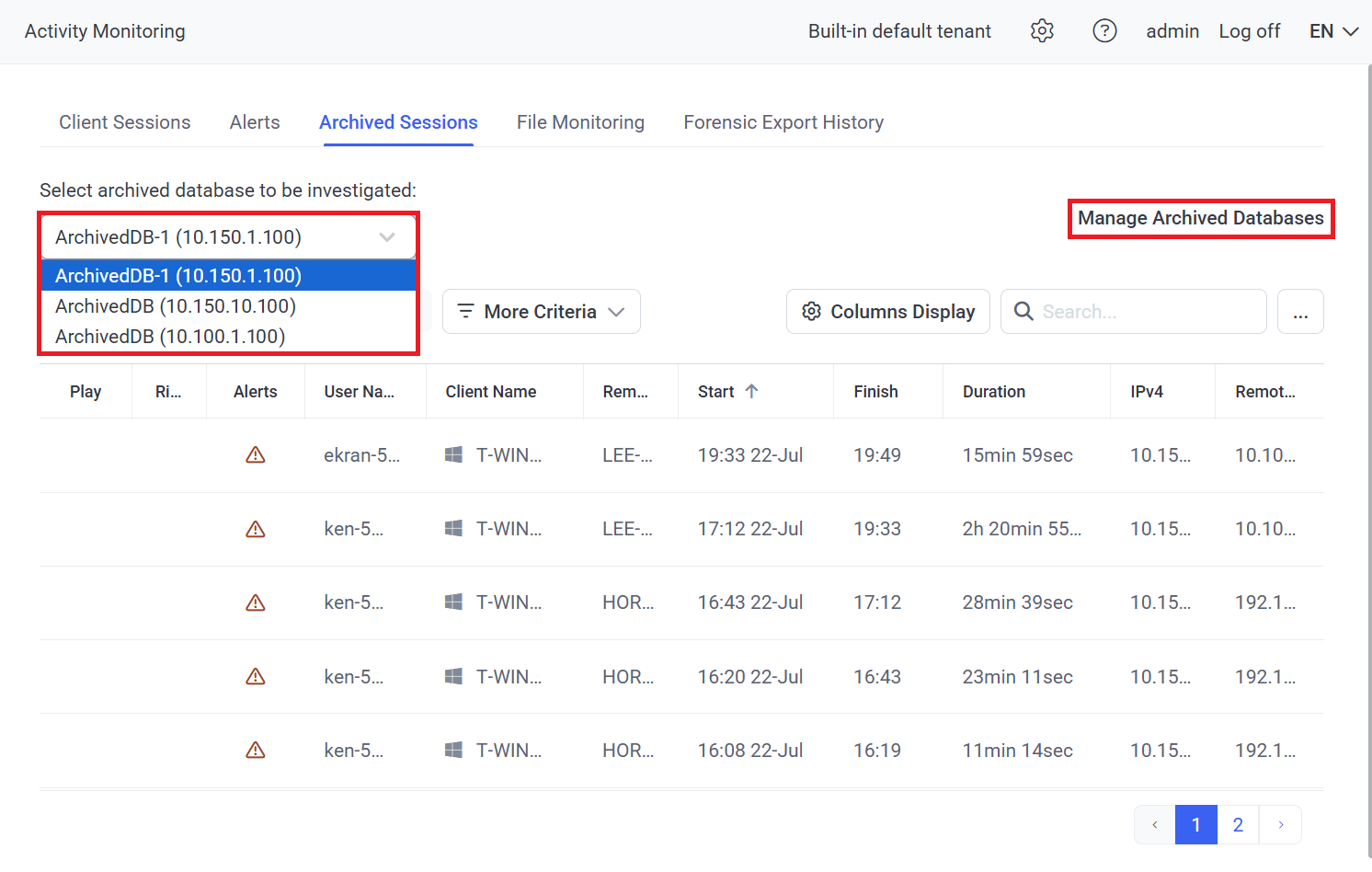 Sign in to the Management Tool, click **Activity Monitoring** in the left navigation, then select the **Archived Sessions** tab.
The list shown is the currently-selected archived database. To switch to a different archive, click the database name in the **Select archived database to be investigated** box and pick another one from the drop-down.
Only archived databases of the same database type (PostgreSQL or MS SQL Server) as your live deployment can be connected to.
Click any session in the list to open it in the Session Viewer. Playback works exactly the same way as for live sessions — see [the Session Viewer overview](/docs/session-monitoring/player/overview).
## Connect a new archived database
If the archived database you need isn't in the drop-down list, add it:
On the **Archived Sessions** tab, click the **Manage Archived Databases** button.
On the **Manage Archived Databases** page, click **Add**.
In the **Add Archived Database Profile** pop-up, enter:
| Field | Value |
| -------------------------- | ------------------------------------------------------------------------------------------------------------------------------------------------- |
| **Instance** | The instance name of the database server. |
| **Archived database name** | The name of the archived database on that server. |
| **User** | Username of an existing database user. |
| **Password** | The database user's password. |
| **Binary data location** | Path to the location where binary data (screen captures) are stored. *Only displayed if file-system or NAS storage is used (not Amazon S3-like).* |
Enter the path to the binary storage directory in **Binary data location**.
If the binary storage location requires separate credentials (typical for NAS), select **Use separate credentials to access binary storage** and enter the **User** and **Password**.
Instead of **Binary data location**, three fields appear:
* **Bucket name** — the S3 bucket holding the binary data.
* **Access key ID** — the S3 access key.
* **Secret access key** — the S3 secret key.
The **Use separate credentials to access binary storage** option isn't available with S3.
See [Configuring Syteca to Store Binary Data in Amazon S3](/docs/administration/database/binary-storage-s3) for full S3 configuration details.
Click **Save** in the bottom right of the pop-up. The new archive appears in the drop-down list on the Archived Sessions tab.
## Edit or delete an archived database profile
Click **Manage Archived Databases** on the Archived Sessions tab.
On the **Manage Archived Databases** page, click the **Edit** icon next to an existing profile (or the currently-selected one above the list) to change its parameters — or click the **Delete** icon to remove the profile.
Click **Save** in the bottom right of the pop-up to commit any edits.
Deleting an archived database profile only removes the connection from Syteca — it doesn't delete the archived database itself from your database server.
## Related
Configure the Archive & Cleanup process that moves sessions to long-term storage.
How archived sessions play back — identical to live sessions.
Export archived sessions for legal evidence and chain-of-custody purposes.
Set up Amazon S3-like storage for archived binary data.
Sign in to the Management Tool, click **Activity Monitoring** in the left navigation, then select the **Archived Sessions** tab.
The list shown is the currently-selected archived database. To switch to a different archive, click the database name in the **Select archived database to be investigated** box and pick another one from the drop-down.
Only archived databases of the same database type (PostgreSQL or MS SQL Server) as your live deployment can be connected to.
Click any session in the list to open it in the Session Viewer. Playback works exactly the same way as for live sessions — see [the Session Viewer overview](/docs/session-monitoring/player/overview).
## Connect a new archived database
If the archived database you need isn't in the drop-down list, add it:
On the **Archived Sessions** tab, click the **Manage Archived Databases** button.
On the **Manage Archived Databases** page, click **Add**.
In the **Add Archived Database Profile** pop-up, enter:
| Field | Value |
| -------------------------- | ------------------------------------------------------------------------------------------------------------------------------------------------- |
| **Instance** | The instance name of the database server. |
| **Archived database name** | The name of the archived database on that server. |
| **User** | Username of an existing database user. |
| **Password** | The database user's password. |
| **Binary data location** | Path to the location where binary data (screen captures) are stored. *Only displayed if file-system or NAS storage is used (not Amazon S3-like).* |
Enter the path to the binary storage directory in **Binary data location**.
If the binary storage location requires separate credentials (typical for NAS), select **Use separate credentials to access binary storage** and enter the **User** and **Password**.
Instead of **Binary data location**, three fields appear:
* **Bucket name** — the S3 bucket holding the binary data.
* **Access key ID** — the S3 access key.
* **Secret access key** — the S3 secret key.
The **Use separate credentials to access binary storage** option isn't available with S3.
See [Configuring Syteca to Store Binary Data in Amazon S3](/docs/administration/database/binary-storage-s3) for full S3 configuration details.
Click **Save** in the bottom right of the pop-up. The new archive appears in the drop-down list on the Archived Sessions tab.
## Edit or delete an archived database profile
Click **Manage Archived Databases** on the Archived Sessions tab.
On the **Manage Archived Databases** page, click the **Edit** icon next to an existing profile (or the currently-selected one above the list) to change its parameters — or click the **Delete** icon to remove the profile.
Click **Save** in the bottom right of the pop-up to commit any edits.
Deleting an archived database profile only removes the connection from Syteca — it doesn't delete the archived database itself from your database server.
## Related
Configure the Archive & Cleanup process that moves sessions to long-term storage.
How archived sessions play back — identical to live sessions.
Export archived sessions for legal evidence and chain-of-custody purposes.
Set up Amazon S3-like storage for archived binary data.