> ## Documentation Index
> Fetch the complete documentation index at: https://syteca.com/docs/llms.txt
> Use this file to discover all available pages before exploring further.
# Pseudonymizer
> Syteca Pseudonymizer: GDPR-compliant employee monitoring that hides the identity of monitored users by default, with a controlled Investigator/Supervisor approval workflow for de-anonymization.
## Make employee monitoring legal in the EU — without losing the audit trail
Employee monitoring sits in awkward legal territory in much of the world. In the EU, the UK, Brazil, and an expanding list of other jurisdictions, recording an employee's screen and keystrokes is broadly permitted **only** if you can demonstrate that personally-identifying information is protected, access to recordings is gated, and the people who can de-anonymize the data are separated from the people who routinely view it. Most monitoring platforms either ignore this entirely (and become unsellable in those markets) or recommend you "obtain written consent" and call it solved.
Competitors like Teramind, Veriato, and ActivTrak have varying degrees of redaction features, but the deeper compliance pattern — strict separation of *viewing* and *de-anonymizing* permissions, evidence trail of every de-anonymization request, password-gated approval, and time-limited exposure — typically isn't built in.
**Syteca Pseudonymizer** is built around exactly that pattern. With it enabled, every Management Tool user sees randomized aliases instead of usernames, blurred screen captures, and hidden IP addresses by default. When an **Investigator** has legitimate cause to view the real identity behind a session, they raise an **Expose Request**. A **Supervisor** — a role that exists *only* to approve these requests, and *cannot* view sessions themselves — approves or denies, optionally requiring a password. The exposure is **temporary (24 hours)** and **scoped to one user on one Client**. Every step is logged.
**Use the Pseudonymizer when you need to:**
* Deploy employee monitoring in **GDPR-regulated environments** (EU, UK, EEA) without becoming a compliance liability.
* Meet **works council** or **labor union** requirements that any employee monitoring system must obscure identities by default.
* Implement **separation of duties** between routine session viewing (Investigators) and identity exposure approval (Supervisors).
* Provide a **legally-defensible audit trail** for every time an employee's identity was de-anonymized — who requested it, who approved it, when, and why.
* Maintain the **business value of recording** (incident investigation, dispute resolution, fraud detection) without the legal risk of viewing employee personal data without cause.
**Pair it with [Sensitive Data Masking](/docs/session-monitoring/masking/sensitive-data)** — Pseudonymizer hides *who* the user is; Sensitive Data Masking hides *what data values* (passwords, SSNs, credit cards) appear on screen. GDPR-conscious deployments commonly use both.
**This feature is not enabled by default and cannot be enabled in the Management Tool.** To activate Pseudonymizer for your deployment, contact your Syteca vendor or the Syteca Support team. Once activated, the configuration described on this page becomes available.
## How pseudonymization works
When the Pseudonymizer is enabled, **all** existing personal data of endpoint users is pseudonymized (existing data is not deleted — access to it is restricted), and **all** new data is pseudonymized immediately as recorded. Three transformations:
| Transformation | What it applies to | What you see |
| -------------- | ---------------------------------------------------------------------- | ------------------------------------------------------------------------------------------------------------------------------------------- |
| **Randomized** | Usernames, Client names, Remote Host Names | A unique alias like `USR-123` replaces `john.doe`. Aliases never repeat, never follow a sequence — `USR-123` is unique to one user forever. |
| **Obfuscated** | Screen captures (and Linux terminal/SSH session content) | Captures are blurred (or completely hidden for Linux terminal/SSH). Metadata grid content is **not** obfuscated. |
| **Hidden** | IP addresses, Remote IPs, Domain, Description, Comments, Client Groups | Columns are removed from view entirely and cannot be re-added with the Columns Display button. Filters for these columns are also disabled. |
**Hidden data stays hidden** even after an Expose Request is approved. The only way to see hidden data is to **disable** the Pseudonymizer feature entirely — which is intentionally hard, to enforce the compliance model.
## What's affected when Pseudonymizer is on
The pseudonymization applies system-wide. Pages where you'll see randomized aliases and hidden columns:
* **Client Sessions tab** (Activity Monitoring page) — adds an **Expose Request** column on the right.
* **Session Player** — captures blurred per the rules above.
* **Session Risk Score** page.
* **Dashboards** (both system health and user activity).
* **Alerts** page and Alerts tab.
* **Access Requests** page.
* **Audit Log** page.
### Features disabled in Pseudonymized mode
Some features are not currently compatible with pseudonymization and are hidden or disabled while it's enabled:
* **Archived Sessions** tab.
* **File Monitoring** tab.
* **Forensic Export** feature and Forensic Export History tab.
* **User Behavior Analysis** page (the [UEBA](/docs/session-monitoring/ueba/overview) feature itself).
* **Reports** page.
* Sending data via **APIs**.
* **Master Panel** stand-alone component.
The **Clients** page is not technically "supported" in Pseudonymized mode but remains accessible to users with the appropriate permissions — including the User-to-User restrictions in the **User Access** tab.
Three alert rule parameters cannot be used while Pseudonymizer is enabled: **Username**, **User Belonging to Domain Group**, and **Computer Belonging to Domain Group**. Alerts created with these parameters before enabling Pseudonymizer are automatically disabled.
## Investigator and Supervisor roles
The Pseudonymizer is built around two complementary roles that **cannot be combined**:
| Role | Purpose | Required permissions |
| ---------------- | ------------------------------------------------------------------------------------------------------- | ---------------------------------------------------------------------------------------------------------------------------------------------------------------------- |
| **Investigator** | Views (pseudonymized) sessions and raises Expose Requests when real identity is needed for cause | **Administrative:** Management Tool Access + Viewing Monitoring Results. **Client:** Viewing Monitoring Results. Inherited from any user group **except** Supervisors. |
| **Supervisor** | Approves or denies Expose Requests; manages the Users-to-Exclude list. Cannot view sessions themselves. | Inherit from the built-in **Supervisors** user group. |
This separation is the core of the compliance story: the person who decides to expose a user's identity is *not* the person who routinely views the recordings. Both must agree before a real identity is revealed.
## The de-anonymization workflow
### Raising an Expose Request (Investigator)
On the **Client Sessions** tab (Activity Monitoring page), locate the session you need to investigate. The user appears as a randomized alias (e.g. `USR-123`).
In the **Expose Request** column on the right, click the icon next to the session.
In the **Request to Expose User** pop-up, enter a clear reason for the request, then click **Proceed**.
The request is routed to a Supervisor. You'll be notified when it's approved or denied.
### What gets exposed (and what doesn't)
After approval, for **24 hours**, you can view:
| Data type | After approval |
| ----------------------------------------------------------------- | -------------------------------------------------------------------------- |
| **Randomized data** (usernames, Client names, Remote Host Names) | Real values displayed |
| **Obfuscated data** (screen captures, Linux terminal/SSH content) | Unblurred / visible |
| **Hidden data** (IPs, Domain, Comments, etc.) | **Still hidden** — can only be exposed by disabling Pseudonymizer entirely |
The exposure is **scoped to one endpoint user on one Client computer** — not to all of that user's sessions across the deployment.
## Require a password to approve Expose Requests
To strengthen the compliance model (and prevent administrators who can reset Supervisor credentials from approving requests themselves), enable a de-anonymization password. Once enabled, Supervisors must enter this password every time they approve an Expose Request.
The de-anonymization password can only be set by the built-in default **admin** user.
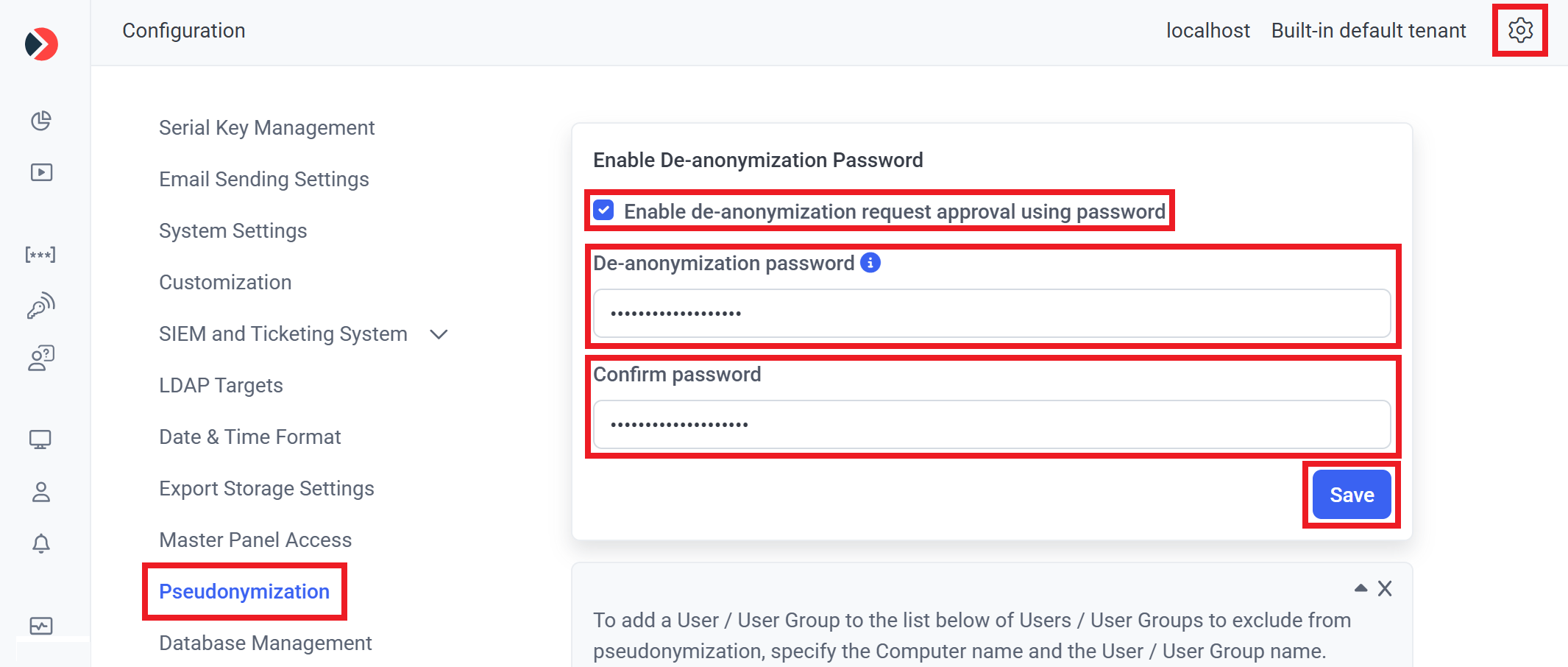
Click **Configuration** at the top of the Management Tool, then select the **Pseudonymization** tab.
Select **Enable de-anonymization request approval using password**. Enter the same password in **De-anonymization password** and **Confirm password**.
The password must be **14–50 characters**, containing at least one lowercase, one uppercase, one numeric, and one special character (`.`, `!`, `-`, `%`, `$`, `_`, `&`, `#`, etc.). It's stored in encrypted form in the database.
Click **Save** at the bottom of the page.
If the built-in admin forgets the de-anonymization password, it can only be reset by contacting the Syteca Support team. There is no self-service reset for this.
With password approval enabled, every **Request Approval** pop-up (and every approval link in email notifications) requires the Supervisor to enter the current password before the approval takes effect.
 ## Exclude specific users from pseudonymization
In some cases — third-party contractors, service accounts, test users — there's no legal requirement to pseudonymize a particular user, and pseudonymizing them just makes the Supervisors' job harder. The **Users to Exclude from Pseudonymization** list lets Supervisors specify endpoint users whose data won't be pseudonymized when viewed by other Supervisors.
This action is available to users in the default **Supervisors** user group, to the built-in default **admin** user, and to tenant admins.
Sign in as a Supervisor, the built-in admin, or a tenant admin. Click **Configuration**, then select the **Pseudonymization** tab.
In the **Users to Exclude from Pseudonymization** section, click **Add User**. Pick the **Computer** and the **User / User Group** from the drop-down lists.
The asterisk (`*`) wildcard works in either field, but a single `*` can't be used in **both** fields at the same time — otherwise the exclusion would match every user on every computer.
Click the **Add** icon to add the entry. Use the **Edit** or **Remove** icons later to modify the list.
Click **Save** in the bottom right.
## Related
Mask specific data values (passwords, SSNs, credit cards) on the endpoint — pairs with Pseudonymizer.
Where Expose Requests appear alongside other access requests for Supervisor approval.
Where obfuscated captures and randomized identifiers are displayed.
Every Expose Request and approval/denial is recorded in the audit log.
## Exclude specific users from pseudonymization
In some cases — third-party contractors, service accounts, test users — there's no legal requirement to pseudonymize a particular user, and pseudonymizing them just makes the Supervisors' job harder. The **Users to Exclude from Pseudonymization** list lets Supervisors specify endpoint users whose data won't be pseudonymized when viewed by other Supervisors.
This action is available to users in the default **Supervisors** user group, to the built-in default **admin** user, and to tenant admins.
Sign in as a Supervisor, the built-in admin, or a tenant admin. Click **Configuration**, then select the **Pseudonymization** tab.
In the **Users to Exclude from Pseudonymization** section, click **Add User**. Pick the **Computer** and the **User / User Group** from the drop-down lists.
The asterisk (`*`) wildcard works in either field, but a single `*` can't be used in **both** fields at the same time — otherwise the exclusion would match every user on every computer.
Click the **Add** icon to add the entry. Use the **Edit** or **Remove** icons later to modify the list.
Click **Save** in the bottom right.
## Related
Mask specific data values (passwords, SSNs, credit cards) on the endpoint — pairs with Pseudonymizer.
Where Expose Requests appear alongside other access requests for Supervisor approval.
Where obfuscated captures and randomized identifiers are displayed.
Every Expose Request and approval/denial is recorded in the audit log.