> ## Documentation Index
> Fetch the complete documentation index at: https://syteca.com/docs/llms.txt
> Use this file to discover all available pages before exploring further.
# Sensitive Data Masking
> Syteca Sensitive Data Masking: detect and mask passwords, SSNs, credit card numbers, and custom regex patterns in recorded sessions on Windows - at the endpoint, in real time.
## Record everything - except what you're not allowed to record
A session recording platform that captures everything on screen is useful - until the moment it captures a customer's credit card number, an employee's social security number, or a password in plain text. Suddenly every recording is a PCI DSS violation, a GDPR breach, or a HIPAA incident waiting to happen. The same data the recording is meant to protect now lives in your monitoring database, replicated to every backup.
The usual workaround is to record selectively - disable monitoring on certain applications, certain users, certain time windows - and hope nothing sensitive shows up where you're still recording. That trades coverage for compliance. Enterprise DLP tools can detect sensitive data in motion, but they don't help with screen recordings already captured.
**Syteca Sensitive Data Masking** masks sensitive data **at recording time, on the endpoint**, before it ever reaches the database. You define custom regex patterns for the data you can't legally store - passwords, credit cards, SSNs, anything else - and the Windows Client blurs matching values in the screen captures and replaces them with asterisks in the metadata grid. The result: full session coverage with no PII or PCI data ever recorded in clear text.
**Use Sensitive Data Masking when you need to:**
* Comply with **PCI DSS** requirements that forbid storing full credit card numbers (PAN) in any system - including monitoring systems.
* Comply with **GDPR**, **HIPAA**, and other privacy laws that restrict storage of personally-identifiable information without consent or legitimate purpose.
* Maintain **full session recording coverage** without redacting recordings after the fact.
* Block passwords from appearing in screen captures even when users type them outside the dedicated password fields where [Keystroke Logging Password Masking](/docs/session-monitoring/recording/keystroke-logging) already protects them.
* Detect and mask **custom organization-specific patterns** (account numbers, case IDs, project codes) using regex.
**Pair it with the [Pseudonymizer](/docs/session-monitoring/masking/pseudonymizer)** - Sensitive Data Masking hides specific *data values*; Pseudonymizer hides the *identity of the people* whose sessions are recorded. GDPR-conscious deployments often use both.
**Windows Clients only.** Currently supported in Google Chrome, Microsoft Edge, Microsoft Outlook (new and classic), Microsoft Word, and Notepad++. Sensitive Data Masking is **not supported on macOS or Linux Clients**, and is **not supported in [Full Motion Capture](/docs/session-monitoring/recording/user-activity-recording#activity-recording-configuration) mode** (only Interval Capture).
This feature requires the **User Activity Monitoring** application to be enabled in your [license serial key](/docs/administration/licensing/manage-serial-key).
## How masking works
When the Syteca Client detects clear text on screen matching any configured regex pattern, the data is masked **immediately** - including in live sessions still in progress - and encrypted in the database. Two visible forms:
| Where it appears | What you see |
| ------------------------------------------- | ------------------------------------------------------------------------------------------------------------------------------------------------- |
| **In the Session Player** (screen captures) | The matching region is **blurred**. |
| **In the Metadata grid and Details area** | Clipboard operations (`[Clipboard (Copy)]`, `[Clipboard (Paste)]`) and keystrokes (`[Keystrokes]`) show **asterisks** instead of the actual text. |
In some cases the **entire screen** is blurred instead of just the matching region - this happens when the system detects the regex pattern in the active window but can't pinpoint the exact location quickly enough. The masking is preserved either way.
## Configure Sensitive Data Masking
Click **Clients** in the left navigation. On the **Clients** page, click the Client (or **Client Groups** tab and the group) you want to configure.
On the **User Activity Recording** tab, in the **Screen Capture Settings** section, select **Capture active Window only**.
Sensitive Data Masking **cannot be enabled** unless **Capture active Window only** is already enabled - this is a hard prerequisite.
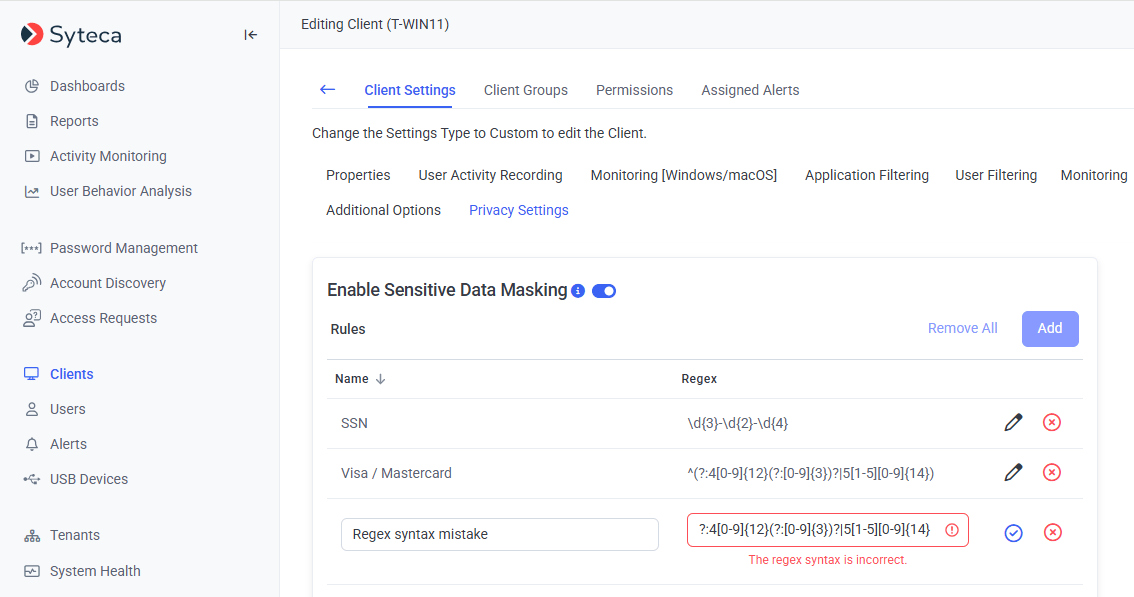
Switch to the **Privacy Settings** tab. Move the **Enable Sensitive Data Masking** toggle to the right.
Click **Add** to define new regex policy rules, or click the **Edit** icon to modify existing ones. For each rule:
* Enter a **Name** (e.g. "Credit card numbers", "US SSNs").
* Enter a **Regex** value matching the pattern to mask.
* Click the **Checkmark** icon to validate the regex syntax. If invalid, a red error message appears and the rule can't be saved until the syntax is fixed.
**Multiple rules combine with OR logic** - if the system detects any one rule's pattern, the matching data is masked.
Use **several simple rules instead of one complex rule** - the endpoint Client consumes fewer resources processing several straightforward patterns than one complex catch-all.
After adding all required rules, click **Finish** in the bottom right.
 ## Example regex patterns
Common starting patterns for the most-regulated data types (test these against your actual data before deploying):
| Data | Regex |
| ---------------------------------------------------------- | ---------------------------------------------------------------------- |
| **US Social Security Number** | `\b\d{3}-\d{2}-\d{4}\b` |
| **Visa card** (13 or 16 digits) | `\b4\d{12}(\d{3})?\b` |
| **Mastercard** (16 digits, starts with 51–55 or 2221–2720) | `\b5[1-5]\d{14}\b\|\b2(2[2-9][1-9]\|[3-6]\d{2}\|7[01]\d\|720)\d{12}\b` |
| **Generic 16-digit card** with separators | `\b\d{4}[ -]?\d{4}[ -]?\d{4}[ -]?\d{4}\b` |
These examples are illustrative. Tune them to your organization's actual data formats - for example, if you process European IBANs, AmEx 15-digit cards, or custom internal account formats, write rules specifically for those patterns.
## Related
Hide the *identity* of monitored users (GDPR-style) - pairs naturally with this feature.
The complementary feature that masks passwords typed into known password fields.
Other session recording configuration - Capture Active Window Only, Full Motion Capture, etc.
Where masked data appears (or doesn't) in recorded sessions.
## Example regex patterns
Common starting patterns for the most-regulated data types (test these against your actual data before deploying):
| Data | Regex |
| ---------------------------------------------------------- | ---------------------------------------------------------------------- |
| **US Social Security Number** | `\b\d{3}-\d{2}-\d{4}\b` |
| **Visa card** (13 or 16 digits) | `\b4\d{12}(\d{3})?\b` |
| **Mastercard** (16 digits, starts with 51–55 or 2221–2720) | `\b5[1-5]\d{14}\b\|\b2(2[2-9][1-9]\|[3-6]\d{2}\|7[01]\d\|720)\d{12}\b` |
| **Generic 16-digit card** with separators | `\b\d{4}[ -]?\d{4}[ -]?\d{4}[ -]?\d{4}\b` |
These examples are illustrative. Tune them to your organization's actual data formats - for example, if you process European IBANs, AmEx 15-digit cards, or custom internal account formats, write rules specifically for those patterns.
## Related
Hide the *identity* of monitored users (GDPR-style) - pairs naturally with this feature.
The complementary feature that masks passwords typed into known password fields.
Other session recording configuration - Capture Active Window Only, Full Motion Capture, etc.
Where masked data appears (or doesn't) in recorded sessions.