> ## Documentation Index
> Fetch the complete documentation index at: https://syteca.com/docs/llms.txt
> Use this file to discover all available pages before exploring further.
# Keystroke Logging Parameter
> Enable keystroke logging on Windows and macOS Clients, including keyword-triggered recording and searchable keystroke metadata.
Applies to Windows and macOS Clients. The Linux equivalent is a separate parameter.
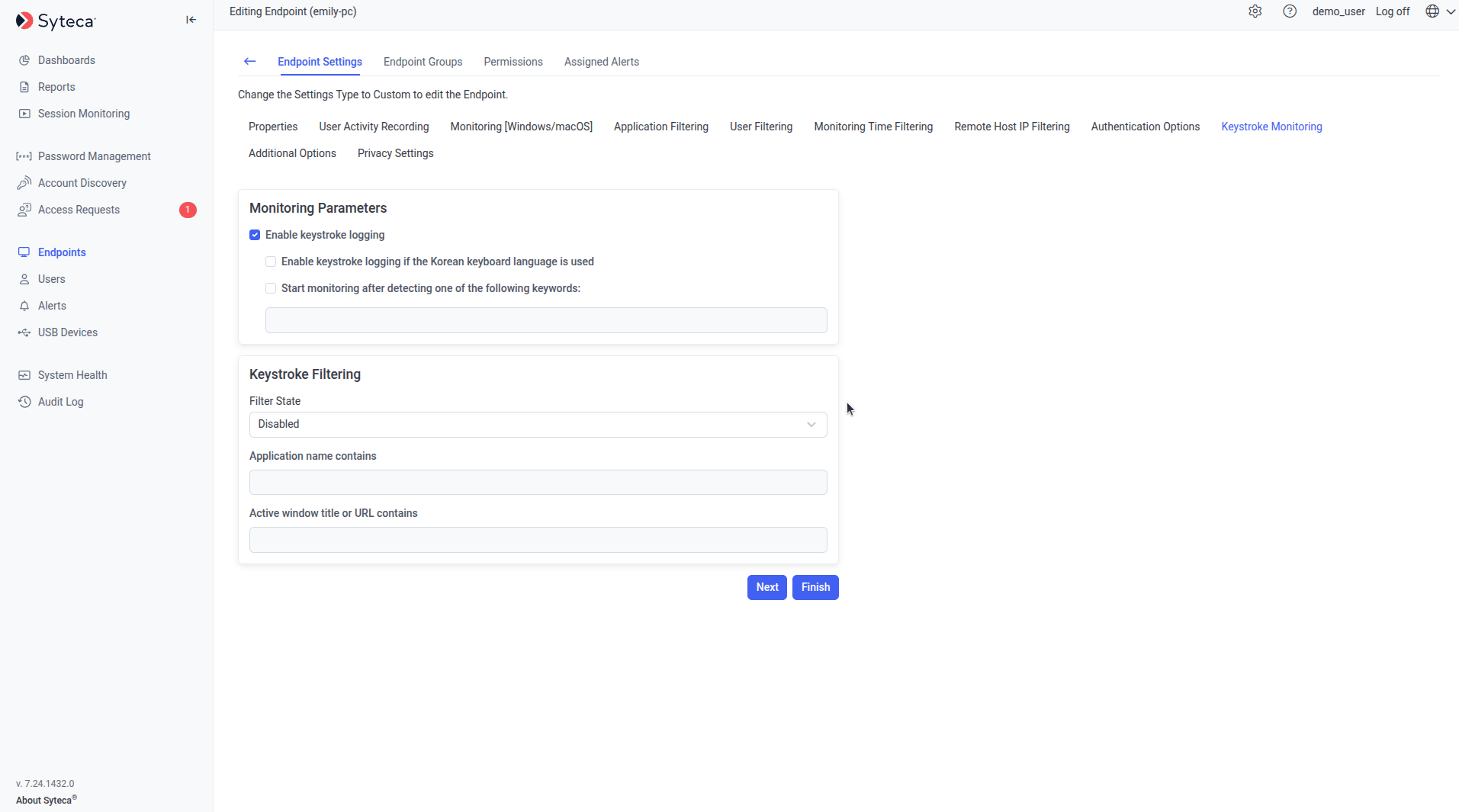
Keystroke logging lets Syteca monitor the keystrokes users enter on Client computers. Configure it on the **Editing Client** / **Editing Client Group** page, **Keystroke Monitoring** tab, **Monitoring Parameters** section, by selecting **Enable keystroke logging**.
Use [Keystroke filtering](/docs/session-monitoring/recording/filtering#keystroke-filtering) alongside this parameter to limit logging to specific applications instead of all of them.
## Windows Clients
With **Enable keystroke logging** selected, two additional options are available:
* **Enable keystroke logging if the Korean keyboard language is used** — extends logging to the Korean input language, in addition to other supported languages.
* **Start monitoring after detecting one of the following keywords** — delays recording until the user types one of the specified keywords or phrases, then continues recording for the rest of the session. Enter multiple words or phrases separated by commas, semicolons, or new lines; words within a phrase are separated by spaces.
Windows Clients log these keystroke categories:
| Category | Keys |
| ------------------------------- | ------------------------------------------------------------------------------------------------------------------------------- |
| **Character keys** | Alphabetic (upper/lower case), numeric (0–9), all special characters, and Space. |
| **Modifiers** | Control, Shift, Alt, and the Windows key. |
| **Navigation and typing modes** | Arrow keys, Home/End, Page Up/Page Down, Insert, Delete/Backspace, Enter, and the Lock keys (Num Lock, Scroll Lock, Caps Lock). |
| **System commands** | Print Screen, Menu/Application (context menu), and Pause/Break. |
| **Function keys** | F1–F12. |
Keystrokes aren't displayed directly in the Session Viewer, but they're searchable — both in the **Metadata** grid in the Session Viewer, and on the **Client Sessions** tab of the Activity Monitoring page. Displaying keystrokes directly in the Session Viewer and in reports requires contacting your Syteca vendor or the Syteca Support team.
Keystroke [alert rules](/docs/session-monitoring/alerts) can be defined to trigger an alert whenever a user enters a specified keyword.
 ## macOS Clients
macOS Clients support the same **Enable keystroke logging** parameter on the equivalent **Keystroke Monitoring** tab.
## Linux Clients
On Linux, this is called **user input monitoring** rather than keystroke logging, but it's the same underlying capability: it captures the keystrokes a user enters in remote SSH sessions and local terminal sessions on a Linux Client.
Keystroke input is detected as discrete user actions, separated by the user pressing **Enter** after any number of keystrokes.
### Enable it
On the Application Server computer, open `EkranServer.Settings.config` (by default in `C:\Program Files\Ekran System\Ekran System\Server`) and add:
```xml theme={"system"}
```
Restart the **EkranServer** service.
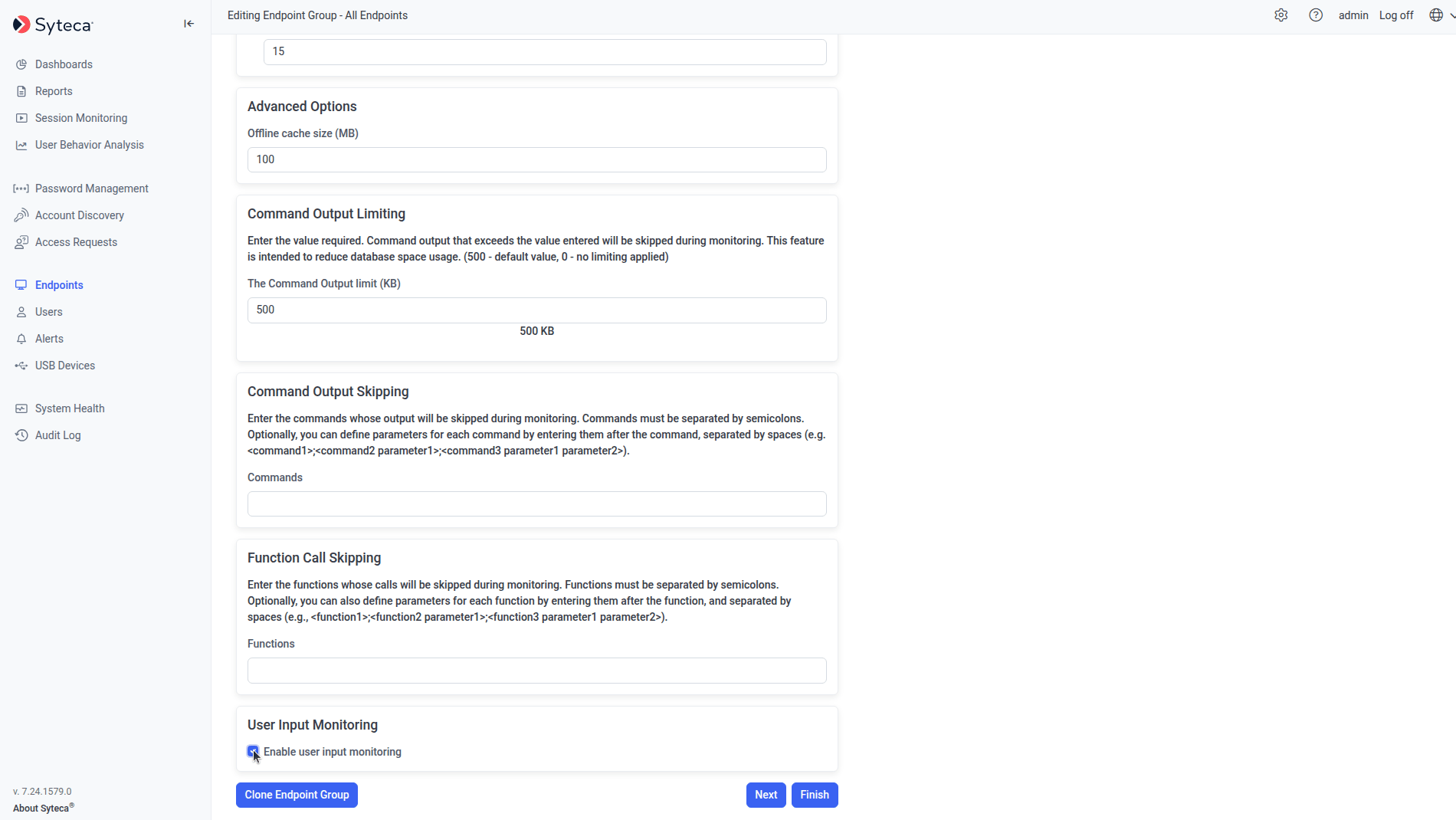
On the **Editing Client** (or **Editing Client Group**) page, select the **Monitoring \[Linux]** tab, and under **User input monitoring** at the bottom, select **Enable user input monitoring**.
## macOS Clients
macOS Clients support the same **Enable keystroke logging** parameter on the equivalent **Keystroke Monitoring** tab.
## Linux Clients
On Linux, this is called **user input monitoring** rather than keystroke logging, but it's the same underlying capability: it captures the keystrokes a user enters in remote SSH sessions and local terminal sessions on a Linux Client.
Keystroke input is detected as discrete user actions, separated by the user pressing **Enter** after any number of keystrokes.
### Enable it
On the Application Server computer, open `EkranServer.Settings.config` (by default in `C:\Program Files\Ekran System\Ekran System\Server`) and add:
```xml theme={"system"}
```
Restart the **EkranServer** service.
On the **Editing Client** (or **Editing Client Group**) page, select the **Monitoring \[Linux]** tab, and under **User input monitoring** at the bottom, select **Enable user input monitoring**.
 ### View captured keystrokes
Keystrokes aren't shown directly in the Session Player, but they're searchable in the **Metadata** grid while [playing remote SSH and local terminal sessions](/docs/session-monitoring/player/per-os-playback#linux-ssh-and-local-terminal-sessions).
Linux Clients log these keystroke categories:
| Category | Keys |
| ------------------------------- | ------------------------------------------------------------------------------------------------- |
| **Character keys** | Alphabetic (upper/lower case), numeric (0–9), all special characters, and Space. |
| **Navigation and typing modes** | Arrow keys, Home/End, Page Up/Page Down, Tab, Insert, Delete/Backspace, Enter, and the Lock keys. |
| **Non-printing characters** | Control key combinations (`Ctrl+@`, `Ctrl+A`, `Ctrl+C`). |
| **Cursor controls** | ESC code sequences (`ESC[#A`, `ESC[#B`). |
| **Function keys** | F1–F12. |
## Related
Limit which applications keystrokes are monitored in.
Mask specific sensitive values within recorded keystrokes.
Windows Client installation and configuration.
macOS Client installation and configuration.
### View captured keystrokes
Keystrokes aren't shown directly in the Session Player, but they're searchable in the **Metadata** grid while [playing remote SSH and local terminal sessions](/docs/session-monitoring/player/per-os-playback#linux-ssh-and-local-terminal-sessions).
Linux Clients log these keystroke categories:
| Category | Keys |
| ------------------------------- | ------------------------------------------------------------------------------------------------- |
| **Character keys** | Alphabetic (upper/lower case), numeric (0–9), all special characters, and Space. |
| **Navigation and typing modes** | Arrow keys, Home/End, Page Up/Page Down, Tab, Insert, Delete/Backspace, Enter, and the Lock keys. |
| **Non-printing characters** | Control key combinations (`Ctrl+@`, `Ctrl+A`, `Ctrl+C`). |
| **Cursor controls** | ESC code sequences (`ESC[#A`, `ESC[#B`). |
| **Function keys** | F1–F12. |
## Related
Limit which applications keystrokes are monitored in.
Mask specific sensitive values within recorded keystrokes.
Windows Client installation and configuration.
macOS Client installation and configuration.