> ## Documentation Index
> Fetch the complete documentation index at: https://syteca.com/docs/llms.txt
> Use this file to discover all available pages before exploring further.
# Recording Indicators (Tray Icon and On-Screen Icon)
> Two Windows Client parameters that show users when they're being monitored — the Client tray icon in the system tray, and the on-screen Recording Is In Progress overlay icon.
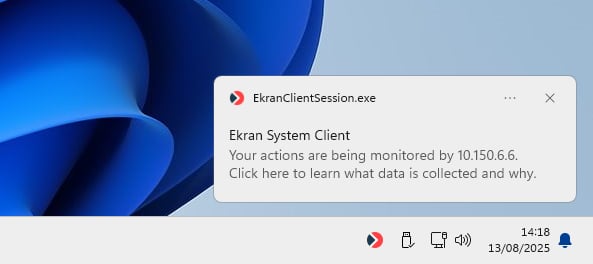
Two Windows Client parameters control whether users see visual indicators that they're being monitored — the **Client tray icon** in the Windows system tray, and the on-screen **Recording is in progress** overlay icon that appears above all other windows.
Both are about **transparency** — many jurisdictions require employees to be informed they're being monitored; many organizations choose to make monitoring visible even where not required, on the theory that transparent monitoring is more legally defensible and reduces "Big Brother" perceptions among the workforce.
**Applies to**: Windows Clients only. macOS and Linux Clients don't have equivalent in-product recording-indicator settings — explicit-consent notifications are typically handled through OS dialogs or organizational policy rather than the Syteca Client UI.
## Client tray icon
The **Client tray icon** appears in the Windows system tray (notification area) when a user is logged in to the Client computer and being monitored.
 ### Where to find it
In the Management Tool, click **Clients**, then open the Windows Client.
On the **Editing Client** / **Editing Client Group** page, on the **Properties** tab, scroll to the **Client Mode** section.
Select or deselect the **Display Client tray icon** checkbox. Click **Finish**.
The tray icon can also be enabled or disabled during the Client installation itself, alongside other install-time options.
## Display Icon When Recording
The on-screen **Recording is in progress** icon is a more prominent indicator — it appears as a small floating icon **always on top of all applications**, visible regardless of which application has focus. It's displayed only **while activity is actively being recorded**; it disappears when recording pauses (during idle periods, between sessions, etc.).
### Where to find it
In the Management Tool, click **Clients**, then open the Windows Client.
On the **Editing Client** / **Editing Client Group** page, on the **Properties** tab, scroll to the **Client Mode** section.
Select or deselect the **Display Client tray icon** checkbox. Click **Finish**.
The tray icon can also be enabled or disabled during the Client installation itself, alongside other install-time options.
## Display Icon When Recording
The on-screen **Recording is in progress** icon is a more prominent indicator — it appears as a small floating icon **always on top of all applications**, visible regardless of which application has focus. It's displayed only **while activity is actively being recorded**; it disappears when recording pauses (during idle periods, between sessions, etc.).
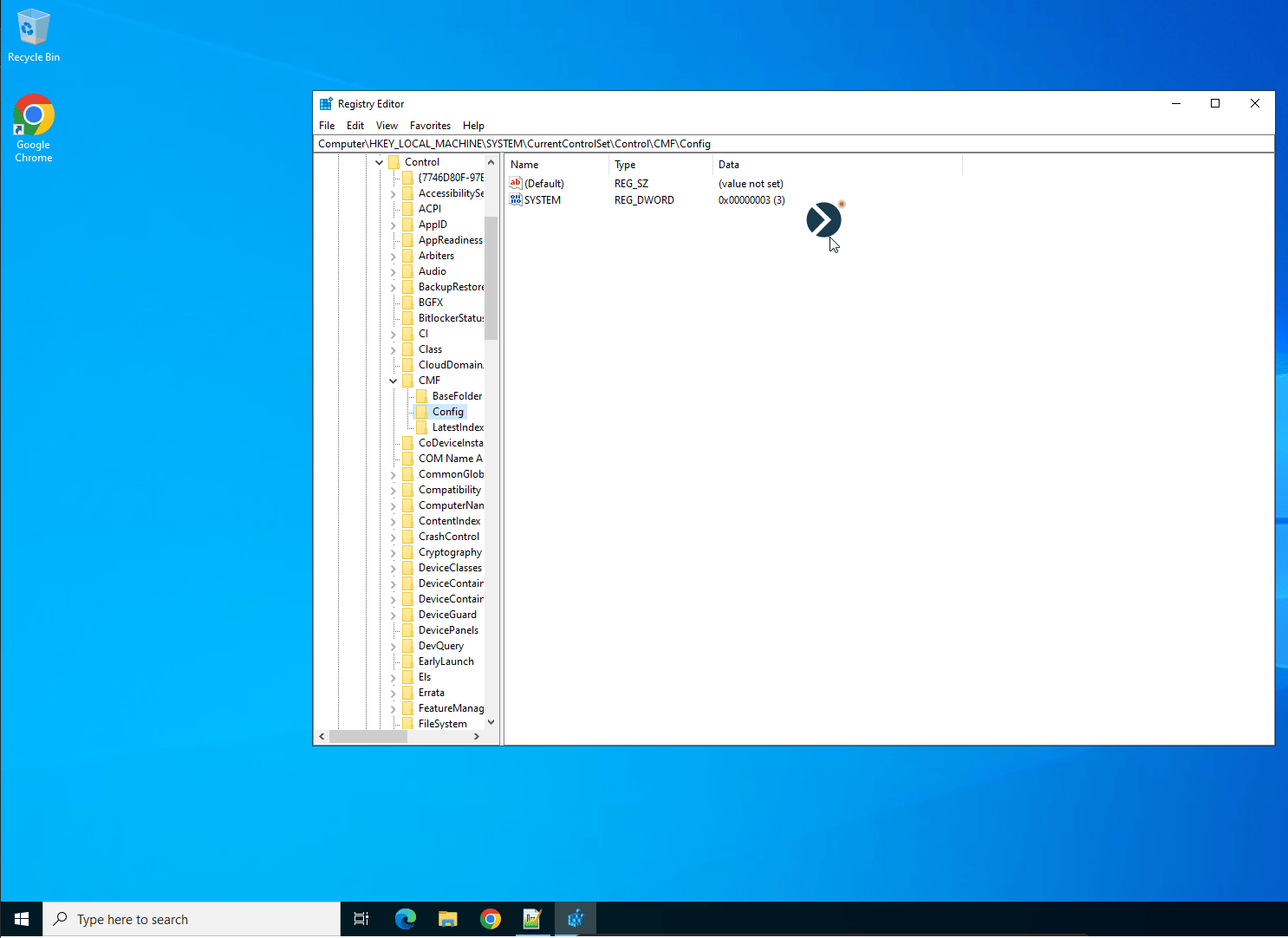 ### User interaction with the icon
| User action | Effect |
| ----------------------------- | ------------------------------------------------------------------------------------------------------------------------------- |
| **Drag and drop** | Move the icon to a different on-screen position |
| **Right-click → Close** | Close the icon *(if the configuration permits this — see customization)* |
| **Repositioning persistence** | Depending on customization settings, the icon may remain where last dragged OR return to its original position after 10 minutes |
### Where to find it
In the Management Tool, click **Clients**, then open the Windows Client.
On the **Editing Client** / **Editing Client Group** page, on the **Properties** tab, scroll to the **Client Mode** section.
Select or deselect the **Display icon when recording is in progress** checkbox. Click **Finish**.
The icon can also be enabled and configured during the Client installation.
### Customization
The on-screen icon can be customized — appearance, default position, behavior when the user moves it. See [Customization settings](/docs/administration/configuration/customization-settings#custom-logo-settings) for the configurable options.
## Which one to use?
| Scenario | Recommended setting |
| -------------------------------------------------------------------------------------------- | ---------------------------------------------------------------------------------------------------------------------------------------------------------------------------------------------------- |
| **Transparent monitoring program** *(default for most jurisdictions and most organizations)* | Tray icon ON, On-screen icon ON. Maximum visibility. |
| **High-security investigation** *(specific, time-limited, legally documented use case)* | Both OFF. Use only with appropriate legal review and authorization. |
| **General workforce monitoring with subtle notification** | Tray icon ON, On-screen icon OFF. Users see the icon if they check the system tray but it doesn't intrude on screen. |
| **Recording high-activity periods only** *(e.g. alert-triggered)* | Tray icon ON, On-screen icon ON. The on-screen icon only appears when recording is active — makes it clear to users when their activity is being captured vs. when only metadata is being collected. |
**Combine the on-screen icon with [alert-only recording](/docs/session-monitoring/recording/user-activity-recording#record-user-activity-only-on-alert-or-usb-monitoring-rule-triggering)** for a noticeable but low-privacy-impact approach: the icon only appears when an alert has triggered active screen recording. Users learn that the icon means "something flagged" — useful for transparency around incident response.
## Related
Driver-level anti-tamper protection — invisible to users but blocks abuse.
Configure when recording is active — directly affects when the on-screen icon appears.
Full Windows Client documentation.
Another Client Mode parameter.
### User interaction with the icon
| User action | Effect |
| ----------------------------- | ------------------------------------------------------------------------------------------------------------------------------- |
| **Drag and drop** | Move the icon to a different on-screen position |
| **Right-click → Close** | Close the icon *(if the configuration permits this — see customization)* |
| **Repositioning persistence** | Depending on customization settings, the icon may remain where last dragged OR return to its original position after 10 minutes |
### Where to find it
In the Management Tool, click **Clients**, then open the Windows Client.
On the **Editing Client** / **Editing Client Group** page, on the **Properties** tab, scroll to the **Client Mode** section.
Select or deselect the **Display icon when recording is in progress** checkbox. Click **Finish**.
The icon can also be enabled and configured during the Client installation.
### Customization
The on-screen icon can be customized — appearance, default position, behavior when the user moves it. See [Customization settings](/docs/administration/configuration/customization-settings#custom-logo-settings) for the configurable options.
## Which one to use?
| Scenario | Recommended setting |
| -------------------------------------------------------------------------------------------- | ---------------------------------------------------------------------------------------------------------------------------------------------------------------------------------------------------- |
| **Transparent monitoring program** *(default for most jurisdictions and most organizations)* | Tray icon ON, On-screen icon ON. Maximum visibility. |
| **High-security investigation** *(specific, time-limited, legally documented use case)* | Both OFF. Use only with appropriate legal review and authorization. |
| **General workforce monitoring with subtle notification** | Tray icon ON, On-screen icon OFF. Users see the icon if they check the system tray but it doesn't intrude on screen. |
| **Recording high-activity periods only** *(e.g. alert-triggered)* | Tray icon ON, On-screen icon ON. The on-screen icon only appears when recording is active — makes it clear to users when their activity is being captured vs. when only metadata is being collected. |
**Combine the on-screen icon with [alert-only recording](/docs/session-monitoring/recording/user-activity-recording#record-user-activity-only-on-alert-or-usb-monitoring-rule-triggering)** for a noticeable but low-privacy-impact approach: the icon only appears when an alert has triggered active screen recording. Users learn that the icon means "something flagged" — useful for transparency around incident response.
## Related
Driver-level anti-tamper protection — invisible to users but blocks abuse.
Configure when recording is active — directly affects when the on-screen icon appears.
Full Windows Client documentation.
Another Client Mode parameter.