> ## Documentation Index
> Fetch the complete documentation index at: https://syteca.com/docs/llms.txt
> Use this file to discover all available pages before exploring further.
# USB Access Approval
> Set up the request-and-approve workflow for blocked USB devices in Syteca, and see what happens on the user's side when they try to use one.
When a USB monitoring rule uses the **Block access until administrator's approval** action, a blocked device becomes a *request* rather than a flat denial — the user sees a prompt, types a justification, and a trusted user (Approver) decides whether to allow it. This page covers the setup on the admin side and what the user sees on the endpoint.
This feature is **not currently supported for macOS Clients**.
## Set up the approval workflow (admin)
[Add a USB monitoring rule](/docs/session-monitoring/usb-devices/usb-rules#add-a-usb-monitoring-rule) following the normal flow.
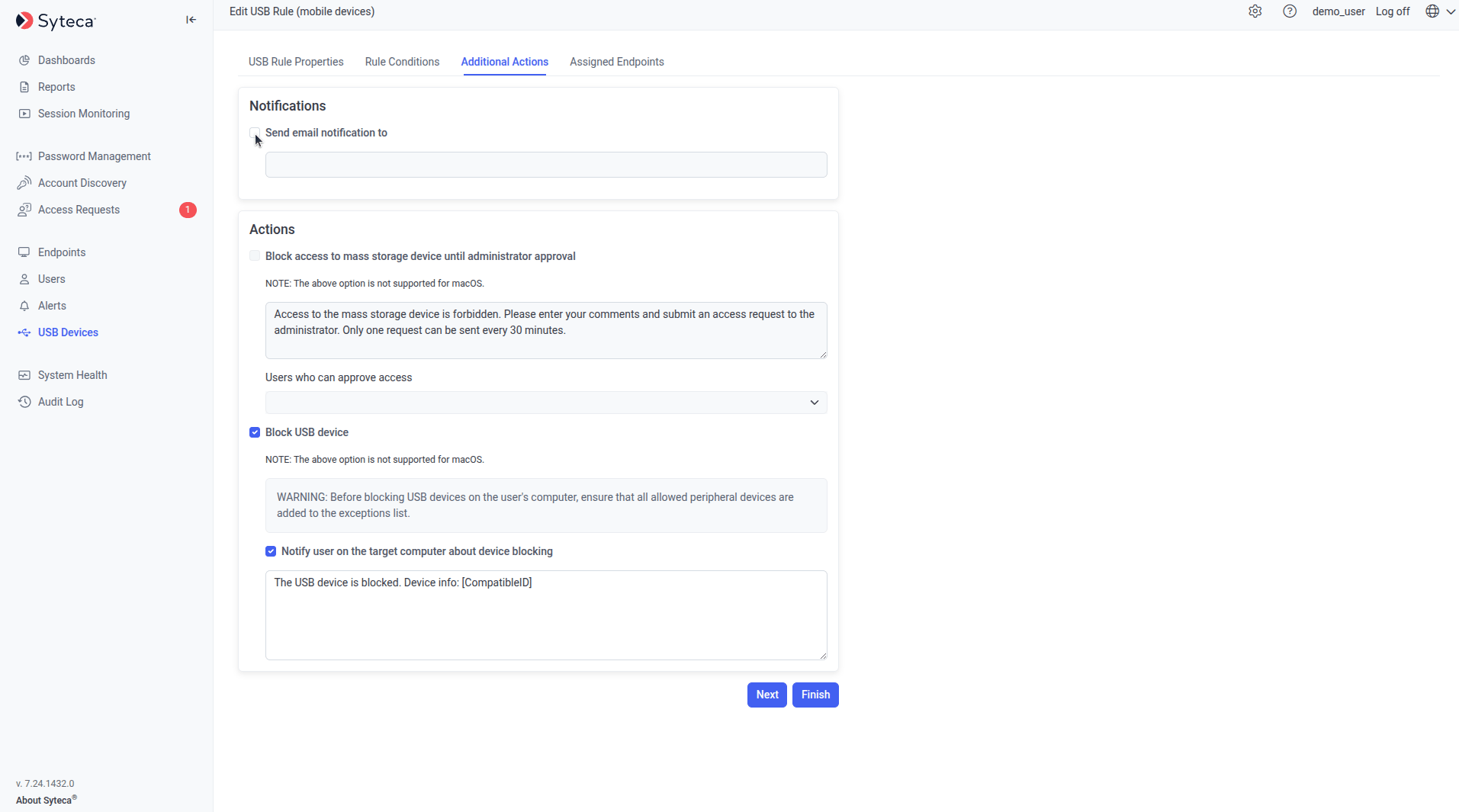
On the **Additional Actions** tab, in the **Actions** section, select **Block access to mass storage device until administrator's approval**.
In the **Users Who Can Approve Access** drop-down below the checkbox, select the trusted users who should receive the request.
Approvers must have valid email addresses on their [user account](/docs/administration/users/users#edit-a-user) to receive email requests. Alternatively, Approvers can process requests directly on the [Access Requests](/docs/pam/access/access-requests) tab without using email.
Enter a custom message to display on the Client computer when a blocked device is plugged in — for example, *"Plug your USB drive into a corporate device only. Enter a business justification below."*
Complete the **Assigned Clients** tab and click **Finish** as in the normal [add-rule flow](/docs/session-monitoring/usb-devices/usb-rules#add-a-usb-monitoring-rule).
By default, access requests **expire after 30 minutes** if not processed. Change this in [System Settings](/docs/administration/configuration/system-settings) on the Configuration page.
## What the user sees (endpoint)
When a user plugs in a USB device covered by a block-until-approval rule:
A prompt opens on the Client computer.
The user enters a comment (typically a business justification) and clicks **Request Access**.
If the device was already plugged in *before* the session started, it's blocked silently with no prompt. To request access, the user must unplug and re-plug the device.
The request is emailed to the Approvers configured on the rule, and also appears on the **Access Requests** tab of the Management Tool. An Approver clicks the email link, or opens the [Access Requests](/docs/pam/access/access-requests) tab, and chooses **Approve** or **Deny** with an optional comment.
The Approver's decision and comment appear on the user's screen.
* **Approved:** the user must **unplug and re-plug the device** before they can use it. Once re-plugged, the device works without further restrictions for the session.
* **Denied:** the user cannot use the device unless they submit a new request and an Approver approves it.
 ## Related
The conceptual overview and device class reference.
Add, edit, delete rules, and define exceptions.
Process USB and PAM access requests in one place.
A similar request-and-approve workflow for Client logins.
## Related
The conceptual overview and device class reference.
Add, edit, delete rules, and define exceptions.
Process USB and PAM access requests in one place.
A similar request-and-approve workflow for Client logins.