

Each capability below lists the version it first shipped in. Review the update best practice checklist and the changelog for every version between yours and your target before upgrading.
Know the risk posture of every Windows endpoint, continuously
Available in 7.28 and later Most organizations can describe their endpoint security baseline. Far fewer can say, on any given morning, which endpoints currently meet it. The gap between the policy and the fleet opens quietly, through a disabled setting here and a drifted configuration there, and it usually surfaces during an audit or an incident rather than before one. Endpoint Risk & Compliance Control closes that gap by evaluating managed Windows endpoints continuously rather than at audit time. Endpoints are assessed against assigned policies made up of security, compliance, privacy, and operational checks called risk factors. As endpoints report their state and activity, Syteca detects where they fall short, scores the exposure, and tells you what to do about it. The output is a measurable view rather than a list of findings. Risk scores and health scores are calculated at four levels: the individual endpoint, the control, the policy, and the organization as a whole. Because scores are tracked over time, you can see whether remediation work is actually moving the number, and show that movement to someone who asks.Use this when you need to prove a security baseline is holding across the fleet rather than asserting it, when you want to prioritize remediation by exposure instead of working through an undifferentiated findings list, or when configuration drift keeps being discovered during audits instead of before them.Relevant to the continuous monitoring and configuration management expectations found in common security frameworks.Pair it with Privilege Elevation. Endpoint risk and standing administrator rights are the same problem viewed from two angles. Risk scoring shows you where exposure concentrates; Privilege Elevation lets you reduce it without taking away the access people need to work.
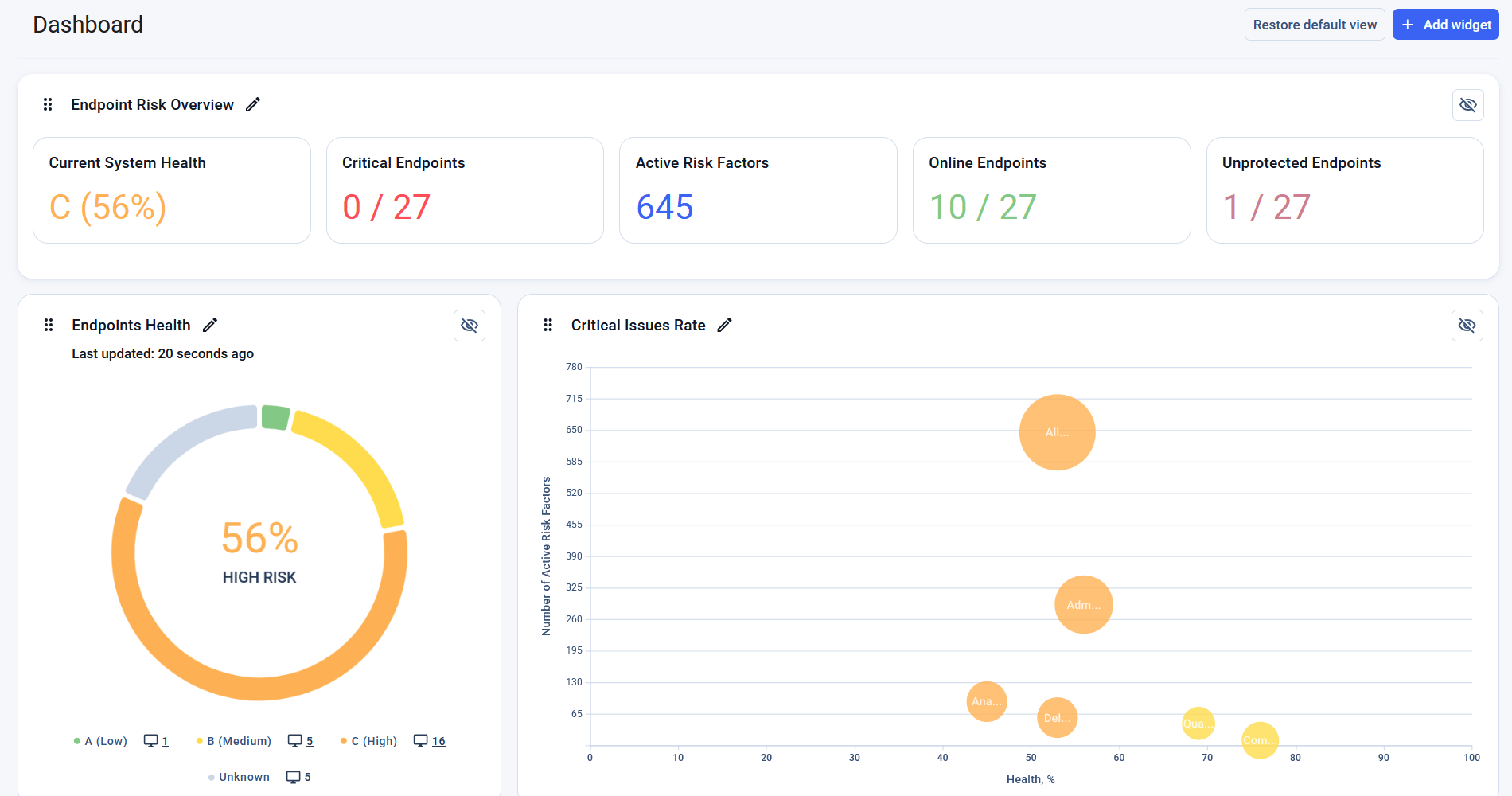
Organization and endpoint health scores at a glance.
Stronger authentication for API integrations
Available in 7.28 and later API integrations now authenticate with a Client ID and a Client Secret using the OAuth 2.0 Client Credentials flow, replacing the long-lived Refresh Token. The practical difference is control. An account can hold as many Client Secrets as it has integrations, so each pipeline, vault, or playbook gets its own credential that can be rotated or revoked without touching the others. Every secret carries its own expiry date, its own IP address restriction, and its own access token lifetime, and the Management Tool warns you in advance of each expiry. Adding, editing, rotating, and removing secrets is recorded in the audit log. Refresh Token authentication keeps working for three months after you update, so integrations can be moved across one at a time. See Migrate to Client ID / Client Secret authentication.License assignment you can see and change
Available in 7.28.100 and later Endpoint licensing used to be governed partly by the Management Tool and partly by keys in the Application Server configuration file. Working out why a particular machine held a particular license meant checking both, and changing the behaviour meant editing a file on the server and restarting it. Automatic License Assignment puts all of it on one page. You write ordered rules that match endpoints by name, group, hostname mask, subnet, or IP range, and the first rule that matches assigns the license type. Manually assigned licenses are never overridden. Every rule change is written to the audit log, and endpoints that end up unlicensed raise a System Health record naming the rule and the license type that ran out.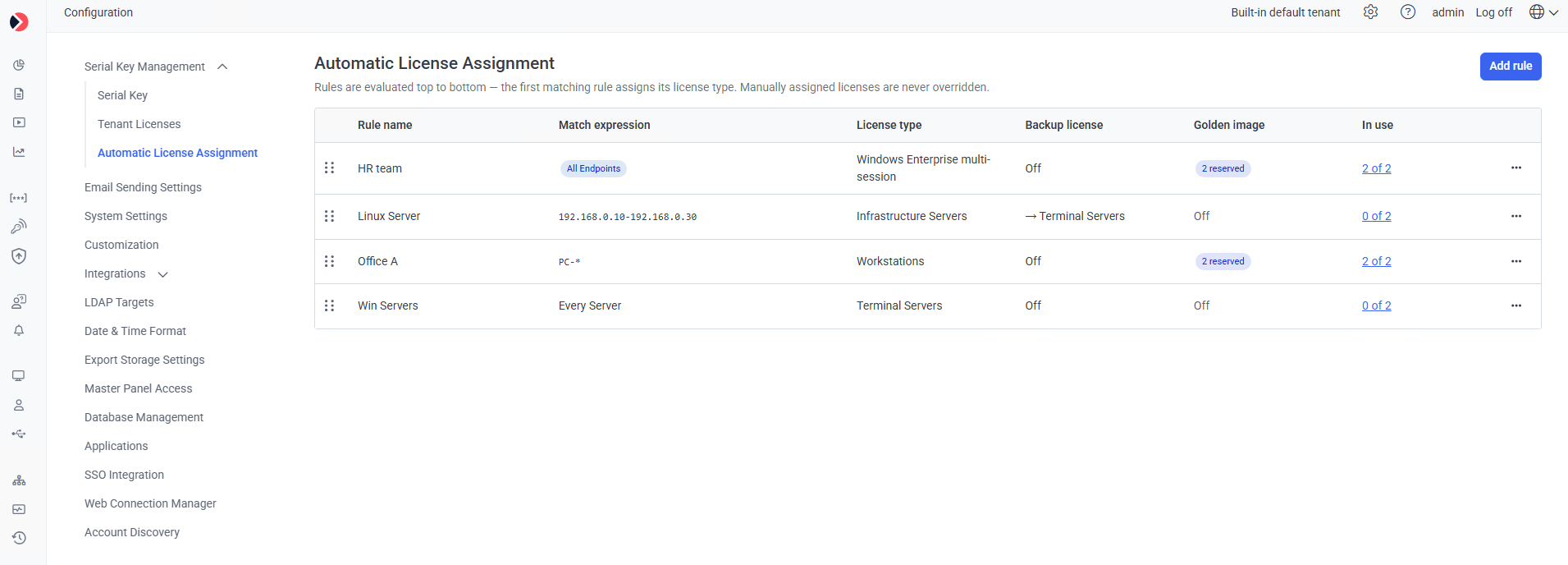
Rules are evaluated top to bottom, with the Default rules usually sitting last.
Use this when you run non-persistent VDI alongside permanent endpoints and need different licensing behaviour for each, when you want a defined license type for a subnet or a server group rather than whatever the default happens to be, or when you need to show an auditor who changed license allocation and when.
Your existing settings are converted into rules during the update, so licensing behaviour stays as it was. The legacy Golden Image mode configuration key is no longer read afterwards.
Alert rules that apply only when they should
Available in 7.28.300 and later An alert rule is either enabled or disabled for the whole deployment. That works until a rule is only meant to apply during certain hours. A restriction that makes sense during a shift, a class, or the working day has no reason to be active at midnight, but keeping it correct means someone switching it on and off by hand, twice a day, without forgetting. In practice the rule stays on, and the alerts it raises outside those hours become noise people learn to skip past. The Alert Scheduler moves that decision into the rule itself. A new Schedule section lets you set the date range, the days of the week, and the time intervals during which the rule is active. Outside those intervals the rule is inactive and does not trigger. Because the schedule includes a date range, a rule can also be given a lifetime. A rule written for a semester, a secondment, or a contractor engagement stops applying when that period ends, rather than staying behind in the alert list for someone to find and clean up later.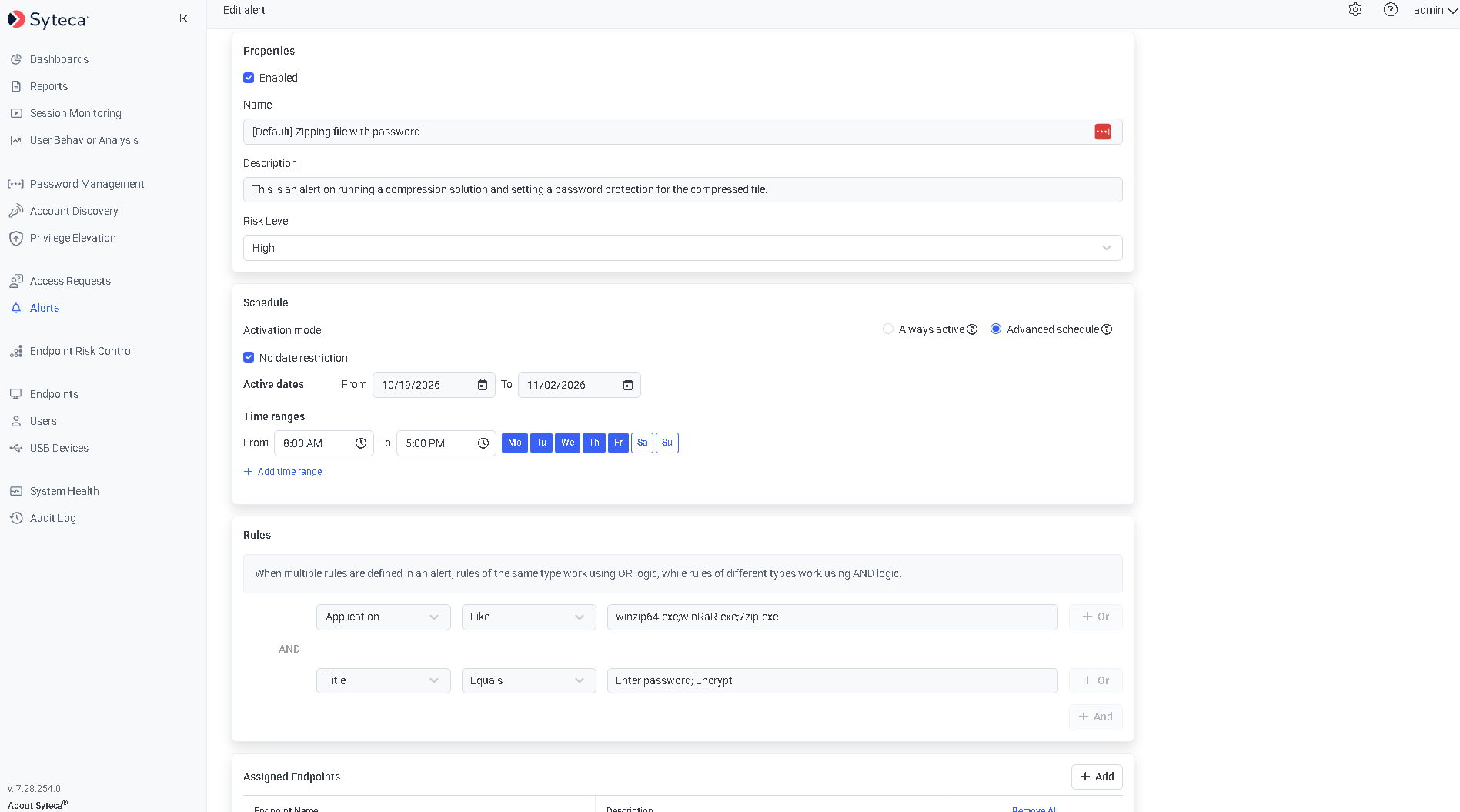
The Rules section of an alert define what activity triggers the alert by combining parameters, comparison operators, and values with + Or / + And.
Investigation access scoped to the incident
Available in 7.28.400 and later Until now, letting an investigator look at one alert meant letting them look at everything. Session access was granted per endpoint, so the narrowest grant available still exposed every session recorded on that machine, however unrelated. Teams either over-granted and relied on process, or refused the access and slowed the investigation down. Viewing Alerted Sessions is a new Endpoint permission that limits a user to sessions containing a triggered alert. The incident is visible; the rest of the endpoint’s activity is not. The scoping carries through everywhere session data surfaces, so Reports, Dashboards, File Upload Monitoring, and Forensic Export History all show the same restricted set rather than quietly widening it. Visibility and playback stay separate decisions. A user can be given the alerted sessions without the administrative permission that opens them, which produces a reviewer who can confirm an incident was recorded and read the alert, without watching the recording. For organizations that keep investigation and surveillance deliberately apart, that split is the point.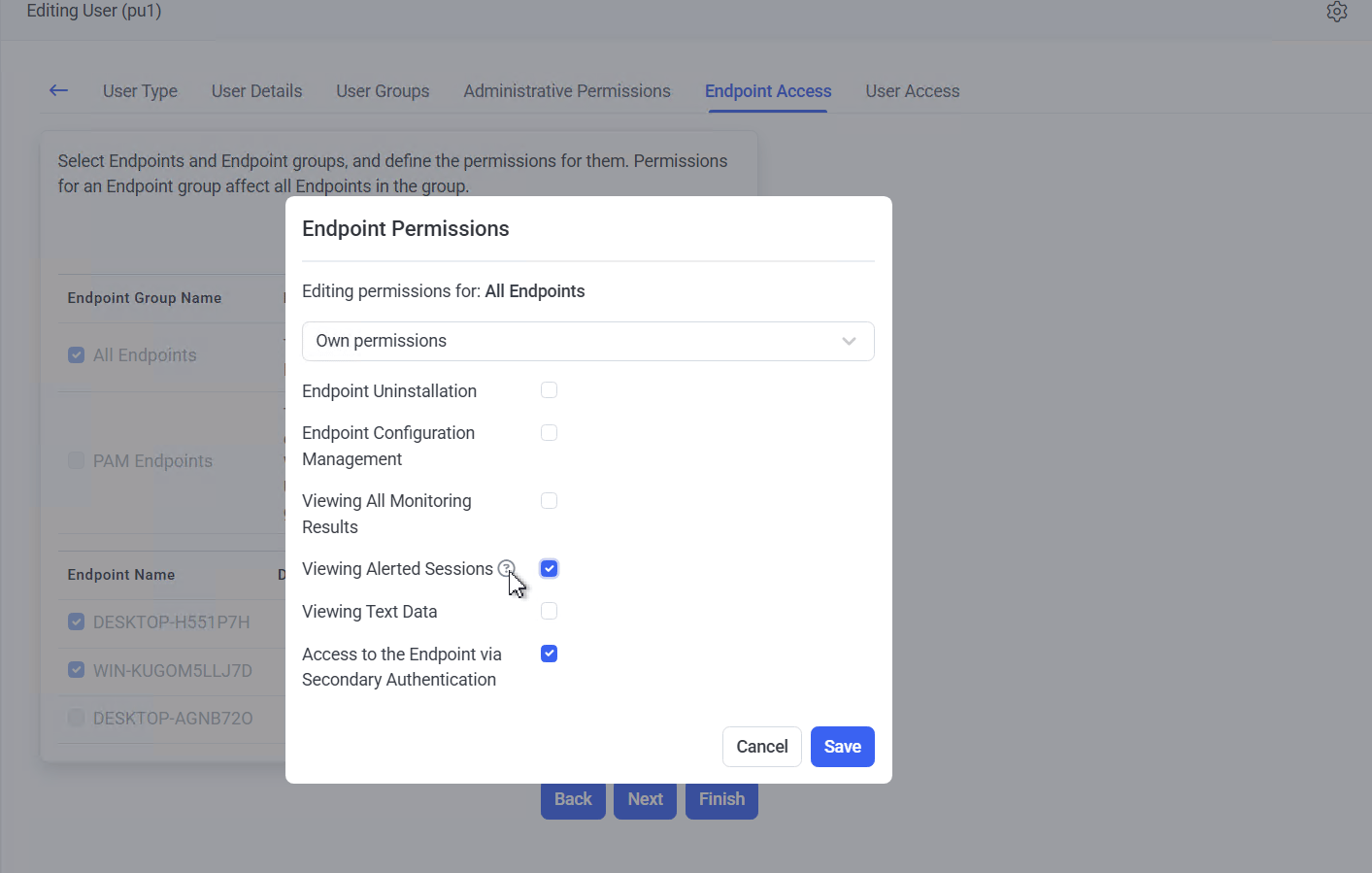
Give an investigator access to an incident without giving them every other session recorded on that Endpoint
Use this when an investigator needs one incident rather than an endpoint’s whole history, when a contractor or regional team should see only what their own alerts flagged, or when a reviewer needs to verify that something was captured without being granted the footage.Supports the least-privilege expectations in common security frameworks, where investigation access is meant to be proportionate to the matter under investigation.
One-time passwords that reach the right people on their own
Available in 7.28.500 and later One-time password delivery used to be all or nothing: either every Active Directory user got a password automatically, or someone approved each request by hand. Neither fits an organization that wants automatic delivery for a service desk or a contractor group and manual approval for everyone else. A one-time password can now be sent automatically to members of named Active Directory groups. Everyone outside those groups still routes to an approver, and the field that holds them has been renamed Emergency access approvers to say what it is for.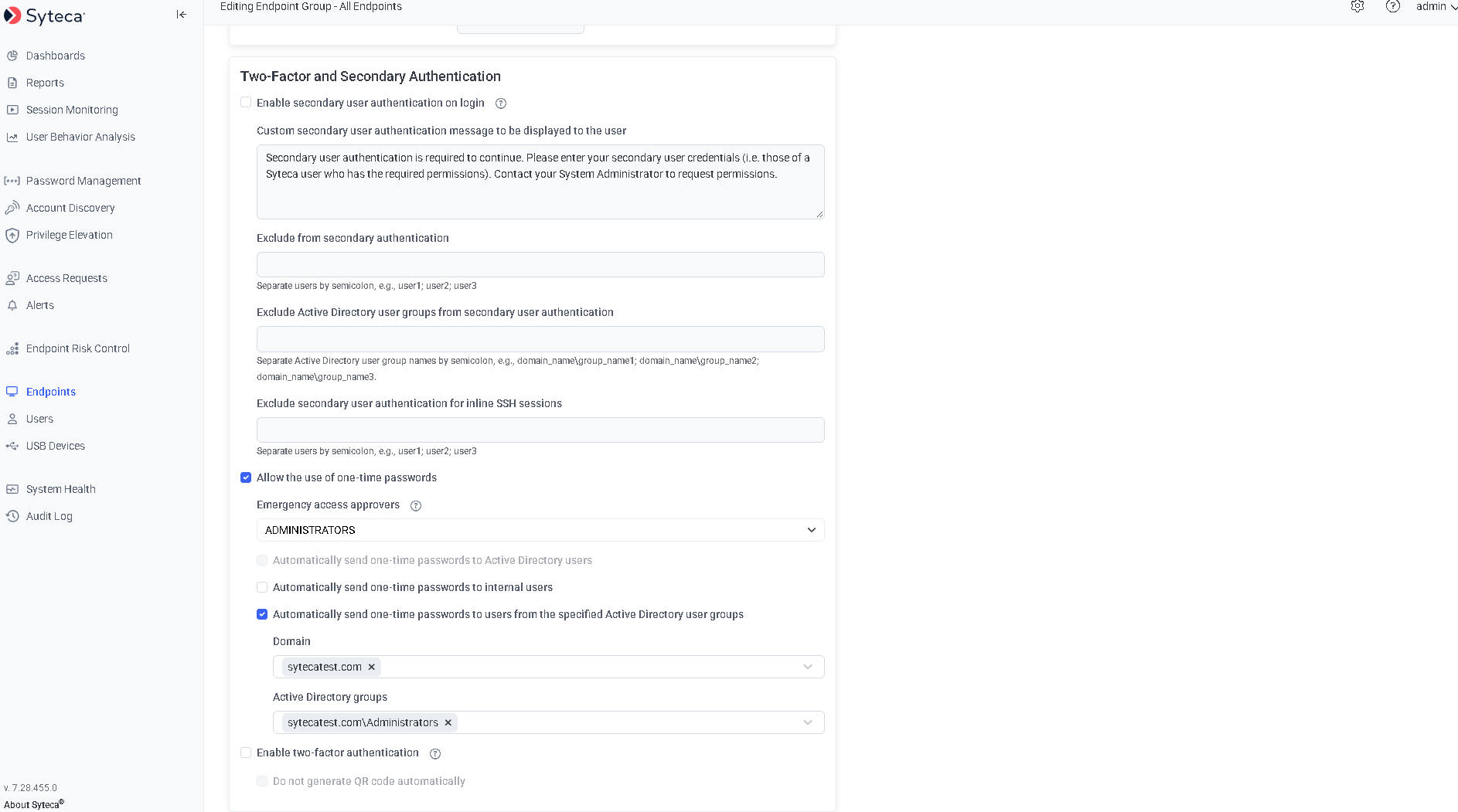
The Two-Factor and Secondary Authentication section with group-scoped automatic delivery enabled.
Related
Endpoint Risk & Compliance Control
Risk factors, policies, and how scores are calculated.
Syteca 7.28 changelog
Full fix list, build numbers, and hashes for 7.28.
Which sessions a user can see
Scope investigation access to alerted sessions only.
Alert rules
Build an alert rule, including its schedule.
What's new in Q3 2026
Privilege Elevation, secret Heartbeat, account dependency discovery, and more.
Update best practice
The checklist to follow before upgrading.
All releases
Every Syteca version in one place.