

Use the Alert Scheduler when you need to:
- Enforce a restriction only during class or training time, and leave the endpoint unrestricted for the rest of the day.
- Apply a rule only on the days of the week your organization’s timetable covers.
- Limit a rule to a fixed period, such as a semester or the length of a contractor engagement.
Available from Syteca 7.28.300. The schedule applies to Windows clients only. macOS and Linux clients ignore the Schedule section and keep triggering alerts based on the conditions in the Rules section alone.
Activation modes
The Schedule section on the Alerts > Add/Edit Alert page has two activation modes.
Always active is selected by default for every new alert.
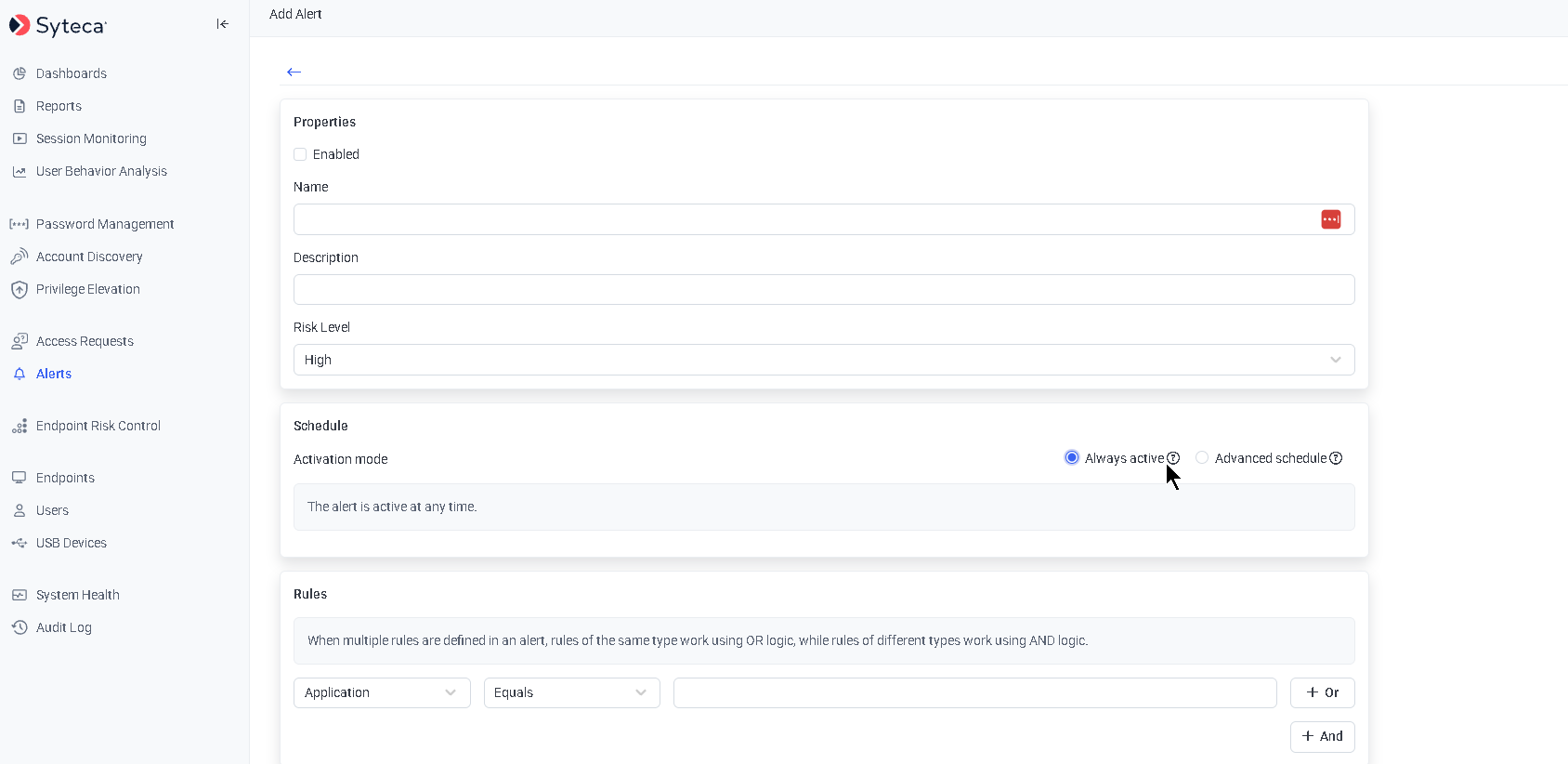
The Schedule section with Always active selected. No schedule fields are shown, and the alert triggers at any time.
Configure a schedule
1
Open the alert
Go to the Alerts page and either add a new alert or open an existing one for editing.
2
Select Advanced schedule
In the Schedule section, select Advanced schedule. The schedule configuration fields become available.
3
Set the active dates
Clear the No date restriction checkbox to limit the schedule to a date range, then set From and To. The range is pre-filled with two weeks starting on the rule creation date, and you can change it. Leave the checkbox selected to run the schedule without any date limit, so only the days and time ranges apply.
4
Set the time ranges
Set Time from and Time to, then select the days of the week the range applies to. The first range is pre-filled with 08:00 to 17:00, Monday through Friday.
5
Add further ranges
Select + Add time range to add another row with its own time and days of the week. Use this for a timetable with a break in it, such as mornings and afternoons with a lunch gap. You can add up to 10 ranges in one rule.
6
Save the alert
Select Finish. The alert now triggers only when the conditions in the Rules section are met and the current time falls inside the schedule.
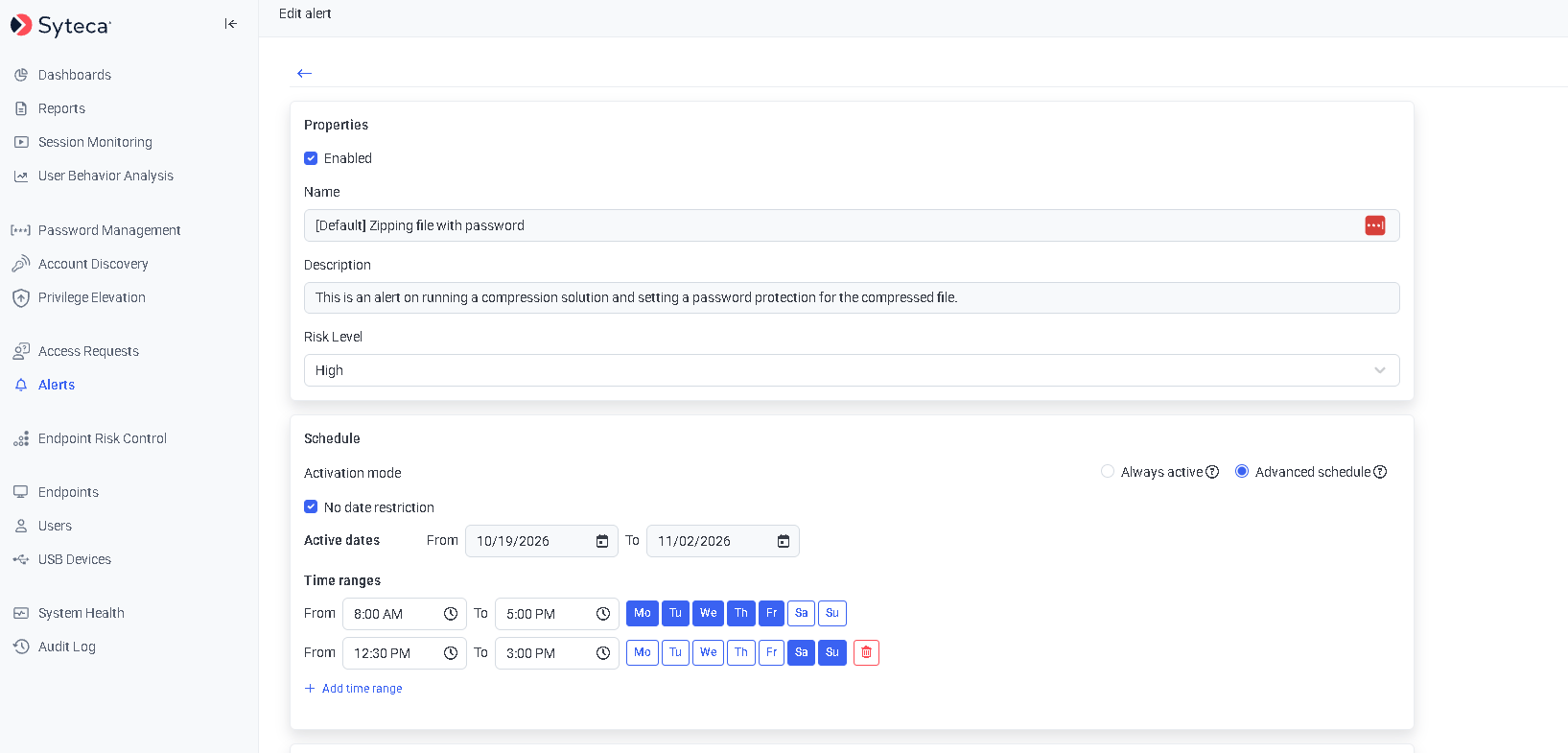
Advanced schedule with two time ranges configured. The Remove icon appears only next to ranges added after the first.
Schedule settings
Validation messages
How the schedule is evaluated
- The alert triggers only when every condition in the Rules section is met and the current time falls inside the schedule.
- The alert is active during any one matching time range. Ranges do not all have to match.
- If ranges overlap, the alert stays active for the overlapping period.
- Time ranges are same-day only. A range that crosses midnight, such as 22:00 to 06:00, is not supported.
- If all rule conditions are met outside the scheduled time, the alert does not trigger on the client and does not appear in the system.
- The schedule still applies while the client is offline. Alerts trigger according to the rules and the schedule, and reach the Application Server when the client reconnects.
- Alerts triggered on a schedule behave exactly like standard alerts once they triggered, including notifications and additional actions.
Example
A school blocks access to personal email on classroom endpoints during lessons, but allows it between lessons.
Results:
- Between 07:00 and 08:00, and between 12:00 and 13:00, students can open email and the alert does not trigger.
- Between 08:00 and 12:00, and between 13:00 and 15:00, the alert is active. When a user opens email, the alert triggers, shows the warning message, and closes the application according to the configured action.
After an upgrade
All alert rules that existed before the upgrade stay in Always active mode. No schedule is applied to them, and their behavior does not change.Multi-tenant and high availability
In multi-tenant mode, the Schedule section is available to every tenant, and the scheduling logic works the same for a non-default tenant as for the default tenant. In load-balanced deployments, schedule changes are shared across all nodes.
Audit log entries
Adding or editing an alert records the schedule in the audit log under the Alert management category.Related
Alerts
Add, edit, assign, and manage alerts.
Alert rules
Build the conditions that the schedule applies to.
Alerts and events
Review the alert events that were triggered.
Audit log
See who changed an alert schedule and when.