

This feature is not currently supported for macOS Clients.
Set up the approval workflow (admin)
1
Add a USB monitoring rule
Add a USB monitoring rule following the normal flow.
2
Choose the block-until-approval action
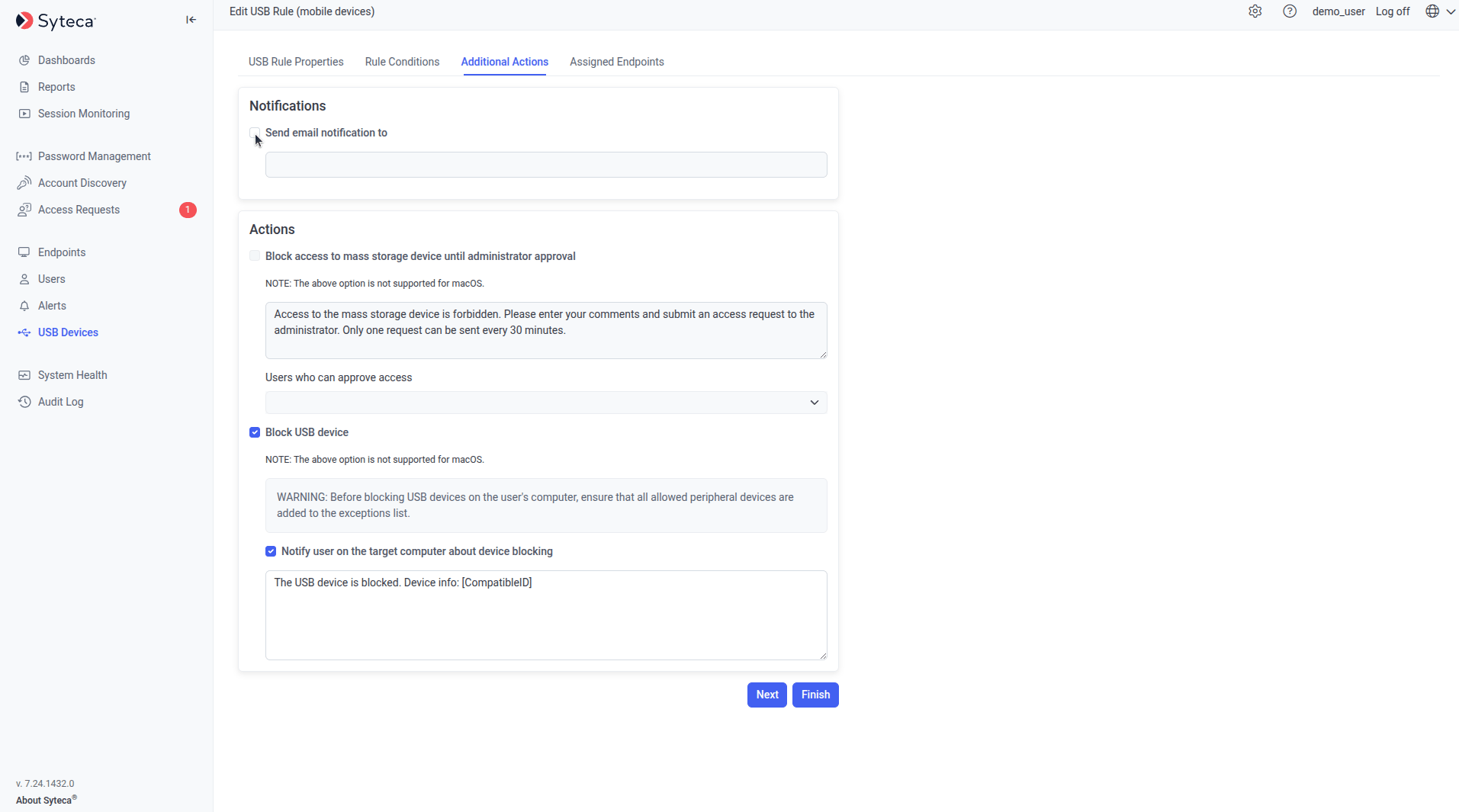
On the Additional Actions tab, in the Actions section, select Block access to mass storage device until administrator’s approval.
3
Pick the Approvers
In the Users Who Can Approve Access drop-down below the checkbox, select the trusted users who should receive the request.
Approvers must have valid email addresses on their user account to receive email requests. Alternatively, Approvers can process requests directly on the Access Requests tab without using email.
4
(Optional) Customize the user message
Enter a custom message to display on the Client computer when a blocked device is plugged in — for example, “Plug your USB drive into a corporate device only. Enter a business justification below.”
5
Finish the rule
Complete the Assigned Clients tab and click Finish as in the normal add-rule flow.
By default, access requests expire after 30 minutes if not processed. Change this in System Settings on the Configuration page.
What the user sees (endpoint)
When a user plugs in a USB device covered by a block-until-approval rule:1
The user plugs in the device
A prompt opens on the Client computer.
2
The user submits a request
The user enters a comment (typically a business justification) and clicks Request Access.
3
Approvers receive the request
The request is emailed to the Approvers configured on the rule, and also appears on the Access Requests tab of the Management Tool. An Approver clicks the email link, or opens the Access Requests tab, and chooses Approve or Deny with an optional comment.
4
The user sees the decision
The Approver’s decision and comment appear on the user’s screen.
- Approved: the user must unplug and re-plug the device before they can use it. Once re-plugged, the device works without further restrictions for the session.
- Denied: the user cannot use the device unless they submit a new request and an Approver approves it.
The access request prompt shown on a Client computer when a blocked device is plugged in.
Related
USB Devices overview
The conceptual overview and device class reference.
USB monitoring rules
Add, edit, delete rules, and define exceptions.
Access requests
Process USB and PAM access requests in one place.
Endpoint access control
A similar request-and-approve workflow for Client logins.