

Viewing the Alerts tab requires the administrative Viewing Monitoring Results permission. Within that, users only see alert events on Clients and users they have User-to-User access permissions for, configured on the User Access tab when adding or editing the Management Tool user or user group.
Open the Alerts tab
Sign in to the Management Tool, click Activity Monitoring in the left navigation, then select the Alerts tab. The grid refreshes automatically every 60 seconds.The grid
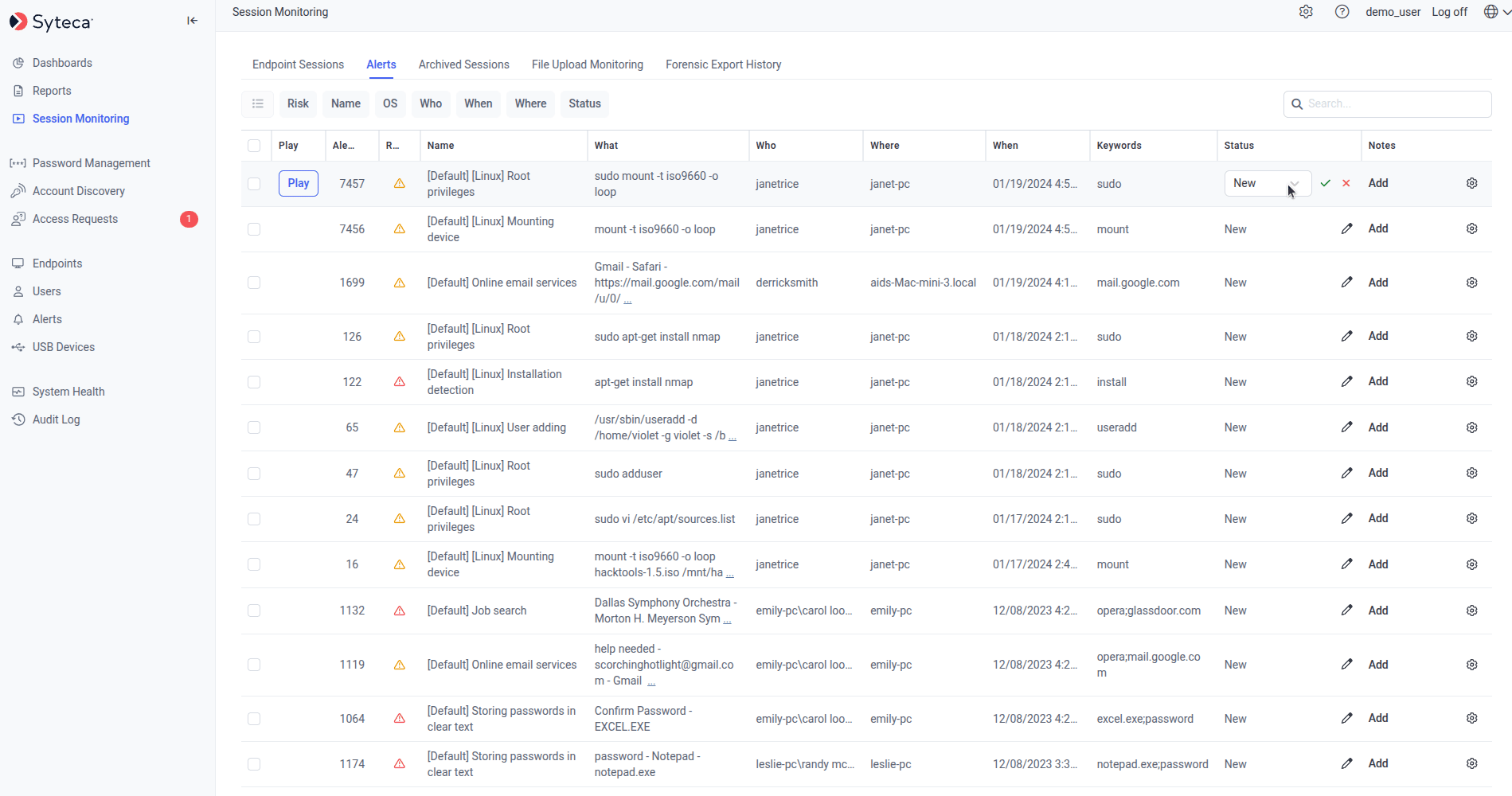
The Alerts events tab — central triage view of every alert event, with status workflow and notes for investigation tracking.
Filter, search, and sort
Update the status of an alert event
The status field tracks the lifecycle of each alert — from initial detection to final resolution.
To change the status of one alert, click the Edit icon next to the alert event and select the new status from the drop-down. To change many alerts at once, see Bulk Action below.
Notes
Add free-text notes to alert events to document your investigation:1
Open the notes pop-up
Click the Add button next to the alert event.
2
Add or remove notes
Click Add a note to attach a new note. To delete a note, click the Remove icon next to it.
Notes can only be removed by the user who added them (or by the built-in admin user). The count of notes appears in brackets (e.g.
(+2)) next to the Add button.Bulk Action
Select multiple alerts with the checkboxes (or Select All in the column header), then click the Bulk Action button in the top left to update the status of all selected alerts simultaneously.Related
Alerts
Define and assign the alert rules that trigger the events on this tab.
Block on alert
Automatically block users when an alert triggers — go beyond notification.
USB monitoring rules
USB rule triggers also surface as alert events on this tab.
Session Viewer
Where the Play icon opens the recorded session at the alert moment.