

Applies to: Windows Clients only. macOS and Linux Clients don’t have equivalent in-product recording-indicator settings — explicit-consent notifications are typically handled through OS dialogs or organizational policy rather than the Syteca Client UI.
Client tray icon
The Client tray icon appears in the Windows system tray (notification area) when a user is logged in to the Client computer and being monitored.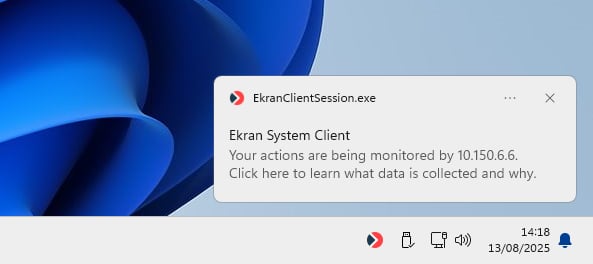
The Syteca Client tray icon — sits in the Windows notification area whenever a monitored session is active.
Where to find it
1
Open the Client
In the Management Tool, click Clients, then open the Windows Client.
2
Open Client Mode
On the Editing Client / Editing Client Group page, on the Properties tab, scroll to the Client Mode section.
3
Toggle Display Client tray icon
Select or deselect the Display Client tray icon checkbox. Click Finish.
Display Icon When Recording
The on-screen Recording is in progress icon is a more prominent indicator — it appears as a small floating icon always on top of all applications, visible regardless of which application has focus. It’s displayed only while activity is actively being recorded; it disappears when recording pauses (during idle periods, between sessions, etc.).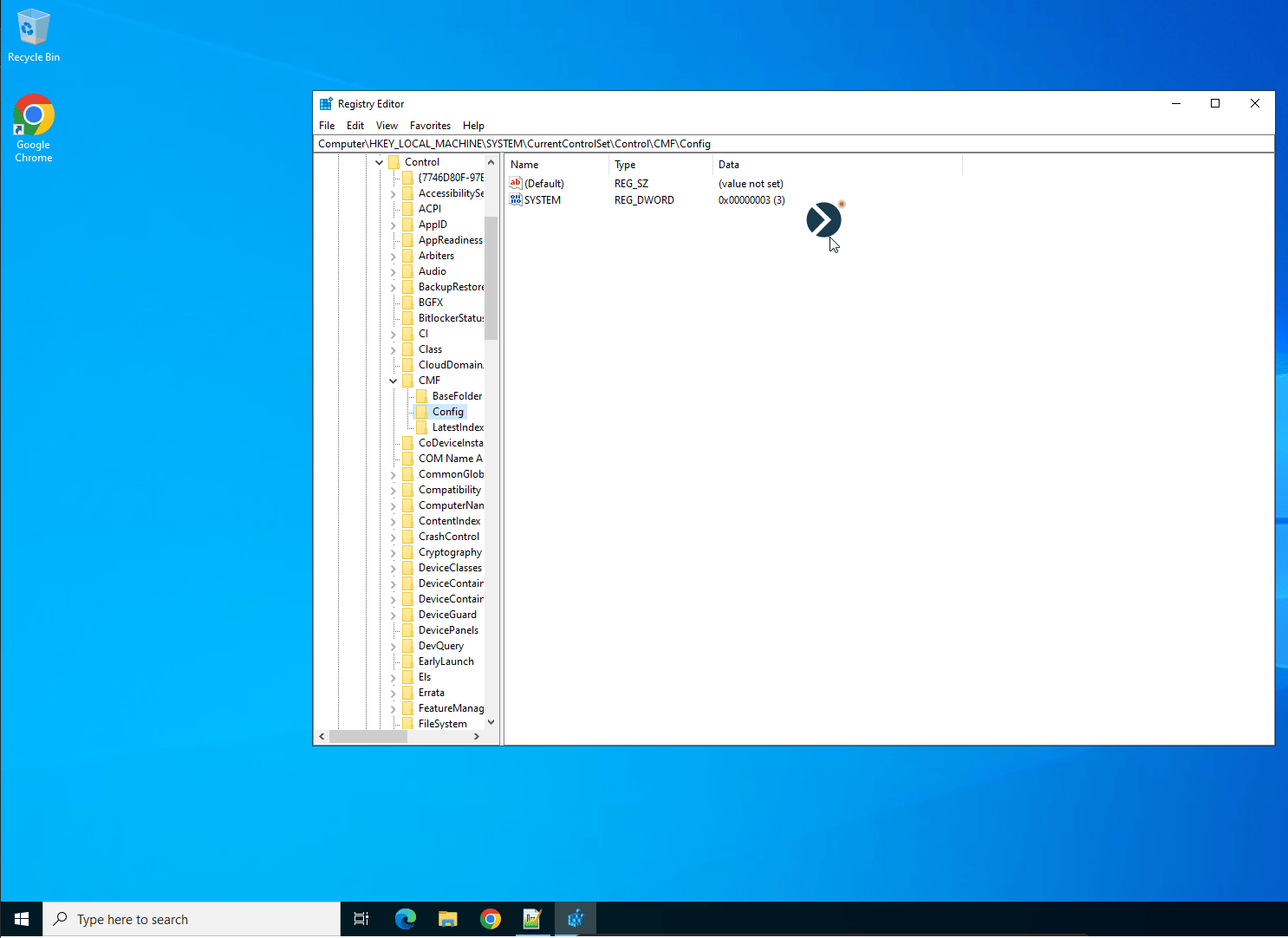
The Recording Is In Progress overlay icon — appears above all other windows whenever recording is actively capturing user activity.
User interaction with the icon
Where to find it
1
Open the Client
In the Management Tool, click Clients, then open the Windows Client.
2
Open Client Mode
On the Editing Client / Editing Client Group page, on the Properties tab, scroll to the Client Mode section.
3
Toggle Display icon when recording is in progress
Select or deselect the Display icon when recording is in progress checkbox. Click Finish.
Customization
The on-screen icon can be customized — appearance, default position, behavior when the user moves it. See Customization settings for the configurable options.Which one to use?
Related
Protected mode
Driver-level anti-tamper protection — invisible to users but blocks abuse.
User activity recording
Configure when recording is active — directly affects when the on-screen icon appears.
Windows Clients
Full Windows Client documentation.
Update Client automatically
Another Client Mode parameter.