

See what’s leaving the endpoint, before it’s gone
The most common way sensitive data leaves an organization isn’t email anymore - it’s a file dragged into Google Drive, uploaded to a personal Dropbox, attached to a Slack message, or pushed to a code repository the security team doesn’t know about. Most monitoring tools catch this only in retrospect, by reviewing screen captures after the fact. Dedicated endpoint DLP products catch it in real time - at the cost of a parallel agent on every endpoint, a parallel policy engine, and a parallel set of alerts. Syteca File Upload Monitoring sits between the two. The Syteca Client you’ve already deployed for session recording also watches for file upload operations - the process performing the upload, the path of the file, its name, its extension, and (for browser-based uploads) the destination URL. Every upload is logged on the File Upload Monitoring tab, and you can configure alerts to notify, warn, or block when uploads match defined patterns. No second agent.Use File Upload Monitoring when you need to:
- Detect data exfiltration via web uploads - files going to personal cloud drives, file-sharing sites, code repositories, or social platforms.
- Track shadow IT usage - what unsanctioned cloud services your users are actually uploading work files to.
- Satisfy PCI DSS data movement controls, HIPAA file disclosure tracking, ISO 27001 incident detection, or SOC 2 data handling evidence by recording every upload event.
- Alert and block in real time on high-risk uploads (large files, restricted file types, sensitive paths) without deploying an endpoint DLP product alongside Syteca.
- Investigate insider threats by reconstructing what files an employee uploaded and where, alongside the session video that captured the act.
Viewing the File Upload Monitoring tab requires the administrative Viewing Monitoring Results permission.
Enable file upload monitoring
File upload monitoring is enabled per Client (or per Client group) on the File Monitoring Parameters tab when editing a Client.- Windows
- macOS
Open the Editing Client (or Editing Client Group) page → Monitoring [Windows] tab → File Monitoring Parameters section → select Enable file upload monitoring.
The File Upload Monitoring tab
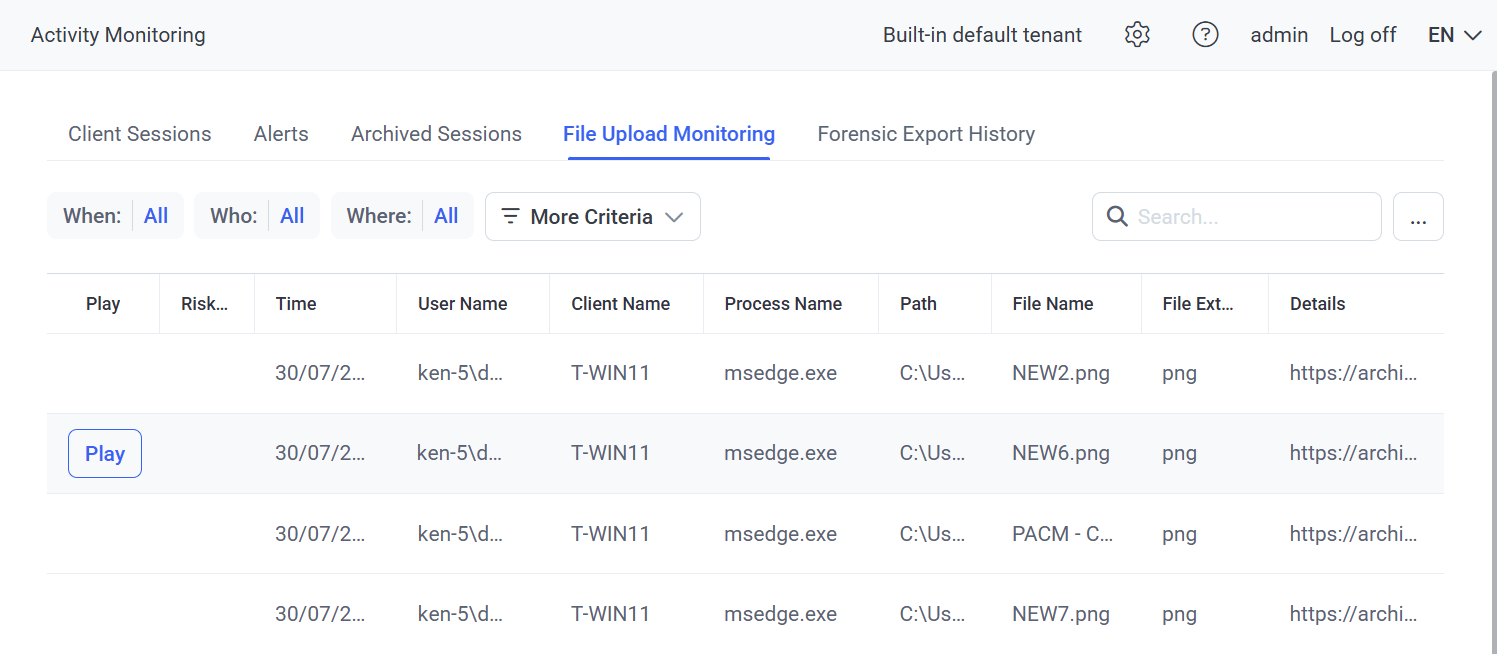
The File Upload Monitoring tab - every file upload detected on Windows and macOS Clients, with the destination URL captured for browser-based uploads.
The grid
In Multi-Tenant mode, users only see file upload operations from Clients in their own tenant.
Filter, search, and sort
Alert on file uploads
File Upload Monitoring data is most powerful when paired with alerts. Configure a File Upload alert (on the Alerts page) to trigger when a file upload matches your criteria - for example, any.zip upload, any upload from a payroll user, any upload to a non-corporate domain. When the alert triggers, you can:
A new Alert Rule can now be created using the with File upload parameter, which allows the uploading of files to specific URLs to be detected and prevented, and works with the following applications:
- Line messenger (desktop and web versions)
- Mozilla Firefox
- Google Chrome
- Opera
- Internet Explorer
- Microsoft Edge
Related
Alerts
Define and assign File Upload alerts to specific Clients.
Block on alert
Automatically block users when a File Upload alert triggers.
USB Devices
The complementary capability for the physical data-exfiltration channel.
Sensitive Data Masking
Mask sensitive data on screen - different problem, related compliance story.