

Filter by specific parameters
Filters are applied instantly, and multiple filters can be combined — for every filter except When, more than one value can be selected at once. The following filters are shown by default:
Click More Criteria to add any of these additional filters:
To remove an added filter, click the X next to its button.
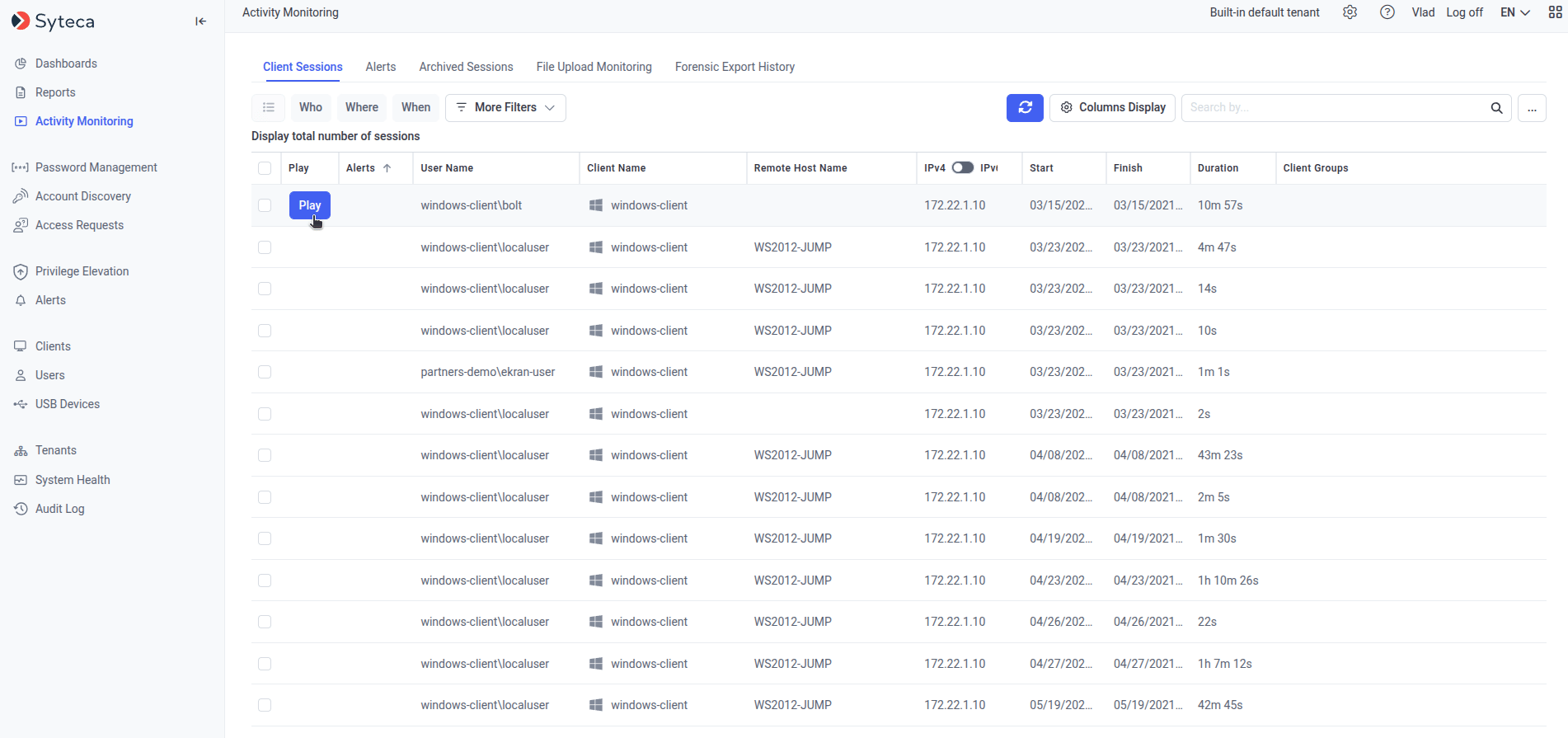
Client Sessions filters, with several More Criteria options added.
Search session data
The Search box (top right of the page) filters the session list by a keyword or partial keyword, searching across:- Application names
- Activity titles
- Keystrokes
- Clipboard text data
- URLs
- Linux commands and parameters
- Alert names
- USB rule names
- Linux command output
Searching keystroke data, clipboard data, or Linux command output requires selecting the corresponding checkboxes from the drop-down next to the Search box (the ··· button, top right). The “Search in output (Linux)” checkbox only appears if at least one Linux session has been recorded.
Search using a keyword list
1
Create a keyword file
Create a
.txt file listing the keywords to search for, one per line or separated by spaces.2
Upload the file
Click Browse next to the Search box and select the
.txt file.3
Run the search
Click the search icon.
The search is performed on the sessions currently displayed in the Client Sessions list, in the current sort order — apply filters first to narrow the search scope if needed.
Related
Client Sessions list
The full session list this page’s filters and search apply to.
Alerts
Trigger notifications on keyword or activity matches, instead of searching after the fact.
Secrets
Filter sessions by which secret was used during them.
Client groups
Group Clients to filter and manage sessions collectively.